Punch cards (buy N, get one)
The digital stamp card — after N visits the next one is free or discounted.
The “buy 9, the 10th is free” card has gone digital. The Buy N, get one template turns repeat visits into stamps the system counts by itself: the client carries nothing, you stamp nothing, and the reward lands automatically on exactly the right visit. This article explains how to set it up, what precisely counts as a stamp, where the progress is visible, and how to add a stamp by hand when something goes wrong.
Requires the Growth plan or higher and the
manage_loyaltypermission.
1. Creating a punch card — step by step
- Open the board and click the Setup hub in its column.
- In the Salon operations group choose the Loyalty row.
- Press New rule.
- On the Pick a template page choose the Buy N, get one card and press Use this template.

The wizard opens pre-filled: reward on visit 10, discount 100 % (i.e. free), order 70.
- Fill in the five cards:
| Card | Field | What to put in it |
|---|---|---|
| Meta | Internal name | ”Haircut punch card” — only your team sees it |
| Meta | Customer-facing description | ”Every 10th haircut is on us” — this is what the client sees |
| Meta | Order | 70 by default. A higher number wins a clash |
| When | Reward on visit number | A whole number between 2 and 50. 10 = the reward lands on the tenth visit |
| Reward | Percent off | 100 = free. A smaller number = a discount |
| Who qualifies | Applies to services | See §3 — this is the most important field here |
- Press Save rule.
The limits on “Reward on visit number”
| Rule | Value |
|---|---|
| Minimum | 2 |
| Maximum | 50 |
| Type | whole number |
If you get it wrong the wizard shows “Pick a number between 2 and 50.” or “Use a whole number.”
The number means “the reward lands on this visit”. So 10 = nine paid visits plus one rewarded one — not eleven.
2. How a stamp is counted — the exact rule
This is the part to understand before you promise anything.
Bookings of the same client, on the same board, whose status is one of the following are counted:
| Status | Counts |
|---|---|
| Confirmed | Yes — even before they arrive |
| Arrived | Yes |
| Completed | Yes |
| Walk-in | Yes |
| Pending | No — not confirmed yet |
| No-show | No |
| Cancelled | No |
| Waitlisted | No |
Three consequences worth knowing:
- The reward is reachable without marking attendance. A confirmed future appointment already counts. You do not have to press “Arrived” on everyone for the card to move.
- A no-show does not fill the card. And if a client got the reward and is later marked No-show, the discount is voided.
- Cancel-and-rebook doesn’t farm stamps. The “book → cancel → book” loop does nothing.
The reward pays out once. The rule fires when the counter reaches exactly N and then stops for that client. A card of 10 does not pay out again on the 20th visit. The “Every 10th booking” label in the list is imprecise — read it as “on the 10th”.
3. Why you should scope the card to one service
The Applies to services field in the Who qualifies card decides which bookings collect stamps.
| Setting | Effect |
|---|---|
| All services (default) | Every visit counts — the client can “collect” 10 different services |
| Specific services → pick “Haircut” | Only haircuts collect a stamp, and the reward only applies to a haircut |
For a classic punch card you almost always want the second. Otherwise someone who came once for a haircut, once for colour and eight times for brows gets a free colour.
How to do it:
- In the Who qualifies card find Applies to services.
- Switch from All services to Specific services.
- In the list that appears, tick the service (or services) that collect stamps. There is a Search services… field if the list is long.
If you delete a service that a rule references, the next save shows “One of the picked services isn’t on this board anymore.” Open the rule and remove the deleted service from the list.
4. What the client sees
On the public booking page the progress shows in several places:
- A perks strip — “Active perks for you” with a counter like 7/10.
- A summary line — “3 more visits to your reward”, and once it’s earned: “Your reward is ready — …”.
- On the payment screen — a Loyalty row reading “This booking adds 1 stamp once it’s confirmed.” For a group class with several sessions: “Each of your N sessions adds a stamp once confirmed.”
- When the reward lands, a Loyalty savings (est.) line appears in the price breakdown.
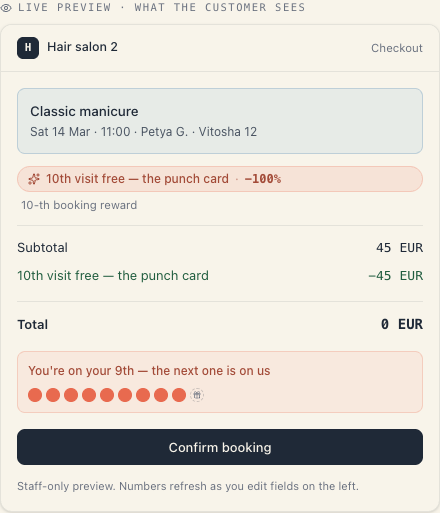
The number the client sees is byte-for-byte the number the reward fires on — the two cannot disagree.
5. Where you see one client’s stamps
Clients → open the client → the “Loyalty” tab. It contains:
| Block | What it shows |
|---|---|
| Punch-card progress | How far the client has got on each active stamp rule |
| Total saved | How much this client has saved through loyalty overall |
| Applications | A list of every application: rule, amount, date, status |
From the Applications list you can press Void on a single application (dialog: “The discount stops counting toward stats and totals. Booking price will recompute on next read.”) and Reactivate if you made a mistake.
6. Adding a stamp by hand
It happens: the stylist cancelled, the client waited, you want to make it up to them. That is what Eligibility overrides are for.
- Clients → the client → the “Loyalty” tab.
- Scroll to Eligibility overrides and press Add override.
- In Override kind choose Punch-card stamps offset.
- In Stamps to add type a positive whole number (e.g. 3).
- In Note (audit log) write why — the field asks “Why are you applying this override?”. The note stays in the history.
- Press Create override.
The other two override kinds:
| Kind | What it does |
|---|---|
| Reset first-visit | Makes the client count as new for first-visit rules |
| Skip cap once | Bypasses the “Max uses per customer” cap one time |
An override is consumed when the reward fires — it is marked “Consumed” and never applies a second time. That is deliberate: otherwise a standing bonus would keep inflating the counter on every future visit.
If you made a mistake, press Delete override. The dialog explains: “The resolver will stop applying it on future bookings. Existing applications stay as-is.”
7. Useful “Advanced” settings
| Field | What it’s for on a punch card |
|---|---|
| Combine with other rules | Off means the card doesn’t add on top of a promo code. Usually the right call |
| Total budget · money | An overall spend cap for the scheme. Useful with a 100 % reward |
| Discount ceiling | ”Free, but never more than 60” — protection if the reward can land on an expensive service |
The Max uses per customer field is not shown for this condition — the card pays out only once anyway.
8. What a punch card does NOT do
- It is not a cycle. It does not reset itself after the reward.
- It does not carry across boards. A second venue = a second board = a fresh card from zero.
- It sends no email saying “2 visits to go”. No such notification exists.
- It does not surface on staff-created bookings as an admin reminder — the progress lives on the client card and on the public page.
- It doesn’t work for an anonymous guest with no history. The counter is tied to a client record; if someone books with a different email each time, the stamps scatter.
9. If something isn’t working
| Symptom | Check |
|---|---|
| The client has 10 visits but no reward | How many of them have a counting status (§2)? Cancelled and No-show don’t count |
| Stamps grow faster than expected | Applies to services is probably still on “All services” |
| The reward landed and then vanished | The booking was cancelled, moved or changed — the application is voided and recomputed |
| The reward doesn’t land despite the right count | Check Total budget · money and the Valid from / until dates |
| The number on the public page doesn’t match my count | You are probably counting cancelled ones too. The public page counts by the rule in §2 |
What’s next
- Loyalty rule types — the three conditions and two rewards, in tables.
- Stacking & budgets — how the card behaves next to other discounts.
- The client card — where progress and overrides live.
- Loyalty: reward rules — a tour of the whole page.