Loyalty: reward rules
One mechanism for discounts, free items and credit — promo codes, stamps, birthdays and more.
Loyalty is one mechanism that covers every discount in Mountify: a campaign promo code, an automatic first-visit discount, and a digital punch card (“the tenth visit is free”). These are not separate features — they are one kind of record, called a rule, that states three things: when it fires, what the client gets, and who qualifies. This article is a tour of the whole page: where it lives, who is allowed to open it, how to read the list, what the wizard contains, and — most importantly — what loyalty does not do.
Important: loyalty rules require the Growth plan or higher. On Start the page opens and reads fine, but every attempt to save a rule is refused. See “8. If something isn’t working”.
1. Where it lives
The path is: sidebar → Setup → Loyalty.
- In the left icon rail pick the boards product and open the board in question. Loyalty rules belong to the board — if you run two venues as two separate boards, each has its own rules and they do not carry over.
- In the board column click the Setup hub.
- In the Salon operations group choose the Loyalty row.
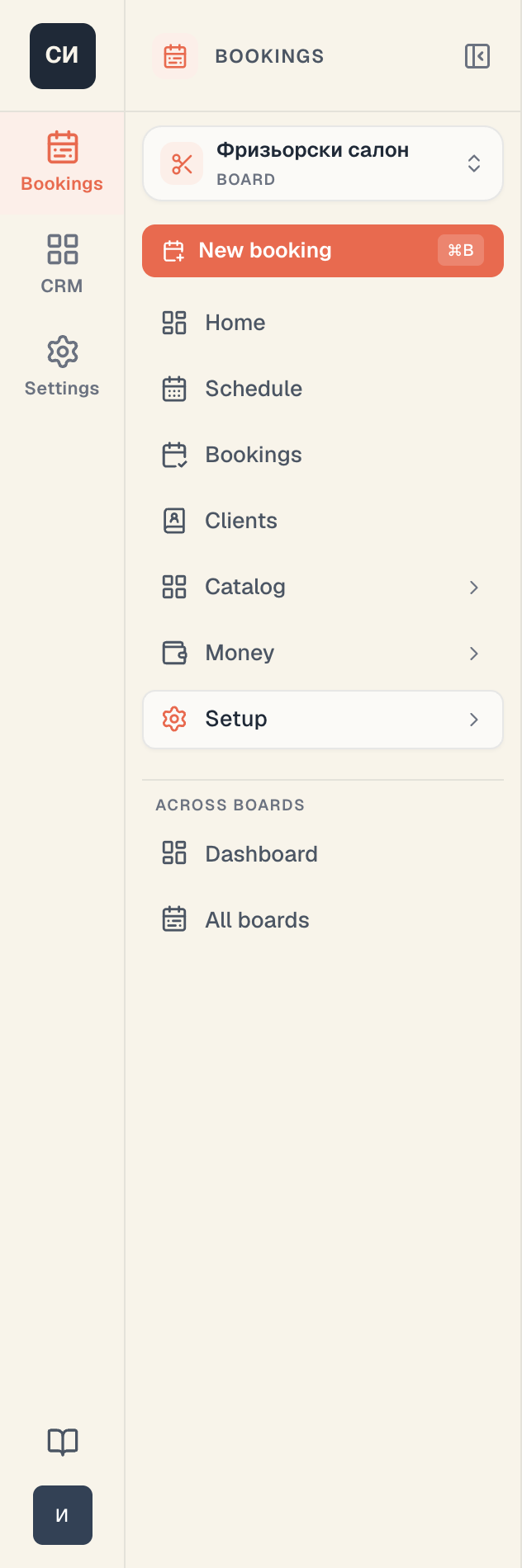
Under the row name you see a live state — for example “2 active rules”, and below it “active: ‘Summer promo’”. With no active rule the row reads “0 active rules” and shows a grey dot instead of a green one.
Who can open the page
Access is granted by the manage_loyalty permission. If your account lacks it, the Loyalty row is still visible in the column (it is not hidden), but clicking it gives you a locked screen:
No access to Loyalty Only admins with the
manage_loyaltypermission can view or edit loyalty rules.
That is expected behaviour, not a bug. If you land on it, ask the owner to grant the permission in Workspace settings → Roles & permissions. The same permission covers reading and writing — there is no separate “view only” mode.
2. The rules list: what it shows
The Loyalty page is a list of every rule on the board, plus a strip of four numbers above it.
The number strip
| Metric | What it measures |
|---|---|
| Active rules | How many rules are in “Active” status right now, on this board |
| Applications · 30d | How many times in the last 30 days a rule granted a discount |
| Discount given · 30d | The sum of discounts over the last 30 days, in the board’s currency |
| Avg. spend lift | The difference in average booking value with a rule applied versus matched bookings without |
The numbers are for the whole board, not for one rule. For a single rule’s numbers, open it — inside there is the same strip scoped to that rule.
The tabs
Above the table there are five tabs: All, Active, Scheduled, Expired, Archived. A tab only filters what you see; it changes nothing in the rules. The Search rules… box searches the rule’s internal name — not the promo code and not the customer-facing description.
The table columns
| Column | Content |
|---|---|
| Rule | The internal name — whatever you typed in “Internal name”. The client never sees it |
| When | The condition in plain language: “Code: SUMMER20”, “First booking”, or “Every 10th booking” |
| Reward | ”−20%” or “−15 BGN”, depending on the reward type |
| Status | Active / Scheduled / Expired / Archived |
| Uses | How many times the rule has fired over its whole life |
Under each row name sit small chips summarising the constraints: First-time, Returning, 3 services, Until 31/08/2026, Combines. They are a quick read of the settings so you don’t have to open the rule.
Caution: the When column says “Every 10th booking”, but the rule fires exactly once — on the 10th visit — and then stops. The label is misleading; the real behaviour is described in Punch cards (buy N, get one).
The row menu (⋯)
Every row has a menu with Edit, Activate (or Archive, if the rule is already active) and Delete. See “6. Activating, archiving and deleting”.
If the list is empty
You see No loyalty rules yet and a Create rule button. An empty list is the normal starting state — Mountify never creates rules automatically when a board is made.
3. The three templates (and why there are only three)
Clicking New rule at the top right takes you to a Pick a template page. It holds exactly three cards:
| Template | When it fires | Typical use |
|---|---|---|
| Promo code | The client types a code at checkout | Campaigns, influencers, flyers, “the code from Instagram” |
| First-visit discount | Automatically, on a client’s first booking | Acquiring new clients |
| Buy N, get one | Automatically, exactly on the Nth visit | A digital punch card |

Above the cards there is a MVP · Ship first label — the internal tag for the current set. Other mechanics (referrals, tiers, cashback, points) are named in the page description as a direction, but today they do not exist as a template and cannot be created. If you came looking for birthdays, see First-visit & birthday, which explains why it isn’t there yet and what to do instead.
A template only pre-fills the fields. Once the rule exists you can change almost everything, including the reward and the constraints.
4. The wizard: five cards and a live preview
After you pick a template you land in the editor. On the left there are five cards stacked; on the right a live mock-up of the checkout screen your client will see.
Card 1 — “Meta”
| Field | What to type | What happens if you leave it empty |
|---|---|---|
| Internal name | A short name for the team, e.g. “Instagram August”. Visible only to staff | The template’s default name is used |
| Order | A number 0–100. Higher wins on conflict | The template sets 50 (promo), 60 (first visit) or 70 (punch card) |
| Customer-facing description | The line the client sees at checkout, in their profile, and in emails. Sentence case, no period | The internal name is shown; if that is empty too — “Reward applied” |
Text fields commit when you leave the field, not on every keystroke — worth knowing if you’re testing and wondering why the preview lags.
Card 2 — “When”
This is the condition. What you see depends on the template:
- Promo code → one Promo code field. Only upper-case Latin letters A–Z and digits 0–9, length 2–32 characters. The field upper-cases what you type and strips everything else (dots, hyphens, non-Latin letters). An invalid value shows “Only letters A–Z and digits 0–9 are allowed.” underneath.
- First-visit discount → no fields. Just the note: “Fires automatically on the very first booking made by a customer on this board. No customer input.”
- Buy N, get one → one Reward on visit number field. A whole number between 2 and 50. Enter 1 or 60 and you get “Pick a number between 2 and 50.” with Save disabled.
Card 3 — “Reward”
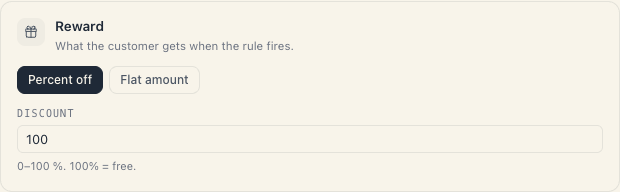
Two options, chosen with a two-way toggle:
- Percent off → an Discount field, 0–100. The hint spells it out: “100% = free.”
- Flat amount → an Amount field. The currency cannot be picked — it is always the board’s currency and the control is deliberately locked: a rule in any other currency simply never fires.
Important: the discount is computed on the service price only — including the day/time surcharge and the per-specialist price, if you use those. Add-ons are never discounted. If a service is 60 plus a 20 add-on and the rule is −50%, the client pays 30 + 20 = 50, not 40.
Card 4 — “Who qualifies”
| Field | Values | Effect |
|---|---|---|
| Which customers | Anyone / First-time / Returning | Splits customers by their booking history on this board |
| Applies to services | ”All services” or “Specific services” | Empty = every service on the board. Pick specific ones and the rule applies only to them |
| Valid from | A date or empty | Empty = no start date. Bookings before it get nothing |
| Valid until | A date or empty | Empty = runs forever. Bookings up to and including that date still get the reward |
| Minimum spend | A number or empty | Empty = no minimum. The booking total (service plus add-ons) must reach it |
Note the asymmetry: minimum spend is measured on service + add-ons, while the discount is computed on the service alone. That is not a bug — the threshold looks at the whole order, the reward lands on the core service.
Card 5 — “Advanced”
| Field | What it does |
|---|---|
| Combine with other rules | Off = the rule applies on its own and overrides every combinable rule. On = it stacks with other combinable rules. Detail in Stacking & budgets |
| Max uses per customer | Promo code only. Empty = unlimited |
| Total budget · uses | A workspace-wide cap. Hidden for “first visit” |
| Discount ceiling | The maximum discount per single application. Expresses “50% off, but never more than 20” |
| Total budget · money | The total amount the rule may ever discount. Once reached it stops firing |
Some fields hide depending on the condition — “Max uses per customer” disappears for “first visit” and “punch card” because those conditions are single-use by definition. If you had typed a value into a field that later hides, the value is cleared automatically so no invisible cap lingers.
The live preview on the right
The preview shows a mock checkout screen carrying your venue’s real name: a demo service priced 45 (in the board’s currency), the discount line, the final total, and — for the punch-card template — the stamp card. Below the mock-up sit the constraint chips and the note “Staff-only preview. Numbers refresh as you edit fields on the left.” The preview is a mock-up — it creates no booking and sends nothing.
Saving
The button is Save rule. If any field is invalid the button is disabled and “Some fields need attention before saving.” appears at the top. On success you get “Rule saved”.
5. The statuses and what they mean
| Status | Meaning |
|---|---|
| Active | The rule is working right now |
| Scheduled | Valid from is in the future — it isn’t firing yet |
| Expired | Valid until has passed — it no longer fires but stays in the list |
| Archived | You switched it off by hand. It doesn’t fire; its history stays |
“Scheduled” and “Expired” are derived from the dates — you never set them. Change a date and the status recomputes. Activating and archiving are manual.
6. Activating, archiving and deleting
- Archive switches the rule off. Activate brings it back. Existing applications are untouched. This is the reversible action and the right choice almost every time.
- Delete asks for confirmation: “Delete this rule?” with the body “This rule will be removed permanently. Usage history stays in analytics.” The buttons are Delete rule and Keep rule.
Important: if a rule has already fired, prefer Archive. Deleting cannot be undone; discounts already granted stay on their bookings, but the rule disappears from the list and you can no longer open its settings.
If two active rules try to use the same promo code, the second save is refused with a clear message: “Another active rule already uses this promo code. Pick a different code or archive the other rule first.”
7. A single rule’s page
Clicking a row opens the rule’s page with three tabs:
- Overview — this rule’s numbers (Applications · 30d, Discount given · 30d, Cancelled after apply, Avg. spend lift), a weekly “Applications · weekly” chart over the last 12 weeks, a By source breakdown, and a Recent applications table with When, Client, Booking, Discount, Source.
- Settings — a static read of the configuration: Template, When, Reward, Who qualifies, Advanced, Customer description, Created at. From here you reach Edit rule.
- Conflicts — a table of every other active rule with a Stacks with this? column. Above it: “By default, only one rule applies per booking” and “Conflicts are resolved by order; ties go to the rule with the larger discount. Mark pairs as combinable to let them stack.” With no other active rule it reads “No other active rules — nothing to conflict with right now.”
The three sources mean:
| Source | Who triggered the discount |
|---|---|
| Auto | The rule fired by itself (first visit, punch card) |
| Customer | The client typed a promo code at checkout |
| Staff | Someone on the team applied the rule by hand from the client card |
8. If something isn’t working
I open Loyalty and see “No access to Loyalty”.
You are missing the manage_loyalty permission. This is a role, not a plan. The owner grants it from workspace settings.
I press “Save rule” and get “Couldn’t save the loyalty rule.” with no further detail. The likeliest cause is the plan: loyalty is included from Growth up. Reading the page is not plan-gated, only writing — which is why the list opens fine and the error appears only on save. Check the plan in Workspace settings → Subscription.
A rule is active but doesn’t fire on a booking. Check in this order: (1) is the status really “Active” and not “Scheduled” / “Expired”; (2) is the booking’s service inside Applies to services; (3) does the booking total reach Minimum spend; (4) does a flat reward’s currency match the board’s; (5) has the budget or the cap run out; (6) is another, solo rule winning the slot — see Stacking & budgets.
The first-visit discount isn’t granted. A first-visit reward requires a verified identity: the client must be signed in, or must have confirmed the booking through the emailed link. Bookings typed in at reception usually do not clear that bar — apply the rule by hand from the client card instead. Detail in First-visit & birthday.
A booking got cancelled — what happens to the discount. Cancelling voids the applied discount: it stops counting toward the numbers and the booking price recomputes. If the booking is later restored to Confirmed, automatic rules re-apply — but a customer-entered promo code is not restored automatically and has to be entered again.
I moved the booking to another time and the discount changed. That is correct. Moving can change the day/time surcharge, and therefore the base the percentage is computed on, so the discount recomputes.
9. What loyalty does NOT do
The list that saves the most questions:
- No points and no tiers. There is no point balance, no bronze/silver/gold.
- No wallet credit. There are exactly two reward types: percent off and flat amount off. There is no “credit” a client carries between bookings — for that use Packages & memberships.
- No referrals and no cashback. They are named in the page description as a direction but do not exist.
- No birthday rule — and none is possible today, because the client card has no date-of-birth field.
- Punch cards do not repeat. “Buy 10, get one” grants the reward exactly on the 10th visit and then stops. It is not a cycle.
- It sends nothing to the client. Loyalty sends no email and no SMS. The client sees the discount only on the checkout screen, in their own profile, and in the confirmation email — and only if they booked through the public link themselves.
- There is no promo-code field in the admin booking form. A promo code is entered only by the client paying online. From the admin side a discount is applied by hand from the client card.
- A package beats loyalty. If a booking is covered by a package the whole mechanism is skipped — the client has already paid.
What’s next
- Loyalty rule types — the three conditions and two rewards in one table.
- Promo codes — the rules for the code itself and every error a client can see.
- Stacking & budgets — who wins a conflict and exactly where the discount lands in the price.
- Punch cards (buy N, get one) — the stamp card and manual overrides.