The client card
How many times a client has visited, their history, favourite day and time, notes and loyalty — in one place.
The card is everything you know about one person on a single screen: how many times they’ve come, how many times they didn’t, how much they’ve spent, what their favourite time is, which packages they hold, what loyalty they’ve earned and what you’ve written about them. Open it with one click on their row in the Clients list — or from the View client link in any booking’s panel.

1. Getting there
- Clients → click the person’s row. Or:
- Schedule / Bookings → open a booking → View client under the client’s name.
At the top left sits an All clients button that takes you back to the list — with the same board you came from.
The card shows one board. The history, the tiles, the packages and the loyalty are all for whichever board is active in the left rail. If the person is a client at two of your venues, switch boards to see the other half of their history.
2. The header — who this person is
Beside the name sit badges you can read in a second:
| Badge | When it shows |
|---|---|
| Active / Banned | Always one of the two |
| New | Up to 2 bookings in total |
| Regular | 3 to 9 bookings |
| VIP | 10 or more bookings |
| Time to invite | No upcoming booking, and by their usual rhythm they should have been back by now |
| Authed | The client has created an account on your public page and signs in |
Under the name, on one line, the board, the phone and the email are repeated.
The buttons at the top right
| Button | What it does |
|---|---|
| Edit profile | Opens the same editor as the pencil in the list: name, phone, email, notes, staff alert |
| + Booking | Opens a panel for a new booking with the client already chosen |
| Repeat last visit | Shown only if there is a past visit (arrived / completed / walk-in). Creates a new booking with the same service and the same specialist |
| ⋯ | Ban (or Unban) and Replay tour. Ban only shows if your role allows it |
Under the header sits a row with an Email shortcut — it opens your mail client with the person’s address, if they have one.
3. The three cards that can appear at the top
Before the statistics, if there’s anything to say, up to three coloured cards appear:
- Important for staff — the special warning for this client. It sits at the very top deliberately: this is the thing that must be seen before you touch them. It comes from the Important staff alert field in the editor.
- Banned — only for a banned client. It shows the Reason, Banned at, By (which staff member) and Auto-cancelled (how many upcoming bookings were cancelled by the ban), plus an Unban button.
- Next booking — the nearest upcoming appointment with its service and status.
4. The four tiles
Immediately below sits a strip with exactly four numbers:
| Tile | What it counts |
|---|---|
| Visits | Bookings with the status arrived, completed or walk-in |
| No-shows | Bookings marked as no-show |
| Days since visit | Days since the last visit |
| Lifetime spend | The money actually received from this client, in the board’s currency |
These are the four numbers the front desk needs. More detailed breakdowns exist (cancelled by client, cancelled by staff, average interval), but you read those from the Bookings tab — deliberately not surfaced here, so the card doesn’t turn into a report.
5. The «Overview» tab
The first tab is the summary. Top to bottom:
Quick facts
| Row | Meaning |
|---|---|
| First booking | The date of the earliest booking (upcoming ones included) |
| Last booking | The date of the latest past booking |
| Total bookings | Every booking, whatever the outcome |
| Locale | Only shown if the client has a language set — it’s the language their emails arrive in |
What we know about this client
The answers to the questions the client filled in at booking — preferences, level, whatever you defined. The most recent answer per question is shown, and if the person is a client at several venues the answers are grouped by venue (questions belong to a board). The block isn’t rendered at all if there are no answers. See Questions you ask at booking.
Active packages
A short summary: how many packages are active, how many credits there are in total, and how long until the next expiry. The details are in the Packages tab.
Insights
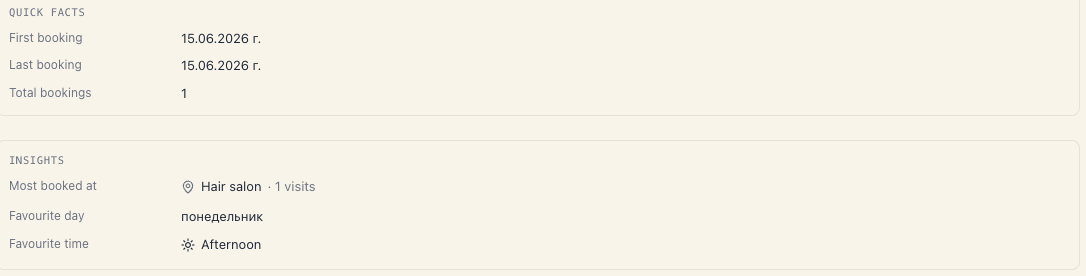
Computed from past visits:
| Row | How it’s worked out |
|---|---|
| Most booked at | The venue with the most visits, with a count beside it |
| Favourite day | The most frequent day of the week |
| Favourite time | Morning (5–11), Afternoon (12–16), Evening (17–21) or Night |
| Avg between visits | The average number of days between two visits. Shown only with at least two past visits |
This isn’t decoration: “favourite time” is exactly what you offer on the phone to close the call quickly.
Recent activity
A timeline of the latest events: Booked · <venue>, Cancelled · <venue>, Bought package — labelled today / yesterday / a date.
Notes
A free-text field at the bottom of the tab. It saves itself — while you type it reads Saving…, then Saved. There is no save button. See Notes & preferences.
6. The «Bookings» tab
The full booking history, with four filters: All, Upcoming, Cancelled, Completed. There’s also a Group by branch toggle — useful when the client visits two venues.
Without grouping, the list splits into two sections: Upcoming and Past, each with a count.
Every row shows the time, the service, the status (Confirmed, Pending, Arrived, Completed, No-show, Cancelled, Walk-in), the source (Online or Admin) and a Pack label if the booking was covered by a package.
Empty states: No upcoming bookings, No past bookings, No bookings match this filter.
7. The «Packages» tab
Every package the client holds, with a count on the tab itself. For each one: when it was bought, its status (Active, Used up, Expired, Pending claim, Refunded), when it expires (Expires today / Expires in N days), how many credits are used and left, and how many bookings used it.
If the package was bought online but the money hasn’t been collected, an Unpaid label appears with the hint “Bought online without payment — the money hasn’t been collected yet.”
The Refund button marks the package as refunded and removes its credits. The prompt is explicit: “The package will be marked as refunded and credits removed. The customer keeps the payment record.”
You can also grant a package to the client by hand from here. See Packages overview.
8. The «Loyalty» tab
Shows what the client has earned under the loyalty rules of this board:
- Applications — a list of every applied discount: the rule, the booking, the amount. Each has a Void action (“The discount stops counting toward stats and totals. Booking price will recompute on next read.”) and voided ones get Reactivate.
- Total saved — the sum of the live discounts.
- Punch-card progress — how far along the punch card they are.
- Apply rule manually — pick a booking, a rule, a discount amount and a note. For the “just this once” exceptions.
- Eligibility overrides — a heavier instrument: Reset first-visit, Skip cap once, Punch-card stamps offset. The interface itself advises: “Use them sparingly…”
The number on the tab counts the live (non-voided) applications on this board.
See Loyalty overview.
9. What the card does NOT do
- It sends the client nothing. No action on the card — including + Booking and Repeat last visit — produces an email. A booking you enter yourself sends the client neither a confirmation nor a reminder. The only message that goes out on your say-so is the invitation from the Clients list.
- It is not a CRM contact. This is a booking client — a separate base.
- It doesn’t delete. There is no delete-client action in the interface, and no archiving either.
- It doesn’t show the board’s money. “Lifetime spend” is about this client; the till lives in the Money hub.
10. Troubleshooting
| Symptom | Cause | What to do |
|---|---|---|
| Could not load history plus Retry | A network or server problem | Try again |
| The tiles show zeros but I know they’ve been in | You’re looking at another board | Switch boards in the left rail |
| There’s no Repeat last visit button | There’s no completed visit at all | Use + Booking |
| There’s no ⋯ menu | Your role doesn’t include banning and the tours are hidden | That’s normal |
| Visits didn’t go up after a visit | The booking is still Confirmed | Mark it — see Check-in & no-show |
| The What we know about this client block is missing | The client hasn’t answered any questions (or none are defined) | See Questions you ask at booking |
| My note disappeared | The field autosaves; it probably never reached Saved | Write it again and wait for the label |
What’s next
- Your booking clients — the list and its filters.
- Notes & preferences — the three kinds of note.
- Questions you ask at booking — where “what we know” comes from.
- Loyalty overview — the rules behind the Loyalty tab.