Promo banners on your page
Promotional cards on your public booking page — headline, copy, button, schedule and targeting.
A promo banner is a promotional card on your public booking page — a wide strip with a headline, some copy and a button, right where the client is choosing a service. They’re managed in Setup → Banners. This article covers the page itself: how to read it, how to publish and pause banners, where exactly they render, and why they sometimes don’t.
For building one banner, field by field, see Create a banner.
Banners are a paid feature. They’re available from the Growth plan upward. On Start the page opens but the New banner button is locked, with a Locked badge and an Upgrade plan link.
1. Getting to the banners
- In the left rail, pick the board.
- Open the Setup hub.
- Choose the Banners row.
The screen’s heading is Landing banners, with the eyebrow Public booking above it and the page description below.
Banners belong to a board. If you run two boards, each has its own.
2. How the page is laid out
| Part | What it is |
|---|---|
| The banner strip on top | one card per banner: a background thumbnail, the headline, the internal name, state, audience, a switch and a bin |
| The editor on the left | the six settings sections for the selected banner |
| The preview on the right | how the banner looks on the public page |
| The save indicator at the top right | Editing…, Saving…, Saved |
| The New banner button at the top right | creates a fresh, blank banner |
If you have no banners yet you get an empty state — No banners yet with an explanation and a New banner button.
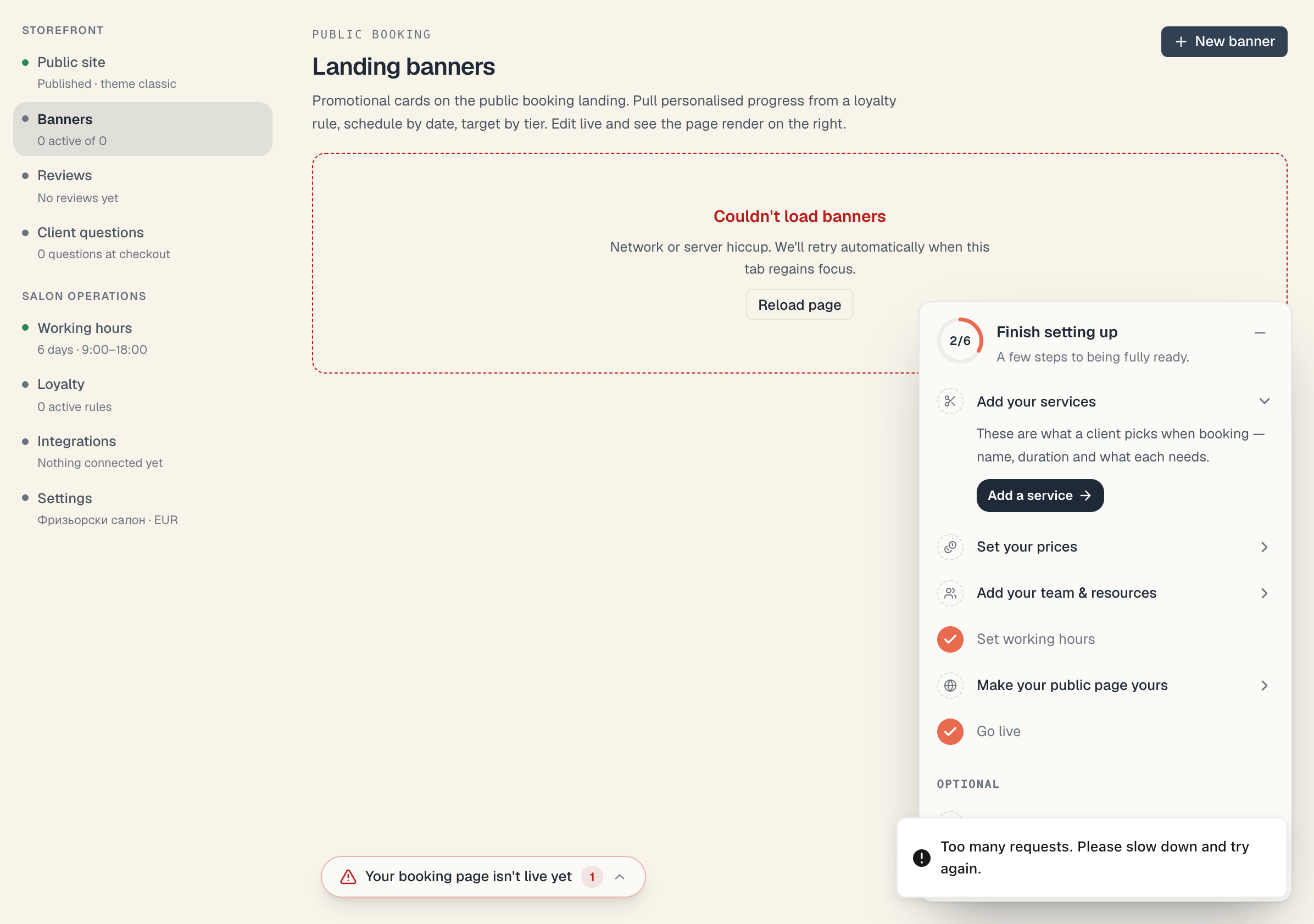
On a network problem you get Couldn’t load banners and a Reload page button.
3. Reading and managing the strip
Each card in the strip shows:
- a thumbnail of the background (colour or image, including the overlay if any);
- the banner’s headline over the thumbnail;
- the internal name (yours only — clients never see it);
- a state and audience line, e.g. LIVE · Everyone (incl. guests) or OFF · Signed-in clients only;
- a switch to publish or pause;
- a bin to delete (appears on hover).
Select a banner by clicking its card — the editor below swaps to it.
Reorder banners by dragging the cards. The order in the strip is the order they appear on the public page — the first card is the first banner.
Delete a banner with the bin. You’re asked Delete this banner? with the note The banner will be removed from the landing immediately. This can’t be undone. Choose Delete banner or Keep banner. Deletion is final — to pause temporarily, use the switch.
4. Publishing and pausing
The switch on the card is the difference between Live and Off. Only live banners can appear publicly.
A banner with no headline can’t go live. If you try, you get Add a title before publishing the banner. Type a headline in the Content section and try again.
5. Where banners actually show
This is the most common surprise. Banners depend on the home layout you picked for each screen, and on the phone also on the hero.
| Screen | Home layout | When banners show |
|---|---|---|
| Desktop | Classic | always, at the top of the home screen, just under the hero |
| Mobile | Classic | only if you picked a hero other than “Standard” |
| Either | Sheet | never — the Sheet home has no place for banners |
Both are set in Setup → Public site, in the Home page group: Home layout (Classic or Sheet) and Hero — each with its own Desktop / Mobile pills. If the mobile hero is Standard, the mobile home screen goes straight to the booking rows and banners don’t render at all. See Classic or Sheet.
If you built a banner and can’t see it on your phone, this is the reason nine times out of ten. Go to Public site → Home layout → Mobile and check it’s Classic, then Hero → Mobile and pick anything other than Standard. If you’d rather keep Sheet, put the message in the Promo bar instead — it shows in both layouts.
When more than one banner is visible, they render as a carousel with navigation dots.
6. Why a live banner may still not show
The Live switch is only the first condition. The public page applies four more filters:
| Filter | Rule |
|---|---|
| Show from | if that date is in the future, the banner isn’t out yet |
| Show until | inclusive to the end of that date; after that it disappears |
| Audience | Everyone (incl. guests) · Signed-in clients only · New customers (0 bookings) |
| Linked loyalty rule | if the rule is archived, expired or not yet started, the banner is hidden entirely |
The last one is deliberate: a banner advertising a promo code that checkout already refuses is worse than no banner.
Audiences in detail
| Audience | Who sees it |
|---|---|
| Everyone (incl. guests) | every visitor, signed in or not |
| Signed-in clients only | only people signed in on the public page |
| New customers (0 bookings) | signed-in clients with no booking at all on this board |
A guest who hasn’t signed in never sees banners set to Signed-in clients only or New customers.
7. How a banner works with loyalty
The Link a loyalty rule section in the editor turns a banner from a static picture into a personalised card:
- With a Buy N, get one rule, the banner shows that client’s own progress — say 7 of 10 visits. Guests see an empty card and the hint Sign in to track your visits.
- With a Promo code rule, the banner shows a code chip next to the button, labelled Use code. Tapping it copies the code and confirms with Code XXX copied.
The banner only announces the offer. The discount itself is applied by the loyalty rule — see Promo codes & discounts.
8. The readability check
Under the preview, Mountify flags anything that will read badly:
| Warning | What it means |
|---|---|
| Looks good · no flags | nothing to fix |
| Headline is N characters — trim to under 56 for mobile. | the headline will wrap over many lines on a phone |
| Subhead is N characters — under 120 reads more cleanly. | the copy is long |
| Light text on a low-overlay image — readability may suffer on bright photos. | raise the background overlay |
| Linked to a rule but visible to everyone — guests will see a generic state. | a guest has no personal progress |
| No CTA label — the banner won’t have a call to action. | the banner will be purely informational |
These are advice, not errors — the banner publishes regardless.
9. Troubleshooting
The New banner button is greyed out with a padlock. Your plan doesn’t include banners. You need Growth or higher.
I made a banner and it isn’t on the public page. Walk the list: is the switch on; does it have a headline; is today inside Show from / Show until; does the audience match the visitor; if it’s linked to a rule, is that rule active and in date; is the screen you’re looking at on the Classic layout; and if you’re looking on a phone, is a hero other than Standard selected?
The banner shows on desktop but not on mobile. See point 5.
My edits aren’t saving. Text fields save on blur. Click somewhere outside the field and wait for the indicator to read Saved.
I deleted a banner by mistake. It can’t be recovered. Create a new one.
What’s next
- Create a banner — the editor, section by section.
- Seasonal campaigns — a banner with a start and end that switches itself off.
- Promo codes & discounts — what actually applies the discount.
- The booking-page editor — including the home layout and hero choice.