Capacity & waitlist
How seats fill, what happens when a session is full, and how to promote someone from the waitlist.
Every scheduled class has a fixed number of seats. That number decides how many people can sign up, what the client sees when the seats run out, and what happens when someone drops. This article walks the whole path — from the first sign-up to the automatic promotion off the waitlist.
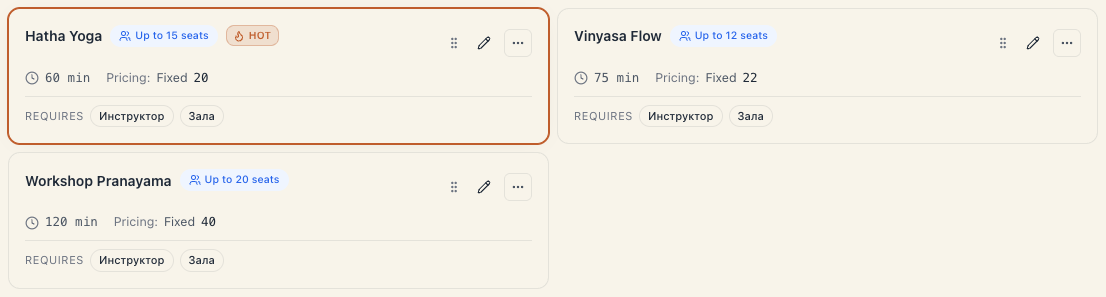
1. Where the seat count comes from
Capacity is set at three levels, each overriding the one above:
| Level | Where | What it does |
|---|---|---|
| Offering | Catalog → Offerings → the class → Class settings → Capacity (seats) | the default for every new series and every new one-off class |
| Series | Catalog → Programs → a series → Capacity | the value for every session that series creates from now on |
| Single session | Catalog → Programs → expand a series → a session → Capacity | that date only |
The minimum for a group class is 2 seats, the maximum 1000. Changing the offering-level number does not touch sessions that already exist.
2. How a session fills up
- One sign-up takes one seat. Public sign-up refuses a request for more than one seat on a class — “we’re coming as a pair” is two separate sign-ups.
- The counter on the session reads
{booked}/{seats}— for example7/12. - When the counter reaches the limit the session is full. A normal sign-up is refused (
class_instance_full), and the public page swaps the booking button for a waitlist invitation.
In Schedule a full session shows its counter highlighted, and if for any reason attendees exceed seats the card carries an Oversold badge. Below the counter you also get +{N} waitlist — that many people are waiting. The same number appears in the KPI strip at the top as Waitlist.
3. The waitlist
When a session is full, a client on the public page can join the waitlist. The booking is created with status Waitlist (waitlisted) and takes no seat — the counter does not move.
Details that matter:
- The waitlist only applies to a full session. If the client taps “join waitlist” while a seat has quietly opened up, the system doesn’t leave them hanging — it converts the request into a normal seated sign-up on the spot.
- The client gets a “you’re on the waitlist” email with a link to view or leave the waitlist. It is a separate email from the confirmation — somebody without a seat is never told “your booking is confirmed”.
- Waitlist entries are ordered by join time. First in, first offered the freed seat.
- You cannot put someone on the waitlist from the admin. The Waitlist status is system-managed: you can’t set it by hand and you can’t clear it by changing the status. The two available actions are Promote (into the attendee list) or cancelling the booking.
4. What happens when a seat frees up
This is where most misunderstanding lives. Mountify promotes automatically.
When a booked client drops out — cancelled by the client, cancelled by you, marked No-show before the start, released after an unpaid deposit — the system:
- decrements the counter by 1;
- picks the oldest waitlist entry for that session;
- bumps the counter back up and flips that booking to Confirmed;
- emails that person that their seat is confirmed — but only if their booking came in through the public page.
Automatic promotion does not run in two cases:
- the session is cancelled or archived;
- the board requires payment to confirm — then a seat can’t quietly be handed to someone who hasn’t paid, so it is left for a manual decision.
If the seat is taken by someone else in the same instant, the promotion silently backs off and the faster booking keeps the seat — the counter never exceeds capacity through this path.
5. Promoting by hand
Sometimes you want to choose who gets in (a regular, someone who phoned). Then:
- Open Catalog → Programs, expand the series and click the session (or open the session from Schedule).
- In the Edit single class panel find the {N} on waitlist list.
- Press Promote next to the right person.
- You get “Customer promoted from waitlist”.
If there is no free seat, the button is disabled and explains: “Capacity is full — bump capacity or cancel a booking to free up a spot.”
That second option is a real tool on its own: raise the session’s Capacity by 1 and promote them — a room fits one more chair far more often than the system can know.
6. The statuses you will see
| Status | What it means |
|---|---|
| Pending | booked, awaiting confirmation (by email link or by payment) |
| Confirmed | the seat is taken |
| Waitlist | on the waitlist — takes no seat |
| Arrived | the client has been checked in |
| Done | the class happened and was closed |
| No-show | didn’t turn up; if marked before the start, the seat is freed and offered to the waitlist |
| Cancelled | the booking was cancelled |
Full explanations live in Booking statuses.
7. What the waitlist does NOT do
- It does not send SMS. Email only, and only to clients who signed up through the public page.
- It does not hold a place across sessions. A waitlist is per date. A client who wants “any class this week” has to join each one.
- It does not show as separate schedule cards. Waiting people are counted in the +{N} waitlist badge on the session card.
- It does not oversell the room. Automatic promotion re-checks capacity inside the same transaction; if the seat is gone, no promotion happens.
8. Troubleshooting
The client says they signed up but isn’t in the attendee list. Check the on waitlist list on the same session. They most likely joined the waitlist rather than taking a seat.
I cancelled a booking and nobody was promoted. Three possible reasons: nobody is on the waitlist; the session is cancelled; or the board requires payment to confirm — in which case promotion is manual only.
The counter shows more attendees than seats. That is the Oversold state. It usually comes from lowering capacity after people had already booked. Raise capacity back, or cancel the surplus bookings.
I want to put a client on the waitlist by hand. Not possible — Waitlist is a system status set only by public sign-up. If the person phoned, the cleanest move is to raise capacity by one and book them normally.
I can’t find the waitlist anywhere. It only appears when at least one person is waiting for that session. If the session never filled, the waitlist is empty.
What’s next
- Schedule class series — where capacity for a single date is edited.
- Booking statuses — what each status means.
- Group classes — where seats come from.
- Confirmations & reminders — which emails go out and when.