Booking statuses
What the colours mean — confirmed, pending, checked-in, no-show — and how a status changes.
Every booking carries two independent labels: a status — what happened to the visit — and a payment state — what happened to the money. They do not move together and they do not affect each other. A visit can be completed and unpaid; one can be cancelled after being paid. This article covers both sets, verbatim as the interface writes them, who changes them, and what the system does on its own.
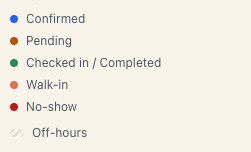
1. The eight statuses
| Status in the interface | Colour on the schedule | Meaning |
|---|---|---|
| Pending | Amber | The booking exists but isn’t confirmed yet. It holds the slot temporarily |
| Confirmed | Blue | The normal state before the visit. The booking holds the slot |
| Checked in (in the list: Arrived) | Green | The client is on site |
| Completed | Green | The service was delivered |
| No-show | Red | The client didn’t come |
| Cancelled | Grey | The slot has been freed |
| Walk-in | Accent | A client with no prior booking |
| Waitlisted | Amber | Queued for a full class |
Note the two screens use slightly different wording for the same status: the Schedule says Checked in, the Bookings list says Arrived. Same thing.
Waitlisted and Walk-in are not reachable by changing a status. Waitlisted is system-managed — you land there when a class is full, and you’re promoted manually. Walk-in can only be set at creation.
2. The six payment states
Separately from the status, every booking has a money state. It shows as a pill next to the status on the Bookings page, and as the heading of the Payment block in the detail panel.
| Pill | The panel’s own hint |
|---|---|
| Unpaid | ”No money has been recorded yet. Independent from the visit status below.” |
| Partial | ”Some money received, more outstanding. The visit can still be marked completed.” |
| Paid | ”Full booking total is settled. This is money state, not visit lifecycle (see Status below).” |
| Overpaid | ”Recorded payments exceed the booking total — usually an admin typo. Review the history below.” |
| Refunded | ”Money returned to the customer — net zero. The visit lifecycle is separate (see Status below).” |
| Comped | ”Settled on the house — no money expected. Stays out of revenue reports.” |
Two of them are signals that something needs a look:
- Overpaid is almost always a typo in an amount. Open the history in the Payment block and void the wrong row.
- Comped means a free visit. Reports do not count it as revenue.
How to record money is covered in Recording cash & card, and fixing a mistake in Correcting a payment mistake.
3. The usual path of a booking
Booked through the public page
- The client picks a time and confirms.
- If the board has a confirmation window, the booking is created Pending and the client gets an email with a link. With the window off, it’s created Confirmed straight away.
- If the service requires a deposit, the booking is also created Pending until the payment lands.
- The client arrives → you mark Checked in.
- The service is done → Completed.
Booked by hand
A manual booking is created Confirmed — no pending step, no email, no confirmation deadline. See Add a manual booking.
4. What the system does by itself
There are five automatic transitions. None of them asks for your confirmation, so it pays to know them.
| When | What happens | How often it checks |
|---|---|---|
| The confirmation window expired | Pending → Cancelled, attributed to the system. The slot frees, and a package credit or class seat is returned | Every 5 minutes |
| Unpaid prepayment | Pending + Unpaid past the hold timeout (35 minutes by default) → Cancelled by the system | Every 10 minutes |
| A forgotten past booking — the usual case | Confirmed whose end was more than 24 hours ago → Completed | Hourly |
| A forgotten past booking — if you switched the above off | Confirmed whose end was more than the no-show grace period ago (15 minutes by default) → No-show | Every 10 minutes |
| A forgotten Checked in | Checked in whose end was more than 1 hour ago → Completed | Every 30 minutes |
Read rows three and four carefully. The board has a “charitable auto-complete” setting. It is on by default — which means a forgotten past booking becomes Completed, not No-show. If you care about clean no-show statistics, switch it off; then a forgotten booking becomes No-show. The two are mutually exclusive: a board runs one or the other, never both.
5. Changing a status by hand
From the detail panel
Open the booking (click a card on the schedule, or a row in Bookings). Near the bottom of the panel there’s a Status block with six buttons: Confirmed, Pending, Checked in, Completed, No-show, Cancelled. The current one is highlighted.
There is no allowed-transitions state machine. You can go from any status to any other. The product is deliberately permissive — it’s your salon. But on a suspicious step it asks:
Unusual status change “This moves the booking from ‘<from>’ to ‘<to>’ — an unusual step. Continue?” → Yes, change it
A step counts as unusual when:
- you re-open something finished — Completed, No-show or Cancelled;
- you step backwards along the normal path (say from Checked in back to Pending).
Separately, if you mark an unpaid booking as Completed, a second question appears:
Complete this booking while it’s unpaid? “<amount> <currency> is still outstanding. The booking will be marked completed; you can record the payment later from the same panel.” → Mark completed anyway or I’ll record payment first
From the ⋯ menu in the panel
Top right of the panel there’s a menu with two quick actions: Mark as no-show and Cancel. Both are disabled if the booking is already in that state.
From the Bookings page
Each row reveals, on hover, the buttons applicable to its status: Arrived and No-show for a confirmed one, Completed for an arrived one, and Cancel for anything not finished. You can also select several rows and process them in one go. See Check-in & no-show.
6. Cancelling is a separate action, and it’s one-way
Cancelled isn’t just another status. Cancelling takes its own route because it does more:
- It frees the slot.
- It records who cancelled — staff, the client, or the system. Activity shows it as “Cancelled by staff / the client / the system”.
- It voids the loyalty applied to that booking. The dialog says so: “The customer’s loyalty applications for this booking will be voided. This cannot be undone.”
- It returns the package credit (or the gift-card amount) to the client.
- It frees a class seat and offers it to the first person on the waitlist.
The confirm reads Cancel this booking? with Cancel booking and Keep.
Technically you can then set the booking back to Confirmed from the Status block — the system will warn that the step is unusual. But the restore isn’t clean: voided loyalty is not put back as it was; the system re-runs its rules from scratch instead. The practical rule: don’t resurrect a cancelled booking — make a new one.
7. A no-show voids loyalty too
Marking No-show voids the loyalty applied to that booking — exactly like a cancellation. Hence the warning dialog:
Mark as no-show? “The customer didn’t come to their appointment. This can affect their loyalty.” → Mark no-show
In bulk the text is even plainer: “N bookings will be marked no-show — this affects clients’ loyalty.”
On top of that, if you mark a class attendee as a no-show before the session starts, their seat is released and offered to the waitlist. Mark it after the start and the seat stays consumed — it genuinely was.
8. Where each status shows up
| Place | How it’s shown |
|---|---|
| Schedule | The card’s colour + the legend in the side rail |
| Bookings | A text pill + a coloured stripe down the left of the row |
| Detail panel | A badge at the top + the Status block at the bottom |
| Client card, Bookings tab | A pill on every row; filters All / Upcoming / Cancelled / Completed |
| The card’s stat tiles | Visits counts arrived and completed; No-shows counts no-shows |
| Activity in the panel | A full timeline of the changes with timestamps |
9. Which statuses count toward what
- A visit (in the client’s stats and in loyalty counting) = Checked in, Completed or Walk-in.
- Holds a slot = Pending, Confirmed, Checked in. Waitlisted does not consume a class seat.
- Money — the payment state is independent of the status. A booking can be Completed and Unpaid; then the amount lands in the debt book. See Who owes me.
- On the house is separate from the status, and stays out of revenue reports.
10. Troubleshooting
| Message / symptom | Cause | What to do |
|---|---|---|
| The status changed in the meantime. Refresh and try again. | An automatic sweep changed the status exactly as you clicked | Refresh and repeat |
| That transition isn’t allowed from the current status | You tried to set Cancelled or Waitlisted through the ordinary status change | Cancelling has its own button; the waitlist is managed by the class |
| A cancelled booking can’t be re-opened — create a new one. | An attempt to un-cancel | Make a new booking |
| The booking went Completed on its own | Charitable auto-complete is on (the default) | Switch it off in board settings if you want accurate no-shows |
| The booking went No-show on its own | Charitable auto-complete is off and the grace period elapsed | Raise the grace period, or mark it in time |
| The status is right but the money looks wrong | The two are independent | Open the Payment block in the panel |
What’s next
- Check-in & no-show — the daily work with statuses, including in bulk.
- Reschedule & cancel — exactly what cancelling does.
- The calendar (Schedule) — the colours in the grid.
- The client card — where statuses turn into statistics.