Set up a class
Step by step: the Group class type, number of seats, instructor and room — before you add a schedule.
A class is created in the offering editor — the very same editor you use for 1-to-1 appointments. The differences are the type, one extra section (“Class settings”), and the fact that after saving you must go to Catalog → Programs to give it real dates. This article walks the editor section by section.
1. Three checks before you start
- Do you have the feature? Group classes are included from the Pro plan; on Start and Growth they are bought as the Group classes add-on (€12/mo) in Workspace settings → Subscription & billing → Add-ons. Without it the class saves, but you cannot give it a schedule and clients never see it.
- Do you have an instructor? Every series needs a person. If Catalog → Resource kinds has no resource in a “person” kind, create one first: Add a resource.
- Do you have a room? Not mandatory — but if the room is the constraint (one room, three classes), add it as a resource kind and make the class require it, so Mountify never puts two classes in the same room at the same time.
2. Step by step: create the class
- In the left menu open Catalog → Offerings.
- Press the plus button top right — Offering. (If your board uses a preset that renames the entity, the button carries that word instead; it is the same button.)
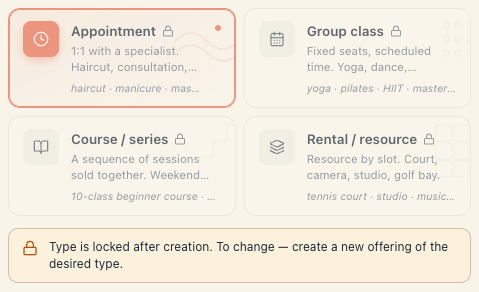
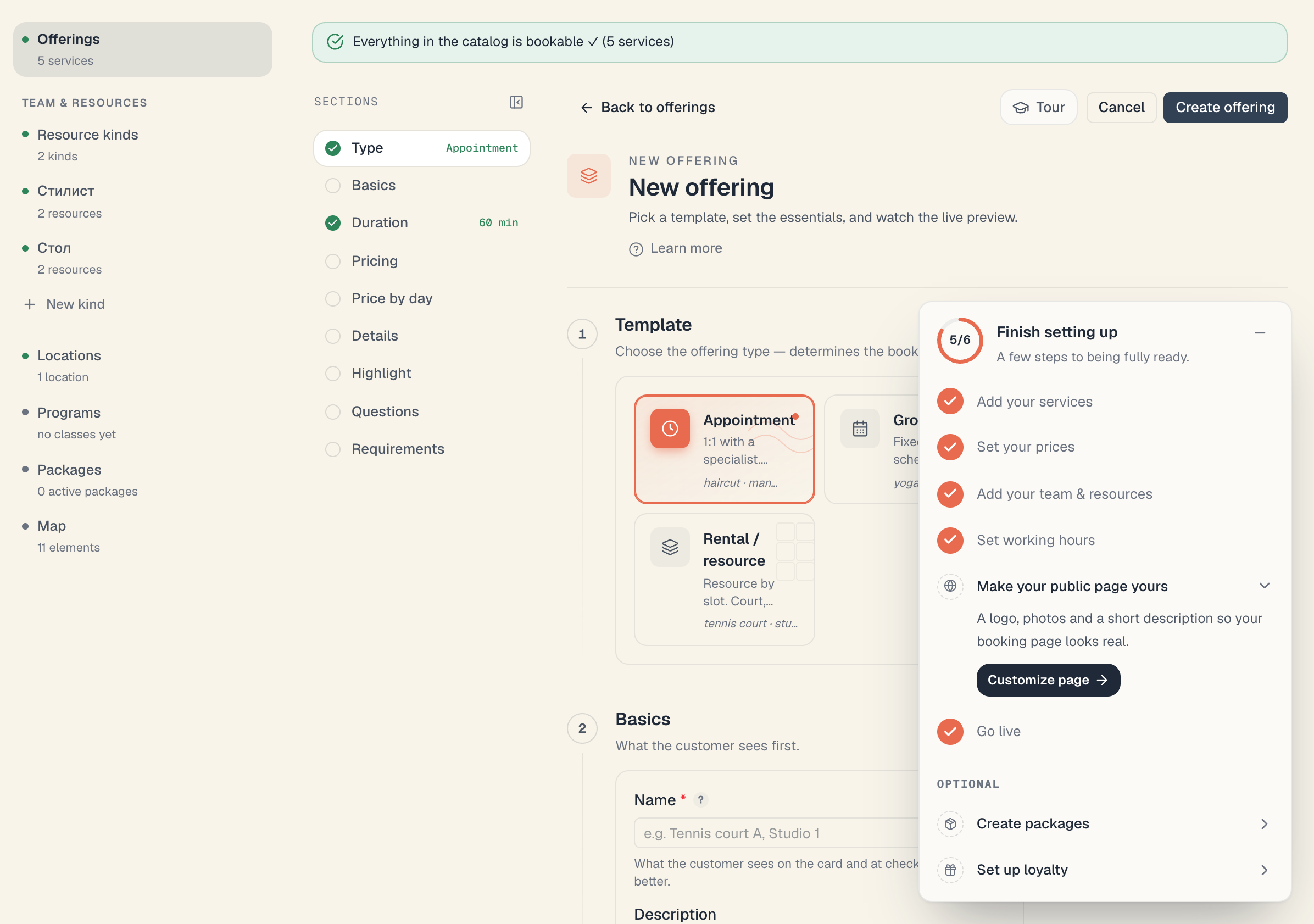
- The editor opens on the Template section. Pick the Group class card (“Fixed seats, scheduled time. Yoga, dance, workout.”).
- Section Basics: fill in the name and, optionally, the description.
- Section Class settings: set Duration and Capacity (seats).
- Section Pricing: pick the Pricing mode and the price; this is also where Deposit & prepayment lives.
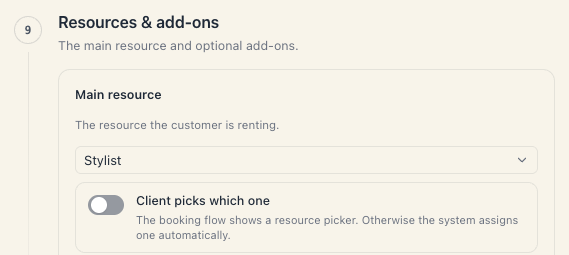
- Section Resources & add-ons: set the Main resource — the kind the instructor comes from.
- Press the save button top right.
- Go to Catalog → Programs and add a series or a one-off class. Without this step the class does not exist for the client.
Important: the type locks on save. Reopen a saved offering and the type cards are disabled, with “Type is locked after creation. To change — create a new offering of the desired type.”
3. The “Class settings” section — field by field
| Field | What it is | Values | If you leave it alone |
|---|---|---|---|
| Duration | how many minutes one class runs | quick chips 30 / 45 / 60 / 90 min plus a free field | defaults to 60 min; the server rejects anything under 5 min |
| Capacity (seats) | “Maximum number of participants per session.” | minimum 2, maximum 1000 | switching from appointment to class lifts the field to 12 automatically |
| Accepts package payment | ”Clients can pay using a class-pass package.” | on/off switch | off — no package option is offered at booking |
The number in Capacity (seats) is a template. Every series and every individual session can override it — see §7.
At the bottom of the section there is a blue note: “Recurring sessions (series) are created and managed in the Programs section. Set days, time and capacity there — that is where the real sessions are generated.” The button next to it — Create a class series — takes you straight into a new series editor.
This section has no “recurring schedule” toggle. If you remember one from an older screen, it was removed: it stored a setting that never produced real sessions, and the class stayed invisible.
4. The “Pricing” section
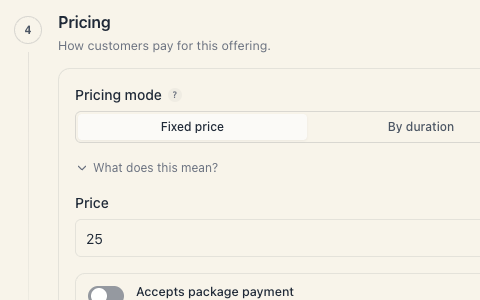
For a group class the price is per person. Two modes are available:
| Mode | What it does | When it fits |
|---|---|---|
| Fixed price | ”One fixed rate regardless of duration.” | the normal case for a class |
| By duration | ”Price is multiplied by the booking duration.” | rare for classes — more of an appointment thing |
Below the modes sits Accepts package payment, explained as “Regardless of pricing mode, clients can also pay with a package.” It is the same field you saw in Class settings, surfaced twice.
This is also where Deposit & prepayment lives:
- the Require online payment switch — “Clients pay a deposit (or the full price) by card when they book.”;
- What to charge — Deposit or Full price;
- Deposit amount — Percent or Fixed;
- Refund on cancellation — Non-refundable / Always refundable / Refundable before a cutoff (the last one adds Refund cutoff (hours before start)).
Without a connected payment provider the switch is disabled and reads “Connect a payment provider for this board to require a deposit.” with an Open payment settings button. Details: Deposits & prepayment.
5. The “Resources & add-ons” section
This is where you declare what the class occupies.
- Main resource — “The resource the customer is renting.” For a class this is the kind the instructor comes from. The dropdown lists the board’s resource kinds with the number of active resources in each. If the kind is empty, an amber note appears saying the service will not be bookable until you add at least one resource of that kind.
- Resources customers can pick — the allowlist used when the client chooses their own instructor. Turn client choice on and leave the list empty and the save is refused with “When customers pick the resource, at least 1 resource must be allowed — select one in ‘Allowed resources’ or turn off customer choice.”
- Add-ons — optional resources (a mat, props, equipment). Each add-on has four blocks: How it appears to the customer, Quantity, Which resource to reserve, Price. Beware of Always included (customer doesn’t see it): such an add-on also blocks availability when its kind is empty — the hint says it plainly: ”‘{kind}’ has no entries yet — this add-on will block bookings for the whole service.”
Careful: if the class also occupies a room, add the “Room” kind too — otherwise Mountify doesn’t know the room is taken and will happily allow two classes in it at the same hour.
6. The remaining sections, briefly
| Section | What it does for a class |
|---|---|
| Price by day & time | ”Surcharges or discounts based on the day and time” — e.g. “weekend +20%”. |
| Public-page details | Cover image, Cover photos, What’s included, Search tags, Cancellation policy. The policy is text for the client — it is never applied automatically. |
| Highlight | badge chip and accent outline on the public card (“HIT”, “Promo”, “New”). |
| What would you like to know about your client? | questions the client answers at booking. The definitions are shared across offerings. |
| Locations | shown only with 2+ locations. Either Available at all locations or explicitly ticked branches. Important for series: a series at a branch outside the list is invisible publicly. |
7. Capacity is set at three levels
The most commonly missed detail:
| Level | Where you set it | What it does |
|---|---|---|
| Offering | Class settings → Capacity (seats) | the default for every new series and every new one-off class |
| Series | Catalog → Programs → New series → Capacity | the value for every session that series generates |
| Single session | Catalog → Programs → expand a series → a session → Capacity | that date only |
Changing capacity on the offering does not change sessions that already exist. If tomorrow needs 15 instead of 12, change it on that session.
The floor for a single session is the number already booked: the field refuses anything lower and shows “Min: {N} (current bookings)“.
8. Save errors and what they mean
| Message | Cause | What to do |
|---|---|---|
| Let’s fix a few things before saving | one or more sections are invalid | every row in the list has a Go to it button — press it |
| ”Select the resource this offering needs (e.g. the master or instructor).“ | no Main resource picked | open Resources & add-ons and pick the kind |
| amber empty-kind note | you require a kind with no active resources in it | add a resource of that kind, or drop the requirement |
| ”Connect a payment provider for this board before requiring a deposit.” | deposit without a provider | press Open payment settings |
| ”This board’s payment connection is inactive…“ | provider connected but the link broke | reconnect it, or turn the deposit off |
9. Troubleshooting
I typed capacity 1 and it became 12. A group class needs at least 2 seats. On entering the Group class type the field lifts itself to 12 so a one-seat class can never be saved.
I don’t see a “Class settings” section. Then the offering isn’t a group class. Check the Template section — with the type locked it will read Appointment or Rental / resource.
I created the class but I can’t book a client into it.
Appointments are booked from the schedule; classes are booked into a session. Create the schedule first — the sessions appear in Schedule as cards with a 0/12 counter.
The client doesn’t see the class. See Troubleshooting in Group classes — every cause is listed there.
I want to switch the type from appointment to class. Not possible. Create a new offering of the right type and archive the old one. The history of past bookings stays.
What’s next
- Schedule class series — the mandatory second half.
- One-off classes — for a single event.
- Capacity & waitlist — how a session fills up.
- Create a service — the shared editor for every type.