Questions you ask at booking
A shared library of questions (preferences, level, desired result) the client answers at checkout.
“What length are you after?”, “Are you driving here?”, “How would you like us to address you?” — the questions you’d otherwise ask every new client in person. Mountify lets you ask them once and have the client answer while they book online. The answers stay on their card, so you never have to ask twice.
Working with them happens in two different places, and that’s the most common source of confusion:
| Step | Where |
|---|---|
| 1. Create the question | Setup → Client questions |
| 2. Enable it for a specific service | Catalog → Services → <the service> → the “What would you like to know about your client?” section |
Without the second step the question exists but nobody ever sees it.
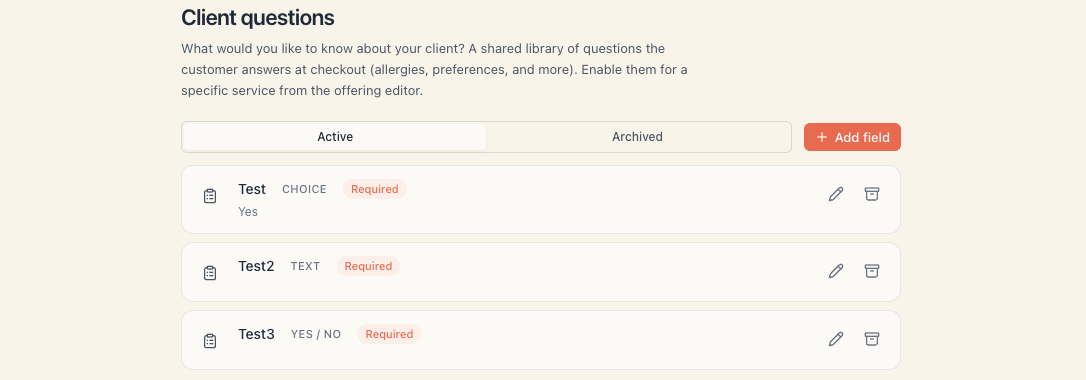
1. The library — «Client questions»
Open Setup (the last row of the board menu) → Client questions.
The page subtitle states the idea exactly: “What would you like to know about your client? A shared library of questions the customer answers at checkout (preferences, level, desired result, and more). Enable them for a specific service from the offering editor.”
At the top sit two tabs — Active and Archived — and an Add field button.
What a row shows
| Column | Contents |
|---|---|
| Label | The question text; underneath, for a “Choice” field, its options separated by dots |
| Type | Text, Yes / No or Choice |
| Required | A Required badge, or a dash |
| Usage | A scissors icon with a number — how many services collect this question |
| Actions | A pencil (edit) and a box (Archive) |
That scissors column is the most useful one: if a question shows 0, it exists but is never asked.
2. Creating a question
Press Add field. The form opens in place, with a live preview beside it headed How clients will see it — it updates as you type.
The fields
| Field | What to put in it |
|---|---|
| Field label | The question itself, worded the way the client will read it. Up to 120 characters. The placeholder reads “e.g. Experience level…” |
| Type | Three tiles: Text, Yes / No, Choice |
| Options | Shown only for the Choice type. Type an option and press Add (or Enter). Each option is removed with an × |
| Required field | A switch. Its hint reads “This field is required.” |
Finish with Add (when creating) or Save (when editing).
Which type for what
| Type | How it looks to the client | When to use it |
|---|---|---|
| Text | A single text box | A free answer: “The name of your previous colour”, “Car registration” |
| Yes / No | A switch | A binary question: “Are you bringing a child?” |
| Choice | A list of radio circles, one per option | A short fixed list: “How should we reach you: phone · email · message” |
A question can’t be saved without a label, and a Choice question can’t be saved without at least one option — the button stays disabled.
Write questions like a human, not a form. “Is there anything we should know about your hair?” gets useful answers. “Medical contraindications” gets an empty box.
3. Required questions block the booking
If a question is a Required field, the client genuinely cannot finish booking without answering. Pressing the confirm button highlights the field with This field is required. and nothing is submitted.
So make required only the questions you truly can’t work without. Every extra required question is one more reason for a client to abandon the booking halfway.
Optional questions show an optional marker beside their label.
4. Enabling a question for a service
Questions appear nowhere until you attach them to a service.
- Open Catalog → Services.
- Open the service for editing.
- Find the What would you like to know about your client? section.
Its description reads: “Pick which questions the customer answers when booking this service. Questions are shared across services.”
There you get:
- a list of every active question, each with a toggle;
- Add field — creates a new question right here and enables it for this service straight away (the same form with the live preview);
- Manage fields — jumps to the library.
The hint underneath repeats the principle: “Fields are shared across services. Enable an existing one or add a new field — it’s saved to the board library.”
Don’t forget to save the service.
One question, many services. “Desired result” is created once and enabled for colouring, keratin and permanent straightening. The answer is kept at client level — you don’t ask again for each of the three.
5. What the client sees
At checkout, just before the confirmation, a card appears:
- Heading: <Business name> would like to get to know you (or A few questions before your visit if the name is missing).
- Subtitle: “Help us prepare for your visit.”
- Then the questions enabled for the chosen service, in the order they sit in the library.
If the client is signed in on your public page, their previous answers are filled in for them. If they book as a guest (no account), the fields are empty — even if they answered before. That’s deliberate: an unverified email is not enough for us to show someone else’s data.
6. Where the answers go
| Place | How it looks |
|---|---|
| The booking panel (in Schedule and Bookings) | A Custom fields block with the label and answer; Yes / No for binary ones |
| The client card, Overview tab | The What we know about this client block — the latest answer per question |
If the client has booked at several of your venues, the card groups their answers by venue: questions belong to a specific board and are never merged.
Answers are not emailed anywhere and are not shown on the public page after booking.
7. Archiving — soft and reversible
The Archive button on a row removes the question from the active list. It:
- disappears from checkout;
- disappears from the enable-list in the service editor;
- stays visible on old bookings and cards — history doesn’t change.
Archived questions live in the Archived tab and come back with Restore. There is no delete — deliberately, so old answers are never orphaned.
8. What this is NOT
- Not CRM contact fields. These are booking-board questions; they have nothing to do with custom fields on CRM contacts.
- Not asked on a manual booking. The form you use to enter an appointment has no such questions — only a single Note (optional) field, with the placeholder “Preferences, notes…”. If someone mentions something important over the phone, put it there or in the client’s notes.
- Not a filter. You can’t search clients by their answer.
- Not shared between boards. Each board has its own library.
- Not asked when buying a package or a gift card. Questions are attached to a service.
9. Troubleshooting
| Symptom | Cause | Fix |
|---|---|---|
| I created a question but clients don’t see it | It isn’t enabled for any service | Open the service → What would you like to know about your client? |
| The scissors column shows 0 | Same thing | Same fix |
| The save button on the question is disabled | An empty label, or a Choice type with no options | Fill them in |
| Couldn’t save your changes. Please try again. | A network or server problem | Try again |
| A client skipped a question I consider mandatory | The question is optional, or the booking was entered by staff | Turn on Required field; manual bookings never ask |
| Answers don’t prefill for a regular client | The client books as a guest, without signing in | That’s expected |
| I archived a question and worried about old answers | Archiving is soft | The old answers are still there |
What’s next
- The client card — the What we know about this client block.
- Notes & preferences — the other two kinds of client information.
- Create a service — the section where questions get enabled.
- Your booking clients — the list of people.