Your booking clients
The list of people who book through your public page — search, add, archive and ban.
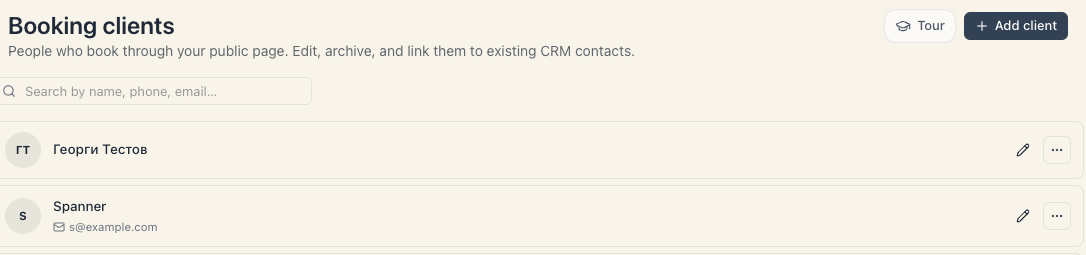
Clients is your board’s address book: everyone who has ever booked with you, plus everyone you added by hand. Open it from the fourth row of the board menu — Clients, right under Bookings. From here you search for a person by phone, see who hasn’t been in for a while, send an email invitation, book an appointment directly, and ban a problem client.
1. Getting there
- Pick your board in the left rail.
- Press Clients.
The address looks like this: /w/<workspace>/booking-clients?boardId=<board>. Note the boardId at the end — the list is always for one board.
2. The list is per board, not per business
This is the first thing to understand, because it explains most “why can’t I find this client” questions.
A person appears in a board’s list if at least one of four things is true:
- they have booked at least once on that board;
- they bought a package on that board;
- they were added by hand while that board was active (it becomes their “home” board);
- they have an explicit membership of that board.
If you have two boards — a salon and a studio, say — and the client has only ever been to the salon, you won’t see them in the studio’s list. That’s deliberate: each venue keeps its own address book.
One exception worth knowing: a ban is not per board. A ban applies to the whole workspace — all your boards at once. See Ban & archive clients.
The page title reads Booking clients with a total beside it, and under it Clients and visits for <board name> only.
3. Search
The box at the top left reads Search by name, phone, email…. It searches all three fields at once and starts working as you type.
Phone search is smart. If the client is stored as +359888123456 and you type 0888123456 (the way it appears on your phone’s display), they’ll still be found. You don’t need the country code.
4. Sorting — four options
The dropdown to the right of the search box:
| Sort | What it does |
|---|---|
| Recently active | Most recent visitors on top. This is the default |
| Name A–Z | Alphabetical |
| Most visits | Your most loyal clients on top |
| Invite first | Those whose “time to invite” arrived longest ago, on top |
5. The six filters
Under the search box sits a row of round buttons. Each carries a number — how many clients fall into it.
| Filter | Who’s in it |
|---|---|
| All | Everyone on this board |
| Time to invite | No upcoming booking, and by their usual rhythm they should have been back by now |
| Upcoming | Has a booking in the future |
| New | No visits yet |
| No-shows | At least one no-show on this board |
| Active package | At least one package with credits left |
How «Time to invite» is calculated
It isn’t a manual label — the system works it out:
- It looks at how many days usually pass between this person’s visits.
- If they’ve only been once, it assumes 60 days.
- It clamps that number between 14 and 180 days — so it neither nags weekly nor forgets you for half a year.
- If more time than that has passed since the last visit and there is no upcoming booking, the client gets the Time to invite label.
This filter is the most direct way to fill a quiet week: switch it on, sort by Invite first, and start sending invitations.
6. A row, close up
Every row is clickable — it opens the client card.
First line: name and badge. Exactly one badge shows, in this order of priority:
| Badge | Meaning |
|---|---|
| Banned | The client is banned in the workspace |
| Next · <date> | There’s an upcoming booking — its date and time are shown |
| Time to invite | See above |
| New | No visits yet |
Separately from that, a Staff note badge may also appear — it means there’s a special warning recorded for this person. See Notes & preferences.
Second line: the service and the specialist from the upcoming booking (or from the last visit if there’s no upcoming one).
Third line: phone, email, N visits, Last <date>, a red N no-shows if any, and N credits left if a package is active. If the client is due an invitation but has no email, Email missing lights up here — precisely because without an email the invitation is impossible.
7. The row actions
On the right of each row:
- Invite by email — opens the invitation builder. If the client has no email, the same button becomes Add email and opens the profile editor.
- Book — opens a panel for a new booking for this exact client, without you having to search for them again.
- A pencil — Edit.
- ⋯ — one action only: Ban client (or Unban client for an already-banned one). The menu isn’t rendered at all if your role doesn’t include the right to ban.
For a banned client the first button (Invite by email / Add email) disappears — there’s no point inviting someone you’ve banned.
The email invitation in brief
The dialog is called Email invitation for <name> and has two halves: a route builder (“What should the client do?” — book a visit, join a class, buy a package, or simply explore the page) and an editable preview of the message itself (Subject, Message, Button text). Every step of the route is optional — wherever you stop, the client chooses the rest.
Two things the interface says honestly: the message is sent from a Mountify no-reply address (“The message is sent from a no-reply Mountify address. Replies are not monitored.”), and if public booking is switched off for that venue the invitation can’t be sent at all (“Enable public booking for this branch before sending an invitation.”).
8. Adding a client by hand
The Add client button at the top right opens Add booking client:
| Field | Required | Notes |
|---|---|---|
| Name | Yes | An empty name gives Name is required |
| Phone | No | ”Include country code, e.g. +359 88 123 45 67” |
| No | Only needed for invitations | |
| Notes | No | ”General notes and preferences…” |
| Important staff alert | No | ”Shown prominently on the client card, for example an important arrangement or special handling note.” |
Press Create. If the phone is already used by another client you’ll get Another booking client already uses this phone number. — meaning the person is already in the base; find them via search instead of creating a duplicate.
A practical rule: always enter a phone number. The phone is what the system uses to recognise a repeat caller and what you’ll use to find them a month later. A client with no phone is a note, not a record.
9. Loading and the counter
The list loads 50 rows at a time. At the bottom sit Load more and a line reading Showing X of Y. The counter next to the title shows the total number of clients on the board, whatever filter is applied.
10. Empty and error
| What you see | Meaning | What to do |
|---|---|---|
| No booking clients yet · “Clients for <board> will appear here after their first booking. You can also add one manually.” | The board is new | Add client, or wait for the first booking |
| No clients match this view · “Try another filter or clear the search.” | The filter or the search hides everything | Go back to All |
| Couldn’t load booking clients plus Retry | A network or server problem | Try again |
| Booking clients not found · “We couldn’t find clients for this branch. It may no longer be available.” | The board in the address doesn’t exist or is archived | Pick a board in the left rail |
11. What this page does NOT do
- It is not the CRM contact list. Booking clients are a separate base — the one that holds bookings, packages and loyalty.
- There is no archive. The product stores an archived state for a client, but today the interface has neither an archive button nor an “Archived” tab. The only action for taking a client out of circulation is a ban.
- It sends nothing on its own. No automatic email leaves this list — an invitation goes out only when you press the button.
- It doesn’t delete. There is no delete-client button.
- It doesn’t show money. How much a person has spent is on their card, not in the list.
What’s next
- The client card — what’s inside a single client.
- Ban & archive clients — how to stop a problem client.
- Notes & preferences — the three kinds of note and where each one shows.
- Questions you ask at booking — what you ask at checkout and where the answers go.