Review request email
After a visit the client can get an email inviting them to rate their visit.
The best moment to ask for a review is shortly after the visit, while the impression is fresh. Mountify does it for you: about three hours after the appointment ends the client gets a short email inviting them to rate it.
There is no “enable review requests” switch. The mechanism runs on its own, provided the conditions are met. This article lists every one of those conditions, explains what the client sees, and how to get more reviews.
1. The eight conditions
The request goes out only when all of these are true:
| # | Condition | Why |
|---|---|---|
| 1 | The booking was made through the public page | A staff-entered booking sends the client nothing — a review request would be their first-ever email, out of the blue |
| 2 | The booking has an email | Nowhere to send it |
| 3 | The visit ended at least 3 hours ago | A little time to get home and form an opinion |
| 4 | The status is Confirmed, Arrived or Completed | Cancellations and no-shows aren’t asked |
| 5 | Reviews are enabled on the board | See §3 |
| 6 | The client hasn’t already reviewed that booking | No double asking |
| 7 | A request hasn’t been sent before | One ask per booking |
| 8 | The board isn’t archived | The review page wouldn’t open |
The check runs once an hour. So the email may arrive 3–4 hours after the visit rather than exactly at the third hour.
2. Condition #1 is the important one
Worth repeating, because it surprises people:
A client you booked into the calendar yourself never gets a review request.
That is a deliberate decision, not an oversight. A staff-entered booking sends the client neither a confirmation nor a reminder. If the only email they ever received was “rate your visit”, it would be a strange, unexpected message from a business that has never written to them.
The practical consequence: the more clients book online themselves, the more reviews you get. If you take appointments over the phone, you’ll see few automatic reviews.
3. The switch that stops requests
There is one way to turn them off completely:
- In the board column click the Setup hub.
- In the Storefront group choose the Reviews row.
- Turn off Show reviews on your booking page.
The hint reads: “When off, the reviews section is hidden from customers. Individual reviews and ratings are kept.” On top of that, the email requests stop too.
4. What the client sees
The email is short. It carries the business name, the service and a button leading to a rating page.
On that page the client gives 1–5 stars and optionally writes a few sentences. The ratings carry words: poor, fair, good, very good, excellent.
The fork to Google
If you filled in the Google review link in the public-site editor, something useful happens:
“A rating of 4★ or higher routes the customer to Google; lower ratings stay in your system.”
So happy clients go and write a public review on Google, while unhappy ones leave their feedback with you — where you can respond without it being public.
The field is in Setup → Public site → the Reviews section. There is also a How do I find this link? helper.
5. The link in the email
| Property | Value |
|---|---|
| Validity | about 95 days |
| What it allows | only leaving a review |
| What it does NOT allow | cancelling, moving or changing the booking |
The second point is a deliberate safeguard. That link lives a long time and is often forwarded — it must not carry power over the booking.
If the client clicks it after expiry they’ll see the link is no longer valid. You can then add the review by hand (§7).
6. Where the reviews land
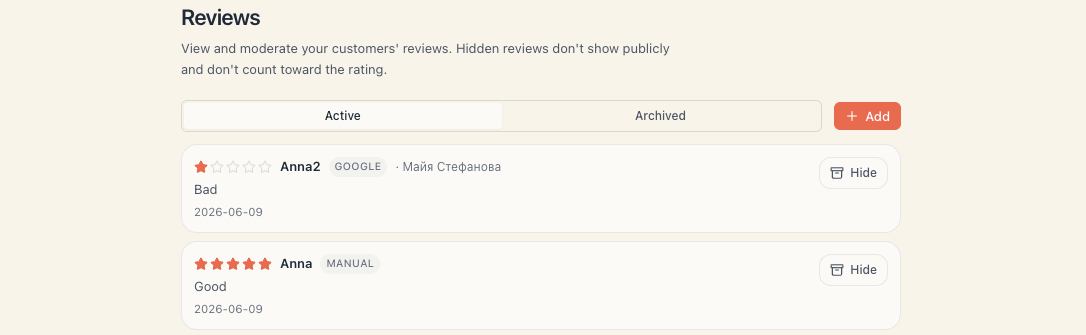
Setup → Reviews. The page has Active and Archived tabs, and each review shows the rating, text, author, date, specialist (if given) and source — Customer, Manual, Google or Yelp.
Actions: Hide (removes it from the public page but keeps it) and Restore.
The page subtitle explains: “View and moderate your customers’ reviews. Hidden reviews don’t show publicly and don’t count toward the rating.”
7. Adding a review by hand
If a client praises you in person, on Google or in a message, you can enter it yourself:
- Setup → Reviews → the Add button.
- A New review dialog opens.
- Fill in the rating, Author name, Review text…, Date, optionally Specialist (optional) and Source.
- Save.
There is a live preview too — How it will look on your site.
Manual reviews are labelled as such, so the origin is always clear.
8. How to get more reviews
| Tactic | Effect |
|---|---|
| Steer clients to book online | The only way requests fire at all |
| Fill in the Google review link | Happy clients post publicly, which brings new people |
| Mark attendance correctly | Cancellations and no-shows get no request |
| Don’t switch the reviews toggle off | It stops the requests too |
| Ask in person as well | ”You’ll get an email — I’d really appreciate a minute of your time” |
| Add old praise by hand | So the page isn’t empty at the start |
9. If something isn’t working
| Symptom | Check |
|---|---|
| Nobody gets requests | The bookings are probably entered by hand. Check where they came from |
| They stopped suddenly | The Show reviews on your booking page switch is off |
| A client booked online but got nothing | Spam folder; or they cancelled/no-showed; or they already left a review |
| It arrived “late” | The check runs hourly — that’s normal |
| The client says the link doesn’t work | More than 95 days have passed. Add the review by hand |
| One client got two requests | They shouldn’t. Each booking is asked once — those may be two different bookings |
What’s next
- Collect reviews — the whole collection picture.
- Reviews overview — moderating and displaying them.
- Client notifications — the other emails.
- Google vs manual reviews — which source for what.