The confirmation window
How long the client has to confirm an online booking, when the deadline falls, where your team sees it, and how the client gets the email again.
“Confirmation window” sounds technical, but the idea is simple: how many minutes we give the client to press “yes, I’m coming” after booking online. Don’t press it in time and the slot is automatically freed for someone else.
On every new board the setting is on with 360 minutes (6 hours). You can change the minutes or switch it off. This article explains exactly how it works, when the deadline falls, where your team sees it, how a client sends the email to themselves again, and why setting it too short is a trap.
1. Where to find it
The path is: sidebar → Setup → Settings.
- In the left icon rail open the boards product and pick your board.
- In the board column click the Setup hub.
- In the Salon operations group choose the Settings row.
- The page opens directly. There are no tabs and no left column — you see the board profile and its fields.
- Find Confirmation window (minutes). There is a switch next to the heading and a minutes field under it.
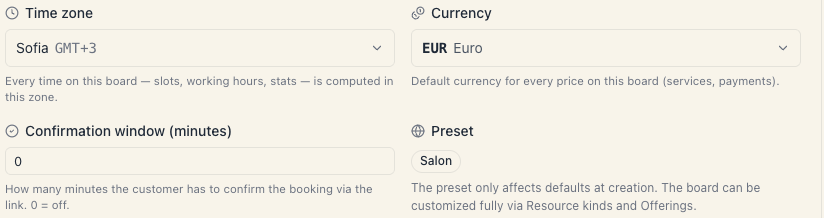
The switch turns confirmation on and off. The minutes field only works while the switch is on. The text under the field always tells you the state:
- switch on: “How long the customer has to confirm the booking via the emailed link — but no later than 2 hours before the visit. If the visit is less than 2 h 30 min away, the booking is confirmed straight away. Unconfirmed bookings are released automatically, but never once the visit has started: then it’s your call.”
- switch off: “Confirmation is off — public bookings are confirmed straight away and no confirmation email is sent.”
The change doesn’t save itself
This page is not autosaving. All fields are edited together and committed with one button:
- Change the switch or the number.
- At the bottom right an Unsaved changes label appears.
- Press Save changes.
- A Save board changes? confirmation appears, reading “This updates the board profile shown to your team and to customers on the public booking page.”
- Confirm.
Close the page without saving and the change is lost.
2. The field’s limits
| Rule | Value |
|---|---|
| Off | with the switch, not with a number |
| Minimum with the switch on | 1 minute |
| Maximum | 10080 minutes = 7 days |
| Step | 1 minute |
| Default on a new board | on, 360 minutes = 6 hours |
3. What happens in each position
Switch off
Public bookings are created immediately with the status Confirmed. The client gets a “Your booking is confirmed” email. The slot is taken from the first second.
Switch on
Public bookings are created with the status Pending:
- The client gets an email with a confirm button and a deadline shown in the salon’s own clock.
- The slot is held — nobody else can take it.
- If the client presses the button in time, the booking becomes Confirmed.
- If they don’t, the booking is cancelled automatically within the next few minutes and the slot is released. The client gets an email saying the slot was freed because the confirmation didn’t arrive.
The cancellation is recorded as done by the system — not by you and not by the client.
When exactly the deadline falls
The minutes count from the moment of booking, but the deadline is never later than 2 hours before the visit. Whichever comes first wins. If the visit is less than 2 h 30 min away, the system doesn’t ask at all — the booking is confirmed straight away and the client gets the ordinary “Your booking is confirmed” email.
An example with a 360-minute (6-hour) window:
| The client books | For | Confirmation deadline |
|---|---|---|
| Monday, 10:00 | Friday, 18:00 | Monday, 16:00 — the 6 hours run out |
| today, 10:00 | today, 15:00 | today, 13:00 — 2 hours before the visit |
| today, 13:00 | today, 15:00 | none — the booking is confirmed straight away |
A visit that has started is never released. If the appointment time arrives and the booking is still waiting for confirmation, the system doesn’t cancel it — it’s your call: confirm it, cancel it or mark it as a no-show. That way a client sitting in the chair never gets a “you didn’t confirm” email.
A visit with several services, and a class series
When a client books several services at once, or a series of group classes, it is one order: one email, one confirmation link for everything and one deadline. The deadline is measured against the first service or the first class. If the client presses the link, everything is confirmed. If they don’t, the whole order is released together. See Group classes for the series.
4. How your team sees the deadline
Every booking waiting for the client shows until when it waits. The time is in the salon’s clock: a deadline today shows just the time (“14:30”), a deadline on another day shows the date and the time.
| Where | What you see |
|---|---|
| Schedule — the booking’s card | An hourglass in the top-left corner of the card. If the card is tall enough, there is also an “until 14:30” chip at the bottom. Hover: “Awaiting confirmation until 14:30” |
| The booking card (opened from Schedule or Bookings) | An “Awaiting confirmation until 14:30” badge next to the status and under it: “If the customer doesn’t confirm via the emailed link by then, the booking is released automatically.” |
| Bookings | The Awaiting confirmation view gathers the upcoming waiting bookings, and their row reads “Awaiting confirmation”. The deadline shows when you open the booking |
| Today | The booking is marked as an online request awaiting confirmation and has a Confirm the request button. The deadline isn’t shown here |
The badge changes its words with the moment:
| Badge | When | What to do |
|---|---|---|
| ”Awaiting confirmation until 14:30” | the deadline is running | nothing — the client has time |
| ”Confirmation deadline passed” | the deadline passed but the visit is still ahead | nothing — “The customer didn’t confirm in time — the booking will be released within minutes." |
| "Not confirmed” (red) | the visit has started without confirmation | your call — “The booking isn’t released on its own — your call: confirm it, cancel it or mark it as a no-show.” |
A group class is one card per session in Schedule, so there’s no hourglass there. You see a specific attendee’s deadline by opening their booking from Bookings.
If the client calls and says “I’m coming”, you don’t have to wait for the link — open the booking and set the status to Confirmed (or press Confirm the request in Today).
A booking that waits for an online payment rather than a link shows “Awaiting payment until …”. It is confirmed by the payment, not by the email.
5. “Send the email again” — when the client can’t find the email
The email may be in spam, or the client may simply have deleted it. So the client can ask for the same email again themselves, without calling you.
Where the client sees it:
- Right after booking — on the Confirm your booking screen, in the What’s next list, the Send the email again row with the caption “A new confirmation link”. The row is only there in the browser window where the booking was made.
- In “My bookings” — if the client is signed in to their profile. Under the booking that waits there is a Send the email again button. If the profile’s email is the same as the email on the booking, the client can simply press Confirm there — without opening their inbox.
What happens:
- The same confirmation email goes to the address typed on the booking. For a visit with several services or a series — the order’s single email.
- The deadline isn’t extended. The new email carries the same deadline.
- While the email goes out the row reads “Sending…”, then counts down: “Sent. Again in 60 s”.
Limits:
| Rule | Value |
|---|---|
| Pause between two sends | 1 minute |
| Sends a day for one booking | 3 (a visit or a series counts as one booking) |
| When the day’s limit is used up | the row says when it can be sent again, e.g. “Again in 23 hours.” |
When it doesn’t work:
- the deadline has passed — “The confirmation deadline has passed.”;
- the booking is already confirmed or cancelled — “This booking no longer needs confirming.”;
- the booking waits for an online payment — the row isn’t shown, because the payment confirms it.
The client can’t change the email address from here. If they mistyped it, the email still goes to the wrong one — then confirm the booking yourself.
6. The hidden bonus: email verification
Clicking the link does one more thing besides confirming the booking — it proves the email belongs to the client.
That has a concrete benefit: the First-visit discount loyalty rule requires a verified identity. A guest who simply types an email and books does not get it. A guest who confirmed a booking through the link does.
In other words: if you run a first-visit discount and get many guests without accounts, keeping the confirmation window on is how you make that discount actually work. See First-visit & birthday.
7. How to pick the number
| Value | Effect |
|---|---|
| Off | No confirmation. Simplest |
| 30–60 | Enough for someone booking on their phone who checks mail right away |
| 120–240 | More forgiving. Catches people who book at work and read mail later |
| 360 (default) | Someone booking in the evening finds the email in the morning, and an abandoned slot goes back on sale the same day |
| 1440 (24 hours) | Very lenient. The slot is held all day even if the person isn’t serious |
| 10080 (7 days) | Practically pointless — just turn the setting off |
Beware of small numbers: 15 minutes is a trap. Someone booking at 23:40 and going to bed will find their appointment cancelled in the morning. If you’re unsure, keep 360.
However big the number, the deadline still ends 2 hours before the visit — for same-day appointments the real deadline is often shorter than the window.
8. When it’s worth keeping on
Keep it on if:
- you get a lot of bookings nobody turns up for;
- you offer expensive treatments that block a big slot;
- you run group classes with limited seats;
- you want confidence that the email address is real.
Switch it off if:
- your clients are mostly regulars;
- your calendar rarely fills up;
- you don’t want the risk of losing a client to an unread email.
9. What the confirmation window does NOT do
- It doesn’t apply to staff-entered bookings. Those are created confirmed, and the client is sent nothing.
- It isn’t a reminder. The reminder comes before the appointment; the window is a deadline right after booking.
- It isn’t prepayment. If the service requires payment, a different mechanism applies — the booking waits for money, not for a click.
- It doesn’t send a second “10 minutes left” message by itself. One email, one deadline — unless the client presses Send the email again.
- It doesn’t release a visit that has started. That’s your call.
- It isn’t configurable per service or location. The value is one for the whole board.
10. If something isn’t working
| Symptom | Check |
|---|---|
| Bookings confirm instantly and I don’t want that | The switch is off or the change wasn’t saved — look for Unsaved changes. If the visit is less than 2 h 30 min away, the booking is confirmed straight away by design |
| Bookings cancel themselves | The window is on and clients aren’t making it. Raise the number |
| The client says they got no link | Spam folder. Have them press Send the email again. Also check the booking is public — manual ones send nothing |
| The client mistyped their email | The email won’t reach them. Confirm the booking yourself — set the status to Confirmed |
| The booking stays Pending | The client hasn’t clicked the link and the deadline hasn’t passed. If the visit has already started, the badge reads “Not confirmed” and the booking is waiting for you |
| I don’t see the deadline in Today | It isn’t shown there. Open the booking from Schedule or Bookings |
| I can’t find the field | It’s on Setup → Settings, not on the public-site page |
What’s next
- Client notifications — the map of every notification.
- Confirmations & reminders — what each email contains.
- Require a phone number — the neighbouring setting for the client’s phone.
- Booking statuses — what “Pending” means.
- First-visit & birthday — why confirming unlocks the discount.