Client notifications
Automatic email confirmations and reminders, a confirmation window, and extra channels.
Mountify emails clients automatically — but only in one single case: when the client booked the appointment themselves through the public page. That is the most important sentence in this whole category, and it deserves to be said before anything else.
This article is the map of every notification in the system: which emails exist, when they fire, who receives them, what is not sent, and what notifications you see inside the admin panel.
1. The rule that governs everything
Every automatic email to a client has two conditions, and both must hold:
| Condition | Explanation |
|---|---|
| The booking was made through the public page | Bookings entered by staff produce no email at all |
| The booking carries the client’s email address | With no address there is nowhere to send |
A booking you entered in the calendar sends the client absolutely nothing — ever. No confirmation, no reminder, no review request. Neither admin booking form even has an email field.
If you want the client to receive something after a manual booking, the only way is to invite them by hand — see §5.
2. Every automatic email to the client
| When it fires | Conditions | |
|---|---|---|
| Booking confirmation | Immediately on creation | Public booking, has an email, board not archived |
| Confirm your booking (with a link) | Immediately on creation | Same + the confirmation window is on |
| You’re on the waitlist | Immediately on creation | The booking is waitlisted |
| Your booking is confirmed | When the booking moves from Pending or Waitlisted to Confirmed | Public booking, has an email |
| Your booking was cancelled | On cancellation — by you, by the client, or automatically | Public booking, has an email |
| Your booking was moved | When the date/time changes | Public booking, has an email |
| Reminder | Before the appointment, at the lead time the client chose | Public booking, status Confirmed, the client picked a reminder |
| Rate your visit | About 3 hours after the visit ends | Public booking, the visit happened, reviews are on, no review yet |
All of them are sent from a Mountify address with the sender name {board name} via Mountify.
Details on the first groups — Confirmations & reminders.
3. The special case: pay first
If the service requires payment and the board is set so that payment confirms the booking, the client gets no email at creation. The booking is a held slot waiting for money.
The “Your booking is confirmed” email fires only once the payment lands. If the client doesn’t pay, the slot is released automatically and they receive a cancellation email.
4. The confirmation window
This is the only setting in the entire admin panel that affects client emails.
Setup → Settings → Confirmation window (minutes) — a switch next to the heading and a minutes field under it. On new boards the switch is on with 360 minutes (6 hours).
- Switch off — public bookings are confirmed immediately and no confirmation email is sent.
- Switch on — the public booking is created with the status Pending, the client gets an email with a link and has that many minutes to click it, but no later than 2 hours before the visit. If the visit is less than 2 h 30 min away, the booking is confirmed straight away. If the client doesn’t click in time, the booking is auto-cancelled and the slot is freed. A visit that has started is never released — that’s your call.
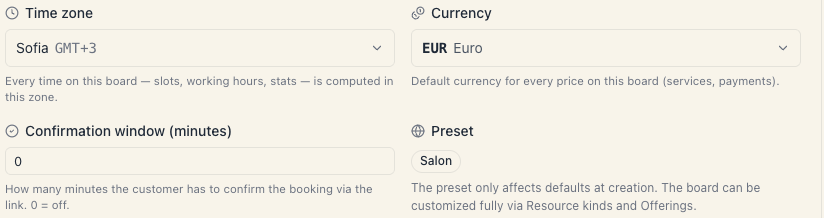
Details — The confirmation window.
5. The one email you can send by hand
From the clients page you can send an email invitation — the only message to a client that goes out on your command.
- In the board column choose Clients.
- Find the client. If they have an email, their row shows an Invite by email button. If not, the button reads Add email and opens the editor.
- Press Invite by email. An Email invitation for {name} dialog opens.
- On the left you choose what the client should do — where the button takes them: the home page, a specific service, a specialist, a class, a package, a location. Every step is optional.
- On the right you see the real email and can edit Subject, Message and Button text directly inside it.
- Choose the Email language (Bulgarian or English).
- Press Send invitation. “Invitation sent to {email}” appears.
Two things the dialog states explicitly:
“The booking button, its link and the no-reply notice are added automatically.”
“The message is sent from a no-reply Mountify address. Replies are not monitored.”
If public booking is switched off, the button won’t work and you’ll see: “Enable public booking for this branch before sending an invitation.”
6. The notifications you see (in the admin panel)
Separately from client emails there are internal notifications for your team. They live in the app, not in your inbox, and appear under the bell at the top right.
| Notification type | When |
|---|---|
| New booking | A client booked |
| Rescheduled | A booking was moved |
| Cancelled | A booking was cancelled |
| No-show | A booking was marked No-show |
| Completed | A booking was finished |
| Paid | A payment came in |
| New review | A client left a review |
| Package bought | A client bought a package |
| Waitlist | Movement in the waitlist |
The panel has All and Unread tabs, grouping by Today / Yesterday / Earlier, and the actions Mark all read, Mark read and Delete all.
Your own actions never notify you. If you cancel a booking, you get no notification about it — your colleagues do.
These notifications do not go to your inbox. There is no “email me on every new booking” setting.
7. What Mountify does NOT send
- No SMS. None at all — not confirmations, not reminders.
- No WhatsApp messages about bookings. See WhatsApp channel.
- No email to you on a new booking. Only an in-app notification.
- No email for a manually entered booking.
- No “turn confirmations off” setting. Automatic emails aren’t controlled by switches.
- No template editor for the automatic emails. Only the manual invitation is editable.
- No marketing broadcasts to a client list. The invitation goes to one client at a time.
8. The language of the emails
Automatic emails are sent in the language the client used on the public page. If that isn’t known, the language stored on their client record is used.
For the manual invitation the language is picked in the Email language field. The hint clarifies: “Only fixed template labels change. Your subject, message and button text stay as written.”
9. If a client says they got nothing
| Check | How |
|---|---|
| Is the booking public? | Open the booking. If your team entered it, no email was sent and none will be |
| Is there an email on the booking? | Look at the client details on the booking |
| Did the client pick a reminder? | No reminder is a valid choice |
| Spam folder | The most common cause with confirmations |
| Is the board archived? | An archived board sends no confirmations, reminders or move notices |
| Are reviews enabled? | Disabled reviews also stop the review request |
What’s next
- Confirmations & reminders — the full sender inventory.
- The confirmation window — the one setting.
- The client’s email — where the address lives and why it matters.
- WhatsApp channel — what it actually does and doesn’t.