Sell a credit card
A card of N visits the client uses themselves at booking — step by step.
A “credit card” here is a package of a fixed number of visits the client buys once and then spends one at a time at booking. A 10-yoga card, a 5-wash pass, an 8-massage punch card — the idea is always the same: pay once, come N times.
This is not a payment card. It is a punch card / pass / visit card — in the editor the type is called Credits.
This article is the whole path: creating the definition, selling it, tracking it, running it out.
1. Creating the definition
- Open the board and in the left menu pick Catalog → Packages.
- Press the plus button top right — Package. (If it carries a padlock, the workspace is on Start — see §7.)
- The editor opens with the eyebrow New package and the subtitle “A new sellable offer. Pick a kind, set the rules, watch the preview.”
The “Basics” section
| Field | What to put in it |
|---|---|
| Label | The name the client sees when buying — “10-visit pack”. Keep it short. |
| Price | The total price of the whole pack, not of one visit. |
| Expires after | Days from purchase. Empty = no expiry. Under the field the sentence updates: “The customer must use it within {N} days after purchase.” |
| Description | ”Short summary shown on the public purchase card.” |
The “Type” section
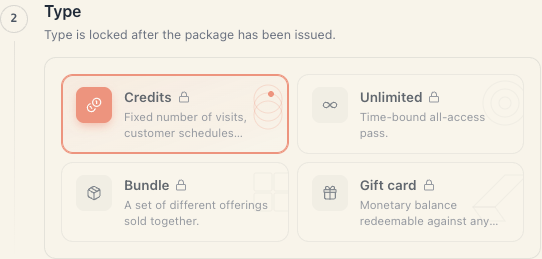
Pick the Credits card — “Fixed number of visits, customer schedules each.”
The “Credits” section
One field — Visits: “Number of visits the customer can redeem.” Minimum 1.
The “Scope” section
“Which offerings can this package pay for?” Two options:
- All offerings — the card is valid for everything on the board;
- Specific offerings — you tick the ones you want in the Select offerings picker.
Scope is the most common reason a card “doesn’t work”. If you’re making a yoga card, don’t leave it on All offerings — otherwise the client will pay for a massage with it too.
The “Locations” section (only with 2+ branches)
The Restrict to selected locations switch: “Restrict redemption to specific branches.”
The “Highlight” section
Badge and outline on the public card: Label (“e.g. HIT”), Icon, Accent color. Optional.
Press Create package. You get “Package created” and land back in the list.
2. Publishing
Every row in the list has a Published switch. On = the card is on sale on the public page. Off = only you can issue it.
Rows are ordered by dragging — that order carries to the client.
3. Offerings must accept packages
The definition alone isn’t enough. Every offering the card should pay for must have Accepts package payment switched on (in the offering’s Class settings / Pricing).
Exception: an offering in Package only mode always accepts packages.
4. How the client gets the card
4.1 They buy it on the site
The client opens the packages section, picks the card and confirms.
The public checkout takes no card for a package. The purchase is recorded as a sale that hasn’t been paid yet — the client pays at the venue. Until you record that the money arrived, the package carries an Unpaid badge (“Bought online without payment — the money hasn’t been collected yet”), and the statement holds a Package not paid yet line with amount 0.
4.2 You issue it from the client card
- Open Clients and find the person.
- Press Grant package.
- Pick the Board (if you have more than one) and the Package.
- Press Grant. You get “Package granted”.
Careful: the form has no payment-method field, so every package issued here counts as a gift and never enters revenue. In the statement it is a Package given away line with amount 0. If you did take the money, record it separately as a payment.
5. How it is spent
- Every booking takes one visit — whether the service costs €10 or €40.
- The deduction happens at booking time, not on arrival.
- A cancelled booking returns the visit.
- When visits run out the card is used up and is no longer offered.
- An expired card is not offered either, even with visits left.
On the client card, Packages tab, each instance shows:
- the name and the purchase date;
- “{used} / {total} credits used” with a progress bar and a percentage;
- the expiry date (in red as “Expires in {N} days” when it’s close);
- an expandable list of the bookings paid with it.
6. Refunding
The Refund button on the package row opens Refund this package?: “The package will be marked as refunded and credits removed. The customer keeps the payment record.”
One limit: a refund is only possible on an unused card. If even one live booking was paid with it, the server refuses — refund-with-rollback is not supported. Cancelled bookings don’t block it, because they already returned their credit.
7. Packages are a paid feature
Packages appear from the Growth plan. On Start the button is locked: “Packages is available on a higher plan. Upgrade to unlock it.”
8. Troubleshooting
The client has a card but it isn’t offered at booking. Check: the package’s scope; the offering’s Accepts package payment switch; the validity window; the remaining visits; the location.
The card isn’t on sale on the site. The Published switch is off, the package is archived, or the plan lacks the feature.
I sold 20 cards and the report shows zero revenue. See §4 — most likely they were all issued from the client card (so “given away”) or bought online and not yet collected.
I can’t refund a card. It has been used at least once. See §6.
I got the visit count wrong. Changing the definition only affects new purchases. Cards already sold keep their count.
What’s next
- Redeeming & balances — deduction, expiry and refunds in detail.
- Package types — credits vs. subscription.
- Packages & memberships — the money rule.
- The client card — where the balance shows.