Deposits & prepayment
Require a deposit or full prepayment at booking through Stripe — to cut no-shows.
A deposit at booking is the strongest way to cut no-shows: a client who has already put money down by card turns up. In Mountify, prepayment is configured per service — there is no single switch for the whole salon. This article walks every field of the Deposit & prepayment block: what it does, what it doesn’t do, and which errors you can hit.
One warning up front: the Refund on cancellation field is a promise shown to the client, nothing more. Mountify stores it and prints it at checkout, but it does not withhold or return anything automatically. Every refund is a manual action by someone on your team. Details: Refunds & cancellations.
How prepayment is structured
| Level | What is decided there |
|---|---|
| Board | Whether there’s an active payment-provider connection. Without it you can’t turn a deposit on anywhere. |
| Service | Whether this service requires online payment, how much, and which refund policy is shown. All the configuration lives here. |
| Booking | The real amount is recalculated and “frozen” at the moment of payment. |
There is no board-level setting that turns a deposit on for every service at once. Each service is configured separately — deliberately, because a deposit on a 15-minute service is usually pointless, while on a 3-hour colour job it’s essential.
1. Check the payment connection
A deposit cannot be turned on until the board has an Active payment-provider connection.
- Open Setup → Integrations → Online payments (Stripe).
- The badge top right must read Active.
If it doesn’t, do Connect Stripe first. If it says Setup incomplete or Restricted, the connection can’t take money yet — finish it.
2. Open the Deposit & prepayment block
Full path:
Catalog → Offerings → [the service] → Pricing → Deposit & prepayment
- In the left rail click Catalog, then Offerings.
- Click the service you want prepaid.
- In the Sections list on the right (or by scrolling down) choose Pricing.
- At the bottom of that section is a panel headed Deposit & prepayment.
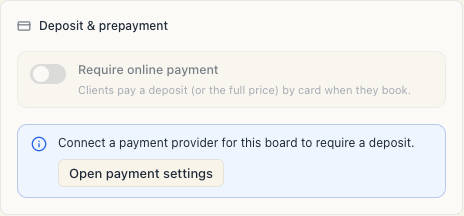
If the switch is greyed out
You’ll see the note:
Connect a payment provider for this board to require a deposit.
That means the board has no active connection. Unfortunately, the Open payment settings button next to that note lands on the board’s general profile rather than the connect page while nothing is connected at all — go there manually: Setup → Integrations → Online payments (Stripe).
If you see a yellow warning
This board’s payment connection is inactive. Reconnect it, or turn the deposit off, to save.
This is the case where the deposit was already on but the connection has dropped (disconnected, or restricted by Stripe). Saving will not go through until you fix one of the two: either restore the connection, or turn the deposit off for this service. Here the Open payment settings button does work and takes you to the right place.
3. Turn on Require online payment
The switch is labelled Require online payment, with the hint “Clients pay a deposit (or the full price) by card when they book.”
When you turn it on, Mountify seeds a 50% percentage deposit so you’re not left with an invalid setting that only fails at save time. Any value above zero you’d already set is kept.
Turning it off is always allowed — even with a dead connection. That’s also the right emergency move if Stripe is temporarily paused and you don’t want new clients attempting to pay.
4. The fields, one by one
| Field | Options / format | What it does | Default |
|---|---|---|---|
| Require online payment | on / off | The master switch. Off = the client pays on site. | Off |
| What to charge | Deposit · Full price | ”Deposit” = part now, remainder on site. “Full price” = the whole amount by card at booking. | ”Deposit” |
| Deposit amount | Percent · Fixed | How the part is calculated. Shown only for “Deposit”. | ”Percent” |
| Percent of price (%) | whole number 1–100 | Percentage of the booking’s price. | 50 on first enable |
| Deposit amount | a sum in the board’s currency | A fixed amount regardless of the service price. | — (must be above 0) |
| Refund on cancellation | Non-refundable · Always refundable · Refundable before a cutoff | The text the client sees at checkout. Triggers nothing. | ”Non-refundable” |
| Refund cutoff (hours before start) | whole number, minimum 1 | The number in the sentence the client reads. Shown only for “Refundable before a cutoff”. | — (minimum 1) |
Percent or fixed — which when
- Percent is fairer for services with a wide price range and for prices that shift by day and hour. 25–30% is typical.
- Fixed is more predictable for the client and easier to explain over the phone. Good for a short catalogue with similar prices.
Don’t forget to press Save changes — the block doesn’t save itself.
5. What “Refund on cancellation” actually does
Your choice here changes one sentence on the client’s payment screen:
| Choice | The client sees |
|---|---|
| Non-refundable | ”The amount paid is non-refundable.” |
| Always refundable | ”The amount paid is refundable under [your salon]‘s policy.” |
| Refundable before a cutoff | ”The amount paid is refundable if you cancel up to X hours before your appointment.” |
On both “positive” choices an honest caveat is added underneath:
The refund is issued by [your salon] under the salon’s policy — not automatically.
What the field does NOT do:
- It doesn’t hold money back.
- It doesn’t return money when the client cancels — neither inside the window nor outside it.
- It doesn’t remind you that someone is owed a refund.
- It doesn’t block a client from cancelling after the cutoff.
- The cutoff doesn’t fire anything at any hour.
In other words: it’s the shop window for your policy, not a mechanism. You decide and you refund — from Refunds & cancellations.
6. Where the block does NOT appear
Don’t look for Deposit & prepayment in these places — by design it isn’t there:
- On rentals. Rental-type offerings have no Pricing section at all, so no deposit either. See Rental deposits.
- On packages or gift cards. Packages are paid for down their own path — see Packages.
- If the editor is open on a different section — the block sits at the bottom of Pricing.
7. What amount is actually charged
The number you see in the editor is a rule, not a final sum. At the moment of payment Mountify recalculates it from the booking’s real price and freezes it. Which means:
- The deposit is computed after discounts — promo code, loyalty, day/time modifier.
- The deposit never exceeds what’s actually owed. If 20 is left after discounts and the rule says 30, then 20 is charged.
- If nothing at all is left to pay after discounts, the client goes straight to confirmation with no payment page.
- The frozen amount for a given payment doesn’t change — even if you edit the percentage meanwhile. Your change applies to later bookings.
8. How to check it worked
- Open your public booking page (see Share your page).
- Pick that exact service and get to the last step.
- You should see the Secure payment with Stripe panel with the amount and a Pay deposit button (or Pay for “Full price”).
The client’s whole screen is covered in What the client sees when paying online.
9. Turning a deposit off
- Open the service → Pricing → Deposit & prepayment.
- Turn Require online payment off.
- Press Save changes.
Turning it off:
- applies only to new bookings;
- does not refund deposits already paid — you refund those manually if you decide to;
- works even when the payment connection is dead.
Errors and what they mean
| Message | Cause | Fix |
|---|---|---|
| ”Connect a payment provider for this board to require a deposit.” | The board has no active connection | Do Connect Stripe |
| ”This board’s payment connection is inactive. Reconnect it, or turn the deposit off, to save.” | The deposit is on but the connection is disconnected or restricted | Restore the connection or turn the deposit off |
| ”Deposit percent must be between 1 and 100.” | Left at 0, or above 100 | Enter a number 1–100 |
| ”A percentage deposit can’t be more than 100%. Lower it, or use a fixed amount instead.” | Same thing, caught at save | Lower the percentage or switch to Fixed |
| ”Deposit amount must be greater than 0.” | Fixed chosen but the amount is 0 | Enter a real amount |
| ”Refund cutoff must be at least 1 hour.” | 0 or blank on “Refundable before a cutoff” | Enter at least 1 |
| ”To take a deposit or prepayment, first connect a payment provider for this board…” | The server refused the save because there’s no connection | Connect a provider and save again |
| ”Could not save the service. Please try again.” | Network or transient issue | Press Save changes again |
Common questions
Does the deposit depend on my plan? No. Deposits are available on every plan — there is no tier restriction.
Can I turn deposits on for all services at once? No. It’s per service. With a large catalogue, go only through the services where a deposit genuinely helps — the long, expensive ones.
Will the booking sit as “pending” until the client pays? There’s no such setting in the interface. Don’t promise your team behaviour you can’t switch on.
Can the client pay in full even when I only want a deposit? On a “Deposit” service, the online payment is the deposit; the remainder is paid at the salon. On a service with no prepayment the client can choose Pay by card themselves and pay the whole amount — see What the client sees.
Does the deposit count towards my revenue? Yes. It appears under Money → Payments as a payment with method Online and counts into money received for the day.
What if the client pays a deposit and then doesn’t show? The money is with you. If your policy says Non-refundable, you do nothing. If you choose to return it, you refund manually.
Can I refund only the deposit if the client also paid the balance online? Not selectively. An online refund always starts from the most recent card payment on the booking. See Refunds & cancellations.
What’s next
- Refunds & cancellations — the two refund channels and why you always refund from Mountify.
- What the client sees when paying online — the screen that displays your policy.
- Connect Stripe — the prerequisite for everything here.
- Pricing & modifiers — the rest of the Pricing section.