Share your page
Your page link, a QR code for the window, and embedding in your own site.
A finished booking page is useless if clients never reach it. Mountify gives you three channels: a link (for your Instagram bio, Google profile, messages), a QR code (for the window and the front desk) and an embed (for your own website). All three point at the same address, and that address is managed in one place — Setup → Public site.
A custom domain (for example
www.mysalon.com) is not supported. The only thing you can change is the last part of the address — the page address. If you have your own website, connect it with an embed or a plain link.
1. The page address
The fastest way: the address is always visible in the title row of Setup → Public site, right after Booking page and its Live pill. The small icon next to it copies the full link; it turns into a tick for a moment when the link is on your clipboard.
For the address settings themselves:
- In the left rail, pick the board and click Setup (on a computer it opens straight on Public site).
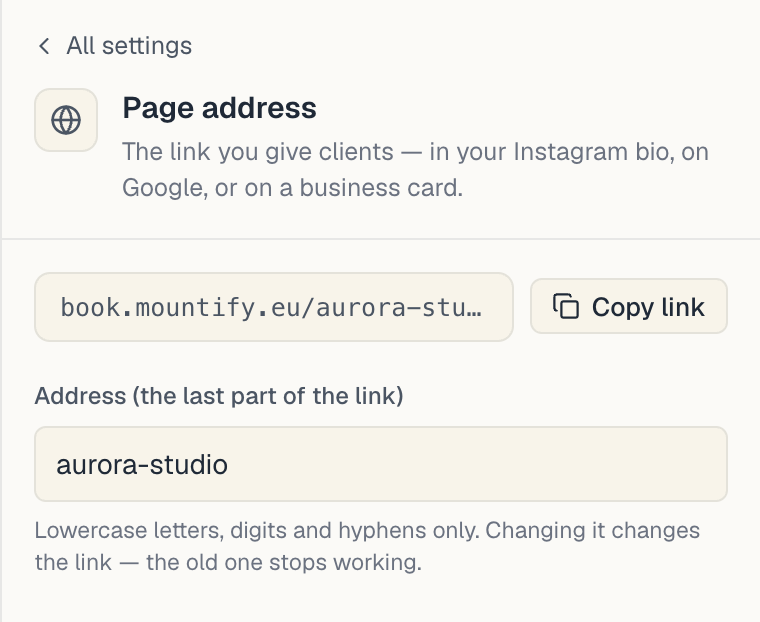
- In Page settings on the right, scroll to the last group, Share, and click Page address. The row already shows the last part of your link, e.g. /my-salon.
- The section is described as The link you give clients — in your Instagram bio, on Google, or on a business card.
It holds two things:
- The grey address field — this is the real link to your page (shown without
https://). - The Copy link button — puts the full address on the clipboard; its icon turns into a tick. If the browser blocks clipboard access you get Couldn’t copy instead — select the address with the mouse and copy it by hand.
2. Changing the last part of the address
Below the address is the field Address (the last part of the link), with the sample value my-salon.
- Click into the field and type the address you want.
- Click somewhere outside the field (or press Tab) — it saves on blur, not on every keystroke.
- The grey field above immediately shows the new link.
The address rules
Under the field sits the hint Lowercase letters, digits and hyphens only. Changing it changes the link — the old one stops working.
| Rule | Value |
|---|---|
| Allowed characters | lowercase a–z, digits 0–9, hyphen - |
| Length | 3–40 characters |
| Leading or trailing hyphen | not allowed |
| Capital letters | converted to lowercase automatically |
| Non-Latin letters, spaces, dots | not allowed |
The two error messages
| Message | Cause | What to do |
|---|---|---|
| Lowercase letters, digits and hyphens only (3–40 chars, no leading or trailing hyphen). | the address breaks the rules | drop spaces, accents and dots; write it with hyphens |
| That address is already taken — try another. | another business already uses it | add a city or district, e.g. salon-camden |
Warning: changing it breaks the old link. Every business card, post, QR sticker and embed snippet carrying the old address stops working. If you’ve already handed out material, think twice. If the address has never been shown to a client, change it freely.
If you never set an address, the link contains the board’s internal id — a long string of letters and digits. It works, but it looks terrible on a card. Set a human address before your first advert.
3. The Open page button
In the title row, to the right, there is an Open page button. It opens the real public page in a new tab — so you see exactly what a client sees, not the editor preview.
Use it every time before you post the link anywhere: it’s the only way to catch “the page is hidden” or a missing service.
4. A QR code for the window
The QR code opens from the board’s Today screen (the first row in the board’s column), not from the public-site editor.
- Open the board and stay on Today.
- At the top right, next to New booking, press the ⋯ button (More actions).
- In the menu choose QR code. (The Booking page item right above it opens your public page in a new tab.) A Booking QR code dialog opens, described as Clients scan it to open your booking page.
The dialog shows a print-ready card: the board’s logo and name, the caption Scan to book, the QR code itself and the address underneath.
| Button | What it does |
|---|---|
| Copy link | puts the address on the clipboard (Link copied) |
| Download PNG | saves the code as a PNG image |
If the download doesn’t start you’ll see Couldn’t download the QR code — try again, or check that your browser isn’t blocking downloads.
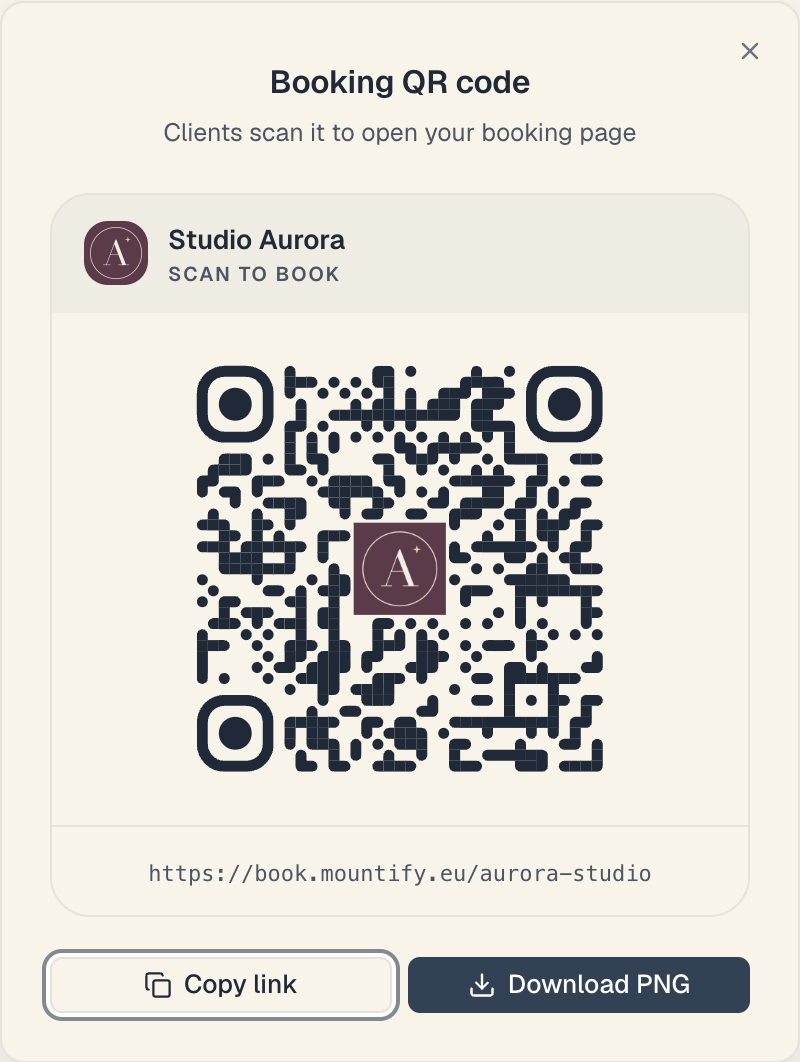
The QR code contains the same address. If you change the last part of the address, stickers already printed stop leading to the page. Download and print a fresh code after every change.
Where to put it: the window, the mirror at the station, the back of a business card, the receipt, the price menu. Print it at least 3×3 cm so it scans from a distance.
5. Embedding on your own site
If you already have a website, you can put the booking form itself inside it.
- Setup → Public site.
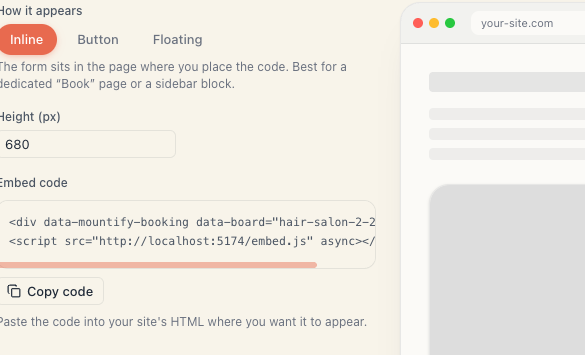
- In Page settings, in the Share group, click Embed on your site. The preview on the left now shows your booking form inside a mock website.
- Choose How it appears — Inline, Button or Floating.
- Copy the Embed code with the Copy code button and hand it to whoever maintains your site.
Because the snippet contains the page address, changing the address means replacing the snippet on your site too.
If you don’t have a website you don’t need this section. It says so itself: No website? You don’t need this — just share your booking page link instead.
6. Three checks before you share
| Check | Where |
|---|---|
| Online booking is on | Setup → Public site, the switch at the right of the title row. The pill next to Booking page must read Live, not Hidden |
| At least one service has free times | Catalog → Offerings |
| Working hours are set | Setup → Working hours |
Open the link in a private/incognito window on your phone. That shows the page the way a brand-new visitor sees it, without your admin session.
7. Where to put the link
- Instagram / TikTok bio — the most common entry point. Use the link itself, not “link in description”.
- Google Business profile — the bookings or website field.
- Facebook page — a “Book now” button.
- Auto-reply in Messenger / Viber / WhatsApp — instead of typing times by hand.
- Email signature.
8. Troubleshooting
The link opens a blank page or an error. The usual cause is Online booking being switched off. The second is that you changed the address and are using the old link.
I copied the link but a friend can’t open it.
Check you copied the full address including https://. The Copy link button always copies the full address; selecting the grey field by hand does not (the https:// is hidden there).
The address is taken and nobody else is using it. Addresses are unique across the whole platform, not just your workspace. Another business may hold it. Add a city or district.
We changed the address and the embed stopped working. Expected. Go back to Embed on your site, copy the new snippet and replace it on your site.
What’s next
- The booking-page editor — every row of the screen.
- Embed on your site — the snippet in detail.
- Embed display modes — inline, button or floating.
- Share on social — exactly where to put the link.