Pricing & day/time modifiers
Fixed or by-duration pricing, a deposit, and surcharge/discount rules by day and time.
Price in Mountify isn’t one field. It’s a chain of decisions applied in a strict order, and the last link is the amount your client sees on the payment screen. This article walks every link: the pricing mode, the deposit, the day/time surcharge rules, add-ons and loyalty discounts — and spells out what pricing does not do.
Everything lives in the service editor: Catalog → Offerings → the pencil icon on the service card. The two sections are Pricing and Price by day & time, one under the other.
1. Pricing mode — two options, not four
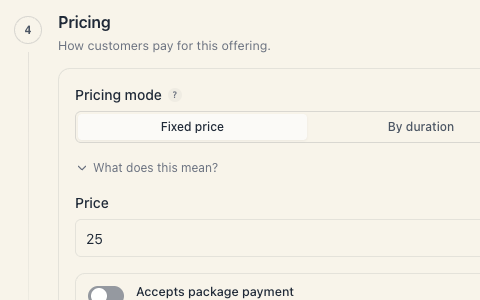
The first field in the Pricing section (“How customers pay for this offering.”) is Pricing mode. Today the segmented control has exactly two positions:
| Option | In-app explanation | What it means in practice |
|---|---|---|
| Fixed price | ”One fixed rate regardless of duration.” | The service costs the same number no matter how many minutes it takes. This is nearly every salon’s case. |
| By duration | ”Price is multiplied by the booking duration.” | The field is renamed Price per hour (“Total amount is calculated from the duration.”). The maths is price per hour × minutes ÷ 60. |
The What does this mean? link under the control expands the same explanation inline — handy if someone else will touch the service after you.
A “By duration” example. A massage with Price per hour 60 and Duration 90 min → 60 × 90 ÷ 60 = 90. Change the duration to 60 min tomorrow and the price becomes 60 on its own — you touch nothing else.
”Free” and “Package only” can no longer be created
If your board is old, you may have services created back when Free and Package only modes existed. They still work, but they open in the editor as Fixed price — and the first save migrates them for good. There is no way back to an old mode.
A free service today is Fixed price with a price of 0. On save, Mountify asks explicitly:
Make this service free? — “No price is set, so customers will be able to book it for free. Are you sure?”
The buttons are Yes, it’s free and Back to price. This question is a deliberate brake — the most common expensive mistake is a service published with an empty price.
2. The currency belongs to the board, not the service
There is a currency code next to the price field, but it is not chosen here — it is only displayed. Currency is set once for the whole board in Setup → Settings and applies to every service, every package and every payment at that venue.
Two boards may use different currencies; one service may not. Details in Your venue’s currency.
3. “Accepts package payment”
The Accepts package payment switch is independent of the pricing mode: “Regardless of pricing mode, clients can also pay with a package.”
- Off (the default) — a client holding a valid membership or class pass cannot use it for this service and pays the full price a second time.
- On — at checkout the client also sees the option to pay with a package, if they hold one that covers this service.
If your salon sells memberships, turn this on for every service the package is meant to cover. Which package covers what is defined on the package itself — see Packages: overview.
4. Deposit & prepayment
Inside the same section sits a boxed block called Deposit & prepayment. It decides whether the client pays money online, at the moment of booking.
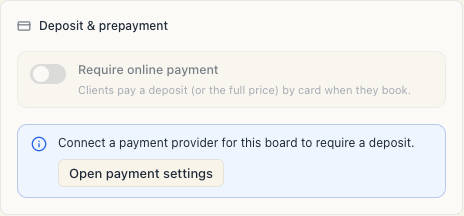
- Require online payment — the master switch. The help under it: “Clients pay a deposit (or the full price) by card when they book.”
- What to charge — Deposit (part of the amount) or Full price.
- With Deposit, a Deposit amount control appears with two positions:
- Percent → the field Percent of price (%), accepting 1–100.
- Fixed → the field Deposit amount in the board’s currency.
- Refund on cancellation — a dropdown with three values:
| Value | What it means |
|---|---|
| Non-refundable | the deposit stays with the salon on any cancellation |
| Always refundable | the deposit is refundable no matter when the client cancels |
| Refundable before a cutoff | the field Refund cutoff (hours before start) appears: “Cancellations earlier than this are refunded; later ones are not.” |
This is policy, not automation. Mountify records your choice and shows it to the client, but it does not return the money on its own. Every actual refund is issued by you by hand — see Refunds and cancellations.
When the switch is greyed out
A deposit can only be turned on when the board has an active payment-provider connection. Until then:
- the switch is disabled;
- underneath it says “Connect a payment provider for this board to require a deposit.”;
- there is an Open payment settings button that takes you straight to the board’s settings.
If the deposit was already on and the connection dropped afterwards, the message is different: “This board’s payment connection is inactive. Reconnect it, or turn the deposit off, to save.” — and the save really is rejected with Payments not connected. Either restore the connection or switch the deposit off; there is no third option.
Turning a deposit off is always allowed, even with a broken connection.
The money side is covered in Deposits & prepayment and Connect Stripe.
5. Price by day & time
The section under pricing is Price by day & time — “Surcharges or discounts based on the day and time.” It behaves identically for appointments, group classes and rentals.
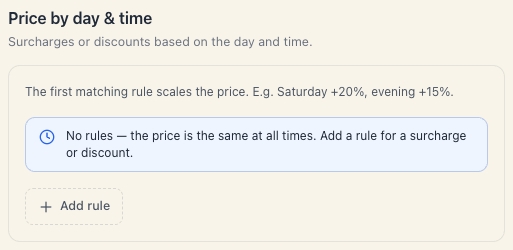
Empty, it reads: “No rules — the price is the same at all times. Add a rule for a surcharge or discount.”
If the service is in a mode that doesn’t support rules, the fields are replaced by “Available only for a paid price (fixed, by duration, or rental).”
The fields of one rule
Add rule creates a row with these fields:
| Field | What it does | If you leave it empty |
|---|---|---|
| Days | chips Mon Tue Wed Thu Fri Sat Sun — the days the rule applies to | ”No selection = every day.” — the rule applies every day |
| Only at a specific time | a switch; when on it shows From and To (15-minute steps) | “Otherwise the rule applies all day.” |
| Percent | a whole number from −100 to +200; plus = surcharge, minus = discount | 0 — the rule does nothing |
| Label (optional) | an internal name, e.g. “Weekend evening”; the client never sees it | nothing breaks |
| The bin icon | removes the rule | — |
Under each row you get two things: the dry summary of the rule (“Sat, Sun · 18:00–22:00 · +20%”) and a live price example — the old amount struck through, an arrow, the new amount.
The three rules about rules
1. Only the first matching rule applies. Surcharges do not stack. With “Sat +20%” and “after 18:00 +15%”, a Saturday 19:00 booking pays +20%, not +38%. The in-app summary puts it this way: “The first matching rule scales the price.”
2. List order is the priority — and the order can’t be rearranged. There is no drag-and-drop for rules in the editor: a new rule always lands at the bottom. If a more specific rule has to come first, delete the broader one and add it again so they end up in the order you want.
3. −100 % cannot make the price negative. The floor is 0.
Tip. Start with one clear price and zero rules. Add a rule only once there is a genuine peak in demand (Saturday morning, say). Three rules on one service are already hard to explain over the phone.
Which day and which hour count
The rule looks at the booking’s day and start time in the venue’s local time — not your device’s time and not the client’s. The time zone is set alongside the currency, in Setup → Settings.
6. The full order of the calculation
Here is what the system does, in order, when a client books:
| # | Step | What happens |
|---|---|---|
| 1 | Base price | the service price — or the individual price for a specific specialist, if one is set (see Per-staff pricing) |
| 2 | By duration | in that mode the base is multiplied by minutes ÷ 60 |
| 3 | Day/time surcharge | the first matching rule scales the result |
| 4 | Seats and slots | a group class is multiplied by seats, a rental by the number of slots |
| 5 | Add-ons | priced add-ons are added on top — see Add-ons and extra resources |
| 6 | Loyalty | promo codes, stamps and birthday discounts are subtracted last |
That’s why a loyalty discount is always calculated on top of the already-surcharged price. For the client it reads correctly: “−10 % off what it says.”
The deposit is worked out after the whole chain: a 25 % deposit means 25 % of the final amount, not of the base price.
7. What pricing does NOT do
- It does not reprice existing bookings. A price change applies to new bookings only. Existing ones keep the amount they were created with.
- It does not refund automatically. Refund on cancellation is a policy we display to the client; the refund itself is issued by hand.
- The “Cancellation policy” field in the “Public-page details” section is plain text. It cancels nothing and has no effect on the deposit.
- There is no per-specialist price field in the service editor. The feature exists in the system, but today there is nowhere to enter it from this screen — read Per-staff pricing before you plan around it.
- There is no VAT field and no line-item breakdown. The price is a single amount — exactly as you quote it to the client.
8. Error messages you will meet
| Message | What causes it | How to fix it |
|---|---|---|
| Price — “Enter a price of 0 or more…“ | empty field on a paid mode | type a number (0 goes through after the confirmation) |
| Make this service free? | a paid mode with price 0 | Yes, it’s free, if it really is |
| Payments not connected | a deposit with no active connection | connect a provider or turn the deposit off |
| Deposit — “A percentage deposit must be between 0 and 100%.“ | percent above 100 | lower it, or switch to Fixed |
| Price rules | a rule with an invalid percent or days | check each row: percent between −100 and +200 |
| ”In a price rule, the ‘to’ time must be after ‘from’.” | To is earlier than From | swap the times |
9. Troubleshooting
The client sees a different price from the one in the editor. Check in this order: (1) is there an active rule for the day and hour the client picked; (2) does the service have a priced add-on the client ticked; (3) is a promo code or loyalty stamp in play; (4) is there an individual price for the chosen specialist.
The public page says “from 60” but I set 80. That means some specialist has a lower individual price. Mountify then shows the lowest possible amount prefixed with “from”.
I added a +20 % rule and nothing changes. Either the rule isn’t the first match (a rule above it already caught the booking), or the booking falls outside the From–To window, or the percent is still 0.
No deposit is requested at checkout. Deposits are only collected on bookings made through the public page. A booking you enter in the schedule doesn’t go through checkout and never asks for one.
I changed the price but the day report still shows the old amounts. That’s correct — reports show the amounts actually paid, not the service’s current price.
What’s next
- Create a service — the whole editor, section by section.
- Deposits & prepayment — what the client sees and who returns the money.
- Add-ons and extra resources — how add-ons enter the total.
- Rental pricing & slots — hourly rentals are priced differently.