Check-in & no-show
Mark that the client arrived, that the service is done, or that they didn't show — and why it matters.
Sooner or later every appointment in the schedule gets a verdict: the client came, the service is done, or nobody turned up. Recording that verdict is the single most frequent action in the whole product — you do it dozens of times a day, and the client’s statistics, loyalty, the debt book and the day report all depend on it. This article shows all four places you can record it from, and exactly what happens after you press the button.
1. The three verdicts
| Button | Status it sets | When you use it |
|---|---|---|
| Mark arrived / Arrived | Arrived | The client walked in. The service is still running |
| Complete visit / Completed / Came | Completed | The service was performed. The visit is over |
| Mark as no-show / No-show | No-show | The time passed, the client never came and never called |
One clarification that saves confusion. In Finish the day the button is called Came, but it does not set “Arrived” — it sets Completed straight away. Which makes sense: you close the day in the evening, the visit is already in the past. If you want the intermediate “Arrived”, use the schedule or the Bookings page.
Arrived is an optional step. Plenty of salons skip it and mark Completed at the end of the visit. Others use it as “the client is in the waiting area” — then green in the schedule means “this person is here”.
2. From the detail panel (one booking, everything visible)
This is the most detailed route. Open Schedule and click the card, or open Bookings and click the row — the detail panel opens on the right.
At the bottom of the panel, in the button bar:
- Mark arrived — always shown until the booking is Arrived or Completed.
- Complete visit — shown only once the booking is Arrived.
- Cancel booking — always shown.
Top right, in the ⋯ menu, there are two more:
- Mark as no-show — disabled if the booking is already a no-show.
- Cancel — disabled if the booking is already cancelled.
And finally, the Status block near the bottom of the panel has six buttons — Confirmed, Pending, Checked in, Completed, No-show, Cancelled — which take you to any status directly.
The three prompts you may hit
If the step is unusual — for example re-opening something finished, or going backwards along the normal path:
Unusual status change “This moves the booking from “<from>” to “<to>” — an unusual step. Continue?” → Yes, change it
If you mark a no-show:
Mark as no-show? “The customer didn’t come to their appointment. This can affect their loyalty.” → Mark no-show · Back
If you complete an unpaid booking:
Complete this booking while it’s unpaid? “<amount> <currency> is still outstanding. The booking will be marked completed; you can record the payment later from the same panel.” → Mark completed anyway · I’ll record payment first
That last one is not an error and blocks nothing — it’s a reminder. Press Mark completed anyway and the amount lands in the debt book, where the client shows up under Who owes me.
3. From the «Bookings» page (many bookings at once)
Bookings is the third row in the board menu, right after Schedule. It’s a list rather than a grid — which is exactly why it’s faster for bulk work.
One row at a time
Hover a row (on a phone the buttons are always visible) and the buttons that apply to its status appear on the right:
| Row status | Buttons you see |
|---|---|
| Confirmed | Arrived · No-show · Cancel |
| Arrived | Completed · Cancel |
| Pending | Cancel |
| Completed, No-show, Cancelled, Walk-in | None — the booking is finished |
In bulk
- Tick the checkbox on every row you need (or Select all above the list).
- A bar floats up at the bottom centre: N selected.
- Press one of the four: Arrived, Completed, No-show, Cancel.
Next to each button there’s a small number — how many of the selected rows will actually change. The logic is exact:
| Action | Applies to |
|---|---|
| Arrived | only bookings with status Confirmed |
| Completed | only bookings with status Arrived |
| No-show | Confirmed and Arrived |
| Cancel | anything unfinished (Pending, Confirmed, Arrived, Waitlisted) |
If you select twenty rows and Completed shows 3, then only three of them are in the “Arrived” status. The rest are skipped silently — nothing breaks.
There is no bulk “Confirm”. Confirming a pending booking goes through the link in the client’s email, not through the admin.
The two destructive actions ask first:
Mark selected as no-show? “N bookings will be marked no-show — this affects clients’ loyalty.” → Mark no-show
Cancel selected bookings? “N bookings will be cancelled. This can’t be undone.” → Cancel them
When it finishes you get a message — for example Marked N as arrived — and if a row failed: N couldn’t be updated. The selection clears itself.
4. From «Finish the day» — the evening ritual
This is the route we recommend at the end of the day, because it requires you to look for nothing: Money → Finish the day. The first step on the page is called What happened with the visits.
How it works:
- The list shows only the appointments of the day that are already over (their end time is in the past) and are still Pending, Confirmed or Arrived. Precisely the unresolved ones.
- Above the list it says how many: N unanswered, plus the hint “tap “Came” / “No-show” on the rows — applies in one go”.
- On each row you press Came or No-show. Nothing is saved yet — you’re only marking.
- Then you press Apply (N) and everything is written at once.
- If at least one no-show is among them, the same loyalty warning appears first.
A separate Older unresolved (N) block collects old bookings still sitting in Pending — usually manual bookings with no confirmation deadline, which the automatics will never touch. Close them from here.
After the write the rows don’t disappear — they stay labelled marked: came ✓ or marked: no-show, each with an undo button. If a row fails, it reads “saving failed — retry from the schedule” with a retry button. If the automatics or a colleague resolved it in the meantime, it reads “already handled meanwhile — nothing changed” — that’s information, not an error.
Once everything is answered the block turns green: Every visit of the day is answered.
The full procedure is in Finish the day.
5. What «Arrived» does
Very little — which is exactly why it’s safe:
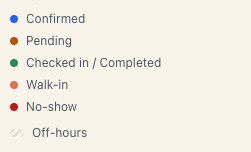
- The card in the schedule turns green (legend: Checked in / Completed).
- The booking counts as a visit in the client’s statistics.
- Money is untouched.
- No email is sent.
6. What «Completed» does
- The booking counts as a visit on the client card and in the loyalty counter.
- If an amount is still unpaid, it goes straight into the debt book — Money → Who owes me.
- The day report counts it as a finished visit.
- The review request goes out later for completed visits — but only for bookings made through the public page. See Collect reviews.
- Manual bookings send nothing at all — no confirmation, no reminder, no review request.
7. What «No-show» does — read carefully
A no-show is not just a red colour. It does three things:
- It voids the loyalty applied to this booking. The discount stops counting; the price is recomputed. That’s exactly why the dialog warns you.
- It increments the “No-shows” counter on the client card and puts a red N no-shows on their row in the Clients list. The booking does NOT count as a visit.
- It releases the class seat — but only if you mark it before the class starts. The seat is then offered to the first person on the waitlist. After the start it stays taken: it really was wasted.
What it does not do:
- It doesn’t ban the client. Banning is a separate action — see Ban & archive clients.
- It doesn’t charge anything. If you took a deposit and decide to keep it, you simply don’t refund it — there is no automatic no-show fee.
- It doesn’t send an email. The client never learns you marked them.
Mark no-shows honestly. That number on the card is the only objective signal you’ll later use to decide whether to ask this person for a deposit. If you “forgive” no-shows by marking them Completed, your statistics lie — and a deposit is the tool that actually solves the problem. See Deposits & prepayment.
8. The automatics, in case you forget
Bookings don’t hang around forever. The system closes them itself:
| Situation | What happens | Checked every |
|---|---|---|
| Confirmed, ended more than 24 hours ago | becomes Completed (when merciful auto-complete is on — it is by default) | hour |
| The same, with merciful auto-complete off | becomes No-show after the grace period (15 minutes by default) | 10 minutes |
| Arrived, ended more than 1 hour ago | becomes Completed | 30 minutes |
The two modes are mutually exclusive: a board runs either auto-complete or auto-no-show, never both. If you care about accurate no-show statistics, switch merciful auto-complete off in the board settings and mark visits yourself.
The full table of automatic transitions is in Booking statuses.
9. Undoing a button you pressed by mistake
| Where you pressed it | How to undo |
|---|---|
| Finish the day, same session | The undo button on the row — the booking returns to the exact status it had |
| The panel or Bookings | Open the booking and press the right status in the Status block. You’ll get Unusual status change — confirm |
| A bulk action | There is no bulk undo. Undo row by row |
Important: changing the status back does not automatically restore voided loyalty to its previous state — the rules are recomputed from scratch. If a rule was applied by hand, check the Loyalty tab on the client card.
Cancelling is the only genuinely irreversible action: A cancelled booking can’t be re-opened — create a new one.
10. Troubleshooting
| Symptom / message | Cause | What to do |
|---|---|---|
| I don’t see the buttons on a row in Bookings | The booking is finished (completed / no-show / cancelled / walk-in) | Open the panel and use the Status block |
| The bulk bar shows 0 next to Completed | None of the selected rows is in the Arrived status | Mark them Arrived first, then Completed |
| That transition isn’t allowed from the current status | You’re trying to set Cancelled or Waitlisted through an ordinary status change | Cancelling has its own button; the waitlist is managed by the class |
| The status changed in the meantime. Refresh and try again. | An automatic check or a colleague changed the status at that exact moment | Refresh the page and repeat |
| A cancelled booking can’t be re-opened — create a new one. | An attempt to “un-cancel” | Create a new booking |
| The booking became Completed on its own | Merciful auto-complete (on by default) | Switch it off if you want accurate no-show statistics |
| I marked a no-show but the class seat wasn’t released | You marked it after the class had started | That’s expected — the seat really was wasted |
| I marked Completed but it’s still unpaid | Status and money are two independent things | Record the payment from the Payment block |
| The client claims they got an email saying they were a no-show | We send no email for a no-show | It’s a different message |
What’s next
- Booking statuses — the full map of statuses and automatics.
- Finish the day — the evening ritual in its three steps.
- The client card — where visits and no-shows turn into numbers.
- Deposits & prepayment — the real cure for no-shows.