Add to Wix or Squarespace
Put booking on a site built with Wix or Squarespace — using a code block.
Wix and Squarespace are drag-and-drop builders — no files to touch, but both have a custom code block. That is exactly where the Mountify snippet goes. This article gives the steps for each platform separately, because the way you add the block and the traps you hit are different.
1. First, get the code
- In the left icon rail open the boards product and pick your board.
- In the board column click the Setup hub.
- In the Storefront group choose the Public site row.
- In Page settings on the right, in the Share group, click Embed on your site.
- Under How it appears pick a mode. For builders we recommend Inline — it slots cleanly into the layout.
- Set Height (px) if needed (680 by default).
- Press Copy code.
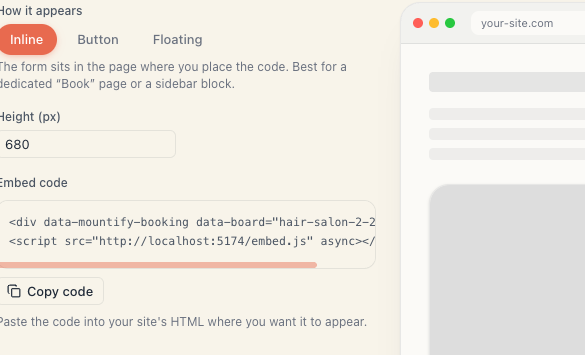
The copied snippet looks like this:
<div data-mountify-booking data-board="my-salon"></div>
<script src="https://book.mountify.eu/embed.js" async></script>
2. Wix — step by step
- Sign in to the Wix Dashboard and open your site in Edit Site.
- Go to the page where you want booking.
- In the left bar press Add Elements.
- Choose Embed Code → Embed HTML (also labelled “Embed a Widget”).
- An empty frame appears on the page with an Enter Code button. Press it.
- In the panel that opens choose the Code option, not “Website address”.
- Paste the snippet and press Apply.
- Resize the frame with your mouse. This is the most important step in Wix — the frame has its own height, independent of
data-height. Drag its bottom edge until the whole form is visible. - Press Publish at the top right.
Wix specifics
| Quirk | What to do |
|---|---|
| The frame has its own height | Resize it by hand. If the form is “cut off”, the frame is shorter than data-height |
| Mobile layout is separate | Switch to the phone view (the phone icon at the top) and resize the frame there too |
| Wix loads embedded content slowly | Wait 2–3 seconds on the live page before deciding something is broken |
| Floating mode doesn’t position correctly | In Wix the code lives inside a frame, so the floating tab anchors to that frame, not the screen. Use Inline or Button |
If you want a floating tab across the whole Wix site, use Settings → Custom Code in the dashboard rather than a block on a page. There the code loads site-wide, not inside a frame.
3. Squarespace — step by step
- Sign in and open the page for editing (Edit).
- Hover where you want booking and press the + (Add Block) button.
- From the list choose Code. If you can’t find it, search “Code” in the block picker.
- The block opens with sample HTML. Delete all of it and paste the snippet.
- Below the field there is a type dropdown — make sure it says HTML (not Markdown).
- If there is a Display Source checkbox, it must be off. Otherwise Squarespace prints the code as text.
- Click outside the block, then Done and Save.
Squarespace specifics
| Quirk | What to do |
|---|---|
| The Code block isn’t available on the Personal plan | You need Business or higher. Otherwise just link to your booking page |
| The code shows as text | Turn the Display Source checkbox off |
| Scripts don’t run in the editor | That’s normal. View the live page in a new tab |
| You want a floating tab everywhere | Settings → Advanced → Code Injection → the Footer field |
4. Check after publishing
Do this on either platform:
- Open the live page in a private/incognito window (not the editor). That way you’re not seeing a cached version.
- Confirm the form loads and is fully visible — no cut-off bottom.
- Open the same page on a phone.
- Make a test booking all the way through to confirm it reaches your calendar.
- Delete the test booking from Bookings afterwards if you need to.
5. If the form doesn’t appear
| Symptom | Check |
|---|---|
| Blank space where the form should be | Is the Online booking switch on in Setup → Public site (the pill reads Live)? |
| The form is cut off at the bottom | Resize the frame (Wix) or raise Height (px) and copy the code again |
| The code shows as text | Squarespace: turn off “Display Source”. Wix: you used “Website address” instead of “Code” |
| Nothing changes after publishing | Clear the browser cache or open in incognito |
Full diagnosis in Troubleshoot the embed.
6. It works elsewhere too
The snippet is ordinary HTML and works in any builder that has a code block: Tilda, Webflow, Shopify, Google Sites, Weebly, Joomla. The steps are the same — find the “code” / “HTML” / “embed” block and paste the snippet.
The only real requirement is that the site allows a <script> tag. If your platform only permits “clean HTML” with no scripts, embedding won’t work — in that case put a plain link to your booking page instead.
What’s next
- Embed display modes — which mode suits a builder.
- Embed on your own site — the code and the extra attributes.
- Add to WordPress — for comparison.
- Troubleshoot the embed — diagnosis.