Add to WordPress
Put booking on a WordPress page — where to paste the code, step by step.
WordPress is the most common website platform, and embedding booking into it takes about two minutes. There is no plugin to install and no settings to configure — just one code block and one paste.
This article covers the three ways to do it (block editor, classic editor, and a site-wide template for the floating tab), plus the WordPress-specific traps.
1. First, get the code
- In the left icon rail open the boards product and pick your board.
- In the board column click the Setup hub.
- In the Storefront group choose the Public site row.
- Click the Embed pill.
- Pick a mode under How it appears — for a first attempt, Inline is the simplest.
- Press Copy code. “Copied” appears.
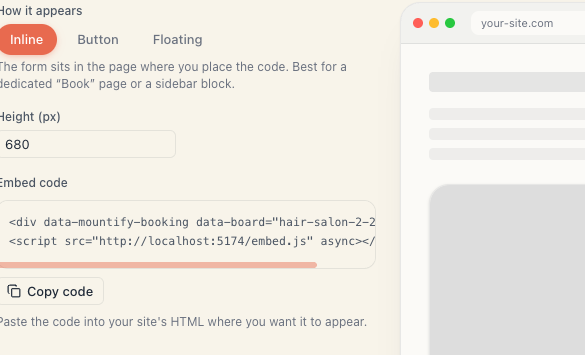
The copied snippet looks like this (your address will differ):
<div data-mountify-booking data-board="my-salon"></div>
<script src="https://book.mountify.eu/embed.js" async></script>
A full explanation of the code is in Embed on your own site.
2. Block editor (Gutenberg) — the standard route
This is the editor in WordPress 5.0 and later.
- Sign in to your site’s admin:
your-site.com/wp-admin. - In the left menu choose Pages and open the page where booking should go. If you don’t have one yet — Pages → Add New and call it “Book”.
- Click where you want the form and press + (Add block).
- In the search box type HTML and choose the Custom HTML block.
- Paste the copied code inside — Ctrl+V (Windows) or Cmd+V (Mac).
- Press Publish or Update at the top right.
In the editor the block only shows the code text — that is normal. There is a Preview button, but the form may not appear there either, because WordPress doesn’t run scripts inside the editor. Check on the live page.
- Open the page as an ordinary visitor (not in the editor) and confirm booking shows up.
3. Classic editor
If your site still uses the old editor:
- Open the page for editing.
- Above the text area, top right, there are two tabs: Visual and Text. Click Text.
- Paste the code where you want it. Important: you must be on the Text tab, not Visual — otherwise WordPress shows the code as plain text.
- Press Update.
4. A floating tab across the whole site
If you chose Floating mode, the code needs to load on every page, not just one. Three options, easiest first:
| Route | How |
|---|---|
| Theme setting | Many themes have Appearance → Customize → Custom code (or “Header/Footer scripts”). Paste it there |
| A code plugin | Plugins like “WPCode” or “Insert Headers and Footers” give you a site-wide code box. Put it in the footer section |
| A footer widget | Appearance → Widgets → Footer → add a Custom HTML widget and paste the code |
Don’t edit theme files directly — the next theme update wipes the change.
5. WordPress-specific traps
| Problem | Cause and fix |
|---|---|
| The code shows as text on the page | It was pasted into Visual instead of Text, or into a Paragraph block instead of Custom HTML |
| The form disappears after saving | A security or cache plugin stripped the <script> tag. See below |
| Changes don’t show up immediately | A caching plugin (WP Rocket, W3 Total Cache, LiteSpeed). Clear the cache |
| The form appears twice | The code is both on the page and in a shared template. Remove one |
| There is no “Custom HTML” block | Your WordPress role lacks the unfiltered_html capability. Ask the administrator |
Security plugins that strip scripts
Wordfence, Sucuri and similar sometimes clean <script> tags out of content. If the code vanishes after saving:
- Check your role is Administrator. Editors and Authors often can’t insert scripts.
- On WordPress Multisite, even a site administrator lacks that capability by default — you need a super admin.
- As a workaround use a code plugin (“WPCode”), which places the script outside the page content.
6. Final check
- Open the page in a private/incognito window — that way you’re not seeing a cached version.
- Look at it on a phone too. In Button mode the popup should be full-screen.
- Make a test booking to confirm it reaches your calendar.
- Delete the test booking from Bookings afterwards if you need to.
What’s next
- Embed display modes — which mode for which page.
- Embed on your own site — the full code and the extra attributes.
- Troubleshoot the embed — step-by-step diagnosis.
- Share on social media — the link, if the site can wait.