Share on social media
Put your booking link in Instagram, Facebook or your 'link in bio'.
You don’t have to embed anything. If you mostly work through Instagram or Facebook, the shortest path to your first online booking is simply sharing the link to your public page. No code, no website, no waiting.
This article explains where the link comes from, how to make it short and recognisable, exactly where to put it on each network, and how to use the QR code.
1. Where the link comes from
Every board has a public address of the form:
https://book.mountify.eu/<your page address>The last part is called Address (the last part of the link) and is set here:
- In the left icon rail open the boards product and pick your board.
- In the board column click the Setup hub.
- In the Storefront group choose the Public site row.
- In Page settings on the right, in the last group, Share, click Page address. The note reads: “The link you give clients — in your Instagram bio, on Google, or on a business card.”
- There you see the finished link and a Copy link button. (The same link, with a copy icon, is always in the editor’s title row too.)
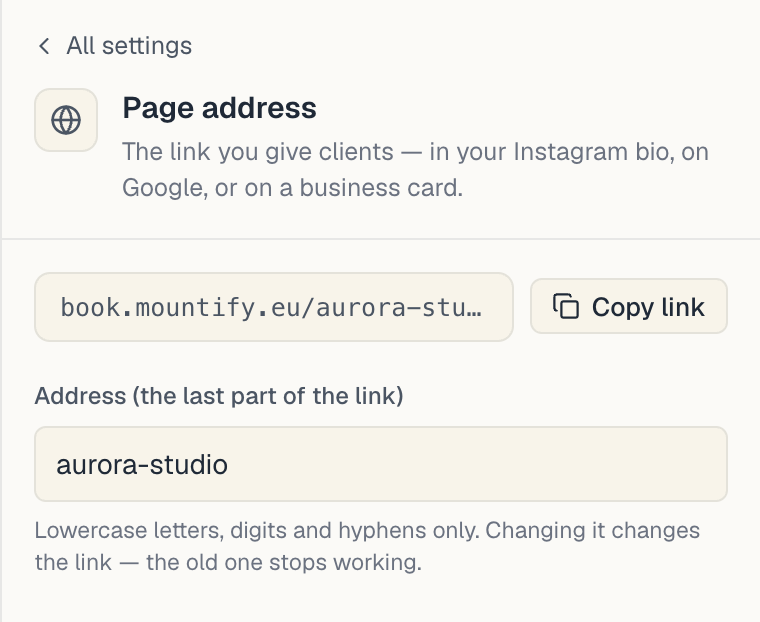
Rules for the address
| Rule | Value |
|---|---|
| Allowed characters | lowercase Latin letters, digits and hyphens |
| Length | 3–40 characters |
| Cannot start or end with a hyphen | — |
| Must be free | if taken: “That address is already taken — try another.” |
Careful when changing it. The hint under the field says: “Changing it changes the link — the old one stops working.” If you’ve already handed the link out or printed it on cards, don’t change it lightly. There is no redirect from the old address.
Pick something short and recognisable: studio-nika, barber-plovdiv, nails-by-mia. If the salon name is long, shorten it — it doesn’t have to be the full legal name.
2. Does the link work if the page isn’t published?
No. At the right of the Public site title row there is an Online booking switch:
- On: the pill next to Booking page reads Live — clients can find you and book.
- Off: the pill reads Hidden — clients can’t book online.
Check it before you hand the link out. Otherwise the client lands on a page that doesn’t work.
3. Instagram
Instagram doesn’t allow clickable links in post captions — so there are exactly three places.
Link in bio
- Open your profile → Edit profile.
- Paste the link into the Website field.
- Save.
If your website already occupies that slot, use a multi-link tool (Linktree, Beacons, Milkshake) and put booking as the first row, labelled “Book now”.
Stories
- Create a Story.
- Choose the Link sticker.
- Paste the address.
- Change the sticker text to something clear: “Book now”.
Stories are the best channel for promo codes — show the code in the image and put the link on top.
The action button on a professional profile
If your profile is Business or Creator:
- Edit profile → Contact options (or Business tools).
- Look for Action button → Book now.
- Instagram offers a list of partners. If Mountify isn’t on it, choose the “website” option and paste the link.
4. Facebook
| Place | How |
|---|---|
| Page button | Page → Add a button → Book now → “Link to website” → paste the address |
| The “Website” field | Edit page info → Website |
| A pinned post | Post the link and pin it to the top. Facebook shows a preview image and your page title |
| Messenger replies | Keep the link as a saved reply — faster than “message me a time” |
5. Google Business Profile
If you have a listing on Google Maps, this is probably the single most valuable place for the link.
- Sign in to your Google Business Profile.
- Open Edit profile → Business information → Links.
- Paste the address into the Appointment links field.
That puts a “Book” button directly in search results and on Google Maps.
6. The QR code
For your window, a business card, the salon mirror or a receipt, there is a ready-made QR code.
- Open the board and go to its Home page.
- At the top, next to the Booking page button, there is a small QR-code icon.
- Press it. A Booking QR code dialog opens, subtitled “Clients scan it to open your booking page”.
- Press Download PNG for the image, or Copy link.
The downloaded image can go straight to print. We recommend a short caption under it — “Scan to book”.
If you change the page address, the old QR code stops working. Download a new one.
7. Link or embed — which when
| Situation | Recommendation |
|---|---|
| You have no website | Link only. You don’t need the embed |
| You work mostly through Instagram | Link in bio + a QR code in the salon |
| You have a website but rarely update it | A prominent link + an embed on one page |
| Your website is your main channel | Embed, plus the link for social |
The link and the embed show the same booking flow. They aren’t alternatives — most people use both.
8. A short checklist
- Online booking is switched on.
- The address is short and easy to read out loud.
- The link is in your Instagram bio.
- A “Book now” button is on your Facebook page.
- The link is in your Google Business Profile.
- The QR code is printed and visible in the salon.
- You opened the link on someone else’s phone to check it works.
What’s next
- Share your page — the link, the QR code and what sharing looks like.
- Embed on your own site — if you also have a website.
- Booking page overview — what the client sees when they tap the link.
- Promo banners — so there’s something to greet them.