Finish the day
The four-step evening ritual: who showed up, what wasn't paid, whether the till balances, and what tomorrow looks like.
Finish the day is the evening ritual: four steps that close the day in about two minutes — who showed up, what wasn’t paid, whether the till balances, and what tomorrow looks like. It isn’t a report but a working screen: as you walk the steps you are actually writing statuses and payments. At the end you press one button and the day becomes a closed record you can look back at exactly as it was.
1. When and why
Open it at the end of the working day, before you turn the lights off. Doing it every evening means:
- no visit is left unanswered (and statuses drive revenue, loyalty and review requests);
- uncollected money lands in Who owes me the same evening instead of surfacing a month later;
- you build a streak (“N days in a row closing the day”), shown on the Day report from the second day on.
Closing locks nothing. Payments can still be recorded afterwards; the day is simply marked as reviewed, and the report keeps a snapshot of the figures.
2. Where it is
- In the left rail, pick the board.
- Click the Money row.
- In the left-hand column, under EVERY DAY, choose Finish the day.
Shorter routes exist: the day-close card on the Money landing page and the card in Needs attention on the board’s home screen — “The day isn’t closed — N visits await an answer.” or “The day isn’t closed — money is left uncollected.”
Under the Finish the day title you see the date and the board’s name — so it’s clear which day is being closed. Top right, the Tour button replays a walkthrough of the screen.
The address accepts ?date=YYYY-MM-DD when you need to open another day.
3. Step 1: What happened with the visits
The list holds this day’s bookings whose end time has already passed and which are still Pending, Confirmed or Arrived. To the right of the heading you see how many — N unanswered.
- On each row press Came or No-show. Nothing is written yet — it’s just a choice, and pressing again clears it.
- If older unresolved bookings exist, an expander appears below the list: Older unresolved (N). Those are pending bookings from the last few days nobody answered — open it and clear them together with today’s.
- Press Apply (N). The button turns into Saving… and writes the rows one by one.
- If at least one No-show is among them, Mark as no-show? appears first: “The customer didn’t come to their appointment. This can affect their loyalty.” Confirm with Mark no-show or step back with Back.
After the write the rows do not disappear — they change appearance:
| How the row looks | Meaning | What you can do |
|---|---|---|
| marked: came ✓ (green) | The status was saved | undo — restores the previous status |
| marked: no-show (amber) | Saved as a no-show | undo |
| already handled meanwhile — nothing changed | Someone else, or the automatic housekeeping, moved the status before you. Not an error | nothing — the row is correct |
| saving failed — retry from the schedule (red) | The write didn’t go through | retry; if it keeps failing, fix the status from Schedule |
Once nothing is left unanswered the whole step turns green, and the rows stay visible.
After a page reload, already-answered visits are shown again, but undo on them sends the status back to Confirmed (the system no longer remembers what it was before) — then give it a fresh answer.
If the day passed with no unanswered slot at all, you get a slim green line instead of a list: “Every visit of the day is answered”.
4. Step 2: Uncollected money for today
Only visits that actually happened appear here (completed, no-show, walk-in) and only while a balance is left. Under the heading it says “settled visits only” — that’s why a client sitting in the chair right now doesn’t show up.
Each row offers three actions:
| Action | What it does exactly |
|---|---|
| Cash {amount} | Records the entire outstanding amount as a cash payment in one tap. The row moves down labelled received in cash |
| card / partial | Opens the booking’s panel so you can record card, part of the amount, or a refund — see Recording a payment |
| leave | Leaves the amount uncollected and honestly sends it to Who owes me. The row is marked “will appear in Who owes me” |
The footer says the same in the product’s own words: “Cash records the full amount in one tap; card / partial opens the payment. Leave sends the amount honestly to Who owes me.”
Two details:
- undo next to a collected row voids exactly that payment (the money goes back to uncollected). That undo is available only until you reload the page — after a reload the row shows as Paid with a View button, and undoing happens from the history inside the Payment block.
- leave is a note for the current session, not a database record. After a reload the row is active again. Either way the amount is counted in the closing dialog and lands in Who owes me.
When everything for the day is in, the step turns green; on a completely clean day you get a single line instead of a list: “All money for the day is collected”.
5. Step 3: Today’s till
The right-hand rail answers “does the till balance”.
| Line | What it is |
|---|---|
| Expected | What the day should bring at the bookings’ prices (loyalty and add-ons included), excluding cancelled and waitlisted ones. It may carry at least when the day holds too many bookings for one computation |
| Received | Money that actually came in for the day: payments minus refunds. On the house entries are excluded |
| Method pills | The breakdown of what came in: cash, card, online, package, mixed, no method recorded |
| The bottom line | Either It adds up — everything expected was received ✓, or “The difference is {amount} uncollected — step 2.” |
| Full ledger | Opens Payments with the period set to exactly this day |
The Expected line is hidden when the day holds amounts in different currencies — the comparison would be meaningless, so the product prefers no figure to a misleading one.
6. Step 4: Tomorrow
A short brief so you know what’s coming before you leave:
- First client — HH:MM and how many bookings there are;
- Biggest gap: HH:MM–HH:MM — shown only when at least an hour is empty somewhere between bookings;
- Tomorrow is a free day. — when there’s nothing;
- a warning, N services can’t be booked — see why, which opens the catalogue filtered to the problem services. This is the important one: a service with no free slots tomorrow is something you fix today.
7. The Finish the day button
The button sits below the right-hand rail, and the line under it always tells you what to expect:
| The line under the button | Meaning |
|---|---|
| All clean — it will close without questions. | No unanswered visits, no uncollected money |
| You can close with leftovers — the dialog shows what goes where. | Leftovers exist, but closing is allowed |
| Data is still loading — closing is possible once everything is on screen. | The button is disabled while the four steps load (or while a query has failed) |
The button is also disabled when you’re looking at a future day — there is nothing to close.
If leftovers exist, a dialog appears — Finish the day with leftovers? — listing them by name:
- “N unanswered visits will stay in the list.”
- “{amount} uncollected goes to ‘Who owes me’.”
- “Nothing gets lost.”
Confirm with Finish the day or step back with Not yet.
8. What happens after you close
- The Day report for that date opens — the point of the ritual is to see what the day was worth.
- If you come back to Finish the day, a green banner reads Day finished at HH:MM and the button has become See the day report.
- If new leftovers appear after the close, the banner says so in the same line: “since then: N new unanswered visits” and “{amount} newly uncollected”. No green that lies.
Closing does not stop you recording payments or changing statuses afterwards. Closing the same day again refreshes the snapshot of the figures, but the time of the first close stays — that is the fact that records when you closed the day.
9. Past days, midnight, and days you skipped
- Any past day can be closed, however long ago it was. If you skipped a week, open each day via
?date=(or through the Money calendar, where unclosed days are visible) and close it. - A future day cannot be — there’s nothing to snapshot yet.
- After midnight (between 00:00 and 05:00 in the salon’s time), if yesterday still isn’t closed, an amber banner appears: “It’s past midnight — {date} isn’t closed yet.” with a Close yesterday link. Exactly for the shift that ends at 1 a.m.
- When you’re looking at a past day, a blue banner reads “Viewing {date} — a past day.” with a To today link.
10. Closing the month
The month is closed on a different screen — Money → Month report, in the right-hand rail.
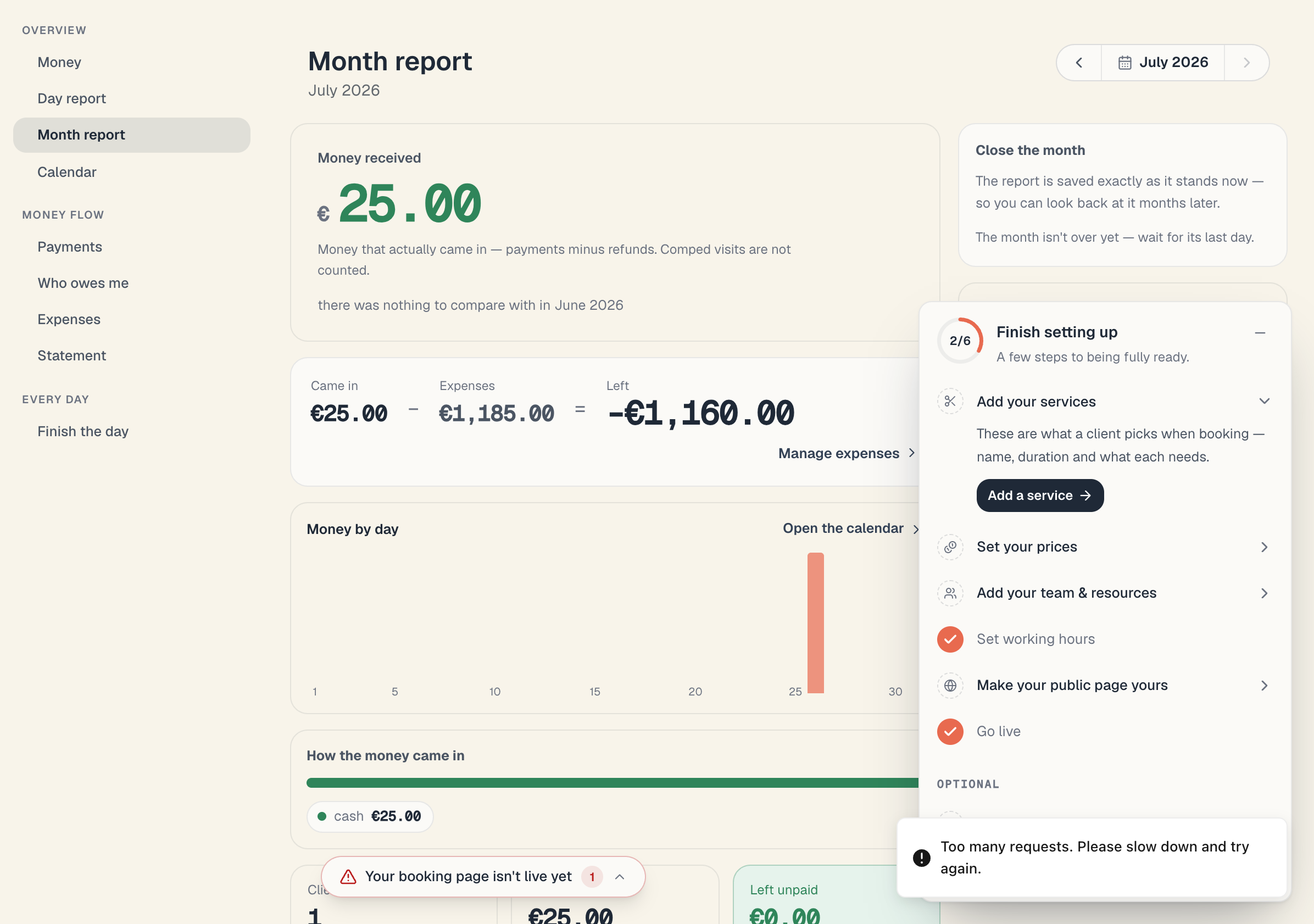
- Open Money → Month report and step to the month you want with the arrows.
- In the right-hand rail find Close the month. Under the heading it says “The report is saved exactly as it stands now — so you can look back at it months later.”
- Press Finish {month}.
- Finish {month}? appears, reading “The figures are saved as a snapshot. If money for this month comes in later, we’ll tell you.” Confirm.
Rules and states:
| Situation | What happens |
|---|---|
| The month is over | It can be closed |
| The current month | Only on its last day. Until then the button’s place reads “The month isn’t over yet — wait for its last day.” |
| A future month | Not possible |
| A very old month | The closing card isn’t offered on the screen — the Finished months list stays for reference |
| An already closed month | The top of the page reads {month} was finished on {date} |
| More money came in after the close | The same line gains “Another {amount} has come in since then.” (or “The total has dropped by {amount} since then.”) — the live figure compared with the snapshot |
Below the card sits the Finished months list with the note “The list shows what’s left after expenses.” — that is, money received minus the month’s expenses, as it stood when the month was closed.
Closing a month locks nothing and doesn’t block new payments; closing again refreshes the snapshot without changing the date of the first close.
11. Who is allowed to do this
- To see the screen: permission to view bookings and the board.
- To mark statuses and record payments: permission to edit bookings.
- To press Finish the day / Finish {month}: permission to edit the board.
If some buttons return errors while the screen itself loads, one of those permissions is missing. See Build a custom role.
12. Common questions
Do I have to close the day for the figures to be correct? No. Revenue is computed from recorded payments regardless of the ritual. Closing stores a snapshot, marks the day as reviewed and keeps the streak going.
What do I lose if I never press “Came”? The visit stays in limbo: it doesn’t reach step 2 (which only looks at visits that happened), it never goes to Who owes me, and it doesn’t count in the per-service statistics. That’s why step 1 comes first.
Can I mark “Came” for a booking that starts in an hour? Not from here. Step 1 only holds slots whose end time has passed. Current ones are marked from Schedule.
Why aren’t “Expected” and “Received” equal when nothing is uncollected? Package sales are the usual reason: money for a package reaches Received, but a package isn’t a booking and never enters Expected. The mirror case is a visit covered by a package — its value is in Expected while no cash comes in for it.
Does anything get sent to clients when I close? No. Not a single email leaves this screen.
Does it work on a phone? Yes — the steps stack vertically, with the right-hand rail after them.
13. Troubleshooting
| What you see | Why | What to do |
|---|---|---|
| The Finish the day button is grey | Data is still loading, one of the queries failed, or the date is in the future | Wait, reload the page, or go back to today |
| Closing didn’t save — try again. | The request didn’t go through | Press the button again |
| An error when closing a day far in the past | The server’s message for this case is out of date — past days close without any limit | Try again; if it persists, reload and check the date in the address |
| The payment didn’t save — try again. | The one-tap Cash write failed | Press again, or record it through card / partial |
| The revert didn’t save — try again. | An undo didn’t go through | Try again; otherwise void the entry from the booking’s Payment block |
| Step 2 is empty although you know something is unpaid | The visits haven’t been answered in step 1 yet | Do step 1, then look at step 2 again |
What’s next
- Who owes me — the debt book — where uncollected amounts go.
- Day and month reports — what the report shows after a close.
- Recording a payment — card, partial payment, on the house.
- Check-in & no-show — the same statuses, seen from the schedule.