Recording a payment
Mark what was paid on a booking — cash, card, package, or on the house.
Most of the money in a salon arrives on site — in cash or on the terminal. In Mountify you record it on the booking itself, in the Payment block, not on the ledger page. One click records the whole amount due; if the client pays part of it, there is a separate form. This article walks every button, every field, every rule and every error message you can hit.
Important: “Paid card” only means you are writing down a payment that went through your own card terminal. Mountify is not a cash register and does not process cards — the money goes straight to your bank and the record stays here. A payment made on the provider’s checkout page during an online booking is a different thing and is called Online.
1. Where the Payment block lives
One block, four entrances:
| From | How |
|---|---|
| Schedule | click the booking in the grid → the panel on the right → scroll to PAYMENT |
| Money → Payments | click a ledger row → the panel on the right → the Payment block |
| Money → Who owes me | expand the client → Record payment on the specific booking |
| Money → Finish the day | step 2, “Uncollected money for today” → Cash {amount} in one tap, or card / partial |
If the booking is covered by a package, there is no Payment block at all — the package credit is the payment, and the price line reads “Paid with package”.
2. What the block shows
Top to bottom:
- The label PAYMENT and next to it a state chip — UNPAID, PAID, PARTIAL, OVERPAID, REFUNDED or COMPED. Hover the chip for a one-line explanation.
- A totals row: Due: 35.00 EUR, Paid: 0.00 EUR and Outstanding: 35.00 EUR (the third figure disappears when nothing is outstanding; on an overpayment it reads Overpaid by).
- The buttons — which ones depends on the state (see the table).
- The history — every movement as its own row with an Undo button.
| Button | When it appears | What it does |
|---|---|---|
| Paid cash {outstanding} | while anything is outstanding | records the whole outstanding amount as cash, no questions |
| Paid card | while anything is outstanding | records the whole outstanding amount as card |
| Partial… | while anything is outstanding | opens a form for an amount and a method |
| On the house | only when the state is UNPAID | writes the whole amount off, with no money |
| Refund | once money has been paid | opens the refund form |
Careful: Paid cash and Paid card have no confirmation step. One click = a recorded payment. If you misclick, the fix is one Undo in the history — see Correcting a payment mistake.
3. Step by step: the client pays in full
- Open the booking (usually from Schedule).
- Scroll to the PAYMENT block and check Outstanding — that is the amount that will be recorded.
- Press Paid cash {amount} if the money is cash, or Paid card if it went through the terminal.
- A short toast says “Payment recorded”. The chip flips to PAID and a new row with a + appears in the history.
That’s it. You type no amount and pick no date — exactly the outstanding amount is recorded, with today’s date and time.
4. Step by step: the client pays part of it
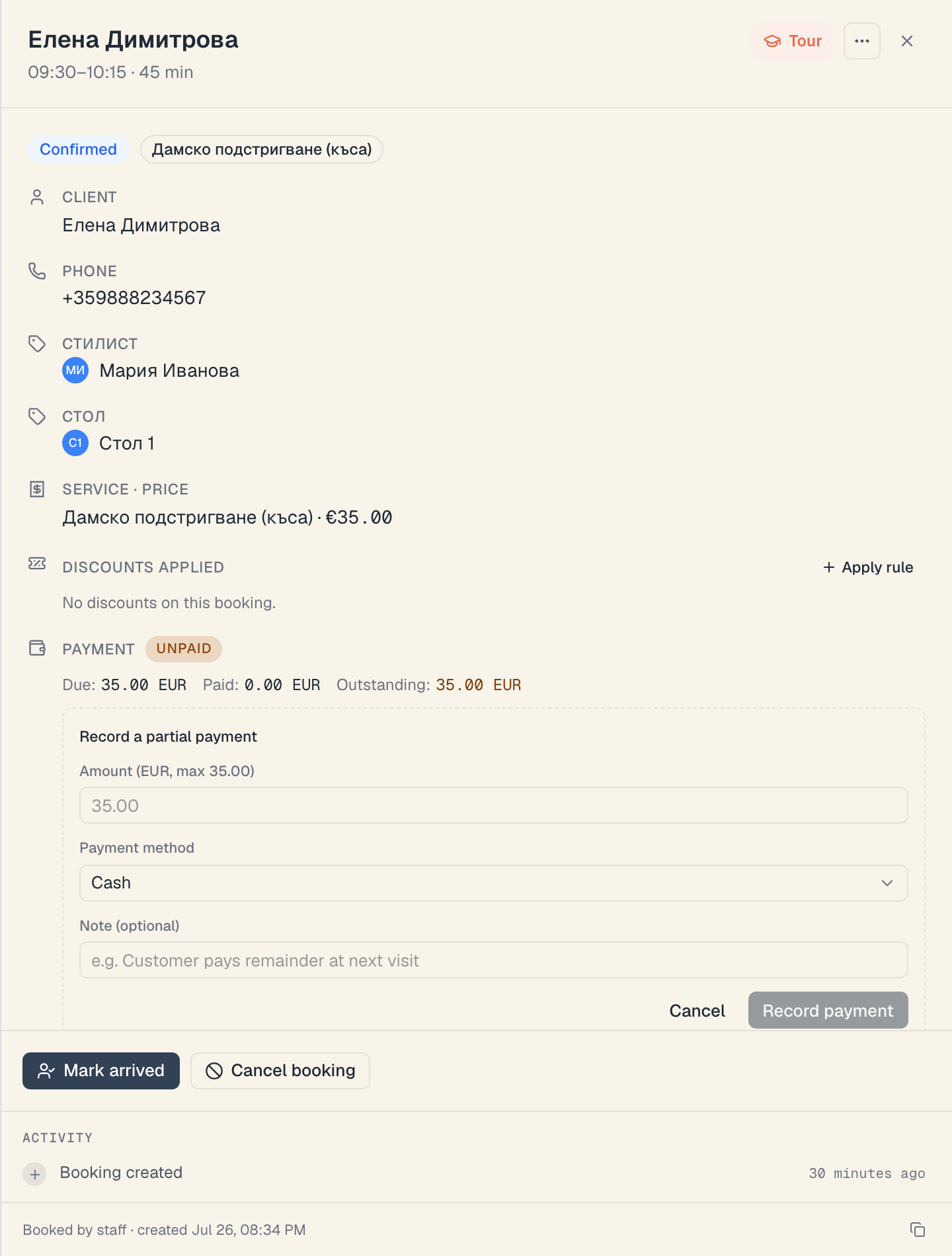
- In the PAYMENT block press Partial….
- A framed form opens — Record a partial payment — with three fields:
| Field | What to type | If you leave it empty |
|---|---|---|
| Amount (EUR, max 35.00) | what they are actually handing over now. The cap in brackets is the outstanding amount; more is refused | the submit button stays disabled |
| Payment method | Cash or Card — those two only. Defaults to Cash | it stays Cash |
| Note (optional) | e.g. “pays the rest at the next visit”. Only your team sees it | nothing happens — the field really is optional |
- Press Record payment. (Cancel closes the form without writing anything.)
- The state becomes PARTIAL and Outstanding drops. The remainder is still owed, and the client shows up in Who owes me once the visit is over.
Three clarifications:
- You do not pick the currency. It comes from the service price and is printed in the field label.
- “Online” and “Package” are not manual methods. They appear on their own — “Online” for a payment made on the checkout page, “Package” for a credit spent from a package.
- You can record part after part, as many times as needed, until the outstanding amount reaches zero.
5. “On the house”
Use it when you decide not to take money: fixing your own mistake, a gesture to a client, an internal service.
- Press On the house (only present while the state is UNPAID).
- A dialog asks “Mark this visit on the house?” → confirm with On the house.
- The state becomes COMPED. The toast reads: “Booking comped — expand the section to undo.”
What that means for the figures:
- The booking is not a debt — the client will not appear in Who owes me.
- The booking is not revenue. Comped visits are reported separately and never count as money received. That is also why the ledger prints no sign in front of the amount.
- An on-the-house row carries no payment method — it isn’t a payment.
- It is undone like any other movement: Undo in the history.
6. Refunds (in brief)
The Refund button appears once the booking has money on it. If part of the money came in online and part in cash, a Refund channel field appears above the amount, with both caps:
- Online (card) — up to {amount} — a real refund back to the client’s card through the payment provider;
- Cash / manual — up to {amount} — a bookkeeping entry only; you hand the cash back yourself.
The full rules, caps and error messages are in Refunds & cancellations.
7. The history and the “Undo” button
Below the buttons sits every movement on this booking:
- A row looks like this: Payment · cash and, on the right, +25.00 EUR followed by a red Undo. Refunds read Refund with a −, comped rows read On the house with no sign.
- The method on this row is printed exactly as it is stored (
cash,card,online,package) — it is the one place on screen where it is not translated. - Undo asks for confirmation: “Undo this payment?” with the explanation “The entry stays in history (marked voided) but stops counting toward totals.”
- A voided row stays visible — struck through, dimmed and without the Undo button. It disappears entirely from the Money → Payments ledger.
- With nothing recorded yet: “No payment activity yet.”
8. The six payment states
| Chip | When | What it means for the money |
|---|---|---|
| UNPAID | no movement at all | nothing came in; independent of the visit’s status |
| PARTIAL | less paid than due | the remainder is owed; the visit can still be completed |
| PAID | paid = due | settled |
| OVERPAID | paid > due | usually a typo — review the history |
| REFUNDED | refunds cancel out the payments | net zero |
| COMPED | there is an on-the-house row | settled without money; outside the revenue figures |
The money state is independent of the visit status (Confirmed, Checked in, Completed, No-show…). You can have a prepaid booking whose client never showed up, and the other way round. See Booking statuses.
9. The rules you will hit
Every check runs on the server, so they hold even with two screens open at once.
| Message | Why it appears | What to do |
|---|---|---|
| ”Payment exceeds the outstanding amount (max X EUR).“ | you are trying to record more than is due — overpayment is refused | record exactly the outstanding amount, or Undo the earlier wrong row first |
| ”Refund exceeds what’s been paid (max X EUR).“ | returning more than came in | lower the amount |
| ”Amount must be greater than zero.” | zero or a negative number | type a real amount |
| ”Amount is unreasonably large.” | above 1,000,000 — almost always one zero too many | check the amount |
| ”Payment date cannot be in the future.” | a forward-dated entry | record a past or today’s date |
| ”Couldn’t reach the server. Check connection.” | no internet | the payment was not recorded; try again |
| ”Couldn’t record the payment.” | a generic failure | try again; if it repeats, reload the page |
If everything is already settled and someone tries to write it off on the house, the server refuses with “Nothing left to write off — the booking is settled”. It means what it says: there is nothing to write off.
10. What happens after you record a payment
- The booking’s payment state is recomputed immediately and shows up in the schedule and the bookings list.
- The amount lands in Money → Payments and in every report for the window (today, the week, the month).
- If that was the last amount due, the client drops out of Who owes me.
- A Payment received entry appears in the team’s notifications.
- If the booking was held as Pending because payment was required, it is confirmed.
- If the day was already finished, its figures change — which is why the day report says “since then…” and keeps a Fix the day button.
11. Online payments record themselves
A deposit or a full prepayment made on the checkout page during an online booking is recorded automatically with the method Online. Do not enter it a second time by hand — you will end up OVERPAID or blocked by the overpayment rule.
If the client paid a deposit and now settles the rest at the salon, press Paid cash {outstanding} or Paid card — the block already knows what is left.
12. The fast evening path
If nothing was recorded during the day, don’t open the bookings one by one. Open Money → Finish the day: step 2 lists every uncollected amount for today, and each row offers Cash {amount} (one tap = the whole amount), card / partial (opens the same block) and leave (the amount goes honestly into “Who owes me”). See Finish the day.
Common questions
Can I record a payment for a past day? Yes — the server accepts past dates; future ones are refused. The panel’s buttons and form, however, write the current time, so for older days it is easiest to open that day and record there.
Can I pick “Package” as a method? No. A package is spent at the moment of booking, and then the Payment block isn’t rendered at all. See Redeeming and balances.
The client paid half in cash and half by card. How? Use Partial… twice — once with the method Cash, once with Card. The two amounts will land in different columns in the reports, which is the point.
Can I delete a payment? No. You can void it — the entry stays in history marked as voided and drops out of every total. That way the till always reconciles.
Who can record payments? Anyone with permission to edit the board’s bookings. If the buttons are there but clicking them returns an access error, permissions are the reason — see Build a custom role.
Does the client get a till receipt? Not from Mountify. On an online payment the client gets a receipt from the payment provider; for a fiscal receipt use your own cash register.
What’s next
- Correcting a payment mistake — void versus refund.
- Payments & revenue — the ledger everything you record lands in.
- Finish the day — the evening ritual and the fast way to collect.
- Who owes me — what happens to the amounts left uncollected.