Featured services
Put a 'HIT' or 'Promo' badge on a service to draw the eye on the public page.
When a public page lists fifteen services, they all look equally important — which means none of them stands out. A Highlight is the small badge and coloured outline you put on one service to draw the eye: “HIT”, “Promo”, “New”, “−20%”.
It’s configured in the service’s own editor, not in the promotions area. The path is Catalog → Offerings → the service → the Highlight section.
A highlight is purely visual. It changes no price, duration, availability or anything in the arithmetic. If you want a real discount, that’s a loyalty rule or a price rule — see Promo codes & discounts.
1. Step by step
- In the left rail, pick the board.
- Open the Catalog hub.
- Choose the Offerings row.
- Click the service you want to feature — its editor opens.
- In the section list on the left, pick Highlight (the last section).
- Fill in the fields (below).
- Save the service.
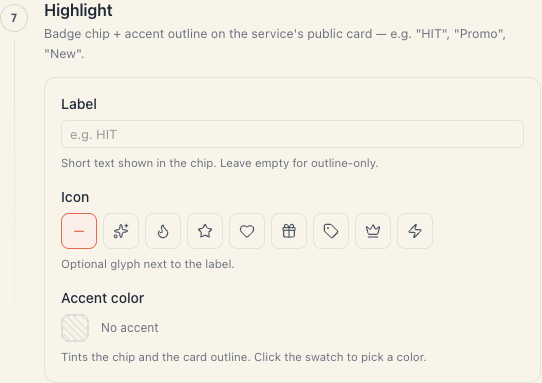
The product describes the section exactly: Badge chip + accent outline on the service’s public card — e.g. “HIT”, “Promo”, “New”.
2. The three fields
Label
Short text inside the chip. The hint reads Short text shown in the chip. Leave empty for outline-only., and the placeholder is e.g. HIT.
| Property | Value |
|---|---|
| Maximum length | 40 characters |
| Left empty | no chip — only the coloured outline remains |
In practice: use 1–2 words. The chip is small and sits on the service card. “HIT” works; “Our most requested treatment this spring” does not.
Good labels: HIT, NEW, PROMO, −20%, FEW SLOTS LEFT, RECOMMENDED.
Icon
A small glyph to the right of the text. The hint reads Optional glyph next to the label.
You choose between No icon (the dash button) and eight glyphs: sparkles, flame, star, heart, gift, tag, crown and lightning.
Pick one that matches the meaning: a flame or sparkles for “HIT”, a star for “RECOMMENDED”, a gift for a promo, a crown for a premium service. When in doubt, leave No icon — text and colour do the job on their own.
Accent color
The hint reads Tints the chip and the card outline. Click the swatch to pick a color.
- Click the swatch to open the colour picker.
- The Clear button removes the colour.
- With no colour chosen, it reads No accent.
Which colour to pick: one that contrasts with your page’s main accent, so it stands out. If your page accent is a warm orange, pick something different for the chip — otherwise it blends in.
3. The four states
| Label | Colour | Result on the public page |
|---|---|---|
| empty | empty | nothing — a plain card (No accent) |
| filled | empty | a chip with the text, no coloured outline |
| empty | filled | just a coloured outline around the card, no chip |
| filled | filled | a chip plus a matching outline — the strongest variant |
The middle two are useful when you want a gentle nudge without a shouty label.
4. How to remove it
- Delete the text from Label.
- Press Clear next to Accent color.
- Select the — button in the icon row.
- Save.
The service returns to its normal look.
5. The rule about highlights
One or at most two highlights per page. Put “HIT” on eight of ten services and none stands out; the page just reads as a clearance sale.
A practical scheme:
| When | What to highlight |
|---|---|
| A new service | NEW for the first 4–6 weeks |
| A seasonal promo | −20% for the campaign window |
| A service you want to sell more of | HIT or RECOMMENDED |
| An expensive / premium service | a crown with no text, outline only |
A highlight has no dates of its own. If you set −20% for March, you have to remove it on 1 April. The only thing with an automatic window is a banner — see Seasonal campaigns.
6. A highlight isn’t the only way to feature a service
| Tool | What it does |
|---|---|
| Highlight | a chip and an outline on the card |
| Order and groups | the first positions are seen first; see Groups & order |
| A service photo | a card with a photo pulls far more attention than a text-only one |
| A promo banner | a large card above the list; see Promo banners |
“First in the list + a good photo + a highlight” beats a badge on its own.
7. The same control lives elsewhere
The Label / Icon / Accent color trio is identical in the package editor and in the resource (specialist) editor. It looks and behaves exactly the same.
On a specialist it’s handy for “NEW TO THE TEAM” or “TOP STYLIST”. On a package, for “BEST VALUE”.
8. Troubleshooting
I set a highlight but it isn’t on the public page. Check you saved the service and that the service is publicly visible at all (active, with working hours and free slots). Reload the public page with a cleared cache.
The chip is cut off. The text is too long. Trim it to 1–2 words.
I can’t find the Highlight section. It’s the last entry in the editor’s section list on the left. On a phone, scroll down.
I want to highlight a whole group of services. That isn’t possible — a highlight belongs to a single service. For a group, use a banner above the list.
What’s next
- Service photos & details — the other half of a good card.
- Service groups & order — what gets seen first.
- Promo banners on your page — the bigger advertising slot.
- Services: what clients book — the whole catalog.