Photos & details
Photos, what's included, tags, a cancellation policy and a highlight on the card.
These fields touch neither times nor price. They decide how the service looks to a customer — the photo they see first, the “what’s included” list, the tags they find you by, and the chip that makes the eye stop. A well-filled card is the difference between “I’ll think about it” and “booked”.
Everything lives in the service editor: Catalog → Offerings → the pencil on the card. Two sections sit one after the other: Public-page details and Highlight.
1. The two photo fields are not the same thing
This trips up everyone on first open. They are separate fields with separate jobs:
| Field | How many photos | Where it shows | If left empty |
|---|---|---|---|
| Cover image | one | the service card in the public list | the first gallery photo is used |
| Cover photos | a gallery, up to 12 | the service’s page; the first is shown largest | the card has no photo |
The in-app hints say it plainly: for Cover image — “Optional. Shown on the public services list. Falls back to the first gallery photo.”; for Cover photos — “The first photo is shown the largest.”
How to upload
- Click the field (it reads Drop or click) or just drag a file onto it.
- Wait for the progress bar.
- Done — there is no separate “save photo” button, but the service itself still has to be saved at the end.
The constraints are printed under the field: PNG · JPEG · WEBP · GIF up to 5 MB. The gallery shows a N / 12 photos counter; when it fills up it says Gallery is full.
Under the cover image there’s a shortcut too: if a gallery already exists, a row appears — Or use a gallery photo: — with small thumbnails. Click one and it becomes the cover, no re-upload.
The Replace and Remove buttons do exactly what they say.
What to shoot. The result, not the interior. Real work from your own salon, not stock. Shoot landscape — the card is wide and a portrait photo gets cropped.
2. “What’s included” — a bullet list
What’s included is for short bullets a customer can scan in a second: “wash”, “hair oil”, “full styling”.
The hint: “What’s in the price. Bullet list shown on the offering card.”
It behaves like a tag field, not a plain text box:
- Type a word and press Enter — or a comma.
- If you click away, the half-typed text is still added (nothing is silently lost).
- The X on each bullet removes it.
- Backspace in an empty field deletes the last bullet.
- Repeating an existing bullet is quietly ignored.
Keep bullets short. “Wash with a professional shampoo chosen by the stylist” is a sentence, not a bullet.
3. “Search tags”
The same kind of field. The hint: “Keywords for filtering — customers can narrow their search by these.”
Tags are the words a customer types, not the words you use in your own bookkeeping: “balayage”, “men’s”, “kids”, “bridal”. A few useful habits:
- Include the synonyms people actually type.
- Don’t repeat the service name — it’s already searchable.
- 3–6 tags per service is plenty.
4. “Cancellation policy” — text, not a rule
A free-text field. The hint: “What the customer should do if they need to cancel. Shown before they book.” The placeholder is: e.g. "Free cancellation up to 24h before".
Careful — this is text only. The field cancels nothing automatically, doesn’t block late cancellations, and has no effect on deposit refunds. The deposit is governed by a different field — Refund on cancellation in the Pricing section. If the two contradict each other, a customer will point it out. See Pricing & day/time modifiers.
Write it in plain language and keep it short. Two sentences is enough.
5. The extra fields for your trade
At the bottom of the section you may see fields you never added. They come from the preset chosen when the board was created, and they differ per trade.
A few examples:
| Preset | Typical extra fields |
|---|---|
| Hair salon | stylist tier, who it’s suitable for, hair length, long-hair surcharge, product line, wash/blow-dry/styling included, consultation required, patch test required, recovery time |
| Tattoo studio | a set built around sessions |
| Massage & spa | a set built around treatments |
All of them are optional. If a field makes no sense for your service, just leave it empty.
6. The “Highlight” section — a chip on the public card
Right below the details sits the Highlight section: “Badge chip + accent outline on the service’s public card — e.g. ‘HIT’, ‘Promo’, ‘New’.”
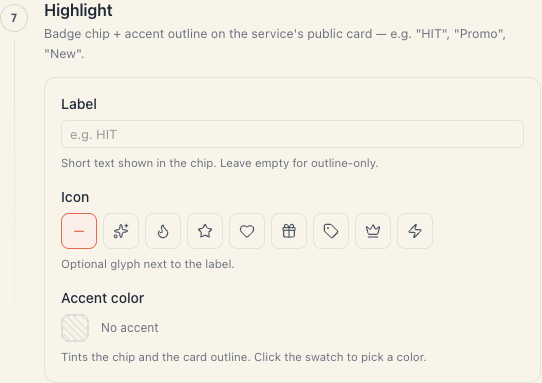
Three fields:
| Field | What it does | If left empty |
|---|---|---|
| Label | the short text inside the chip, e.g. HIT | ”Leave empty for outline-only.” |
| Icon | optional — sparkles, flame, star, heart, gift, tag, crown, lightning; No icon is also there | the chip is text only |
| Accent color | ”Tints the chip and the card outline.” Click the swatch to pick; Clear removes it, and there’s a No accent state | the card keeps its ordinary border |
The highlight also shows inside the admin — the service card in the list gets the same chip and the same coloured outline, so it’s obvious what’s being advertised.
A highlight is pure cosmetics. It doesn’t change price, availability or order, and it doesn’t push the service further up the list. To actually move something up, use the ordering — see Groups & order.
If you use highlights as a campaign (“−20 % until Sunday”), remember to remove them when the campaign ends. Nobody does it for you. See Featured services.
7. What these fields do NOT do
- They don’t affect free times. A service with no photos and no description books exactly as well as one with them. Availability is decided by the Resources & add-ons section.
- They aren’t translated. Whatever you type is what every customer sees, in any language the public page runs in.
- They don’t copy between services. Each service has its own photos, bullets and tags.
- They don’t copy between boards. A second salon means a second catalog, filled in from scratch.
- Tags are not shown as labels on the card — they exist for search and filtering.
8. Troubleshooting
I uploaded a photo but it isn’t on the public page. Did you save the service after uploading? The upload is standalone, but the service still needs Save changes.
The public list shows the wrong photo. Cover image is empty, so the system falls back to the first gallery photo. Set a cover explicitly or reorder the gallery.
It says “Gallery is full”. You’ve hit 12 photos. Remove one to upload another.
I typed a bullet in “What’s included” and it disappeared. Either it duplicated an existing bullet (silently ignored), or you deleted it with Backspace in the empty input.
The file won’t upload. Check both limits: format (PNG · JPEG · WEBP · GIF) and size (up to 5 MB). A photo straight off a phone is often over 5 MB — shrink it first.
I wrote a cancellation policy and the client still cancelled last minute. The field is informational. If you want a real brake, turn on a deposit — Deposits & prepayment.
What’s next
- Create a service — the whole editor, section by section.
- Featured services — running a campaign with highlights.
- Groups & order — what gets seen first.
- The booking-page editor — how the card looks live.