Services: what clients book
The Services page, the offering types (1:1, group, series, rental) and how they're organised.
A service is what the client books. Everything else in Mountify — the schedule, the resources, the money, the public page — revolves around your list of services. This article is a tour of the page: where it lives, what every number on a card means, what the two views can and can’t do, and what the four service types are. If you’re looking for how to build a service step by step, that’s Create a service.
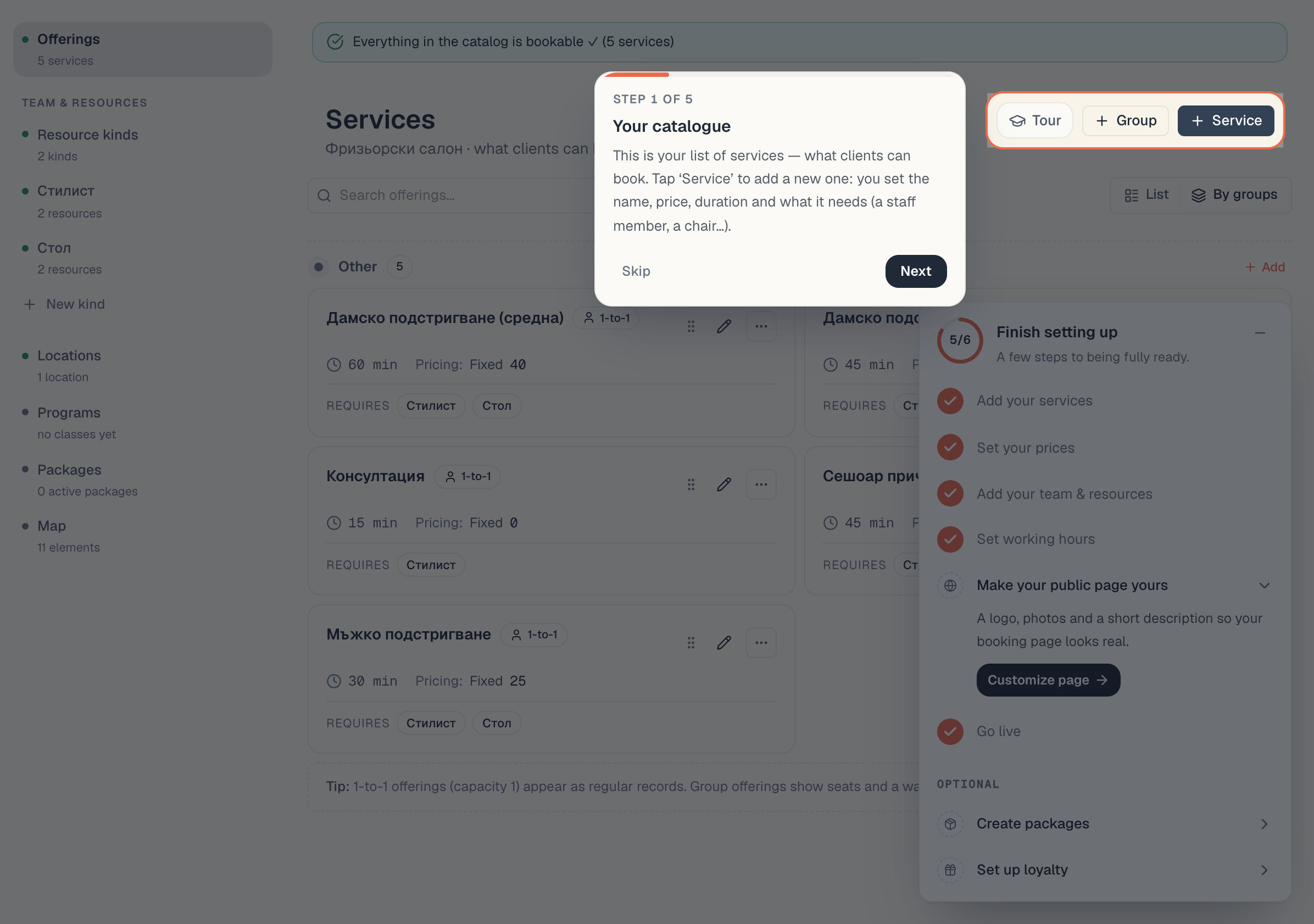
Where services live
- In the left sidebar, open the board you’re working on (if you have more than one).
- Click Catalog. This hub holds everything sellable on the board.
- In the left-hand column, click Offerings.
The address is /records/<board>/catalog/offerings. An old bookmark pointing at …/offerings without catalog still works — you get redirected to the new address automatically.
The Catalog column has a fixed order, identical on every page inside the hub:
| Row | What it opens |
|---|---|
| Offerings | this list; underneath it says “N services”, or ”⚠ N problems” when something’s wrong |
| Team & resources → Resource kinds | the kinds (Stylists, Rooms, Chairs, Equipment) |
| Team & resources → one row per kind | the people/places of that kind, with a resource count |
| New kind (quiet row at the bottom) | creates a resource kind without leaving Catalog |
| Locations | the board’s branches |
| Programs | schedules for group classes |
| Packages | memberships, punch cards, gift cards |
| Map | a diagram of the structure: kinds → resources → services |
Important: services belong to the board, not the workspace. Two venues (two salons) = two separate service lists. There is no copy between boards.
The page may not be called “Offerings”
The heading comes from the preset picked when the board was created. So the same page is named differently across trades:
| Board preset | Heading | Add button |
|---|---|---|
| Beauty salon, massage | Treatments | + Treatment |
| Tattoo studio | Sessions | + Session |
| Everything else | Offerings / Services | + Service |
Under the heading you get the board name and the subtitle what clients can book here. Throughout the help centre we say “service” — if your screen says “Treatment”, we mean the same thing.
The attention band above every Catalog page
Above the content (on a large screen) sits one band that checks exactly one thing: is there a service that will show clients “no available times”?
- All good: Everything in the catalog is bookable ✓ (N services).
- Something wrong: N services can’t be booked plus a Show them button.
Show them opens the list already filtered down to the problem services. You recognise that mode by the amber Only problem services chip in the toolbar; the small cross next to it clears the filter. In this mode the list is always flat — the type filter is hidden, and switching to By groups clears the filter for you.
The reason for each individual service is printed on its own card (see below). The full list of causes and what to do about each is in Find out why a service shows no free times.
The toolbar
Right under the title, above the toolbar, sits the Grouping on the booking page row with the No grouping, By type and Custom groups buttons. It decides how the public page splits your services — and whether there are any groups to arrange here at all. The default is Custom groups. Full detail in Groups & order.
Left to right:
- Search offerings… — filters by name as you type. It searches the name only — not the description and not the tags.
- Type filter — All / 1-to-1 / Group. Shown only in the List view. “Group” means a capacity above 1 seat; “1-to-1” means exactly 1.
- The Only problem services chip — visible only when you arrived via the attention band.
- Counter N of M — how many services survive the filters out of all on the board. List view only.
- The view toggle — List / By groups. Shown only with Custom groups.
Top right, in the page header:
- Group (with a plus) — creates a new group. Shown only in the By groups view, so only with Custom groups.
- Service (with a plus) — opens the editor for a new service.
- The question-mark circle replays the page tour.
If nothing matches the filters you get Nothing matches and the hint “Try clearing the search or switching the filter.” If the board has no services at all, you get an empty state with a create button tailored to your trade.
The two views: “List” and “By groups”
The two views only exist with Custom groups. Then the page opens in the By groups view. That matters, because the two views can do very different things:
| List | By groups | |
|---|---|---|
| Layout | flat list, up to three columns | services sit in per-group sections plus an Other section |
| Type filter | yes | no |
| ”N of M” counter | yes | no |
| Drag to reorder | no | yes — both services and groups |
| Group button | no | yes |
| Stats on the card | yes (bookings, per-day average, revenue) | no |
| Add button inside each section | no | yes — the new service lands straight in that group |
The practical rule: List is for browsing and searching, By groups is for arranging. Full detail in Groups & order.
With No grouping and By type the toggle disappears and the page shows List only — no Group button and no dragging. Your groups aren’t lost: in the grouping row, next to the hint, it says Your groups are kept and come back with “Custom groups”.
What a service card tells you
Each card carries, top to bottom:
- A badge, 1-to-1 or Up to N seats — that’s the capacity, not the type.
- If you set a highlight — the coloured chip (e.g. “HIT”) and a coloured outline around the card.
- The service name. Clicking it opens the service page, not the editor.
- The duration in minutes.
- Pricing: plus the mode (Fixed / By duration) plus the number.
- Requires and one badge per resource kind the service uses.
- If the service can’t be booked — a red chip Not bookable — no Stylists (naming the missing kind) or Not bookable — requires a deleted resource type.
- The pencil icon opens the editor; the three-dot menu holds Delete.
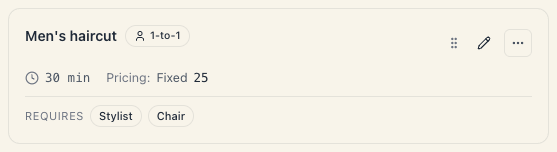
Under the sections in the By groups view there’s a permanent note: Tip: “1-to-1 offerings (capacity 1) appear as regular records. Group offerings show seats and a waitlist.”
The numbers on the card are not a report
In the List view every card shows three numbers: Bookings, Per day · avg (or Fill rate for group services) and Revenue.
Those are computed from the bookings the app already has in memory — not from a lifetime report on the service. In practice:
- If you came from Home (the board’s landing page), memory holds today only.
- If you came from Schedule, memory holds whatever period was open there.
- If you open the page directly by URL, the numbers can read zero while the service has dozens of bookings.
Don’t use them for money. Real money lives in Money → Payments and in the reports — see Money: where everything about money lives. The card numbers are only a quick “is this one selling” signal.
The page for one service
Click the service name (not the pencil) and you open its own page. It edits nothing — it summarises:
- Back to services returns to the list. Edit offering opens the editor.
- A badge, Bookable / Not bookable. If it’s the latter, a card underneath reads This service can not be booked online, names the exact cause, and offers Add resource.
- Five numbers: Bookings, Avg. fill rate, Completed, Revenue (closed), Participants.
- Profile: Duration, Capacity, Pricing, Requires.
- Recent bookings — a table with Time, Resource, Client / participants, Status. When empty: “No bookings yet.”
The four service types
The type is chosen at creation and decides the entire way a client books. It is not a label.
| Type (on screen) | The client picks | Typical examples | Creatable today |
|---|---|---|---|
| Appointment | a day and an exact free time | haircut, manicure, massage, consultation | yes |
| Group class | a scheduled session with seats | yoga, pilates, HIIT, master-class | yes |
| Course / series | buys a sequence of sessions at once | guitar course, 10-class beginner course | no — hidden from creation |
| Rental / resource | a resource by slots (from–to) | tennis court, studio, music room | yes |
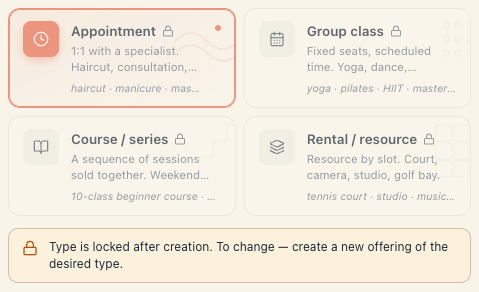
Three clarifications that save confusion:
- “Course / series” is not offered when creating. The course purchase flow isn’t finished. If the board already has an old service of that type, it stays editable and its card shows in the editor — you just can’t make a new one.
- A group class isn’t visible to clients right after you save it. It needs a schedule. That’s why saving pops the warning Saved — but not visible yet with an Add a schedule button that lands you in Catalog → Programs. See Schedule a class series.
- The type locks after creation. In the editor the cards carry a padlock and the note “Type is locked after creation. To change — create a new offering of the desired type.” The reason is that the booking logic, the pricing and the availability all depend on the type.
”Delete” means archive — and from the UI it’s one-way
The three-dot menu on a card holds a single action: Delete. The dialog asks Delete {name}? and spells out what happens: “Existing bookings of this offering will keep their data, but it cannot be selected for new bookings.”
What actually happens:
- The service is archived, not erased. The history of past bookings stays intact — reports about the past don’t change.
- The service disappears from the list and from the public page immediately.
- There is nowhere in the UI to bring it back. This page has no “Archived” tab. If you deleted one by mistake, recreate it (or write to support).
If you need a service “paused” for a month, don’t delete it. It’s less painful to restrict it to a branch or take its resource off shift — see Which branches a service is offered at.
Who can see and change services
- To see the list and a service page, a person needs the board’s view permission.
- To create, edit or delete a service — the board’s edit permission.
- Owner and Admin have both. For a “front desk that can’t touch prices” you’ll need a custom role — see Build a custom role.
Troubleshooting
I don’t see an “Offerings” row in the sidebar. You’re at workspace level, not inside a board. Open a board from Boards and Catalog will appear.
I created a service but the client can’t see it. Three common causes, in this order: (1) online booking is switched off for the board; (2) the service is a group class with no schedule; (3) the service has no active resource of the kind it requires. The first is fixed in Setup → Public site, the third in Catalog → Resource kinds. The diagnosis walkthrough is Find out why a service shows no free times.
Dragging does nothing. You’re in the List view. Switch to By groups. If there’s no List / By groups toggle, the grouping is set to No grouping or By type — switch the Grouping on the booking page row back to Custom groups.
The counter says “3 of 12” and I haven’t filtered anything. There’s text in the search box or an active type filter. Clear the search and pick All.
Revenue on a card reads 0 but I know there are bookings. See “The numbers on the card are not a report” above — that’s expected, and nothing is lost.
What’s next
- Create a service — the editor section by section.
- Groups & order — how the list is arranged and what the client sees.
- Pricing & day/time modifiers — how the checkout amount is built.
- Add-ons and extra resources — the only way to make a service require two kinds of resource.