Breaks & lunch
Add a lunch or other break in the day — no bookings are taken during it.
A break carves a piece out of the day and takes it out of bookings. The day stays open, but every slot that would land inside the break disappears — from the public page and from the “earliest free time” search alike. Lunch is the usual case, but the same tool covers a clean-up window after a colour service, a delivery, or Thursday’s training hour.
This article explains where breaks actually live (there are three different places), exactly what the four guards do, and why the branch’s lunch break does not vanish the moment a stylist sets their own hours.
1. Where a break is set
A break is not a screen of its own. It belongs to one day on one level of working hours. There are three levels, and a break can live on any of them:
| Level | Where you edit it | Who it applies to |
|---|---|---|
| Location (branch) | Setup → Working hours → Business hours mode → Weekly hours tab | Everyone working at that branch on that day |
| Resource (person) | Setup → Working hours → Staff schedule mode → a person → Working hours tab | That person only |
| A specific date | The Date overrides section of the same editor (visible only in Business hours mode) | That date only |
The path is the same in all three cases: pick the board in the left rail, open the Setup hub, click Working hours.
There is no “board” level here. The board’s shared hours (the fallback for branches without their own) are not editable from this page — only during the board’s initial setup. So a “one lunch break for the whole business” is in practice set on the location. See Your board’s working hours.
2. Step by step: a lunch break for a whole branch
- Open Setup → Working hours.
- Leave the toggle on Business hours.
- If you have more than one branch, pick it from the location row at the top.
- Stay on the Weekly hours tab.
- In the day row, click a day tile — say Mon. The editor for that one day opens below.
- Check that the switch next to the day name reads Open. On a closed day there are no breaks — the section disappears.
- Scroll to the BREAKS caption and press Add a break.
- A row with two clocks appears. Set the start and end — 13:00 and 14:00, for example.
- Don’t look for a Save button. It saves itself about half a second after you stop editing.
- Repeat for the other days, or copy the day (Copy hours in the day’s menu).
3. Where the new break lands
Add a break doesn’t drop the break at 12:00 at random. It:
- Finds the longest free stretch of the day — the part of the working window not already taken by another break.
- Places a 1-hour break in the middle of it. If the stretch is shorter than an hour, the break becomes exactly as long as the stretch.
- Does nothing at all if no stretch of at least 15 minutes is left.
That’s why the first break in a 09:00–18:00 day comes out at 13:00–14:00, and the second one in the middle of one of the halves.
4. The break row — control by control
Each break is one row, left to right:
| Element | What it does |
|---|---|
| Striped square | Colour only — the same hatch the break is drawn with on the bar above. |
| First clock | The start. Type it or use the dropdown. The step is 15 minutes. |
| The word to | A separator. |
| Second clock | The end. |
| 60 min | The length in minutes, so you don’t do the subtraction. |
| Warning triangle | Appears only when something is wrong. Hover for the reason. |
| ✕ | Removes the break (tooltip Remove break). No confirmation. |
Above the list, on the right, sits a counter like 2/7.
If there is no break yet, instead of a list you get just the dashed Add a break button.
5. Dragging on the bar
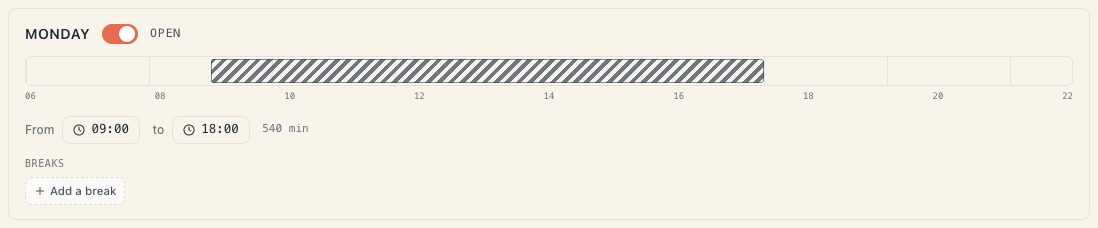
Above the clocks runs the day’s thin bar — the visual preview of the working window. It isn’t only a picture:
- Drag a break’s body to move it without changing its length.
- Drag its left or right edge to stretch it.
- Drag the ends of the work block itself to change the day’s start and end — the breaks travel with it.
Everything snaps to 15-minute steps and can never leave the work block.
6. The four guards
The editor won’t let you save a nonsensical break. Here are all four rules and the exact text you’ll see.
6.1. At most 7 breaks per day
The counter reads 7/7 and the add button greys out. Its label becomes Up to 7 breaks per day.
6.2. At least 15 minutes
Squeeze a break under 15 minutes and the editor pushes the opposite edge out to keep a quarter of an hour. If the value still ends up invalid, a warning next to the row reads Min 15 min.
6.3. No overlapping
Two breaks in the same day may not overlap. When they do, the row is flagged Overlaps another break.
6.4. Inside working hours only
A break sticking out before opening or after closing is flagged Outside working hours.
Automatic refitting. When you change the day’s From or To, the breaks refit themselves to the new window: they shrink to fit, and any left with under 15 minutes is deleted with no message. If you shorten a day sharply, check the breaks afterwards.
7. How to read the numbers
Under the day’s clocks sits a label like 8h 0m · 480 min. That is the net time: the open window minus every break inside it. A 09:00–18:00 day with one 13:00–14:00 break gives exactly 8h 0m.
In the summary strip at the top, the third figure is Breaks — the total number of breaks across the whole week, not in the day you have open. If you expect 5 and see 12, someone has been adding breaks on the other days too.
A day whose breaks outlast its working window reads as 0 minutes (never a negative number), and the offending breaks themselves get the warning triangle.
8. Whose break is it: levels are combined
This is the behaviour that surprises people most.
For the day’s start and end, the most specific level that says anything wins: resource → location → board. The winning level supplies both ends; the lower ones no longer take part.
Breaks are the exception. They are not replaced, they are combined. The result is the union of the breaks of every level that said “open” for that date. The union is then clipped to the winning window.
Examples:
| The location says | The stylist says | Result for that stylist |
|---|---|---|
| 10:00–18:00, break 13:00–14:00 | nothing for that day | 10:00–18:00, break 13:00–14:00 |
| 10:00–18:00, break 13:00–14:00 | 10:00–16:00 (no breaks) | 10:00–16:00, break 13:00–14:00 |
| 10:00–18:00, break 13:00–14:00 | 10:00–16:00, break 15:00–15:30 | 10:00–16:00, two breaks: 13:00–14:00 and 15:00–15:30 |
| closed | 10:00–16:00 | Closed — an explicit “closed” at any level wins |
| nothing for that day | 10:00–16:00, break 12:00–13:00 | 10:00–16:00, break 12:00–13:00 (the location contributes nothing) |
The point is protection: the branch’s lunch pause doesn’t disappear just because one stylist set their own hours and didn’t retype it. Otherwise a client could book straight through lunch.
The reverse is equally true: a personal break is personal. If only Elena is out 15:00–15:30, the slot stays free with every other stylist of the same resource kind.
9. Special days inherit the breaks
If you give someone a Special day with Custom hours for this day (see A staff member’s schedule), the new hours replace the start and end for that date only — but the breaks from the regular levels are kept and clipped to the new window. A special day has no break fields of its own.
Time off is a different thing: it removes the person for the whole day rather than carving an hour out of it.
10. What a break does NOT do
- It doesn’t cancel existing bookings. Put a break over a busy hour and the booking stays in the schedule. Check the day and move the client by hand.
- It doesn’t stop an admin. You can still enter a booking inside a break. The grid cell is hatched (Outside working hours) and the panel says {name} isn’t available then (day off, break or outside working hours). The booking will still be created. Only the public site is strict.
- It isn’t shown to clients as “lunch”. The client simply sees fewer times. There is no “closed for lunch” caption.
- It doesn’t let a service jump over it. A service that overlaps the break by even a minute disappears from that slot. A 60-minute service with a 13:00–14:00 break has no 12:30 slot — it would end at 13:30.
- It doesn’t touch classes already on the timetable. The session stays; the break affects how one-to-one slots are computed.
11. When a break is the wrong tool
| You want | The right tool |
|---|---|
| One person is away for a week | Staff schedule → Time off |
| The salon is closed on 24 December | Working hours → Holidays |
| The salon only works 10:00–15:00 on 31 December | Holidays → Reduced hours |
| We never work on Sundays | On the Sun tile, switch Open off |
| We open later on one specific date | The Date overrides section |
| I need 10 minutes between clients | Not a break — the service’s duration; see Create a service |
Troubleshooting
| Symptom | Cause | What to do |
|---|---|---|
| No BREAKS section | The day is set to closed | Switch Open on |
| Add a break does nothing | No free stretch of at least 15 minutes | Remove or shrink another break |
| The button is grey and reads Up to 7 breaks per day | You’ve hit the cap | Delete a break you don’t need |
| The break vanished after I changed the hours | Automatic refitting shrank it below 15 minutes | Add it again inside the new window |
| Every break disappeared for one day | You switched the day off — a closed day drops its breaks | Open the day and set them again |
| I set a stylist’s break and it appeared for everyone | You were on the location level, not in Staff schedule | Check which mode you’re in |
| I removed the stylist’s break and it’s still there | It comes from the location — levels are combined | Remove it from the location’s weekly hours |
| Clients are still booking during lunch | The change hasn’t reached the public page yet | Wait up to a minute and reload |
| Change wasn’t saved — try again. | The request was rejected and the screen reverts to server truth | Check the hours and redo the change |
What’s next
- Your board’s working hours — the frame breaks live in.
- A staff member’s schedule — personal hours, special days and time off.
- Hours by location — why the break belongs to the branch, not the board.
- How availability works — where breaks enter the maths.