Your board's working hours
When the board is open — hours per day, breaks, and quick copy to every day.
Working hours decide whether a free time can exist at all. Outside them the online calendar is shut — no service will show a slot, however perfectly everything else is configured. That makes this page the first place to look whenever a client says “there are no free times”.
There is one trap you should know before you start: the Working hours page always edits a specific location (branch), never an abstract “board”. If your board has no location at all, there is nothing here you can edit. Below is why, and what to do about it.
1. Where the page lives
- In the left rail, pick the board (salon) you’re working on.
- Open the Setup hub.
- Click Working hours.
The address is …/records/<board>/setup/working-hours. Old links and bookmarks pointing at …/records/<board>/working-hours still work — they bounce you to the new path automatically.
Next to Working hours in the hub navigation you’ll see a short summary like «6 days · 09:00–18:00» — the weekly rhythm computed from the current hours.
The page is titled Working hours, and below it: When the studio is open, and when each team member is on shift. Edit one location or one person at a time.

2. The page’s two modes
Right under the title there’s a two-button toggle:
| Button | What it edits | Who gets their own hours |
|---|---|---|
| Business hours | The weekly hours of one location, plus the whole board’s holidays | Each branch separately |
| Staff schedule | One person’s own schedule — hours, special days, time off | Each staff member separately |
This article covers Business hours. Personal schedules have their own article — A staff member’s schedule.
Important: the toggle is not “general vs specific”. Both modes write to a concrete object — the first to a location, the second to a person. The board’s shared fallback is set somewhere else entirely (see step 10).
3. You need a location first
If the board has no location, Business hours shows nothing but a dashed box:
Add a location first — working hours live on each branch.
No editor, no days, nothing to click. This is intended behaviour, not a bug.
How to get out of it:
- Open Catalog → Locations.
- Click the new-location button and fill in at least a Label (e.g. «Vitosha») and an address.
- Come back to Setup → Working hours — the editor is there now.
Full details are in Add a location. Note that the number of active locations is capped by your plan — the locations page shows a chip like «2 / 3 locations».
4. The two tabs inside
Business hours mode has two tabs:
- Weekly hours — the selected location’s regular weekly schedule.
- Holidays — one-off closures and reduced hours for specific dates. A count appears next to the label once entries exist.
This article covers Weekly hours. Holidays have their own article — Closures & holidays.
The location pill row
Above the tabs a row appears, starting with the caption Location and one rounded pill per branch. It only shows up when:
- you’re on the Weekly hours tab, and
- the board has two or more locations.
With one location the row is hidden — you’re editing that branch without being told. So if you have exactly one branch and wonder “whose hours am I changing” — that branch’s.
A small ● next to an inactive pill means Has its own hours (that branch no longer uses the shared fallback). Details — Hours by location.
5. The summary strip and the two quick actions
Above the days sits a thin strip with three figures:
| Figure | Meaning |
|---|---|
| X / 7 open days | How many weekdays are not closed |
| Xh Xm open hours / week | The sum of all open days after breaks are subtracted |
| N Breaks | Total number of breaks across all days |
On the right of the same strip there are two quick actions:
- Copy Monday to all — pushes Monday’s hours, its open/closed state and its breaks onto the other six days.
- Apply 9–18, Mon–Sat — rewrites the whole week to 09:00–18:00 Monday to Saturday, Sunday closed, no breaks.
Both rewrite all seven days, so both sit behind a confirm:
Overwrite the whole week? Monday’s hours will replace every other day. This saves immediately.
or, for the second button:
Every day becomes 9–18 (Mon–Sat, Sunday closed), replacing the current hours. This saves immediately.
The buttons are Overwrite and Cancel.
Important: there is no undo. If you’ve hand-tuned every day and then hit Apply 9–18, Mon–Sat, the old hours are gone. Use the quick actions at the beginning, not at the end.
The closed-week warning
If all seven days are closed, an amber block appears at the top:
The whole week is closed With every day closed, customers can not book online. Open at least one day (or add a date exception below).
This is the single most common cause of completely empty availability. If you can see it — open a day.
6. The weekdays, control by control
Below the strip is a row of seven tiles: Mon Tue Wed Thu Fri Sat Sun. Each tile carries a dot (coloured = open, grey = closed) and the hours 09:00–18:00, or a dash — when closed. Click a tile to open that day’s editor underneath. You edit one day at a time.
6.1. The day’s header row
- The day’s full name — Monday, Tuesday, … Sunday.
- An Open switch. To its right it reads Open or closed.
- With the day switched off, the editor is replaced by: Closed all day. Toggle Open above to set hours.
A closed day means zero slots that day at that location. An explicit close beats everything below it — even a staff member with their own hours for that day won’t appear (see step 9).
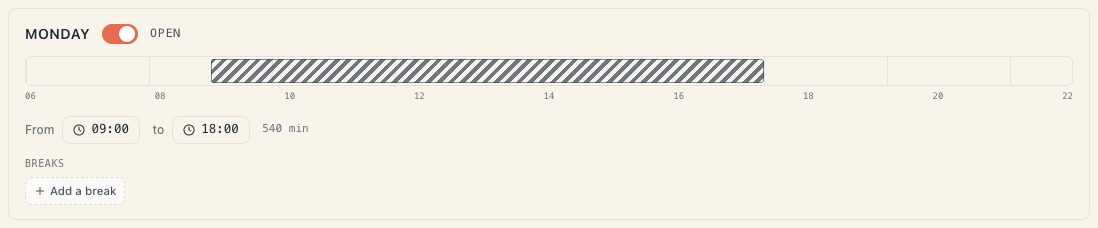
6.2. The drag bar
Under the header sits a horizontal bar showing the day from 06:00 to 23:00 with a tick every 2 hours. The striped block is the working window:
- Drag the middle of the block → moves start and end together, length unchanged.
- Drag the left or right edge → moves only that edge.
- Everything snaps to 15-minute steps.
- If the day has breaks, they are separate darker striped blocks inside the working block; they drag too.
6.3. The From and To fields
Below the bar are two clock fields:
- From — when the working day starts.
- To — when it ends.
If you push From past To, the other end is nudged by 15 minutes so the pair always stays valid. The same happens the other way round.
To the right of the two clocks you get the day’s net time, e.g. 9h 0m · 540 min — that is end − start − all breaks. If breaks eat the whole day it reads 0.
6.4. Breaks
At the bottom sits the Breaks block. This is where you carve out intervals that take no bookings. It has its own article — Breaks & lunch — because the behaviour is fiddlier than it looks.
In short: an Add a break button, a maximum of Up to 7 breaks per day, and a minimum of Min 15 min per break.
6.5. What Business hours does NOT have
- No per-day location chip. A salon shift always belongs to one branch — the one you picked above. The per-day location chip exists only in Staff schedule, because a person can roam between branches.
- No “Date overrides” section. On this page it is hidden; the Holidays tab plays that role.
7. Everything saves itself
There is no Save button. Every change:
- shows on screen immediately;
- is sent to the server about half a second after you stop fiddling (so a drag doesn’t fire one request per pixel).
If you switch branch in the pill row right after an edit, that last edit still gets saved — it is flushed as you leave the panel.
If the save fails, you get:
Change wasn’t saved — try again.
When that appears, the screen re-syncs to the server, so the rejected change disappears. Don’t assume it stuck — check the hours once more.
8. The “will this book?” check after saving
After every successful save a check appears below the editor. It runs the same availability engine the customer sees, with customer eyes, over the next 14 days, for the services this location affects:
- Checking availability… — in progress.
- Bookable — next free slot: Fri, 1 Aug · 10:00 — all good.
- 3 services will show clients “no available times” — plus the reason for each and a Fix link.
- Checked 15 of 22 services — no problems so far — the check hit its cap (15 services or 3 seconds). This is not “all clear”, it’s “clear as far as we got”.
- We couldn’t check availability. + Try again — the check returned nothing. Your hours are saved regardless.
This check is the fastest way to learn that you just closed the salon for something important. How to read the reasons — Find out why a service shows no free times.
9. The three levels — which hours win
This is the most important section of the article. Hours are resolved across three levels, most specific first:
- Resource (the person) — a staff member’s own hours.
- Location (the branch) — the hours you set on this page.
- Board — the shared fallback.
The rule is not “intersection”. It is:
| What a level says | Result |
|---|---|
| The level explicitly says closed for that date or weekday | Closed. Done. Lower levels aren’t asked. |
| The level says open | That level supplies the start, the end and the location. Lower levels can no longer change them. |
| The level says nothing (no entry for that day) | The next level down is asked. |
| No level says anything | It falls back to the resource’s legacy flat window. |
In other words: the winning level supplies both ends. There is no intersection with the level above. If the board is 09:00–18:00 and the staff member set 08:00–20:00, that staff member works 08:00–20:00 — wider than the board. This surprises people who expect the board to be an outer bound. It isn’t — it’s a fallback.
The exception: breaks are combined. Start and end come from the winning level, but breaks are the union of every level that said “open” for that date. The location’s lunch break survives even when a staff member sets their own hours without retyping it. The merged breaks are then clipped to the winning window.
In plain words: the location says “this branch works 10–18 with lunch 13–14”, the staff member says “I’m here 10–16”. The result for that person at that branch: 10:00–16:00 with a break 13:00–14:00.
Two more things sit above all three levels and can close a day regardless of the hours: a holiday/closure and a person’s time off. The full picture is in How availability works.
10. The board’s hours (the fallback) — where they’re set
Here’s the second surprise. The board’s hours (the shared fallback for any branch without its own) cannot be edited from this page. The only place they are written is the board’s initial setup:
- Open
…/records/<board>/onboarding. - First step — Hours (Where you work and when you’re open).
- It hosts the same weekly editor, but it writes to the board, not to a location.
In practice that means:
- The hours you set during initial setup are the fallback.
- Any edit in Setup → Working hours creates the location’s own hours, and from then on the fallback no longer applies to that branch.
- With a single branch the difference is invisible. With several, it explains why a new branch inherits hours you never set for it.
Details — Hours by location.
11. What this page does NOT do
- It doesn’t cancel existing bookings. Close Saturday and the Saturday bookings stay in the schedule. You have to reschedule or cancel them yourself.
- It doesn’t stop the admin. You can enter a booking outside working hours. In the schedule the cell is hatched and hovering it reads Outside working hours — click to book anyway; the new-booking panel shows This day is marked closed. The booking will still be created. Only the public site is strict.
- It doesn’t close for public holidays. Bulgarian public holidays are marked but do not close the salon. See Closures & holidays.
- It doesn’t publish your booking page. Even with perfect hours clients can’t book if the Online booking switch is off — see Your booking page.
- It doesn’t set service durations. Hours open the day; the duration decides how many slots fit — see Create a service.
Troubleshooting
| Symptom | Cause | What to do |
|---|---|---|
| No editor, just the «Add a location first» hint | The board has no location | Catalog → Locations → add a branch |
| I can’t see the location row | You have only one location (the row appears from two upwards) | Normal — you’re editing your only branch |
| «The whole week is closed» | All seven days are switched off | Open at least one day |
| I changed the hours but clients still see nothing | A holiday, time off, a missing resource, a service whose required kind has nobody | Read the check under the editor and the diagnosis article |
| A staff member works longer than the salon | Normal — the winning level supplies both ends; the board is not an outer bound | Set their hours in Staff schedule |
| The lunch break vanished for one staff member | It doesn’t vanish — breaks are combined. If it really is missing, check whether that person’s day is an explicit «closed» | Open Staff schedule → Working hours |
| «Change wasn’t saved — try again.» | The request was rejected; the screen reverts to server truth | Check the hours and redo the change |
| I hit a quick action and lost my hand-tuning | Quick actions rewrite all seven days | There is no undo — set the days again |
| A new branch has unexpected hours | It is using the board’s fallback | Give it its own hours, or re-read step 10 |
What’s next
- A staff member’s schedule — personal hours, special days and time off.
- Closures & holidays — date closures and reduced hours.
- Hours by location — how each branch gets its own hours.
- How availability works — all five layers together.