A staff member's schedule
Different hours per team member, special days, and time off (holiday, sick leave).
Every team member can have their own schedule — their own weekly hours, one-day changes, and time off. Personal hours beat the branch’s hours for that person, and time off removes them from availability altogether.
It all lives on one page: Setup → Working hours, mode Staff schedule.
1. How to get there
The navigation path
- Pick the board in the left rail.
- Open the Setup hub.
- Click Working hours.
- In the toggle at the top, choose Staff schedule.
The shortcut from a staff member’s card
- Open Catalog → Resource kinds and go into the kind the person belongs to (e.g. «Stylists»).
- Open their card and click Working hours in the section list.
- At the bottom of that section there’s a tile Schedule & Leave with the hint Per-day locations, overrides and time-off for this person. Click it.
The shortcut opens this same page already in Staff schedule mode with that person selected (the address carries ?resourceId=…).
2. Who appears in the list (and who doesn’t)
Above the editor sits a row starting with the caption Staff member and one pill per person — avatar, name, and their role in small caps if one is set.
Only person resources appear here — those belonging to a resource kind whose category is “person”. Rooms, chairs, equipment and courts don’t: they carry no personal schedule and inherit the branch’s hours.
Important: if your board has more than one person-type resource kind (say «Stylists» and «Assistants»), only people from the first such kind show up here. The rest can’t get a personal schedule from this page — edit their hours from their own card instead (Catalog → Resource kinds → the kind → the person → Working hours).
If there is no person resource at all, the page shows a dashed box:
No staff yet — add team members from Records → Settings → Resources, then come back here.
The path in that message is out of date. Today’s real path is Catalog → Resource kinds → the kind → new resource. See Add a resource.
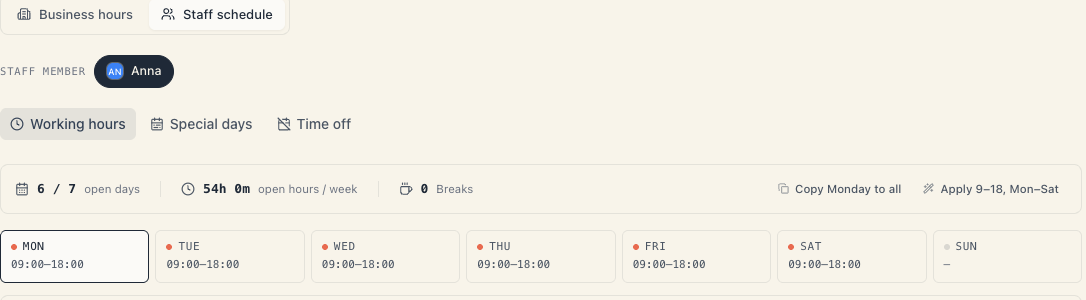
3. The three tabs for the selected person
| Tab | What it’s for | Scope |
|---|---|---|
| Working hours | This person’s regular week | Every week, indefinitely |
| Special days | A one-day change — a different branch and/or different hours | One date |
| Time off | Vacation and days off | A date range |
A count appears next to Special days and Time off once entries exist. Every change saves itself — there is no Save button.
4. The Working hours tab — the personal week
The editor is the same one as in Business hours mode: a summary strip, seven day tiles, the drag bar, the From and To fields, net time, and the Breaks block. Every control is described in full in Your board’s working hours.
Three differences that are specific to a person:
4.1. A per-day location chip
If the board has two or more locations, a small chip with a branch name appears next to the Open switch. It says where the person works on that weekday. Open it and:
- pick a branch — they’re there that day;
- or pick All locations (at the bottom of the list) — they’re not pinned to a branch and show up at every one.
This chip is the mechanism behind “Monday and Wednesday at Vitosha, Tuesday at Lozenets”. Individual dates are moved from the Special days tab.
4.2. An “empty day” does not automatically mean “doesn’t work”
Mind the wording:
| State | What happens |
|---|---|
| The day is explicitly switched off (the Open switch is down) | The person doesn’t work that day. An explicit close beats the branch and the board. |
| The person has no personal hours at all | They inherit the branch’s hours (or the board’s shared fallback). That is not “doesn’t work” — it’s “same as the salon”. |
So: to switch someone off for a given weekday, drop that day’s switch. A blank card means “same as the salon”.
4.3. Wider than the salon is allowed
Personal hours are not intersected with the branch’s — the winning level supplies both ends. A stylist set to 08:00–20:00 really does work 08:00–20:00 even if the branch is 09:00–18:00. If you don’t want that, don’t give them hours, or match them by hand.
Breaks are the exception: they are combined across levels. The branch’s lunch break survives even when the person sets their own hours.
4.4. There’s a check here too
After a successful save a check appears below the editor for the services this person performs: Bookable — next free slot: …, or N services will show clients “no available times” with the reason and a Fix link. See the diagnosis article.
5. The Special days tab — one date, a different branch or different hours
Use it for “this Saturday Elena is at the other branch, 10:00–14:00”. The entry applies to that date only; the next day the regular schedule returns.
You need at least one location. With none, the tab shows: Add at least one location first — special days move staff between branches. The reason is that a special day always carries a branch — it’s a required field, not an optional one.
5.1. How to add one
- Click the day you need on the calendar. A panel opens on the right, headed Add special day, with the date spelled out (e.g. «Saturday, 2 August») and the person’s name below it.
- Work at — every branch as a selectable card. The first one is tagged Default location. Click the branch they’ll be at. A ✓ marks the chosen one.
- Custom hours for this day — a switch. Below it you read what applies by default: Using Saturday default · 10:00–14:00 (or Closed if their regular day is off).
- Left off → their regular hours apply and only the branch changes.
- Switched on → From and To appear. Squeeze the window below 15 minutes and the other end moves itself.
- Note — free text, e.g. «covering Elena’s clients». The hint reads Visible to managers. Optional. — the client never sees it.
- At the bottom there’s a preview chip: Elena works at Vitosha · 10:00–14:00.
- Click Add special day to save it. Cancel throws it away.
Important: nothing is saved until you press Add special day. Clicking a day on the calendar only creates a draft — precisely so you can’t schedule something without noticing.
5.2. Editing and removing
- Click a day that already has a special day → the panel opens as Edit special day. Here every change saves immediately.
- The buttons at the bottom become Remove and Done.
- On the right there’s an Upcoming special days list with a count; at zero it reads Nothing scheduled. Each row shows the date, the branch, the hours and the note; the bin icon removes it.
- Below the list is a Year overview strip, coloured per branch — it answers “where was this person this year”.
5.3. Error messages
| Message | Meaning |
|---|---|
| A special day already exists for this date — edit the existing one. | One person gets at most one special day per date |
| Special day not saved — check the hours. | The hours are invalid (end before start) |
| This person is on time off that day — remove the time off first. | Time off wins; delete it in the Time off tab and retry |
| Entry not found — it may have been deleted by someone else. | Somebody removed it in the meantime |
6. The Time off tab — vacation and days off
Time off is a hard close for that person. On those dates they don’t take part in availability at all — not on the public site, not in the schedule’s hatched columns.
6.1. The two kinds
Above the calendar there’s a Mark as row with two choices:
- Day off — one or a few days off shift.
- Vacation — a longer absence.
The choice here decides what your next click adds. The two kinds differ by colour on the calendar and by label; for availability they do exactly the same thing — the person is removed.
The calendar marks the days: vacation with the «Vacation» label, days off with the Off label.
6.2. How to add
The page’s own hint says it exactly:
Pick Day off or Vacation above, then click a day — or drag across several — to mark it. Click a marked day to clear it. Existing bookings on those dates will need rescheduling.
In practice:
- Pick the kind under Mark as.
- A single click on a day → time off for that one day.
- Drag across several days → time off for the whole range (both ends included).
- Alternatively use the Add by dates… field on the right. Pick a start and an end — the entry is created the moment both are chosen, and the field clears for the next one.
6.3. How to remove
- Clicking an already-marked day clears the entry that covers it.
- If it was a single day → deleted immediately.
- If it was a range → a confirm appears, Remove this time off?, reading This removes the whole time-off entry 1 Aug – 14 Aug. with Remove / Cancel. One stray click can’t wipe a two-week holiday unasked.
- The ✕ on a chip in the Upcoming time off list also removes it — but that one does not ask.
6.4. The rest of the tab
- Upcoming time off + a count. At zero: No upcoming time off. Drag-select on the calendar to add one. Each chip shows the label and the dates; clicking it jumps the calendar to that month.
- A legend with three colours: Vacation, Day off, Selecting….
- A collapsible All entries section (past ones included) with a count. Each row has the kind, two dates and a Reason (optional) field — that’s how you rename an entry.
- A Year overview strip — how much time off this person took, and of which kind.
6.5. What time off does NOT do
- It doesn’t cancel existing bookings. The hint says so outright: «Existing bookings on those dates will need rescheduling.» Check the schedule for those dates and move people by hand.
- It doesn’t close the salon. Only that person is removed. If another stylist can perform the service, its times remain — just with them.
- It tells the client nothing. No email is sent because of time off.
7. Time off, special day or a switched-off weekday — which to use
| Situation | The right tool |
|---|---|
| «Ivan never works Sundays» | Working hours tab → the Sun tile → drop Open |
| «Ivan is on holiday 1–14 August» | Time off tab → Vacation → drag the range |
| «Ivan is off just this Thursday» | Time off tab → Day off → click the day |
| «This Saturday Ivan is at the other branch» | Special days tab → pick the day → Work at |
| «This Saturday Ivan finishes at 14:00» | Special days tab → Custom hours for this day |
| «The whole salon is closed on 24 December» | Not here — Business hours → Holidays, see Closures & holidays |
| «This branch keeps shorter hours» | Not here — see Hours by location |
8. A resource’s schedule vs. access to the system
These are two different things and are often mixed up:
- The schedule here belongs to the resource on the calendar — when this person can take clients. It exists even if they never sign in.
- Admin access is separate — an invitation, a role, permissions. See Invite your team.
You can have a stylist resource with no account, and a colleague with an account who isn’t a resource.
Troubleshooting
| Symptom | Cause | What to do |
|---|---|---|
| «No staff yet…» | The board has no person resource | Catalog → Resource kinds → add a person |
| One of my stylists isn’t in the person row | They belong to a second person-type kind | Edit their hours from their own card |
| The Special days tab says «Add at least one location first» | The board has no location | Catalog → Locations |
| I clicked a day but nothing saved | Special days are a draft until Add special day | Press Add special day |
| The special day won’t save — «This person is on time off that day» | Time off beats a special day | Remove the time off, then add the special day |
| I set time off but the bookings are still there | Time off doesn’t cancel bookings | Reschedule them by hand from the schedule |
| The person still shows up for clients | You’re checking a different date, branch or person | Open the public page for the same date |
| The person vanished from every branch | The per-day chip is pinned to a branch where the service isn’t offered | Change the chip or pick All locations |
| The lunch break appeared for them too | Breaks are combined across levels — that’s intended | See Breaks & lunch |
What’s next
- Your board’s working hours — the frame and the three levels.
- Closures & holidays — closing the whole salon.
- How availability works — every layer together.
- Invite your team — system access, not scheduling.