Closures & holidays
Close the whole board for a holiday, or set reduced hours for specific days.
For Christmas, for a week when the whole salon is away, or for one single closed day — don’t touch the weekly hours. Use the Holidays tab: it shuts a chosen period while the regular week stays exactly as it was, ready for afterwards.
And the single most important thing to know in Bulgaria: official public holidays are marked, but they do NOT close the salon. You get a dot and a hint on the calendar, the venue stays open, and clients can keep booking Christmas Day unless you add a closure yourself. That is the number-one source of December surprises.
1. Where it lives
- Pick the board in the left rail.
- Setup → Working hours.
- Leave the mode toggle on Business hours.
- Open the Holidays tab.
The number of existing entries is shown next to the tab title.
The page is split in two: a large month calendar on the left, an Upcoming list on the right.
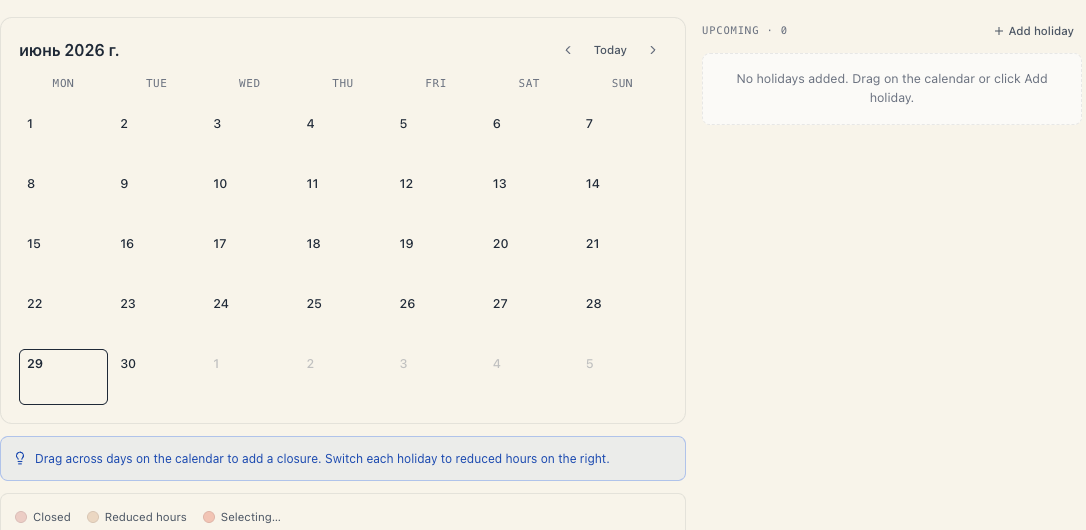
2. What a “closure” is here
One entry = one period + one mode + a location scope + a label.
| Field | Meaning |
|---|---|
| Range | A start and an end date, both inclusive. One entry covers 24–26 December — you don’t create three. |
| Mode Closed all day | Not a single slot exists for the whole period. |
| Mode Reduced hours | The venue is open, but only inside the window you set (say 10:00–15:00). Slots outside it disappear. |
| Applies to | All locations, or specific branches you pick. |
| Label | The entry’s name, e.g. “Christmas”. Write it in your clients’ language — it is data, not a translated string. |
3. How to add a closure
3.1. By dragging on the calendar (the fastest way)
- Hold the left mouse button on the first day and drag to the last one. The selected cells colour in.
- Release. Nothing is saved yet — a confirmation appears instead:
Close this day? On 24 December the salon will be closed all day and customers won’t be able to book online.
For a range the wording is: From 24 December to 26 December the salon will be closed and customers won’t be able to book online.
- The buttons are Close the day and Cancel.
Important: dragging only stages the selection. An earlier version closed the day on a single click, making the salon unbookable with no question asked. Today you always go through this confirmation. A plain click on one day (no drag) opens the same dialog for that single day.
The entry is created in Closed all day mode, scoped to All locations, labelled Holiday. You then edit it in the card on the right.
3.2. With the button
Above the list on the right there is an Add holiday button. It creates an entry for today (in the board’s timezone), closed all day, all locations, labelled New holiday. You then change the dates on the card itself.
The empty list says: No holidays added. Drag on the calendar or click Add holiday.
4. The closure card — field by field
Each entry on the right is a card. The dot on its left is red for a full closure and amber for reduced hours.
4.1. Label
The first line is the name. Click it and type. Details:
- It saves when you leave the field or press Enter. Esc restores the previous value.
- An empty name is refused — the field snaps back, because the server rejects a blank label.
- Write it in your clients’ language: it is data shown as the reason for the closed days.
4.2. The date + scope line
Under the name sits a line like 24 Dec – 26 Dec · All locations. Click it to spin the calendar to that period.
4.3. The two modes
Two round buttons:
- Closed all day — zero slots.
- Reduced hours — two fields appear, From and To (10:00–15:00 by default).
With Reduced hours:
- The minimum window is 15 minutes. Squeeze one edge and the other moves out of the way to keep the range valid.
- If an invalid window still reaches the server you get: Invalid window — start must be before end (min. 15 minutes).
- The reduced window is intersected with the usual hours. It never opens the venue earlier than it would otherwise be open.
4.4. “Applies to”
Shown only when the board has locations. One All locations button plus one per branch (each with its colour square).
- All locations — closes the whole business.
- Pick one or more branches — closes only those. One branch can be shut while another trades normally.
- Turn off the last selected branch and the scope snaps back to All locations — a closure that applies to nobody can’t exist.
4.5. “Range”
The bottom row is labelled Range and holds two date pickers with an arrow between them. Set a start after the end and the end follows it (and the other way round).
4.6. Deleting
The ✕ in the card’s top-right corner removes the closure. It does not ask for confirmation — be careful with long periods.
5. The calendar and its legend
- Red cell — this day is closed by an entry. The cell is labelled Closed.
- Amber cell — reduced hours. The cell shows the window itself, e.g.
10:00–15:00. - Dark cell while dragging — the current selection, legend Selecting….
- A small dot in the top-right corner — an official public holiday. Hover to read its name.
- A faint tint in the cell also marks a public holiday — but only where one of your own entries hasn’t already coloured that day.
The legend below the calendar lists the three states: Closed, Reduced hours, Selecting….
The blue hint above the legend reads: Drag across days on the calendar to add a closure. Switch each holiday to reduced hours on the right.
The month buttons, Today and the arrows sit in the calendar’s header.
6. Public holidays — marked, never closed
This is the section that saves December.
The product knows the Bulgarian public holidays and shows them as a read-only informational overlay. It is never stored and it never stops a booking. The salon stays open until you add a closure yourself.
Which dates get marked (on a board whose country is Bulgaria):
| Date | Holiday |
|---|---|
| 1 January | New Year’s Day |
| 3 March | Liberation Day |
| Good Friday, Holy Saturday, Easter Sunday, Easter Monday | Orthodox calendar — recomputed every year |
| 1 May | Labour Day |
| 6 May | St. George’s Day (Army Day) |
| 24 May | Education, Culture & Slavonic Literature Day |
| 6 September | Unification Day |
| 22 September | Independence Day |
| 1 November | Day of the National Revival Leaders — flagged as a non-teaching day |
| 24 December | Christmas Eve |
| 25 December | Christmas Day |
| 26 December | Second Day of Christmas |
The list follows the board’s country. If the board has none set, the workspace’s country (the one from sign-up) is used. Outside Bulgaria the holiday layer is empty.
Read that once more: the marker is a reminder. To stop taking bookings at Christmas, drag across 24–26 December and confirm with Close the day.
7. The nudge from the schedule
The product tries hard not to let you miss a holiday. When you open Schedule and a public holiday is on screen, an amber strip appears above the grid:
Christmas Day — a public holiday
For “non-teaching” days the wording is … — a non-teaching day. In week view the day is prefixed, e.g. “Thu, 25 Dec · …”.
The strip carries two buttons:
- Set hours for this day — opens the Holidays tab directly and spins the calendar to that month so the day is in front of you. It does not create a closure automatically — you decide whether to close the day or give it reduced hours.
- Hide — removes the strip for that day permanently (remembered per board and date). Hide it and it will never remind you about that day again.
8. How a closure interacts with everything else
A closure sits above every level of working hours. Resolution order for one date:
- A Closed all day closure whose scope covers this location → zero slots. The staff member’s personal hours don’t help.
- A Reduced hours closure → its window is intersected with the hours computed otherwise.
- Only then come the resource’s → the location’s → the board’s hours.
Effects people ask about:
- Existing bookings are not cancelled. A closure only stops new ones. Check the schedule for those dates and move the clients by hand.
- Group classes. If sessions are already scheduled on a closed day, public joining is refused with a message that the venue is closed for that date. The sessions themselves don’t vanish from the timetable — cancel them from Scheduling a class series.
- Admins aren’t stopped. The new-booking panel says This day is marked closed. The booking will still be created. Only the public site is strict.
- No email goes out. A closure notifies nobody. If people are already booked for that day, phone them.
9. Closure vs time off vs a day switched off
| Situation | Tool |
|---|---|
| The whole salon is shut 24–26 December | Holidays → drag the range |
| The salon works 10:00–15:00 on 31 December | Holidays → Reduced hours |
| Only the Vitosha branch is shut | Holidays → Applies to → Vitosha |
| One stylist is on holiday | Staff schedule → Time off, see A staff member’s schedule |
| We never work on Sundays | Weekly hours → the Sun tile → switch Open off |
| This branch always works shorter hours | Hours by location |
Troubleshooting
| Symptom | Cause | What to do |
|---|---|---|
| I dragged on the calendar and nothing changed | You cancelled the confirmation, or it’s still open | Drag again and press Close the day |
| Clients are booking on Christmas Day | Public holidays are only marked | Add a closure for 24–26 December |
| The calendar shows no holidays | The board has no country and neither does the workspace (or the country isn’t Bulgaria) | Set the country in Setup → Settings |
| The holiday strip disappeared from the schedule | You pressed Hide for that day | Open Holidays directly |
| ”Holiday not saved — check the name and dates.” | Empty label or invalid dates | Enter a name and correct dates |
| ”Invalid window — start must be before end (min. 15 minutes).” | The reduced window is under 15 minutes | Widen the interval |
| ”Entry not found — it may have been deleted by someone else.” | The entry no longer exists | Reload the page |
| I closed the day but the bookings are still there | A closure doesn’t cancel bookings | Reschedule them from Schedule |
| I closed one branch and the hours vanished everywhere | The scope is All locations | Pick the specific branch on the card |
| Reduced hours didn’t open us earlier | It intersects with the usual hours, it doesn’t extend them | Change the weekly hours for that day |
What’s next
- Your board’s working hours — the permanent weekly frame.
- A staff member’s schedule — one person’s absences.
- Hours by location — each branch’s own hours.
- How availability works — where closures enter the maths.