The booking-page editor
Where you shape the public page, what each row of the editor does, and how to preview it on a phone and a computer before you go live.
Your public booking page is the only part of Mountify a client ever sees. Its entire look is shaped from a single admin screen — Setup → Public site, titled Booking page. On the left sits your real page, live; on the right, Page settings — a short list of rows, one per thing you can change. There is no Save button: every change saves itself and goes live immediately.
Important: your page is public while you are editing it. If you are not ready to take bookings, turn Online booking off first (the switch in the top right, see step 3), then adjust everything else at your leisure.
1. How to reach the editor
- In the left rail pick the board you want to edit — every board has its own public page.
- Click Setup.
- On a computer, Setup opens straight onto this page — it’s first in the list. On a phone you first get a card per setup section; pick Public site.
The ‹ Setup link in the top-left corner of the editor takes you back to all the setup cards (Banners, Reviews, Working hours and the rest).
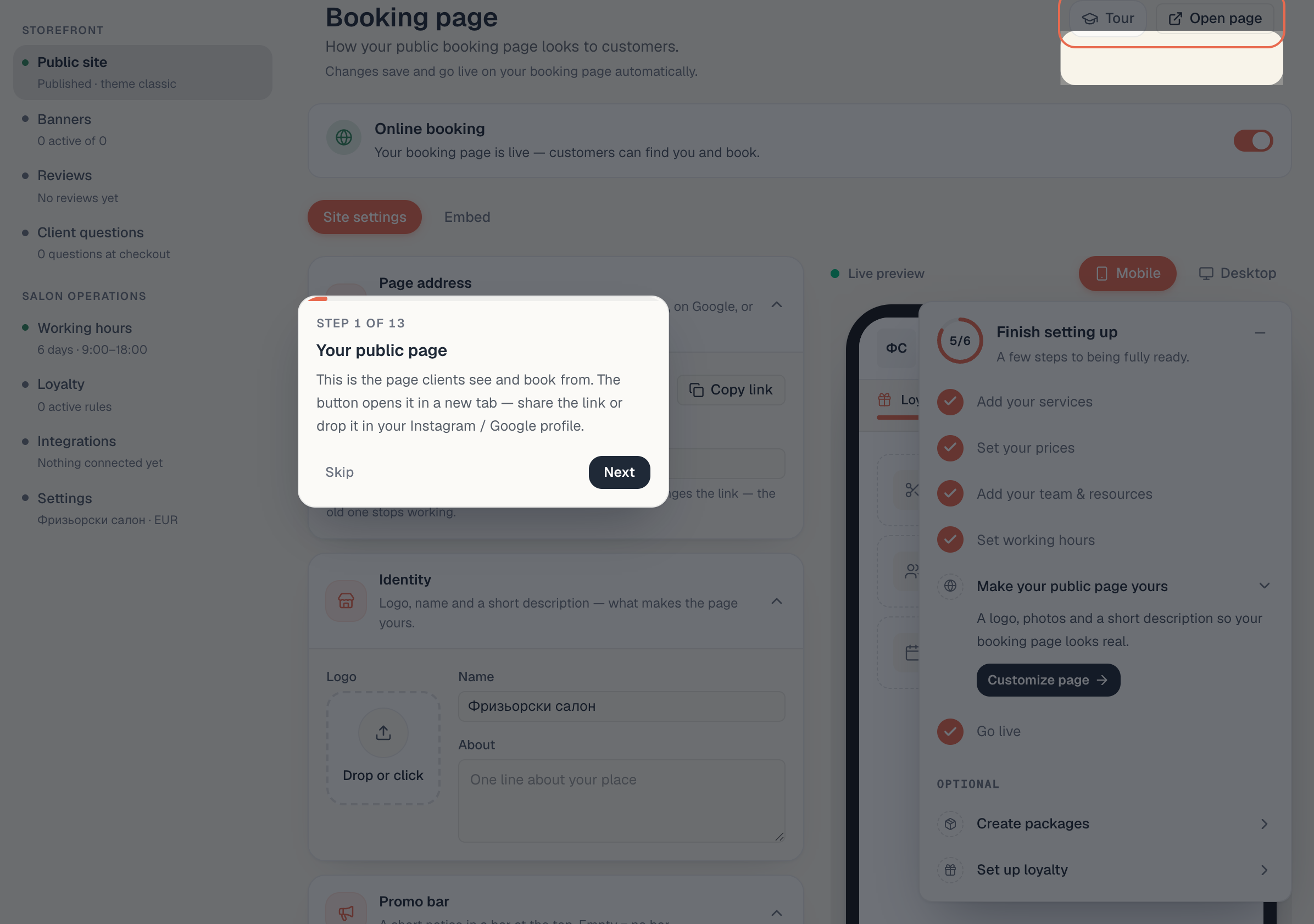
2. The title row
Across the top, from left to right:
| Item | What it does |
|---|---|
| ‹ Setup | Back to the list of setup cards |
| Booking page and a pill | Live (green) — clients can book; Hidden — the page is off |
The address, e.g. …/my-salon | Your page’s link. The small icon next to it copies the full link |
| Changes save and go live automatically | Where the save status appears (see step 5) |
| Open page | Opens your real public page in a new tab |
| Online booking | The master switch of the whole page |

3. The master switch: «Online booking»
The switch at the far right of the title row decides whether the page is open at all:
| State | The pill next to Booking page | What it means |
|---|---|---|
| On | Live | The link works, clients see your services and free times and can book. |
| Off | Hidden | The link leads nowhere usable. An embedded widget on your own website stops working too. |
Turning it off deletes nothing — services, resources, working hours and existing bookings all stay. The shop window is simply shuttered.
Use the off state while you set everything up for the first time, and switch it on at the end, once you have at least one service and working hours.
4. Page settings — the four groups
The panel on the right is headed Page settings, with the hint “Pick a section, or click a block on the page.” The rows are grouped, and each row shows its current value on the right — so you can read the state of the whole page without opening anything.
| Group | Row | What it’s for | Covered in |
|---|---|---|---|
| Business | Name & logo | Logo, name and a short description | Brand your page |
| Photos | Up to 12 photos of your place | Page photos & gallery | |
| Reviews | A link to your Google listing (not the reviews themselves) | Reviews on your page | |
| Links | Instagram, Facebook, TikTok, Website, WhatsApp, Viber | Brand your page | |
| Home page | Promo bar | A short line at the very top | Brand your page |
| Home layout | Classic or Sheet, for the computer and the phone; the Client search switch | Classic or Sheet, Search | |
| Hero | How booking starts on the home screen | step 7 below | |
| Look | Style & colour | Light or dark, one of 23 moods and your brand colour | Mood & theme |
| Fine-tuning | Corners, density, shadows — optional | Mood & theme | |
| Components | Main button, cards, logo shape — optional | Mood & theme | |
| Font | The font of the headings — optional | Mood & theme | |
| Share | Page address | The link you hand out and its last part | Share your page |
| Embed on your site | The code for your own website | Embed on your site |
Click a row and the panel shows only that section; ‹ All settings at its top brings you back. None of the rows is mandatory — work through them in any order and leave alone whatever you don’t need.
Shortcut: click the page itself. Above the preview it says Click a block on the page to edit it. In the phone preview you can click the promo bar, the top bar with your name, the hero and the booking rows; in the computer preview, the top bar and the hero. The matching section opens on the right. With the Sheet layout the preview can’t be clicked — use the rows on the right instead.
What is NOT set here: your address, phone number and map. They live in Catalog → Locations — which is exactly what the hint under Links says: “Address & phone are set in Locations.” Services and prices are in Catalog → Offerings. Working hours are in Setup → Working hours.
5. Everything saves itself — there is no Save button
The title row reads Changes save and go live automatically. Take that literally:
- Switches, cards, tiles and colours save the moment you click them.
- Text fields (name, about, promo text, page address, Google link, social links) save when you leave the field — click somewhere else or press Tab. Having typed into the field is not enough. While you type, the preview already shows the new text.
- In place of that line you’ll briefly see Saving…, then Saved. If you see Not saved, the change did NOT reach the server — try again.
Careful: if a field still holds unsaved text and you try to close the tab, the browser asks whether you really want to leave. That is a safety net — the text is already in the preview but not live yet. Click outside the field, wait for Saved, then leave.
6. The live preview: «Mobile» and «Desktop»
The left side of the editor is your page drawn with the same building blocks as the public site, filled with your real services, specialists and free times.
- Above it there are two pills: Mobile and Desktop. The editor opens on Desktop.
- Check both. Most clients book from a phone, and a dark theme, long names and big logos read very differently on the two screens.
- In Home layout and Hero you can point at an option to see it on the page — a blue pill says Previewing … — click to apply. Nothing is saved until you click.
- In Photos, Reviews and Links a note above the preview reminds you where clients meet them: in the About card, which opens when they tap your name.
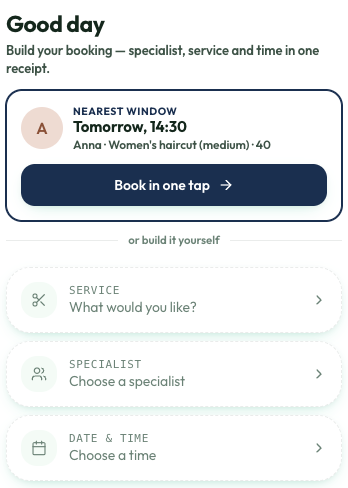
On a narrow window (a laptop with a side panel open, a tablet) there is no room for the preview next to the settings. A Preview button then appears in the title row; it opens the page full-screen, and the × in its corner closes it. Clicking a block there also takes you to its settings.
7. «Home layout» and «Hero» — how booking starts
These two rows change the structure of the home screen, not just its colours. Both are set separately for the computer and the phone — the Desktop / Mobile pills at the top of each section.
Home layout chooses between Classic (the booking rows with the step panel) and Sheet (a band on top, the booking card over it). That choice has its own article: Classic or Sheet: your home layout.
Under the cards in Home layout sits the Client search switch too — the field where clients look for services, specialists and classes, and with “haircut tomorrow” get straight to the free times. It’s on by default and shows once the page has at least 6 items. Don’t mix it up with the Search bar hero — they are two different things. In detail: Search on the booking page.
Hero chooses what sits at the top of the home screen. With Classic you get:
- Desktop: Search bar (the default), Calendar, Specialists, Price menu, Service tiles, Storefront, Next available, Class timetable.
- Mobile: Standard (the default — no intro, straight to the booking rows), Greeting, Showcase, Smart pick, Cover photo, Specialists, Today’s times.
With Sheet on a screen, the same row offers five bands for that screen instead — see the Classic-or-Sheet article.
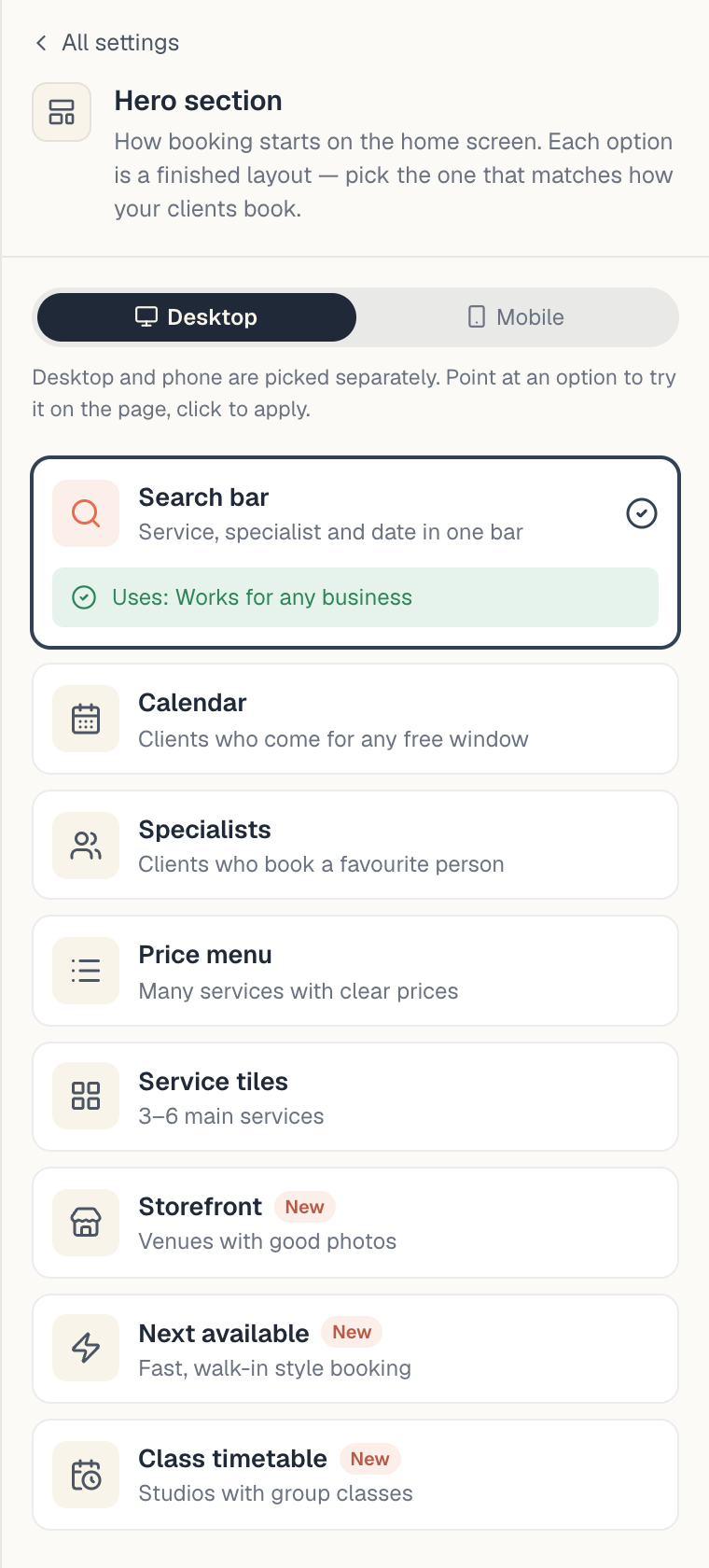
Under the option you picked, a green line says what it’s built from, in your real numbers — for example “Uses: 4 specialists, each with their next free time”. If the board lacks what the option needs (no photos for Storefront, no scheduled classes for Class timetable), the line turns amber: “Clients currently see …”, with the reason and a link to fix it. You can keep the option — it switches on by itself once the data is there.
Important for banners: on a phone, promo banners only appear with Classic and a hero other than Standard. On a computer they always appear with Classic. Sheet shows no banners. If you made a banner and can’t see it, this is why — see Promo banners on your page.
8. What the client goes through
It helps to know the path your client takes, so you can test it properly:
- The home screen — Classic or Sheet, with the hero or band you chose.
- The choice — service, specialist (or anyone free) and a time. Each step opens as a sheet over the page, so the client never loses their place. Search is a shortcut: the client types “haircut tomorrow” and picks a free time straight away.
- Checkout — a summary of the visit on top and Your details below: name and email. The phone is optional.
- The receipt — after the button, the form folds away and the same summary card becomes the receipt, right there on the screen. If you take a deposit or full prepayment online, the client pays first and gets the receipt after paying.
9. «Open page» — the real check
The preview shows the home screen; for the full path press Open page in the title row — the public page opens in a new tab at its real address.
Do this at least once before you spend money on ads:
- Open the page in a new tab.
- Pick a service and walk the whole way to the receipt.
- Verify there are free times. If there aren’t, see Find out why a service shows no free times.
- Open the same link on your phone too — not just on the computer.
Want a guided walk-through? The first time you open the editor, a card in the bottom corner offers a lesson — Your page through a client’s eyes (3 minutes, 5 steps): the switch, the preview, the four groups of settings and the link. Three more lessons go through the groups themselves: Business: name, logo, photos, Home page: layout and hero and The look: style, colour, font. You can find them all any time under Lessons in the left column.
10. How fast a change reaches the client
In the editor the preview updates instantly. The public page, however, keeps a short cache of roughly half a minute. So:
- After changing a mood, colour or photo, or hiding a review, reopen the public page half a minute later and hard-reload with Ctrl+F5 (⌘+Shift+R on Mac).
- If you still see the old version, it’s your own browser cache or a stale open tab — close the tab and open it fresh.
11. Who may edit this page
The page writes straight to the board, so it requires the edit-board permission. The Owner and Admin roles always have it; so does Member. Viewer can look, but any change returns You don’t have permission for this action.
If you are on a role without the permission but need the access — see Build a custom role.
Troubleshooting
| Symptom | Cause | What to do |
|---|---|---|
| I typed a new name but the public page doesn’t have it | The field never saved — you didn’t leave it | Click outside the field and wait for Saved |
| The title row says Not saved | Lost connection, or missing permission | Check your internet, reload the page, try again |
| The change shows in the preview but not live | The public page cache | Wait half a minute and hard-reload with Ctrl+F5 |
| The public link opens nothing usable | Online booking is off — the pill says Hidden | Turn the switch on |
| The page opens but there is not a single service | No active services on the board | Add one in Catalog → Offerings |
| There is no preview on the left | The window is too narrow | Press Preview in the title row |
| I can’t find the address and phone fields | They aren’t here | Catalog → Locations |
| I made a banner but it’s absent | Sheet layout, or the mobile hero is Standard | See step 7 and the banners article |
| I picked Sheet but clients see Classic | Nothing bookable on the board yet | Read the warning in Home layout |
What’s next
- Classic or Sheet: your home layout — the biggest choice on this screen.
- Search on the booking page — what clients can search for and when the field shows.
- Brand your page: logo, name, photos — make the page yours.
- Mood & theme — light or dark, 23 moods, a brand colour and a headings font.
- Share your page — the address, the link and the QR code.
- Publish your booking page in one evening — the whole road from zero to a first booking.