Classic or Sheet: your home layout
The two home-screen layouts, set separately for phone and computer: how to try one without saving, the Sheet band, and what changes for the client.
The home screen is the first thing a client sees when they open your link. Mountify gives it two layouts — Classic and Sheet — and you pick one separately for the phone and for the computer. The choice lives in Setup → Public site, in the Home layout row. This article walks you through both, shows how to try one without saving it, and explains what changes for the client when you switch.
Nothing is lost when you switch. Your services, prices, free times and booking rules are the same in both layouts. Only the arrangement of the home screen changes — and you can switch back with one click.
1. The two layouts at a glance
| Classic | Sheet | |
|---|---|---|
| What the editor says | “Today’s home: the booking rows with the step panel.” | “A band on top, the booking sheet slides over it. Best for 1–2 specialists and a short menu.” |
| On a phone | The booking rows — Service, Specialist, Date & time — with a panel at the bottom that shows the steps, the total and the Book a time button. Above the rows sits the hero you picked in the Hero row (or nothing, with Standard). | A band with your name and one strip — for example today’s free times — on top of your first photo (or your brand colour). Under it a Book a visit card with the same three rows. Under the card, your page itself: tabs such as Services, Team and Info. |
| On a computer | A hero across the top (the Search bar by default), with your services underneath. | The band across the full width; your page (services, team, about) on the left and a Book a visit card that stays on the right while the client scrolls. Details open in panels on the right, without leaving the page. |
| Suits | Any business: a long menu, many specialists, rentals, a mix of everything | A small team and a short menu, where “the next free time” is what makes people book |
If you’re unsure, stay on Classic — it’s the default and works for everyone. Try Sheet on the phone first: that’s where it makes the biggest difference.
2. Try it without saving
- Open Setup → Public site.
- In Page settings on the right, find the HOME PAGE group and click Home layout. The row itself already shows what you have now — for example Classic · Classic (computer · phone).
- At the top of the section pick the screen: Desktop or Mobile. The layout is set per screen, and the same pills also switch the big preview on the left.
- Point at the Sheet card (don’t click yet). The preview on the left redraws the home as Sheet, and a blue pill appears above it: Previewing Sheet — click to apply. Nothing has been saved — move the mouse away and the preview goes back.
- Happy with it? Click the card. A ring and a tick mark the chosen layout; the change saves itself and goes live right away. There is no Save button.
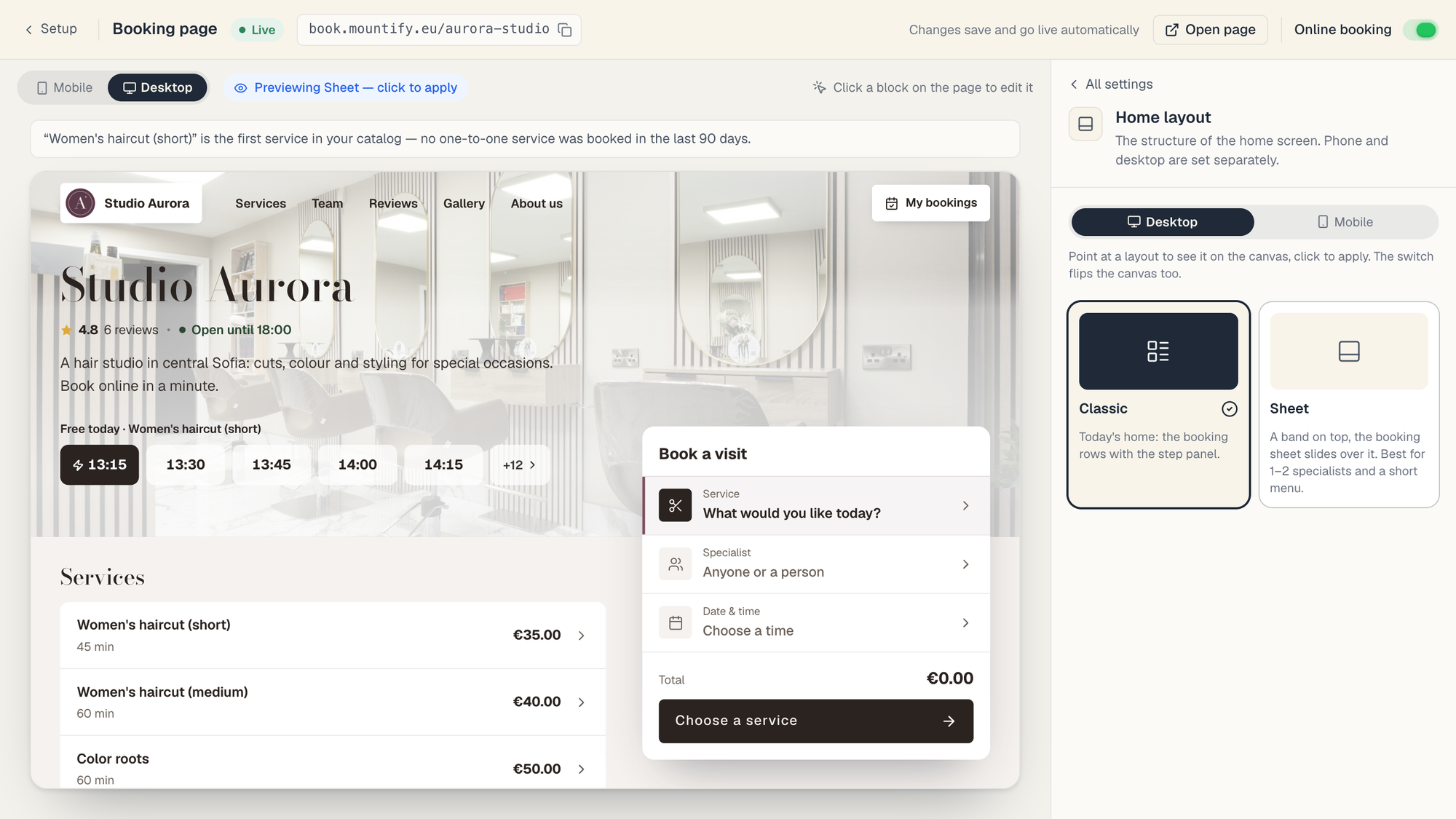
The preview is not a mock-up: it uses your real services, specialists and free times. Above it, a short note tells you which service the band is built from — the most booked one-to-one service over the last 90 days, or the first in your catalog if nothing was booked yet.
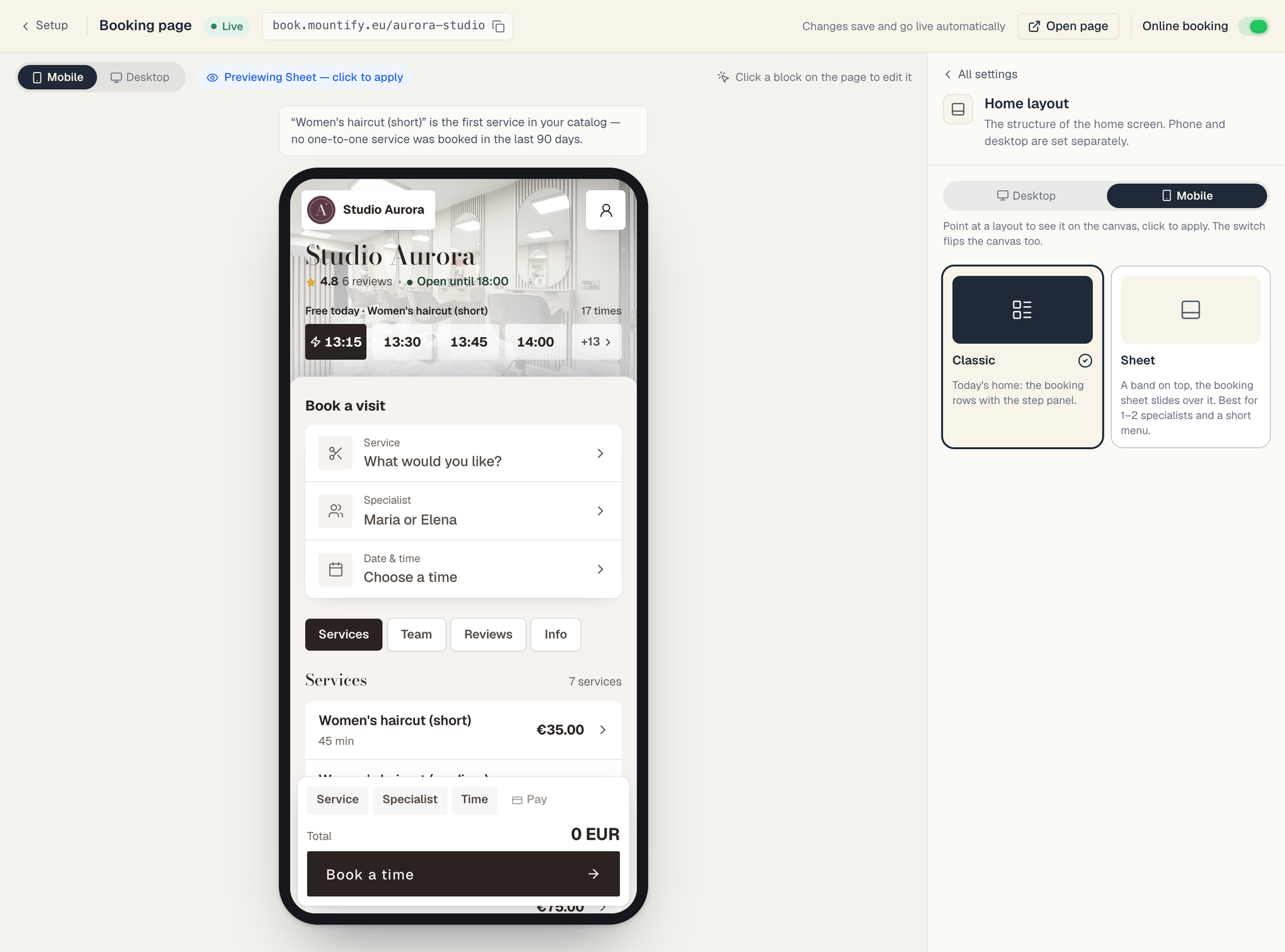
Phone and computer are independent. A common setup: Sheet on the phone (clients book in one tap), Classic on the computer (the full price menu). The Home layout row then reads Classic · Sheet.
3. The band on top of Sheet — you pick it in «Hero»
The strip at the top of Sheet is not a separate setting. It comes from the Hero row, right under Home layout. With Sheet switched on for a screen, Hero stops listing the Classic heroes for that screen and offers five bands instead:
| Band | What the client sees |
|---|---|
| Free times today | The next free times today, from your most booked service. |
| Team and their next free times | Your specialists and each one’s next free time. |
| Popular services | Your most booked services, one tap to book. |
| Today’s classes | Today’s group classes with free spots. |
| This week | The next seven days with how busy each one is. |
Under the chosen Sheet card the Home layout section reminds you which band shows, with an Open Hero link that takes you straight there.
A few things are good to know:
- The band needs something to show. Today’s classes needs scheduled group classes; the team band needs specialists on the page. If the band you picked has nothing to show, clients see Free times today instead.
- A Classic hero that has no band. If you had a hero like Greeting or Cover photo before switching, the Hero section tells you: “… doesn’t fit the Sheet band — clients see …. Pick one below.” Your old hero isn’t deleted — it’s still used if you go back to Classic.
- The background of the band is your first photo from the Photos row. With no photos yet, it’s your brand colour — see Page photos & gallery.
4. When clients still see Classic
Sheet is a booking card over a band, so it needs something bookable: a one-to-one service (a Day pass doesn’t count) or a group class with sessions on the schedule. If the board has neither:
- the Sheet card shows a small warning: Needs a bookable service;
- if you pick it anyway, the section says: “Sheet needs a one-to-one service or a scheduled class. Until then clients see Classic.” — with a link that takes you to fix it;
- the preview draws a sketch of where each block will go, filled with your data.
You can safely leave Sheet chosen. The moment the board has a bookable service, clients get Sheet by themselves — no need to come back and click again.
5. What changes for the client — and what doesn’t
| Classic | Sheet | |
|---|---|---|
| Services, prices, free times, booking rules | the same | the same |
| Checkout | Name and email; the phone is optional. After the button the summary card turns into the receipt on the same screen | exactly the same |
| Promo bar | On a phone, a bar at the very top; on a computer, the text replaces the small “Online booking” label above the hero | On a phone, a bar at the very top |
| Banners (Setup → Banners) | On a computer always; on a phone only with a hero other than Standard | Not shown |
| Reviews | In the About card | In the About card, and also as a Reviews block on the page once you have at least 5 published reviews |
| Client search | On a phone, a field under Build your booking, above the booking rows; on a computer, a magnifier in the top bar | On a phone, a field right above the booking card, whose heading becomes or build it step by step; on a computer, a Search pill in the band |
| The Hero row | 8 heroes for the computer, 7 for the phone | 5 bands, the same on both screens |
Using banners? They only appear in Classic. If a promotion matters to you right now, keep Classic on that screen — or move the message into the Promo bar, which shows in both.
Search is turned on with one switch for both layouts — Client search, under the cards in Home layout — and shows once the page has at least 6 items. The Search bar hero is something else: fields for service, specialist and date, with no free text. In detail: Search on the booking page.
6. Check it for real
The preview is faithful, but the real test is the public page itself:
- Press Open page in the top right of the editor — your page opens in a new tab.
- Open the same link on your phone.
- Book something yourself, all the way to the receipt, then cancel it in Schedule.
Troubleshooting
| Symptom | Cause | What to do |
|---|---|---|
| I picked Sheet but clients see Classic | The board has no bookable service yet, or you set Sheet on the other screen | Read the warning in Home layout; check the Desktop / Mobile pill |
| The band shows free times, not my team | The band you picked has nothing to show (no specialists on the page) | Add specialists, or pick another band in Hero |
| My banner disappeared | Banners don’t show in Sheet | Switch that screen back to Classic, or use the Promo bar |
| The band has a plain colour, no photo | There are no photos on the page | Add photos in the Photos row — the first one becomes the background |
| The preview went back to Classic after I moved the mouse | Pointing only previews | Click the card to apply it |
| The change isn’t live yet | The public page’s short cache | Wait half a minute and hard-reload with Ctrl+F5 |
What’s next
- The booking-page editor — every row of the editor in one place.
- Search on the booking page — where clients search in each layout.
- Page photos & gallery — the first photo becomes the Sheet background.
- Promo banners on your page — where banners show and where they don’t.
- Mood & theme — the look that dresses either layout.