Text size, motion and tours
The five themes, corner rounding, text size, motion, and the switch that hides every tour button.
The Appearance section isn’t just “light or dark theme”. It holds five blocks, and four of them are about comfort: how rounded the corners are, how big the text is, whether there’s motion, and whether you see the tour buttons. Everything applies instantly, applies only to you, and nobody else sees it.
This article covers those four controls — including the switch that makes the Tour button vanish from the whole panel (after which people hunt for it as if it were a bug).
1. Where it is
- Click your avatar at the bottom of the narrow icon rail on the left.
- Choose User settings.
- In the left-hand column click Appearance.
There’s no Save changes button here — every change is instant.
2. The five blocks, in order
| # | Block | Type of control |
|---|---|---|
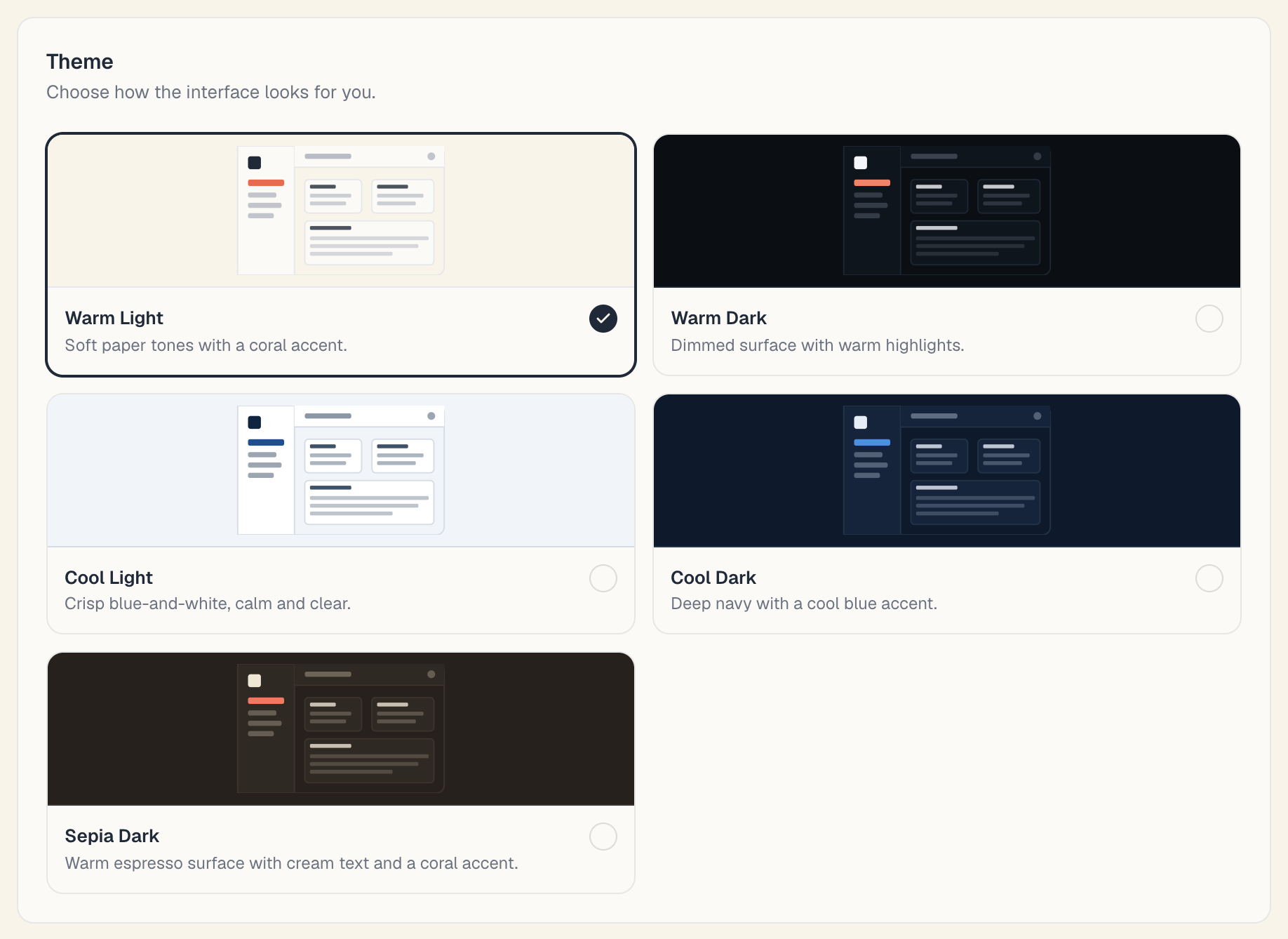
| 1 | Theme | Five tiles with mock-up previews |
| 2 | Corner radius | A slider + a Reset button |
| 3 | Text size | Three tiles: 100% / 110% / 125% |
| 4 | Motion | Two tiles |
| 5 | Guided tours | A switch |
The themes are described in Language & appearance. The other four are here.
3. Corner radius
The hint reads “Adjust how rounded surfaces and controls look across the app.”
How it works:
- Above the slider is a rectangular preview — it changes as you drag.
- Grab the slider and move it. The left end reads Sharp, the right end Soft.
- The change shows across the whole panel immediately: cards, buttons, fields, dialogs.
- To restore the default, press Reset at the top right of the block. It’s disabled when you’re already at the default value.
The detail:
| Parameter | Value |
|---|---|
| Minimum (Sharp) | 0 — completely square corners |
| Default | 8 |
| Maximum (Soft) | 16 |
| Step | half a unit (the slider moves smoothly) |
This is a purely visual choice — it changes nothing about how the app behaves.
4. Text size
The hint reads “Make text across the app smaller or larger for comfort.”
Three tiles, each showing a big “Aa”, a percentage and a name:
| Tile | Percentage | When it helps |
|---|---|---|
| Default | 100% | The standard |
| Large | 110% | If you’re squinting by the end of the day, or the screen sits far away |
| Extra large | 125% | A front-desk tablet read from the side and from a distance |
Click a tile and all text in the panel grows immediately. The tick at the tile’s top right marks the active choice.
Note: at 125% less of the schedule fits on screen, because letters take more room. If your schedule is dense, try Large instead of Extra large — it’s usually the right compromise.
This setting does not replace browser zoom (Ctrl + plus). The two add up: if you’ve already zoomed the browser, start from Default.
5. Motion
The hint reads “Control how transitions and animations behave.” There are two tiles:
| Tile | How the app describes it | When to choose it |
|---|---|---|
| Match system | ”Follow your OS reduced-motion setting.” | The default. If your phone or computer is already set to reduce motion, Mountify respects that automatically |
| Reduced | ”Disable transitions and animations in this app.” | If motion bothers you, makes you queasy, or drags on an old machine — regardless of what the device settings say |
Everything keeps working without motion: pop-out panels, menus and notifications still appear, just without sliding and fading.
Choose Reduced if:
- On-screen movement makes you dizzy or unwell.
- You’re on an old or weak computer and the panel stutters.
- You simply prefer everything instant.
6. “Show guided tour buttons” — and how to get them back
The last block is Guided tours, hinted “Step-by-step tours that walk you through each page.” Inside there’s a single switch: Show guided tour buttons, explained as “Turn off to hide every tour button across the app. You can turn it back on anytime.”
The switch is on by default. What each position does:
| Position | Result |
|---|---|
| On (default) | On pages that have a tour, a Tour button sits at the top right. The first time, some pages start the tour on their own |
| Off | The Tour button disappears from every page and the automatic tours stop firing |
If you’ve “lost” the Tour button — nothing is broken and nothing has been removed from the app. Open User settings → Appearance → Guided tours and switch Show guided tour buttons back on. The buttons return immediately.
This setting is stored on your account, not in the browser — switch it off on your computer and the buttons are gone on your phone too.
7. What travels with you and what stays in this browser
| Setting | Where it’s stored | On another device |
|---|---|---|
| Theme | In this browser | The default |
| Corner radius | In this browser | The default (8) |
| Text size | In this browser | 100% |
| Motion | In this browser | Match system |
| Show guided tour buttons | On the account | The same setting |
That’s where the two most common surprises come from:
- “I set everything up and on my phone it’s the way it was.” — the four visual settings belong to the browser; repeat them there.
- “I cleared my browser and the text size reverted.” — same reason. The language and the tours switch, however, live on the account and survive.
8. For the front-desk tablet
If you have a shared device on the counter that several people use, here’s a sensible setup:
- Text size: Large — readable from a distance and at an angle.
- Motion: Reduced — a snappier feel on a weak tablet.
- Theme: Warm Light or Cool Light — a dark theme reads badly at a brightly lit reception desk.
- Show guided tour buttons: off — but only if everyone already knows the app. Remember that this setting lives on the account, so it will also apply on the personal phone of whoever’s account is open.
- Don’t leave an account signed in on a shared device longer than necessary — see Log out & security.
Troubleshooting
The radius slider won’t move. Grab it exactly by the knob. If you’re using a keyboard, focus it with Tab and move it with the arrow keys.
The Reset button is greyed out. That means you’re already at the default value — there’s nothing to restore.
I chose Reduced but something still moves. Some loading indicators aren’t decorative and stay deliberately, so you can see the app is working.
I enlarged the text and now a whole day doesn’t fit in the schedule. Go back to Large or Default, or collapse the sidebar to free up room.
I turned tours off and now my colleague can’t find the tour. The setting is personal — they have to switch it on in their account, not you in yours.
Common questions
Can clients see these settings? No. The public page has its own look, independent of yours.
Can I apply one appearance to the whole team? No. Everyone sets their own.
Do they affect speed? Reduced motion can make things feel faster on weak devices. The rest are visual.
Will they be lost if I change browsers? Yes, the four visual ones. The tours setting won’t.
What’s next
- Language & appearance — the language and the five themes.
- Your account — an overview of the three sections.
- Tour of the admin — what’s where, once you’ve brought the tour buttons back.
- Log out & security — shared devices and the front desk.