Tour of the admin
A quick tour of the admin: the sidebar, the calendar and where everything lives.
The first time you open the admin it looks unfamiliar. This article walks every part of it — rail by rail, row by row — so afterwards you never have to hunt. Looking around breaks nothing and publishes nothing.
The admin is your back office. Clients never see it — they only ever see your public booking page.
The short version: the narrow left-hand rail picks a product (Bookings / CRM / Settings). The second column is that product’s menu. Inside Bookings the menu has seven rows, three of which are hubs — Catalog, Money and Setup — and each hub opens a third column with its own pages.
1. The narrow rail on the left (products)
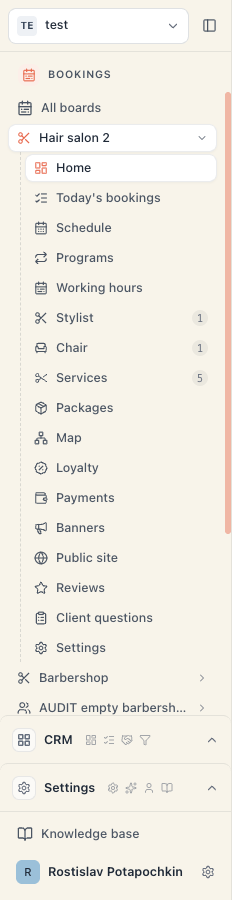
Top to bottom:
| Element | What it does |
|---|---|
| Monogram tile (top) | The workspace menu: your plan, Workspace settings, Members, Billing and Switch workspace (which also holds Create workspace) |
| Bookings | The core product — bookings, services, money, board settings |
| CRM | Deals, pipelines, companies, contacts. A small crown on the icon means the area is locked: “CRM is available on the Pro plan — upgrade to unlock it.” |
| Settings | Workspace settings and your personal account |
| Book icon (bottom) | Knowledge base — this help centre; opens in a new tab |
| Avatar (very bottom) | Your menu: User settings, Workspace settings, Sign out |
Two things that make navigation fast:
- Hovering without clicking opens that product’s menu as a floating panel. Handy for peeking into CRM without leaving the schedule.
- The panel header carries a Pin sidebar / Unpin sidebar button. Pinned = the panel permanently occupies layout space. Unpinned = it only appears on hover and you win screen room.
2. The “Bookings” menu — seven rows
When you’re inside a board, the menu reads like this, top to bottom:
- Board switcher — a tile showing the current board’s name. Clicking it opens a Boards list with a check on the current one and All boards at the end.
- New booking — the blue button. Opens the manual-booking form right where you are. Shortcut: ⌘B.
- Home — the board’s landing page (described below). If it carries a number, that many things are waiting for you.
- Schedule — the calendar.
- Bookings — a list of every booking over a period, with filters and bulk actions.
- Clients — the people who book with you.
- Catalog ▸ — a hub. Services, resource kinds, resources, locations, programs, packages, map.
- Money ▸ — a hub. The till: money received, payments, who owes you, closing the day.
- Setup ▸ — a hub. Public site, banners, reviews, client questions, working hours, loyalty, integrations, board settings.
At the very bottom, under a divider titled ACROSS BOARDS, sit two rows: Dashboard (a summary across every board) and All boards (the board grid).
The numbers beside rows aren’t decoration. Beside Home is the count of things needing attention; beside Catalog, how many services can’t be booked; beside Money, how many clients owe you; beside Setup, a 1 appears when the public page is switched off. Zero is never shown — silence means “all good”.
3. The three hubs and their third column
The Catalog, Money and Setup rows have a right-pointing chevron. They aren’t just pages — they’re doors into sections.
- Hover the row and after a short pause a third column pops out with that hub’s pages.
- Click the row and you enter the hub; there the same list stays permanently as the page’s own left column.
Every row in that column carries a dot and one line of state:
| Dot | Meaning |
|---|---|
| Green | It’s configured |
| Amber | It wants your attention |
| Grey | It’s simply empty — not a problem |
The states you’ll see most often: under Public site, “Published · theme classic” or “Not published”; under Working hours, “6 days · 9:00–19:00”; under Reviews, “12 reviews · ★ 4.8”; under Integrations, “2 connected” or “Nothing connected yet”.
Inside Catalog the rows are grouped: Offerings on top, then a TEAM & RESOURCES group (Resource kinds plus one row per kind you own — “Masters”, “Chairs”…) with a quiet New kind button at the end, and finally Locations, Programs, Packages, Map.
Inside Money you’ll find the till landing (the hub’s home page), Payments, Who owes me and the evening ritual Finish the day; the reports and expenses live here too. Everything about the till: Money: where everything about money lives.
Inside Setup there are two groups: Storefront (Public site, Banners, Reviews, Client questions) and Salon operations (Working hours, Loyalty, Integrations, Settings).
Useful: on a computer, entering Catalog opens the services list directly, and entering Setup opens the Public site page directly. That’s normal — the section has no separate landing page on a large screen. On a phone you get state tiles instead.
4. The board’s landing page (“Home”)
At the top is a title bar with a monogram, the board’s name and three labels: the type (for example Salon), the status — Live or Draft — and its composition (“3 masters · 5 services”).
To the right is the action bar. It looks small but hides more:
| Action | What it does |
|---|---|
| Booking page | Opens your public page in a new tab — exactly as a client sees it |
| QR icon (next to it) | QR code for printing — window, till, business card |
| More actions (the ⋯ icon) | Three things are hidden here: Settings (of this board), Payments, Replay tour |
| Open schedule | The calendar |
| New booking | A manual booking |

If you’ve turned tours off in your personal settings, the Replay tour row disappears from this menu. See Text size, motion and tours.
Under the title, in this order:
- Needs attention — one card that gathers everything quietly broken or waiting: a service that can’t be booked, a stuck payment, a booking awaiting confirmation, an expiring package, online payments disconnected, an unclosed day. Every row has a Fix button, and the less urgent ones a Snooze (Until tomorrow / Until next week). When there’s nothing: “Everything is fine — nothing needs your attention.”
- The number strip — Bookings today, Checked in, Received today, No-show, Waitlist. Some carry a thin 30-day trend line underneath.
- Working now — who on the team is free, busy (and until when), on break or off today, with a load percentage.
- Next 2 hours — who’s arriving soon.
- On the right: What’s on this board (counts per resource kind and services — all clickable), Most booked (top services over 30 days) and Recent activity.
If the board is completely empty (no kinds, resources or services), instead of all of that you get a “Welcome” screen with a Continue setup button that opens the guided setup.
5. The calendar (“Schedule”)
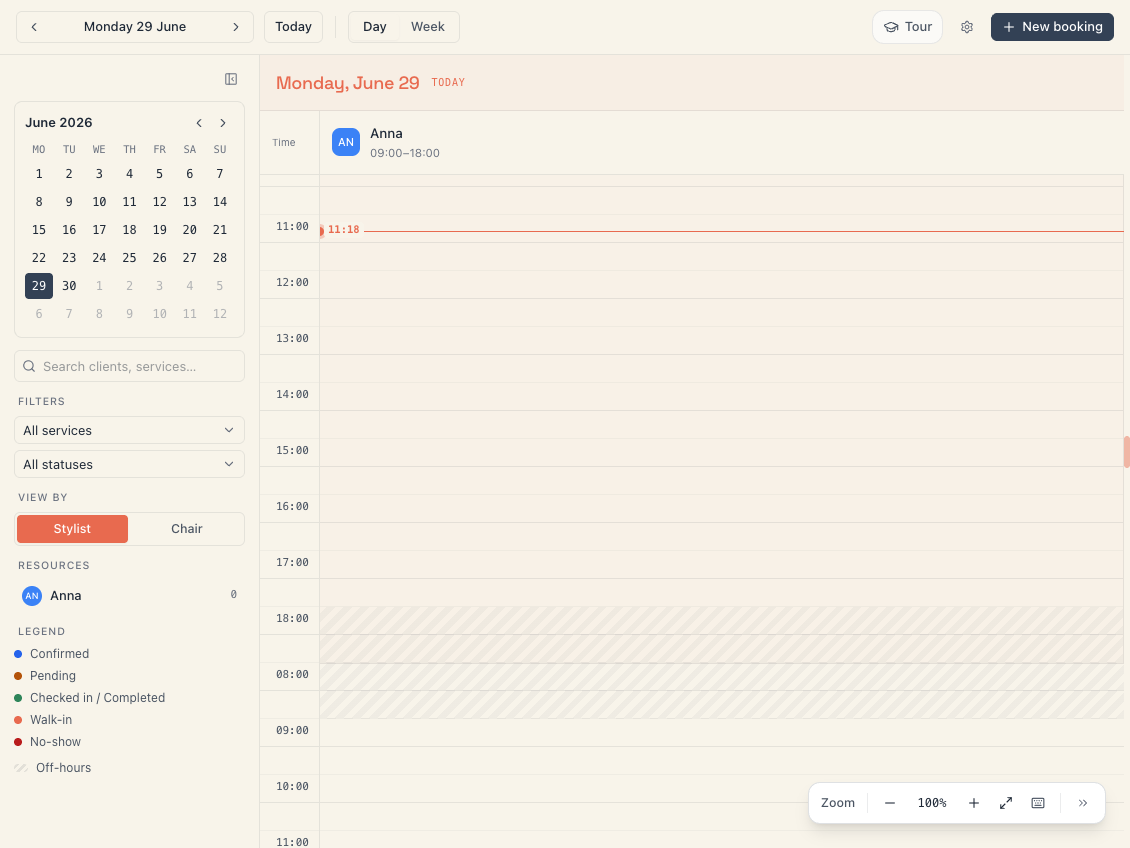
The top bar holds: previous/next period arrows, Today, a date picker, a Day / Week toggle, a branch selector (All branches), Classes, Board settings, More options and New booking.
On the left is a collapsible side rail — and that (not the top bar) is where these live:
- Search: Search clients, services…
- Filters with Clear all, and the dropdowns All services and All statuses
- View by — which resource kind forms the columns (masters, rooms, courts…)
- A resource list for quick filtering
- Legend: Confirmed, Pending, Checked in / Completed, Walk-in, No-show, Off-hours
You hide and show the rail with Collapse sidebar / Open sidebar.
Above the grid a public-holiday bar may appear, with a button to set hours for that specific day.
Important about the calendar: here you outrank the rules. Drag a booking onto a taken slot, or create a second one in the same slot, and the system will allow it and merely flag the conflict. Don’t rely on it to stop you. In detail: The calendar.
6. On a phone
On a small screen the narrow rail and the panel merge into one slide-out drawer (the “menu” icon at the top). Inside it, three tabs across the top — Bookings, CRM, Settings — and the same rows underneath. The difference: on a phone, hub rows do not open a third column. You tap Catalog and enter the section; inside, a ”‹ Catalog / Offerings” line takes you back.
7. Tours
Important pages carry a tour button at the top right. It points at the elements on that page one by one. For a new user it runs itself once per page. It can be replayed any time (on Home it’s under More actions → Replay tour), and it can be switched off entirely from your personal settings.
Troubleshooting
| Symptom | Cause and fix |
|---|---|
| There’s no CRM row in the left rail | The area shows only when it’s available or being offered. If you see it with a crown, it’s locked to the Pro plan. |
| I click Clients and get an error | The row is visible, but your role may lack the right to view booking clients. Ask an Owner or Admin. See What each role can do. |
| I’m looking for a page I remember and it’s not where it was | It’s almost certainly inside a hub. Payments are at Money → Payments; board settings at Setup → Settings; working hours at Setup → Working hours; services at Catalog → Offerings. |
| The menu panel vanishes when I move the mouse away | The panel is unpinned. Press Pin sidebar in its header. |
| Opening the board throws me into a guided wizard | An unfinished guided setup. Finish it, or press Skip onboarding. |
| Instead of the board I see “Your trial has ended” | The subscription lapsed. See What happens if the subscription stops. |
Common questions
Where are payments? Money → Payments. There’s a shortcut too: on Home → More actions → Payments.
Where are the board settings (currency, time zone, name)? Setup → Settings. Don’t confuse them with Settings in the narrow rail — that’s the whole workspace and the subscription.
How do I switch boards? The board-name tile at the top of the menu → pick another from the Boards list. The app tries to keep you on the same page, just in the other board.
How do I switch workspaces? The monogram tile at the top of the narrow rail → Switch workspace.
Can I open the schedule full screen? Yes — from More options in the schedule’s top bar.
What’s next
- What a board is — what a board contains and when you need several.
- The calendar — the daily work in the schedule.
- Money: where everything about money lives — the Money hub in detail.
- Go live in one evening — if your page isn’t live yet.