Your account
Personal details, avatar, language and admin theme — settings just for you.
Your account is your personal profile in Mountify — name, photo, sign-in email, two-factor protection, theme and language. These settings are yours alone: colleagues in the same workspace see their own, you see yours. Nothing here changes the business — the salon’s name, its currency, its opening hours and the subscription all live elsewhere.
This article is the overview: where the screen is, what sits in its three sections, and what needs a Save button versus what applies instantly. Each topic also has its own article — the links are in place.
1. Where the Account screen is
- Look at the narrow icon rail on the far left — on a computer it is always on screen.
- At its bottom end there’s a small circle with your photo, or with the first letter of your name. That’s your avatar. Click it.
- From the drop-down menu choose User settings.
- The Account page opens, subtitled “Manage your personal details, appearance and language.”, and you land straight in the Personal section.
On a phone the icon rail is hidden: tap the menu icon at the top left to slide the panel out, then look for your avatar near the bottom of it.
Note: the page is the same no matter which workspace you entered from — its contents are personal to you. The one exception is the photo (see §6).
2. The three sections at a glance
The left-hand column of the page has three rows. Here’s what sits behind each:
| Section | What it sets | Is there a “Save changes” button? |
|---|---|---|
| Personal | First name, Last name, Phone, Email (with a Change button), photo (avatar) + the Two-factor authentication card | Yes — for the fields and the photo. 2FA is switched on with its own Enable button |
| Appearance | Theme (5 options), Corner radius, Text size, Motion, Guided tours | No — every change applies immediately |
| Language | Bulgarian or English for the whole admin | No — it switches instantly |
3. The Personal section

The first card is Personal information, and under its heading it reads “Your name and avatar. These are visible to your teammates.” Inside it:
- Avatar — your photo. Below the label is the hint “PNG or JPG, up to 2 MB.” and an Upload photo button (once a photo exists the buttons become Replace photo and Remove).
- First name and Last name — required. Leave one empty and saving reports “First name is required” / “Last name is required”.
- Phone — optional. It’s only a contact detail for colleagues; no code is ever sent to it and clients never see it.
- Email — the field is greyed out and not typeable. Next to it sits a Change button — the real change runs through a short code flow. The hint under the field reads “Your account sign-in email.”
Bottom right are Cancel and Save changes. Both stay disabled until you actually change something.
Below that card is a second one — Two-factor authentication. It shows an On or Off badge and an Enable / Disable button.
In detail: Your profile details, Change your sign-in email, Two-factor authentication.
4. The Appearance section
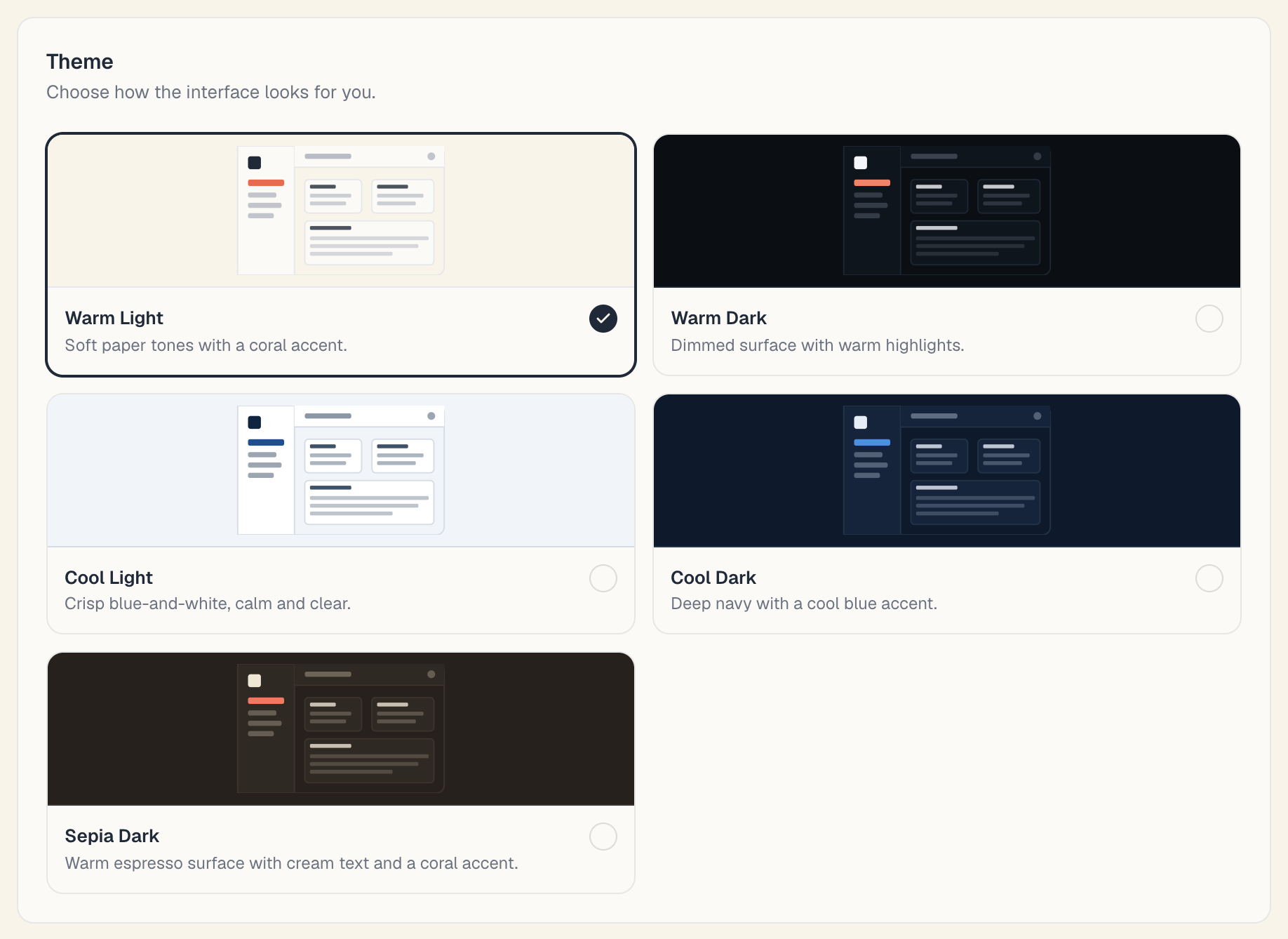
There’s no light/dark switch here — there are five ready-made themes, each with a small mock-up preview:
| Theme | How the app describes it |
|---|---|
| Warm Light | ”Soft paper tones with a coral accent.” |
| Warm Dark | ”Dimmed surface with warm highlights.” |
| Cool Light | ”Crisp blue-and-white, calm and clear.” |
| Cool Dark | ”Deep navy with a cool blue accent.” |
| Sepia Dark | ”Warm espresso surface with cream text and a coral accent.” |
Below the themes are four more sections: Corner radius (a slider), Text size (100% / 110% / 125%), Motion (Match system or Reduced) and Guided tours with the Show guided tour buttons switch.
Note: turning Show guided tour buttons off makes the Tour button disappear from every page and stops the automatic tours. That’s not a fault — switch it back on in the same place.
In detail: Language & appearance and Text size, motion and tours.
5. The Language section

Two flagged tiles — Български and English. Click one and the interface switches at once, with no reload and no Save button. Under the heading it says “Applies across the app on all your devices.” — and that is literally true: the choice is stored on your account, not in the browser.
This language also decides which language Mountify writes to you in (for example the code when you change your email).
6. What travels with you and what stays in this browser
This is the distinction that trips people up: some settings are stored on your account (they follow you everywhere), others live in this particular browser.
| Setting | Where it’s stored | Will you see it on another device? |
|---|---|---|
| First name, Last name, Phone, Email | On the account | Yes |
| Language | On the account | Yes |
| Show guided tour buttons | On the account | Yes |
| Two-factor authentication | On the account | Yes — you’re asked for a code everywhere |
| Theme | In this browser | No |
| Corner radius | In this browser | No |
| Text size | In this browser | No |
| Motion | In this browser | No |
| Photo (avatar) | Per workspace | Only inside the same workspace |
That last row matters: the avatar is separate for each workspace. If you belong to two and upload a photo in one, you stay on initials in the other until you upload it there too.
7. Account versus workspace
| Account (this page) | Workspace | |
|---|---|---|
| What it is | You — one person, one login | The business — team, boards, subscription |
| How to open it | Avatar → User settings | The monogram tile at the top left → Workspace settings |
| Examples | Name, photo, email, 2FA, theme, language | Business name, members & permissions, subscription, custom fields |
| Who sees it | Only you | Everyone with permission in it |
One account can belong to several workspaces — see Switch workspace. What you’re allowed to do inside a given workspace depends on your role there: Roles & permissions.
Currency, time zone and opening hours are not here — they belong to the board. See Your venue’s currency.
8. What this screen does NOT do
- It does not change your password. There is no new-password field anywhere in Mountify. Changing it goes through Forgot password? on the sign-in screen — see Sign in & password.
- It does not sign you out of other devices. There is no “sign out everywhere” button. See Log out & security.
- It shows nobody else’s account. You can’t view or change a colleague’s email, password or 2FA — everyone manages their own. An administrator can only invite, deactivate or remove them from the workspace.
- It is not where roles live. Roles and permissions sit in the workspace settings, not here.
Common questions
Can colleagues see my phone number? The Phone field is a contact detail inside the team. Clients on the public page don’t see it.
I changed the theme on one computer and the other still shows the old one. Why? The theme is stored in the browser, not on the account. Pick it again on the other device.
“Save changes” won’t let me click it. The button only wakes up when something has actually changed. If you’re sure you changed something, check that First name or Last name hasn’t been left empty.
Can my photo apply to all workspaces at once? No. It’s uploaded per workspace.
Can I open Account before I belong to any workspace? No — the page opens from inside a workspace. If you’re brand new, create one first or accept an invitation: Create your account & workspace.
What’s next
- Your profile details — the fields and the photo, step by step.
- Sign in & password — how to sign in and how to recover a forgotten password.
- Two-factor authentication — a second step at sign-in, and the backup codes.
- Language & appearance — language, themes, and where each one is stored.