Language & appearance
How to change the admin language (BG / EN / TR) and choose a light or dark theme.
The admin’s language and looks are personal. One colleague can work in English with a dark theme while another works in Bulgarian with a light one, in the same salon at the same time. Nobody touches anybody else’s settings, and none of it is visible to clients.
The two live in two separate sections of the Account page: Language and Appearance. Watch out for one detail that catches people: the language is stored on your account and follows you everywhere, while the theme is stored in this particular browser.
1. Where they are
- Click your avatar at the bottom of the narrow icon rail on the left.
- Choose User settings.
- The left-hand column has three rows — Personal, Appearance, Language. This article is about the last two.
Neither Appearance nor Language has a Save changes button. Every change applies immediately.
2. Changing the language

- Open the Language section.
- You’ll see the heading Language and under it “Applies across the app on all your devices.”
- There are two flagged tiles: Български and English. Click the one you want.
- The interface switches instantly — no reload, no button.
The chosen tile gets a tick.
What exactly changes:
| Changes | Doesn’t change |
|---|---|
| Menus, buttons and labels across the admin | The language of the public booking page |
| Error and confirmation messages | The sign-in and password-reset screens (always English) |
| The language Mountify writes to you in (for example the code when you change your email) | The language of emails to clients |
| Date and time formatting where it’s derived from the language | Names you typed yourself (services, resources, notes) |
Note: if the interface is in English and one service is called “Подстригване”, that isn’t a translation bug — that’s how the name was typed. Service, resource and group names are shown exactly as stored.
3. Your admin language is not the client’s language
These are two different things:
- Your language (this article) is for the people working inside Mountify.
- What the client sees is chosen by the client: the public booking page opens in Bulgarian, and a language button at the top of the page switches it; their browser remembers the choice. There’s no setting for it in Setup → Public site.
Changing your language changes nothing on the public page. See The booking-page editor.
4. The five themes
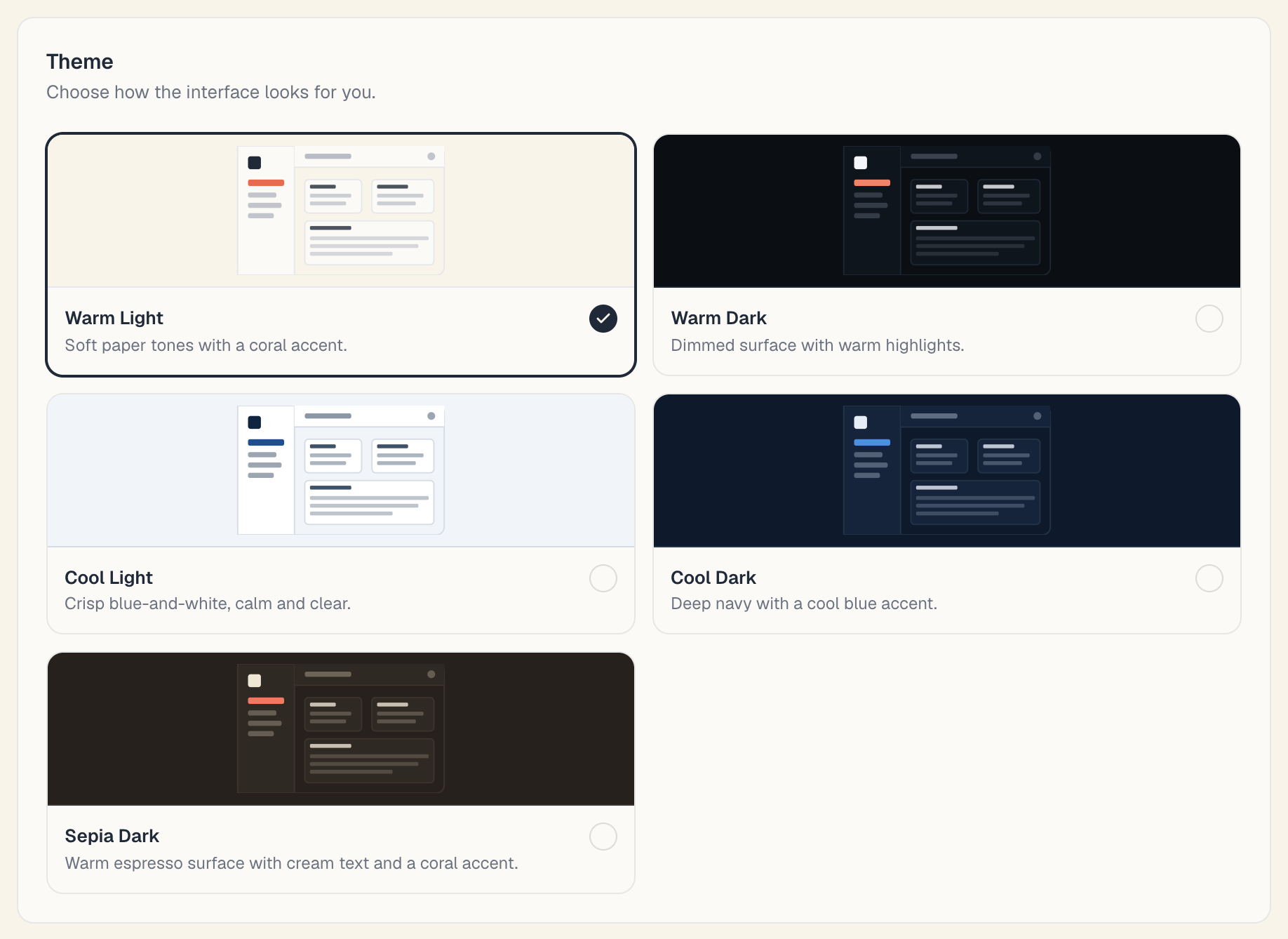
In the Appearance section the first block is Theme, hinted “Choose how the interface looks for you.” There’s no light/dark switch here — there are five ready-made themes, each with a small mock-up preview:
| Theme | Light or dark | How the app describes it |
|---|---|---|
| Warm Light | light | ”Soft paper tones with a coral accent.” |
| Warm Dark | dark | ”Dimmed surface with warm highlights.” |
| Cool Light | light | ”Crisp blue-and-white, calm and clear.” |
| Cool Dark | dark | ”Deep navy with a cool blue accent.” |
| Sepia Dark | dark | ”Warm espresso surface with cream text and a coral accent.” |
To switch: click the tile of the theme you want. The change is instant across the whole panel — schedule colours, buttons, sidebar. The tick on the right of the tile marks the active one.
Which is useful when:
- Warm Light is the default. The safest choice for a brightly lit reception desk.
- Cool Light is more contrasty and more “office” — handy if you read a lot of tables.
- The dark themes are easier in the evening and on a very bright screen.
- Sepia Dark is dark but warm — a compromise for people who find bluish darks cold.
Tip: a theme is also a readability question. If someone on the team struggles with small text, the theme won’t help — raise Text size. See Text size, motion and tours.
5. The other four blocks in Appearance
Below the themes there are four more blocks. Here they are in brief — in full in their own article:
| Block | What it does |
|---|---|
| Corner radius | A slider from Sharp to Soft — how rounded cards and buttons look |
| Text size | Three steps: Default (100%), Large (110%), Extra large (125%) |
| Motion | Match system or Reduced — kills transitions inside Mountify |
| Guided tours | The Show guided tour buttons switch |
Full description: Text size, motion and tours.
6. Nothing in these two sections gets “saved”
The usual reflex is to hunt for a Save changes button. In Appearance and Language there isn’t one, and that’s not an oversight:
- Click a theme — applied.
- Click a language — applied.
- Drag the slider — applied as you drag.
Save changes exists only in the Personal section (name, phone, photo).
7. What follows you and what stays in this browser
| Setting | Where it’s stored | On another computer / phone |
|---|---|---|
| Language | On the account | Same language |
| Show guided tour buttons | On the account | Same setting |
| Theme | In this browser | The default, until you pick it there too |
| Corner radius | In this browser | The default |
| Text size | In this browser | The default |
| Motion | In this browser | The default |
Practical consequences:
- If you use Mountify on a computer and a phone, you pick the theme twice. That’s not a fault.
- If you clear browser data (“cookies and site data”), the theme, radius, text size and motion revert to defaults. The language survives.
- In a private window you’ll always see the default theme.
Troubleshooting
I changed the language but one page stayed in the old one. Reload it. The switch is instant, but very occasionally a screen that was already open lags behind.
My dark theme reverted to light. Usually the browser cleared the site’s data — pick the theme again.
My clients see the page in English while I’m in Bulgarian. The two aren’t linked. Your client picks the public page’s language with the language button at the top of the page, and their browser remembers it.
Is there a third language? There is — Turkish. The admin, the public booking page and the emails to clients all work in Bulgarian, English and Turkish.
Common questions
If I change the language, will my service names be translated? No. Your own text is never translated.
Does the language apply to the whole team? No. Everyone picks their own.
Which language will a client’s confirmation email be in? Not yours. Client emails don’t follow your setting.
Can an administrator change my theme or language? No. These are personal settings.
What’s next
- Text size, motion and tours — the other four blocks in Appearance.
- Your account — an overview of the three sections.
- Your profile details — name, phone and photo.
- The booking-page editor — what clients see and where it’s configured.