The map on your public page
When customers see our pin map and when an embedded Google map — and how to get the embed link.
The map on your public page is what turns an address from text into “ah, I know where that is”. Mountify has two different maps — our own one with numbered pins, and a real Google map embedded in the page. You don’t flip between them with a switch: the app picks for you, by one very simple rule.
This article explains what that rule is, exactly where the code from Google goes, why the ordinary share link doesn’t work, and which of the two maps suits your case better.
1. The two maps in short
The rule turns on the board — that’s what your business is called in Mountify: one schedule, one public page (what a board is).
| What the client sees | When it shows up | What you set up |
|---|---|---|
| Our map with numbered pins | When at least one branch has a pin on the map | nothing |
| An embedded Google map | When the board has exactly one branch visible to clients and it has an Embed link saved | a one-off copy from Google |
| No map at all | Neither a saved link nor a branch with a pin | — |
That is the rule, and there are no exceptions. A Google map appears only for a single branch with a saved embed link. In every other case — our map.
Branches are counted as the client sees them. An archived branch, or one switched off by your plan, never reaches the public page and doesn’t count. So you can be looking at two rows in Catalog → Locations while the rule treats you as a single-branch business.
In all three cases the address and phone rows above the map stay exactly where they are. Even with no map at all the page doesn’t look broken — it’s just one block shorter.
2. Where the client sees the map
The map lives in the Contact section of the About page of your public site.
The same thing shows up in three places and isn’t configured separately:
- On a computer — the About page.
- On a phone — the same page.
- On a phone — also in the business panel that opens when the client taps the business name at the very top of the booking form.
Above the map sit the address, the phone, Instagram and the website. They look different depending on the screen:
- On a phone each row has a caption (Address, Phone) and a small button on the right: Directions at the address, Call at the phone, Open at Instagram and the website.
- On a computer the same rows are just an icon and the text — no captions and no buttons. The whole row is the link and leads to the same place.
Careful not to mix up two different things. The text on the Address row is the address of the whole business — a separate value on the board, not the branch address. It does not come from Catalog → Locations, and there is currently no screen where you can type it: Setup → Settings has no address field. The pins on the map below it are the exact opposite — they come from your branches. So the map can be perfectly correct while the Address row is empty; when it’s empty, the row and the Directions button simply don’t appear. If it needs filling in or fixing, contact support.
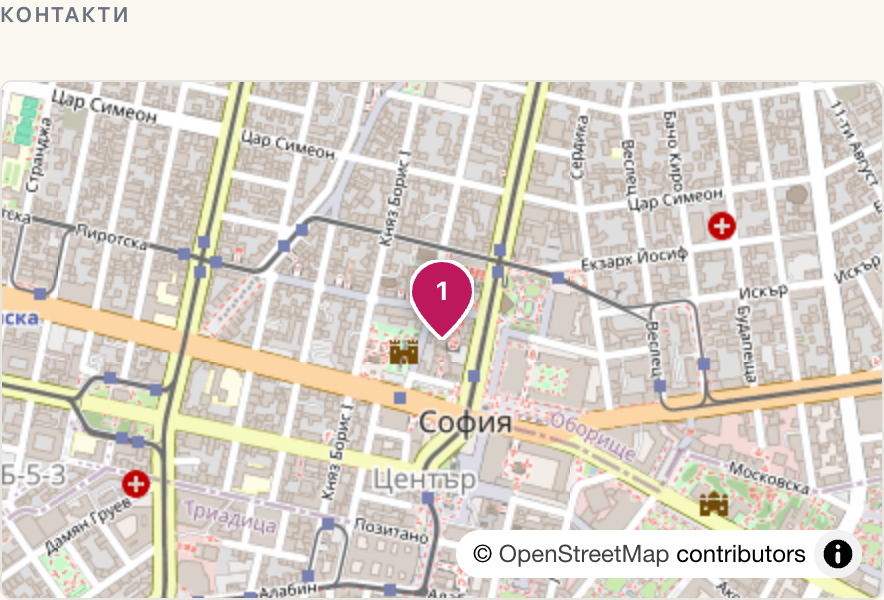
3. Our map — nothing to set up
This is the default map. It appears on its own the moment at least one branch has a pin — the pin is dropped in the Address & map cell of the location (how that works).
What it shows:
- Numbered pins — one per branch with coordinates. Number 1 is the primary branch, the rest follow in the order you created them. Only branches that have a pin get a number: if the primary branch has no pin it never reaches the map at all, and number 1 goes to the next branch.
- A popup when you tap a pin — the number, the branch name and its address.
- The map frames itself so that all the pins are visible at once.
What it does not show: no business listing, no photos, no rating or reviews, no Street View, and no “open in the Google Maps app” button inside the map itself. It’s a plain street map — nothing more.
This map is not loaded from Google — it comes from a different map provider (a European one, falling back to OpenStreetMap if that fails). For the client the difference is one thing: your page sends nothing to Google.
A branch without a pin doesn’t appear on the map, but it stays in the address list — that isn’t a bug, and it’s explained in detail in Address & map.
4. The Google map — step by step
Two conditions before you start:
- The board has only one branch visible to clients. With two or more the link is ignored on purpose (see §7).
- You have a listing in Google Maps — that is, your business is there by name with its own profile, not just as a street address.
If you have no Google Maps listing, you don’t need this section. Our map already works and there is nothing to set up — skip straight to §6.
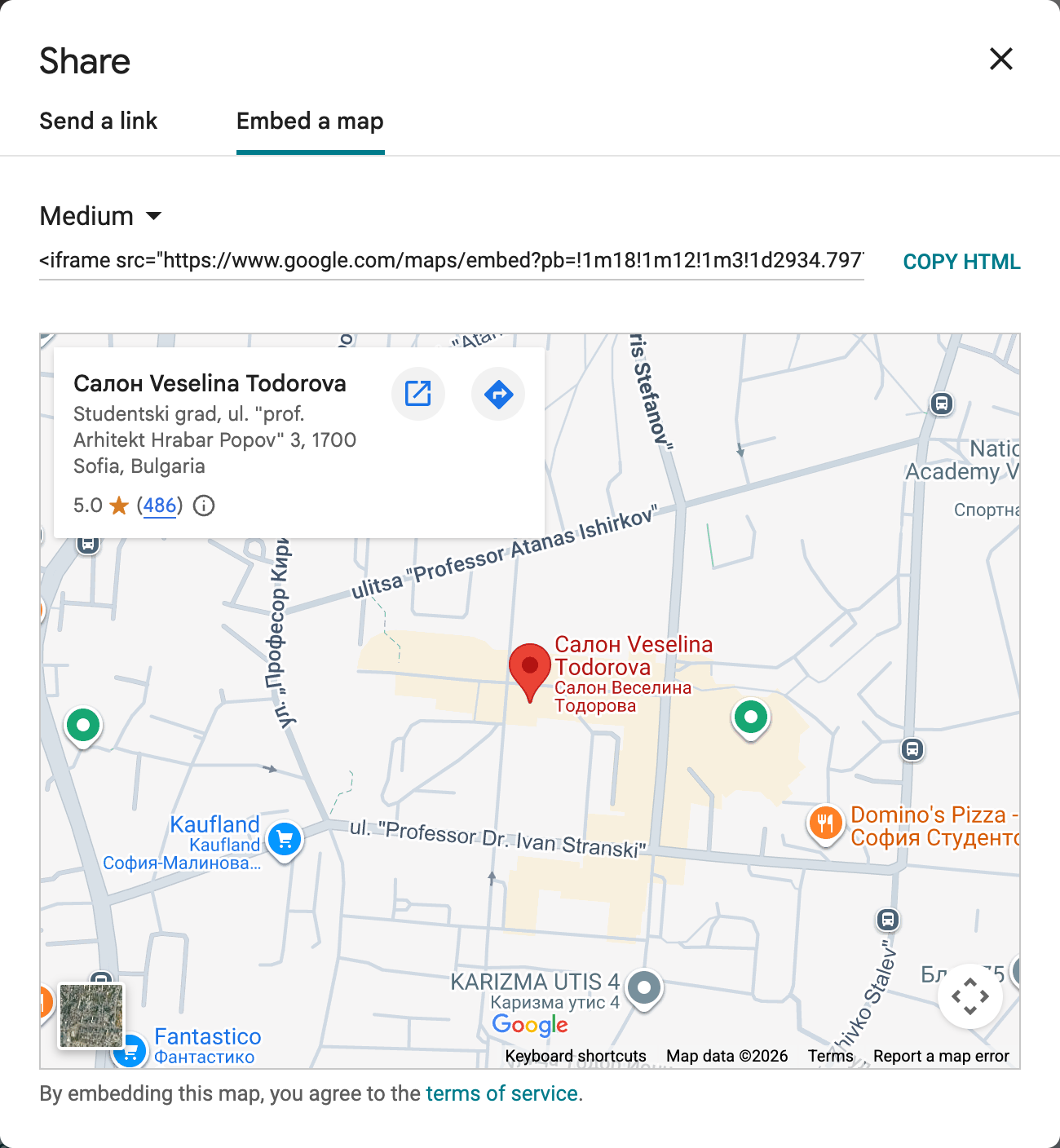
Step 1. Get the code from Google
- Open Google Maps on a computer — type
google.com/mapsinto your browser’s address bar. - Type your business name and open it. It matters that you open your own listing, not just the address — otherwise the map comes out with no name, no photos and no reviews.
- Press the Share button.
- In the dialog that opens, pick the Embed a map tab.
- Google offers sizes (Small, Medium, Large). It makes no difference which you pick — we stretch the map to the width of the page.
- Press Copy HTML.
Copy it while Google Maps is in the language your clients read. The snippet records the language of the Google Maps session it was copied from. Copy it from a German session and every one of your clients gets a German map — labels, buttons, everything. This happens more easily than it sounds. So open
google.com/maps?hl=bgfirst (or whichever language you need), and only then copy.
Google copies a whole block of code that looks like this:
<iframe src="https://www.google.com/maps/embed?pb=!1m18!1m12!…" width="600" height="450" …></iframe>
It looks scary. Don’t touch it and don’t try to strip anything out of it.
Step 2. Paste the code into Mountify
- Catalog → Locations.
- Hover the branch card in the list and press Edit. (On a phone the button is always visible.)
- Scroll to the Google Maps cell, field Embed link.
- Paste what you copied (Ctrl+V, or ⌘+V on a Mac). Paste the whole text Google copied — we pull out what we need ourselves. If you did extract just the
https://www.google.com/maps/embed?pb=…URL, that works too. - Press Save.
The field accepts up to 2000 characters. Real snippets from Google are well under that, so this only matters if you copied more than the snippet — a whole page, say.
The hint under the field says the same thing: “In Google Maps open your business → ‘Share’ → ‘Embed a map’ tab → ‘Copy HTML’. Paste the whole copied snippet here — we pull out what we need. Note: the ordinary share link will NOT work, Google does not allow it to be shown inside another site. The map appears on your public page only when you have a single location.”
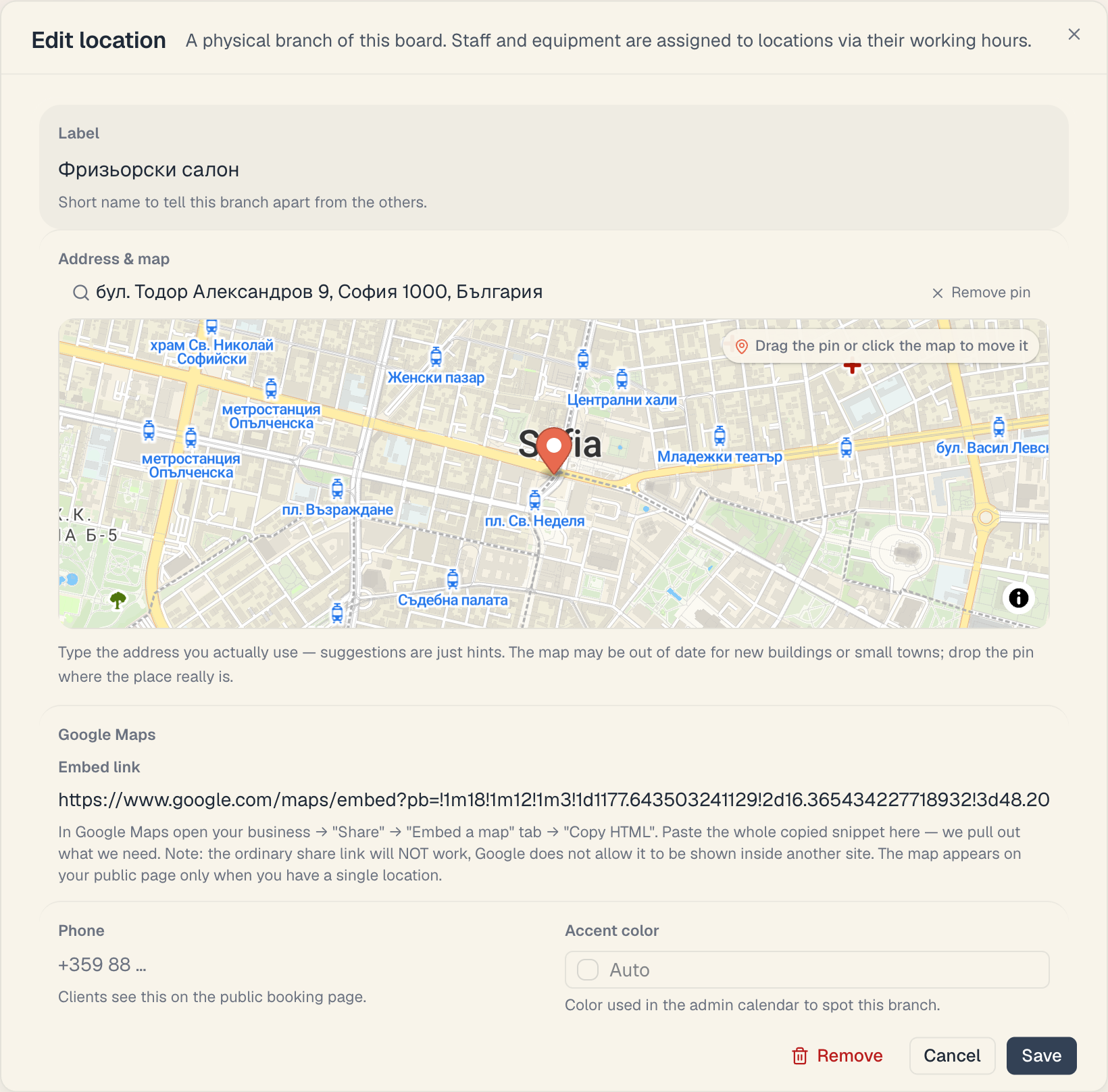
The field is not required. An empty field isn’t an error — you simply keep our map.
Step 3. Check the result
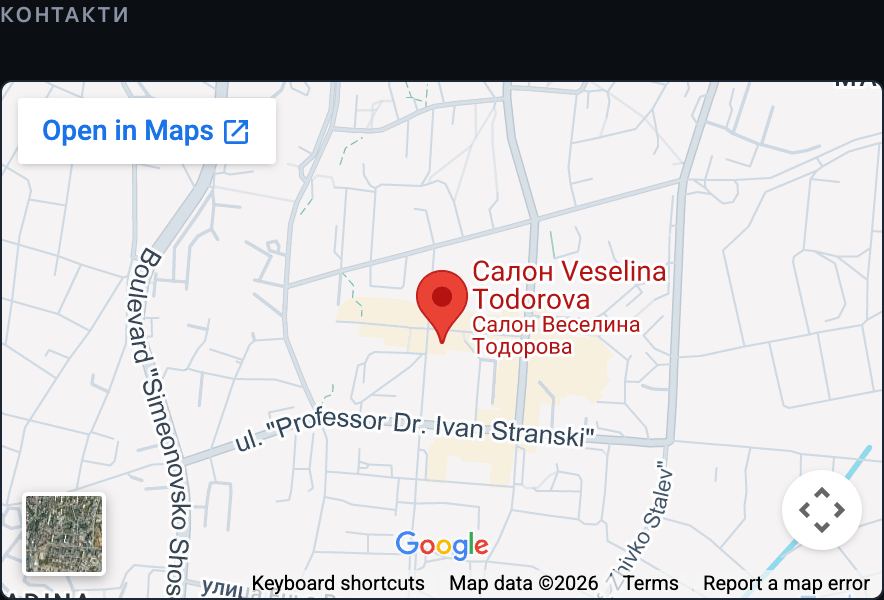
Open Setup → Public site and press Open page in the top right — your public page opens in a new tab. From there go to About → the Contact section. If it saved correctly you’ll see the familiar Google map with your listing’s name, a photo, the rating and navigation buttons.
If you see a plain map with a numbered pin — either the link didn’t save, or the board has more than one visible branch.
How to switch back
Clear the Embed link field and press Save. Our map returns immediately. Nothing else changes.
5. The most common mistake: the ordinary link
The Share button in Google gives you two different things, and only one of them works here.
| What you press in Google | What the result looks like | Does it work |
|---|---|---|
| Copy link (ordinary sharing) | https://maps.app.goo.gl/xxxx | No |
| Copy HTML (the Embed a map tab) | <iframe src="https://www.google.com/maps/embed?pb=…"> | Yes |
Why: Google does not allow the ordinary link to be displayed inside another site. Only the Embed a map tab gives you a URL made specifically for that. So it isn’t a matter of a setting on our side — the ordinary link simply can’t be embedded anywhere.
And it doesn’t fail quietly. Paste a link like that and press Save, and you get a message:
“That is not an embed link. Get it from ‘Share’ → ‘Embed a map’ → ‘Copy HTML’ (it looks like google.com/maps/embed?pb=…).”
Nothing saves halfway. The dialog stays open, you fix the field and save again.
6. The Directions button is a separate thing
Directions has nothing to do with the embed link. It is assembled automatically from what’s already in the system — the pin and the address. Which means: directions work fine without an embed link. The two are set up independently.
What matters is where the client presses it, because there are two places and they behave differently.
After booking — in the confirmation and in the calendar event the client saves. Here the system knows exactly which branch the booking is at, and leads to that branch’s pin. This is the precise case.
On the About page — here no branch has been chosen, because the client hasn’t booked yet. So:
| What you have | Where the button leads |
|---|---|
| One visible branch with a pin | A route straight to the pin — the most precise |
| One visible branch without a pin | A route to the branch’s text address, or to the business address if there isn’t one |
| Two or more visible branches | The pins are ignored — the route goes to the business address (the text on the Address row) |
| An empty Address row | The row and the Directions button don’t appear at all |
In other words: with several branches the Directions button on About does not use your pins. The pins do their work on the map (the numbered popups) and in the directions after a booking, where the branch is already known.
7. Several branches: the link is ignored on purpose
If the board has two or more branches visible to clients, a saved embed link is not used. That isn’t an oversight and there’s no need to “work around” it.
The reason is simple: one embedded Google map can only show one place. Our map shows every branch at once — numbered, each with a popup carrying its name and address. For a business with several venues that is literally the more useful map.
The value in the field stays saved. If you’re ever back down to one visible branch — because you archived the second one, say — the Google map reappears on its own, with nothing to re-enter.
8. Which one to pick
| Our map | Google map | |
|---|---|---|
| Setup | none | a one-off copy from Google |
| How many branches it shows | all of them, numbered | one only |
| Name, photos, rating, reviews | no | yes |
| Street View, navigation button inside the map | no | yes |
| Popup with the branch name and address | yes | no (Google shows its own listing card) |
| Loads anything from Google | no | yes |
In plain words:
- One salon and a well-filled Google listing — add the embed. The map becomes a second shop window: the client sees the photos, the rating and the opening hours, in an interface they already trust.
- Several branches — leave it alone. Our map is the better tool for the job.
- One salon, but the Google listing is empty or pinned in the wrong place — fix the Google listing first, otherwise you’re embedding an empty card. Until then, keep our map.
One thing to know about the embedded map: the content comes from Google, so Google sees the client’s IP address and browser — but only if the client scrolls down as far as the map. Until then it isn’t loaded at all. And we send Google only your site’s domain, never which page the client was reading. With our map even that doesn’t happen. We’re telling you so you can decide knowingly — it isn’t a warning.
Either way the address and phone rows above the map are unchanged: which map you get has no effect on the Directions button (for that, see §6).
9. If something isn’t working
| Message / symptom | What to do |
|---|---|
| ”That is not an embed link. …” | You grabbed the ordinary link. Go back to Google: Share → Embed a map → Copy HTML |
| The same message, but you’re sure it came from the embed tab | Check that the URL contains google.com/maps/embed. Links from Apple Maps, Yandex or any other map aren’t accepted |
| Saving is refused and the snippet really is from Google | What you pasted is over 2000 characters — you probably copied more than the snippet. Copy again, using only Copy HTML |
| I saved the link and still see a map with numbered pins | The board has more than one branch visible to clients — with 2+ the link is ignored (§7). Archived branches and ones switched off by your plan don’t count |
| No map shows at all | There’s neither an embed link nor a branch with a pin. Drop a pin in Address & map |
| The Google map shows only an address — no name, photos or reviews | You copied a map of an address, not of your listing. Search for your business by name in Google Maps and copy again |
| The Google map shows the wrong place | The pin is wrong inside Google itself. Fix it in your Google Maps listing, not in Mountify |
| The Google map is in a foreign language | You copied the snippet while Google Maps was in another language. Open google.com/maps?hl=bg, copy again and save |
| The map area stays blank | Our map couldn’t load — your network, or a blocking browser extension. Reload the page |
| There’s no Google Maps cell or no Edit button | You lack the edit_board permission. Ask the owner |
What’s next
- Address & map — the branch pin, where everything else comes from.
- How to add a location — the whole dialog, field by field.
- Locations (branches) — when you actually need several.
- Booking page overview — what else the client sees on the public page.