Locations (branches)
Several physical branches in one board — staff rotate by working hours, equipment lives per location.
One board can serve several physical branches. This works well when the salons share a team, services and a single public page, and differ only in address and opening hours. This article explains what a “location” actually is in Mountify, what attaches to it, how many locations your plan allows, and when you need a second board rather than a second location.
Locations aren’t only for multi-branch businesses. Even with one venue you want one location — the salon’s working hours are stored on a location, not on the board. With no locations at all, the Working hours page shows “Add a location first — working hours live on each branch.” and there is nothing to edit.
1. Where locations live
The path is: sidebar → Catalog → Locations.
- In the left icon rail open the boards product and pick your board.
- In the board column click the Catalog hub.
- In the bottom group choose the Locations row.
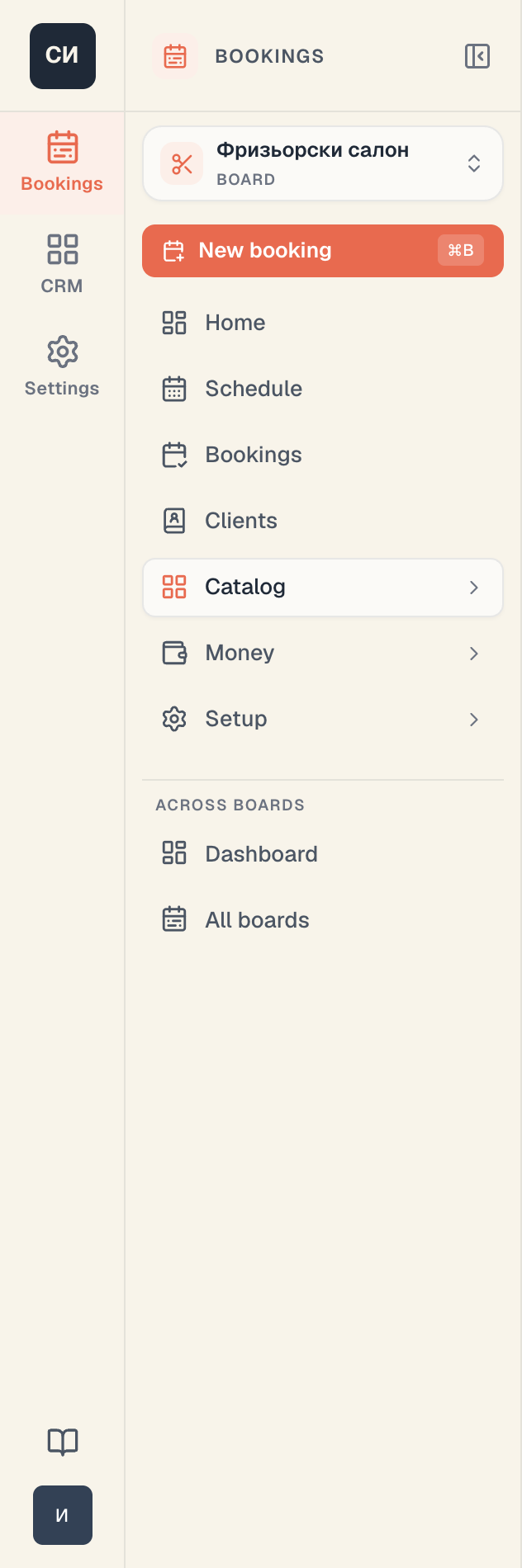
Under the row name you see a live state — “2 locations”. If something needs attention the dot in front of the row turns amber.
Locations sit deliberately outside the resource-kinds group. Sandwiched between “Stylists” and “Rooms” they read as just another kind of resource, which they are not.
The page is split in two: branch cards on the left, a map with pins on the right. Clicking a card focuses its pin.
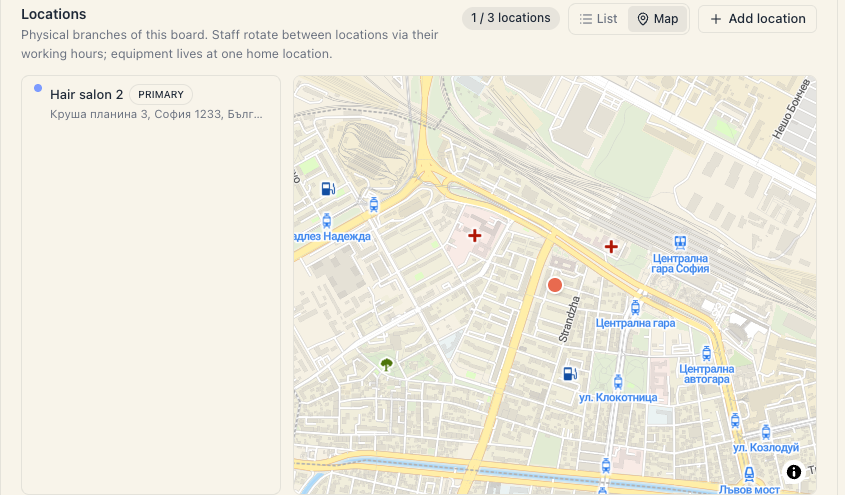
2. What a location contains
| Field | Required | What it does |
|---|---|---|
| Label | yes | The short name that tells this branch apart. Both your team and clients see it |
| Address & map | no | The address the client sees, plus a map pin |
| Phone | no | ”Clients see this on the public booking page” |
| Accent colour | no | A colour in the admin panel — for spotting the branch in the calendar |
| Primary branch | no | The first branch a client sees. Only one can be primary |
Working hours are not set here. The editor dialog says so explicitly: “Working hours for this branch are configured in Setup → Working hours.”
Full creation walkthrough — How to add a location.
3. What attaches to a location
This is the model you need in order to stop wondering why a client can’t book.
| Object | How it connects to a location |
|---|---|
| Working hours | Each location has its own weekly schedule. Holidays can be all-locations or branch-specific |
| People (staff) | Through their working hours. One person can be at a different branch on different days |
| Equipment and rooms | Through the Home location field in the resource editor. “Any (floating)” is also possible |
| Services | Through the Locations section in the offering editor. By default they’re at every branch |
| Bookings | Every booking carries a location. With several locations the client must choose |
| Packages | Can be restricted to specific locations, or “Any location” |
The key distinction:
- People rotate. One stylist can work Monday at one branch and Tuesday at another. That is set in their schedule.
- Equipment doesn’t travel. It has one home location. The hint reads: “Bookings at other branches won’t pick from this pool.”
4. The plan limit
The number of active locations is capped by your plan. Above the list is a chip reading {active} / {limit} locations.
| Plan | Locations included |
|---|---|
| Start | 1 |
| Growth | 1 |
| Pro | 3 |
| Custom | unlimited |
Extra locations are bought as the Extra location add-on — €9 per month each, on any plan.
When you’re at the limit:
- The Add location button is blocked, with the tooltip “You’ve reached your plan’s locations limit. Upgrade your plan to add more.”
- If you try to save anyway, a message appears: “You’ve reached your plan’s N locations — upgrade to add more.” with an Upgrade plan button.
Buying happens in Workspace settings → Subscription. See Add spots & locations.
On a downgrade Mountify deletes nothing. Locations over the limit are taken out of service (newest first) — their bookings are kept, but they disappear from the public page and stop counting against the cap.
5. Several locations, or several boards?
This is the decision most often got wrong.
| Choose several locations on one board | Choose separate boards |
|---|---|
| The team is shared or rotates between branches | Each venue has its own team that never overlaps |
| Services and prices are the same | Services or prices differ |
| You want one public page for everything | You want a separate link per venue |
| You want one till and combined reports | You want separate bookkeeping |
| Loyalty rules are shared | Each venue runs its own promotions |
Remember: loyalty rules, packages, reviews and promo codes belong to the board. A second board means all of that from scratch.
Details — What a board is.
6. The “services with no specialist at this branch” signal
If a service is offered at a branch but there is no suitable resource there, the location card shows an amber warning:
N services have no {resource kind} at {name}
The same signal turns the dot in front of the Locations row amber.
This is the most common silent problem in a multi-branch setup: the service is “everywhere” but there’s only a stylist at one branch. A client picks the other one and sees no times. Two fixes:
- Give someone working hours at that branch; or
- Restrict the service to the branches that can actually deliver it — see Services per location.
7. What locations do NOT do
- They are not separate public pages. All branches live on one address; the client picks between them inside.
- They have no separate prices in the interface. A service’s price is the same at every branch.
- They have no “close temporarily” button. For a temporary closure use working hours and holidays — see Close or remove a location.
- They don’t partition your team’s permissions. Access is granted at workspace level, not per branch.
- They don’t carry over between boards. A location on one board doesn’t exist on another.
What’s next
- How to add a location — step by step, with address and pin.
- Services per location — which services at which branch.
- Switch between locations — how you and your clients pick a branch.
- Hours by location — different hours for different branches.