How to add a location
Step by step: add a new branch with an address and a map point, and which one is primary.
A location is the physical address where you receive clients. Even with a single place you need at least one — the salon’s working hours are stored on a location. This article walks the whole creation dialog, field by field, including how the map pin is placed and what to do when the map can’t find your address.
Nothing here is irreversible except removal. Get a name, colour or address wrong and you simply reopen and fix it.
1. Step by step
- In the left icon rail open the boards product and pick your board.
- In the board column click the Catalog hub.
- In the bottom group choose the Locations row.
- Top right, press Add location.
A New location dialog opens, subtitled: “A physical branch of this board. Staff and equipment are assigned to locations via their working hours.”
- Fill in the fields (described in §2).
- Press Add location at the bottom right.
If the button is disabled you’re at your plan’s limit — see §6.
There is also a shortcut: some places in the app link straight here with the create dialog already open.
2. The fields, one by one
”Label”
Required. The short name that tells this branch apart. The hint reads: “Short name to tell this branch apart from the others.”
The placeholder is “Vitosha”.
Good names: Centre, Vitosha 12, Mladost, Old Town. Bad names: Salon 1, New location, the company’s full legal name.
The client sees this name when choosing a branch — it has to tell them where they are going.
”Address & map”
Not required, but strongly recommended. It is a combined field: a text input for the address plus a map underneath.
How to fill it in:
- Start typing the address. Suggestions appear; while it searches it shows “Searching…”.
- Pick the right suggestion. The pin jumps to it and a Map says: … line appears under the field with a Use this address button.
- If the pin isn’t exactly on the entrance, drag it to the right spot. The hint says: “Drag the pin or click the map to move it.”
- If there is no pin yet, it reads “Tap anywhere on the map to drop a pin”.
Messages you may see:
| Message | What it means |
|---|---|
| No matches. Try a more specific address. | The search found nothing |
| No matches. Click the map to drop a pin, or keep the address as-is. | Same, but with a way out — pin it by hand |
| Couldn’t load suggestions. You can still type the address or drop a pin. | The search service isn’t responding |
| Couldn’t resolve the dropped pin to an address. | The pin is placed but has no address. Not a problem — your typed text stands |
| Map suggestions are unavailable. Type the address and drop a pin manually. | Search is entirely unavailable |
Your text wins. The hint is emphatic: “Type the address you actually use — suggestions are just hints. The map may be out of date for new buildings or small towns; drop the pin where the place really is.” For new buildings, inner courtyards and small towns this is the normal way of working.
There is also a Remove pin button if you want an address with no map point.
”Phone”
Not required. Free-format; the placeholder is +359 88 ….
Hint: “Clients see this on the public booking page.” If your branches have different numbers, fill them in — otherwise the client rings the wrong place.
”Accent colour”
Not required. Defaults to Auto. There is a palette of ten colours.
Hint: “Color used in the admin calendar to spot this branch.” The client does not see it. It’s useful when you view a calendar covering all branches — every booking carries a dot in its location’s colour.
”Primary branch”
A switch. Hint: “The first branch a client sees. Only one branch can be primary.”
- The first location you create is marked primary automatically.
- Turning the switch on for another one clears the previous primary.
- Turning it off is allowed — then the board has no primary branch.
At the bottom of the dialog there is an information bar: “Working hours for this branch are configured in Setup → Working hours.”
3. What to do immediately after creating it
A new location is an empty shell. Before anyone can book into it:
| # | Step | Where |
|---|---|---|
| 1 | Give it working hours | Setup → Working hours → the pill with the branch name |
| 2 | Give at least one person working hours at that branch | Setup → Working hours → Staff schedule |
| 3 | If equipment or rooms live only there, set their Home location | Catalog → the relevant resource kind → resource editor |
| 4 | Check which services are offered there | Offering editor → the Locations section |
Skip step 2 and the location card will show an amber warning: “N services have no {kind} at {name}“.
4. Editing an existing location
- Catalog → Locations.
- Hover the branch card and press Edit (on touch devices the button is always visible).
- Change what you need and press Save.
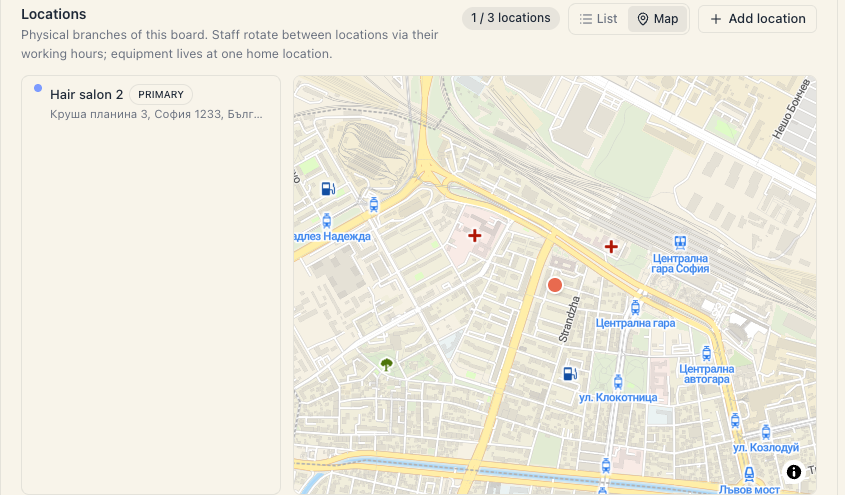
There is a fast path for the pin too: drag the pin directly on the big map on the right. The position saves immediately. If it fails you’ll see “Couldn’t save the new pin position.”
Clicking a branch card that has no pin yet opens the editor directly — so you can add one.
5. What a branch card shows
| Element | What it means |
|---|---|
| Coloured dot | The location’s accent colour |
| Name | The Label field |
| Primary badge | This branch is the primary one |
| Address under the name | The map address, or your typed text, or a dash |
| N resources badge | How many resources call this their home location |
| No pin badge | No coordinates — the branch doesn’t appear on the map |
| Amber line | Services with no suitable resource here |
6. The plan limit
Above the list is a {active} / {limit} locations chip.
| Plan | Locations |
|---|---|
| Start | 1 |
| Growth | 1 |
| Pro | 3 |
| Custom | unlimited |
An extra location costs €9 per month each (the Extra location add-on).
At the limit, Add location is disabled with the tooltip “You’ve reached your plan’s locations limit. Upgrade your plan to add more.” And if you reach the save step anyway — “You’ve reached your plan’s N locations — upgrade to add more.” with an Upgrade plan button.
7. If something isn’t working
| Symptom | Check |
|---|---|
| There is no Add location button | You lack the edit_board permission. Ask the owner |
| The button is disabled | You’ve hit the plan limit |
| It won’t save | The Label field is empty — it’s the only required one |
| The map shows no suggestions | Type the address by hand and drop the pin with a click |
| The location exists but nobody can book | See §3 — no working hours, or nobody working there |
What’s next
- Locations (branches) — what attaches to a location and when you need them.
- Address & map — the pin in detail and what the client sees.
- Hours by location — the next mandatory step.
- Services per location — which services at which branch.