Set up a rental
Step by step: the Rental type, the resource to rent out, slot length and price per slot.
A rental is created in the same editor as any other offering — only the type and one section change. This article walks the whole path: from preparing the resource to the first successful booking.
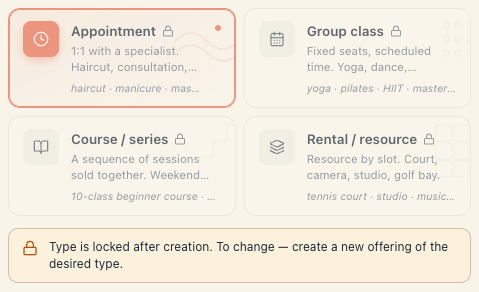
1. The resource first, the rental second
A rental sells time on a resource. If the resource doesn’t exist, the offering saves but shows zero free times. So start in the catalog:
- Open Catalog → Resource kinds.
- If you have no suitable kind, press New kind and create one — “Court”, “Room”, “Equipment”. Do not choose the “person” category — person kinds are not offered for rentals.
- Enter the kind and add the actual resources: “Court 1”, “Court 2”, “Blue Room”…
- Make sure the resources are active for booking (the switch in the kind’s list) — inactive ones don’t count.
Details: Resource kinds & capacity and Add a resource.
2. Creating the offering — step by step
- Open Catalog → Offerings.
- Press the plus button top right — Offering.
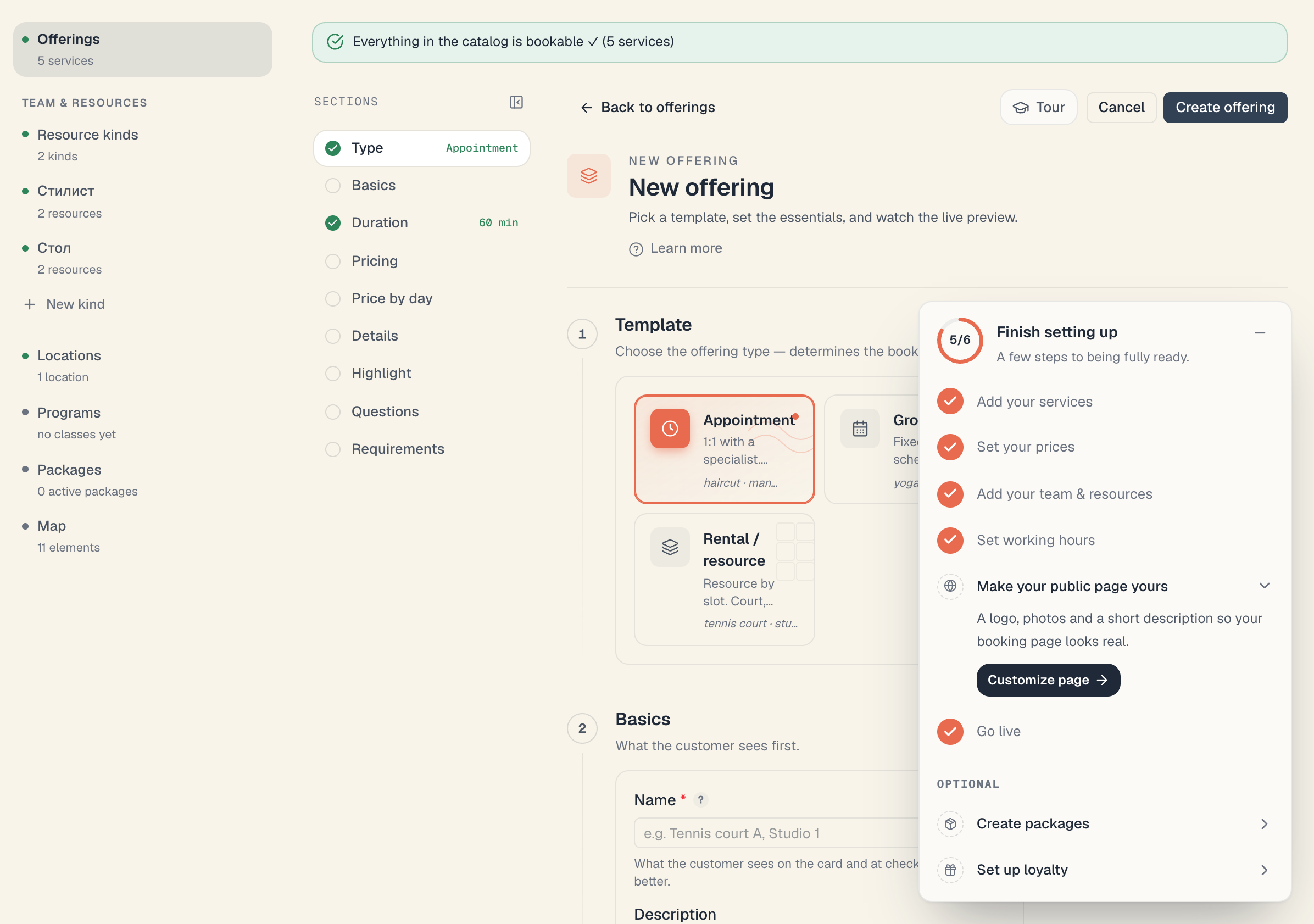
- In the Template section pick the Rental / resource card (“Resource by slot. Court, camera, studio, golf bay.”).
- Section Basics: fill in the name (“Tennis court — hourly”) and optionally a description.
- Section Rental settings: set Slot length, Booking length and Price per slot — see §3.
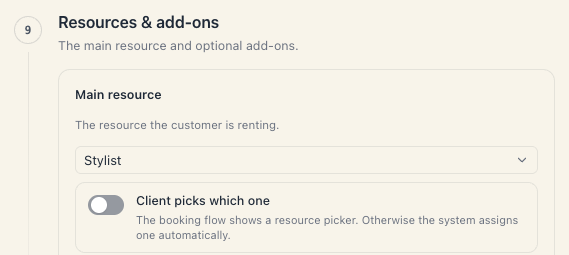
- Section Resources & add-ons: pick the Main resource and decide whether the client picks the specific one — see §4.
- Optional: Price by day & time, Public-page details, Highlight, client questions, Locations.
- Press the save button top right.
3. The “Rental settings” section
The section is split into three parts, each with an icon.
3.1 Slot length
“The smallest unit a customer can rent. Pick one or set a custom value.”
- Buttons: 30 min, 1 h, 2 h, Custom.
- Custom opens a numeric field labelled Minutes with the reminder “(between 15 and 240 min)”.
- The tooltip explains the trade-off: “Smaller slots = more flexibility but more clicks for the customer.”
Changing the length automatically lowers the minimum and maximum if the new value would breach the 12-hour ceiling.
3.2 Booking length
“How many slots in a row the customer can pick. Each slot = {slot}.”
- Minimum — nothing shorter can be booked.
- Maximum — nothing longer can be booked.
Under each field you see the real-time translation (“2 h”, “4 h”). Below that, a summary: “Customer can book from {min} to {max}”, or, when minimum equals maximum, “Customer books exactly {value}”.
If the 12-hour ceiling bites, a warning appears: “Capped at 12 h total — the customer can pick up to {N} slots in a row.”
3.3 Pricing
- Price per slot — the price of one slot. Tooltip: “The price is per slot. Total is auto-multiplied based on the number of slots the customer picks.”
- Below the field sits the worst-case sum: “Max booking ({N} × {slot}) = {total} {currency}”.
The currency comes from the board’s settings and is not chosen here.
4. The “Resources & add-ons” section
- Main resource — “The resource the customer is renting.” The dropdown lists only non-person kinds, each with its count of active resources (“Court · 4”). Pick an empty kind and an amber note appears: “This kind has no active ‘{kind}’ yet — the service won’t be bookable until you add at least one.” with an Add {kind} button.
- Client picks which one — a switch. On: “The booking flow shows a resource picker. Otherwise the system assigns one automatically.” The switch stays disabled until there are at least 2 resources of the kind: “Need at least 2 resources of this kind to enable customer choice.”
- Resources customers can pick — appears when the switch is on; chips with the resource names and a “{selected} / {total}” counter. An empty list blocks the save.
- Add-ons — optional resources on top of the rental (rackets, balls, floodlights). Each has four blocks: How it appears to the customer, Quantity, Which resource to reserve, Price (included / additional charge / price per unit).
5. What differs from the other types
| Section | For a rental |
|---|---|
| Rental settings | present — slot, booking length, price per slot |
| Pricing | absent — replaced by “Rental settings” |
| Deposit & prepayment | absent — it lives inside “Pricing”. See Rental deposits |
| Price by day & time | present and working |
| Resources & add-ons | present, but non-person kinds only |
| Details, Highlight, Questions, Locations | the same as everywhere |
6. Verifying that it works
- Open your public page (Setup → Public site → the link to the page).
- Find the rental in the rentals section.
- Pick tomorrow’s date. You should see a slot grid at your slot length.
- Mark two consecutive slots — the total should double.
- If the grid is empty, see §7.
7. Troubleshooting
Not a single free slot. The usual causes, in order: the chosen kind has no active resource; there are no working hours that day; everything is booked; the offering is restricted to a different location. Full diagnosis: Why are there no free times.
The save fails — “Select a resource kind for the main rental resource.” You didn’t pick a Main resource.
The save fails asking for allowed resources. You turned client choice on but ticked nothing: “When customers pick the resource, at least 1 resource must be allowed — select one in ‘Allowed resources’ or turn off customer choice.”
I can’t find where to set a deposit. For a rental the block isn’t rendered. See Rental deposits.
I want to rent out a person (a coach) by the hour. That is an appointment, not a rental — person kinds are excluded from the rental list.
I changed the slot length and the maximum changed by itself. By design: total length can’t exceed 12 hours, so the maximum slot count is lowered.
What’s next
- Rental slots & pricing — the numbers in detail.
- Multiple units & availability — four courts, one rental.
- Hourly rentals — the big picture.
- Create a service — the shared editor.