Client picks a resource
Who exactly takes the booking: a specific staff member the customer picks, or whoever is free — plus services for two specialists (“four hands”).
There’s a question in the service editor that looks cosmetic and is in fact the most powerful filter in the whole catalog — Who exactly takes the booking? It doesn’t only decide whether the customer sees a list of stylists. Answer the customer picks, and the service gets an allow-list of resources: from that moment it can only be performed by the people on it — in public booking and in the admin form.
This article covers where the question is, what exactly happens with each of the two answers, and how not to shut your own service down by accident. Section 9 covers services for two specialists (“four hands”): there the customer picks two people at once, and the system looks for a time when both are free.
1. Where it is
- In the left icon rail, pick your board.
- Catalog → Offerings.
- Open the service (or create a new one).
- In the section column, open Who performs it. In the form the section is called Who performs it & what’s needed, sub-titled “Booking only offers times when they’re actually free.” (For a rental it’s What’s rented & what’s needed.)
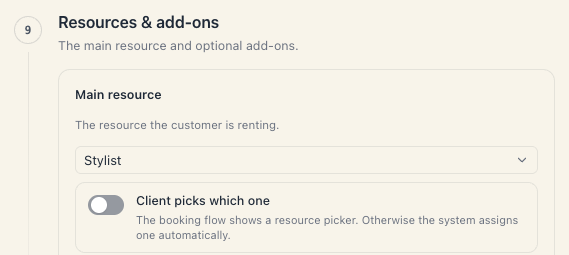
The section starts with the A booking requires row (for a rental — The customer rents a). Below it your kinds sit as chips, and each chip shows how many bookable units the kind has — hover it and you’ll see e.g. “4 active for booking”. One click picks the kind.
“Bookable” here means: not archived, not hidden from customers, and with Active · available for booking switched on. A resource that fails any of the three doesn’t count in that number and won’t appear in the list below.
If the chosen kind has no bookable units, a hint appears right under the chips: “No active “
For an Appointment with a people kind there’s also a How many specialists work together? row, with a choice of 1 · 2 · 3 · 4. Leave it at 1 for an ordinary service; higher numbers are for four-hands treatments — see section 9.
2. The “Who exactly takes the booking?” question
The next row is Who exactly takes the booking?, with two answers:
| Answer | What happens |
|---|---|
| whoever is free | The service has no list. The system assigns a free unit of the kind. |
| the customer picks | A list of allowed resources appears, and the customer picks from it. |
Both answers are greyed out and unclickable while:
- no kind is picked — the hint is “First pick what a booking needs.”;
- the kind has no bookable units — “Nothing to pick from — no active “
” yet.”
One bookable unit is enough. That’s deliberate: a single court, a single desk or a single stylist are all legitimate “pick exactly this one” cases.
3. What happens with “the customer picks”
A panel appears: Resources customers can pick, with a counter top-right in the form “selected / total” — e.g. “4 / 4”. Under it there’s one chip per bookable unit of the kind.
The mechanics:
- Choosing the customer picks ticks every bookable unit automatically. The counter reads “4 / 4”.
- Clicking a chip removes it from the list. The counter drops to “3 / 4”.
- Clicking again puts it back.
- If you remove all of them, a warning appears — “Pick at least one — or go back to “whoever is free”.” — and the save won’t go through.
- For a service done by two or more specialists, the list needs at least that many people. With fewer, the warning reads “Pick at least 2 — that many specialists take the booking together.”
If you change the kind under A booking requires, the list reloads with all units of the new kind. If you go back to whoever is free, the list is cleared.
4. The big one: the list is not cosmetic
This is where most people trip.
While the answer is whoever is free, the service has no allow-list. Every bookable unit of the kind is a candidate and the system takes whichever is free.
The moment you choose the customer picks, the list becomes a hard rule:
- A unit outside the list is never offered to the customer.
- A unit outside the list is never auto-assigned.
- A unit outside the list can’t even be chosen by you in the admin form — the form says ”
doesn’t perform this service. Pick from the list.” - Remove someone from the list and the service stops showing free times with them.
In other words: the list filters availability, not just the display.
The list also overrides specializations. If a unit is on the list, its own Specializations section is ignored for this service. The priority is: the service’s allow-list → the resource’s specializations → “all”. See Which services a resource can perform.
5. What the customer sees
When the service requires a People-category kind, the specialist step shows up in public booking with either answer — the difference is how free the choice is:
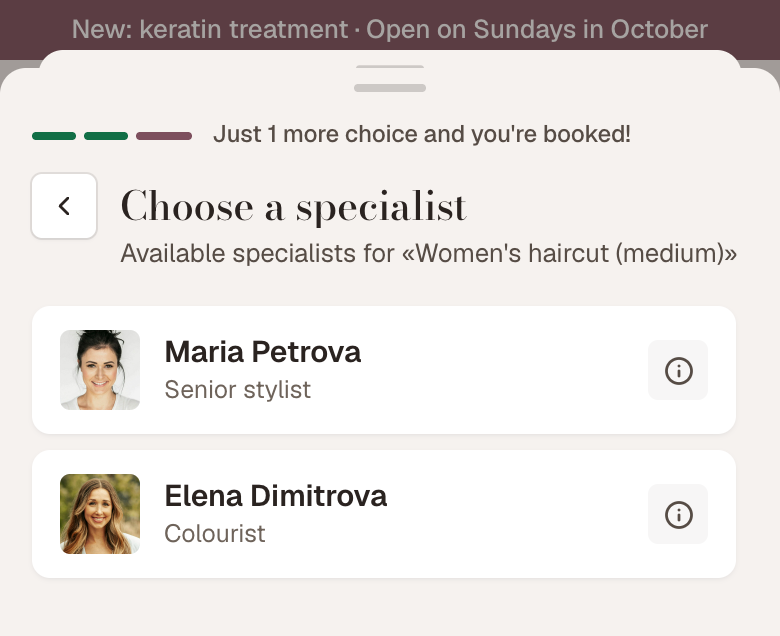
- the customer picks — the customer picks a specific name from the allowed ones. The step is titled Choose a specialist, sub-titled “Available specialists for «
»”. - whoever is free — the customer still sees a list, but on desktop there’s also an Any specialist option, and the system assigns whoever is free.
- If nobody is free right now, the step shows “No available specialists for this service”.
- Services for two specialists use a different step: Choose the specialists, where the customer picks two people at once or “Whoever is free”. See section 9.
Each card has a small circle top-right — it opens the specialist’s public profile, labelled Details.
Rentals work differently: with the customer picks the customer chooses the resource and the time in one step; otherwise they pick the time only.
6. The same logic on add-ons
Below the main kind sits the Also needed block — “Anything reserved together with the service — a room, a device or another person.” You add one with Add something needed and pick the kind. A new add-on starts as always included, hidden.
The expanded card (the Set up button) has a Which one exactly row with the same two answers:
- whoever is free — the system assigns a free unit of the kind;
- the customer picks — the same Resources customers can pick panel with chips appears.
The customer’s choice only matters when the add-on is visible. With On the booking page it’s → always included, hidden, the customer never sees the add-on and picks nothing — the system assigns it.
The Which one exactly row only shows when the kind has at least one active unit. If it has none, the card carries “none active — blocks bookings”, with ”“
7. When to choose “the customer picks” — and when not to
| Situation | Recommendation |
|---|---|
| Customers have “their” stylist | the customer picks — this is the reason the question exists |
| Different staff, different quality or price | the customer picks |
| Only part of the team performs this service | the customer picks, and leave only them on the list |
| Interchangeable chairs, rooms, machines | whoever is free — fewer decisions, a denser schedule |
| A single court, but you want the customer to confirm it | the customer picks, with one chip |
| You just want to hide one person from one service | Better handled by Specializations on the resource itself |
Rule of thumb: choose the customer picks when the choice is part of the product. If it doesn’t matter who does the work, whoever is free gives you a denser schedule — the system fills the gaps by itself.
8. Step by step: “only Anna and Maria do keratin”
- Catalog → Offerings → open Keratin treatment.
- Section Who performs it & what’s needed.
- A booking requires → the Stylists chip.
- Who exactly takes the booking? → the customer picks — everyone gets ticked.
- In Resources customers can pick, remove every chip except Anna and Maria. The counter reads “2 / 5”.
- Save changes.
- Open your public page and check: keratin now offers only those two.
If Maria leaves tomorrow, come back here and remove her chip — otherwise the service keeps offering her until you deactivate her as a resource.
9. Services for two specialists (“four hands”)
Some treatments are done by two people at the same time — a four-hands massage, or a bridal hairdo with two stylists working on it at once. For a service like that the customer picks both specialists, and the booking page only shows times when both are free.
The choice exists because customers do care who looks after them: some don’t want a male specialist — or the other way round.
What a “two-specialist service” is
It’s an ordinary Appointment service (not a package, class, rental or service with options) where one booking needs two people of the same kind — for example two from the “Stylist” kind. They work at the same time and are both busy for the whole length of the service: a 120-minute service takes 120 minutes from each of them.
“Two” here means two specialists for one customer. The number of guests is a separate setting in the Time & guests section.
| What it is | Where it’s set | Who picks the people | |
|---|---|---|---|
| Service for two specialists | two people of the same kind, at the same time | How many specialists work together? | the customer — both of them, or “Whoever is free” |
| A second person under Also needed | someone of a different kind, e.g. an assistant next to the stylist | Also needed | usually the system — see Service add-ons |
How it’s set up
- Catalog → Offerings → open an Appointment service (or create a new one).
- Section Who performs it & what’s needed → A booking requires → the chip of your people kind, e.g. Stylist. The number on the chip is how many active people it has — a two-specialist service needs at least two.
- On the How many specialists work together? row, pick 2. Under it you’ll see: “The customer picks both, or “Whoever is free”. Only times when both are free are offered. The price is per booking, not per specialist.”
- On Who exactly takes the booking?, choose who may take part:
- whoever is free — anyone of the kind, according to their Specializations;
- the customer picks — only the people ticked under Resources customers can pick; tick at least two.
- Save changes. The section’s summary now also says “2 together”.
With either answer to Who exactly takes the booking? the customer sees the step for picking two people — the answer only decides who’s in it. 3 and 4 work the same way: the customer picks all of them, or “Whoever is free”.
The How many specialists work together? row only appears for an Appointment with a people kind. It isn’t there for Rental / resource, Group class, Course / series, Package, Day pass or Service with options (nor inside its options).
The editor warns you when there aren’t enough people:
- If the kind has fewer active people than you picked, the row says “This service needs 2 specialists at once, but only 1 can take it — customers won’t find a free time.”, and the preview shows A few answers are missing with the same explanation.
- If you ticked fewer people under the customer picks — “Pick at least 2 — that many specialists take the booking together.”
The number is kept on every save — you can safely change the price, name or duration.
How a free time is found
- A time is offered only if both people are free for the service’s whole length: working hours, breaks, time off and bookings are checked for each of them.
- If the customer picked two specific people, only their shared free times are searched.
- With Whoever is free, the search looks for times when at least two people of the kind are free; when the booking is made, the system assigns the two itself.
- A day when either of the picked people doesn’t work is empty: “No available slots for this day”. If there’s another day with a shared free time, a Jump to earliest button sits under the message.
- The booking is always for exactly two different people — never one, never three.
That’s why the people’s schedules matter: see A staff member’s schedule.
What the customer sees
- They choose the service. Before the time comes a Choose the specialists step, sub-titled “2 specialists work together on “
””. - At the top sits Whoever is free — “The salon assigns an available specialist”. One tap and the booking moves on to the time.
- Below it are the people. Top-right there’s a “1 of 2 selected” counter. A tap ticks a person, a second tap unticks them. Once two are picked, the remaining names grey out.
- As soon as the second person is ticked, the booking moves on to the time by itself. If the customer comes back to change the choice, they continue with the button under the list — usually Choose a time.
- The booking summary and the screen after booking name both people. On a phone, where space is tight, the choice is shortened — e.g. “Maria +1”.
There’s one rule: both people, or “Whoever is free”. There’s no “I want Maria, and anyone for the second”. That’s deliberate: the second person could turn out to be exactly the one the customer didn’t want.
If the customer started from a specialist’s profile with Book with
Who appears on the list:
- people of the service’s kind who are active, not archived and visible to customers;
- who work at the chosen location;
- if the service has a Resources customers can pick list — only people from it; otherwise — by Specializations.
The list isn’t trimmed by availability. When customers pick one specialist, Mountify hides people with no free time at all; with two it doesn’t, because it’s the pair that is free or busy, not one person. So the list can show someone who has no shared time with anyone. The customer will see empty days, and can change the choice or continue with “Whoever is free”.
When the customer moves their booking, they’re only offered times for the same two people.
What your team sees
- The booking takes both people. The booking page won’t offer that time with either of them to another customer.
- The booking panel shows both specialists, each linking to their page.
- In the calendar (day view) the booking card sits only in the column of the first of the two. The second person’s column shows no card at that time, but they are busy. The booking is listed for both under Recent bookings on their pages.
- A manual booking from the calendar: you pick one specialist, and the system adds a second itself — someone of the same kind who has no other booking at that time and isn’t on time off.
- Payroll: if you use the Payroll section, the visit amount is split equally between the two, and each person’s pay is worked out from their own half.
Price and plan
- The customer pays one price — the service’s price. It isn’t multiplied by the number of specialists. Day-and-time surcharges, deposits and promo codes work as on any other service.
- No separate plan feature is needed: this is an ordinary service, not a package.
- You do need at least two active specialists of the kind, though, and each of them takes a bookable spot on your plan. A plan with one spot isn’t enough — see Your plan’s bookable-spots limit.
If something doesn’t work
| What you see | Why | What to do |
|---|---|---|
| No Choose the specialists step — the customer picks one specialist | How many specialists work together? is at 1 | Pick 2 and Save changes |
| No How many specialists work together? row | The service isn’t an Appointment, the kind isn’t a people kind, or it’s a package or a service with options | The number can’t be set for those services |
| The row says “This service needs 2 specialists at once, but only 1 can take it…” | The kind has fewer active people than needed | Add or activate another person |
| ”Pick at least 2 — that many specialists take the booking together.” | Fewer people are ticked under the customer picks | Tick one more, or choose whoever is free |
| The customer picks two people and every day is empty | The two have no free time in common — one of them doesn’t work those days, is on time off or is booked | Check their schedules; the customer can pick someone else or “Whoever is free" |
| "Whoever is free” has no times either | The kind never has two people free at once | Check the schedules; add or activate more people |
| Someone is missing from the list | They’re hidden from customers, archived or inactive, don’t work at the chosen location, aren’t on the service’s list, or their specializations don’t include the service | See Hiding & archiving resources and Which services a resource can perform |
| The list shows someone with no times | With two people the list isn’t filtered by availability | That’s expected — it’s the pair that gets checked, not one person |
| A person’s calendar column looks empty, yet the booking page offers no times with them | They’re the second person on a two-specialist service — the card sits in the first person’s column | Open the booking, or check Recent bookings on their page |
10. Error messages you may hit
| Message | What it means | What to do |
|---|---|---|
| ”Pick at least one — or go back to “whoever is free”.” | You removed every chip | Put at least one back, or choose whoever is free |
| ”Pick at least 2 — that many specialists take the booking together.” | The service is for two, but only one is left on the list | Tick one more, or choose whoever is free |
| What this service needs — “When the customer picks, allow at least one. Open “Who performs it & what’s needed” and choose who performs the service.” | Same thing, caught at save time | Open the section and tick at least one |
| Who can perform it — “A specific resource you allowed no longer exists or changed type. Re-pick who can perform this service.” | A listed resource was deleted or moved kinds | Open the section and re-tick |
| ”Nothing to pick from — no active “ | The kind has no bookable units at all | Add a resource, or activate one |
| ”No active “ | The chosen kind is empty | Click Add |
| “This service needs 2 specialists at once, but only 1 can take it — customers won’t find a free time.” | The kind has fewer people than work together | Add or activate people, or lower the number |
11. Troubleshooting
The service stopped showing times after I changed the answer to “Who exactly takes the booking?”. Check the counter — it’s probably “1 / 6” and the only allowed person is on leave or inactive. Put more chips back.
One stylist disappeared from one service only. That service has an allow-list and they’re not on it. Open the service → Who performs it & what’s needed → tick their chip.
I can’t book a client with a specific person even from the admin. The allow-list applies to the admin form too. Either add the person to the service’s list, or use a different service.
The list shows fewer people than I have. Only bookable ones appear: no archived, no hidden-from-customers, no deactivated. See Hiding & archiving resources.
I chose “whoever is free” but customers still see a specialist step. That’s expected: for services with a person resource the step stays, so a customer can still ask for someone specific. whoever is free simply removes the hard list and adds the “any” option.
I want a four-hands treatment. In the same section, set How many specialists work together? to 2 — see section 9.
A customer booked with a specific stylist even though the answer is “whoever is free”. Specialist profiles are reachable from the service page and from the “About the business” panel. From there a customer can start a booking with a specific person. If you don’t want that, hide the person from customers or drop them from the service’s list.
What’s next
- Which services a resource can perform — the other, quieter filter.
- A specialist’s public profile — what the customer reads before choosing.
- Service add-ons — the same mechanic for a second resource.
- A staff member’s schedule — the schedules that decide when two specialists share a free time.
- Find out why a service shows no free times — when something has closed up.