A specialist's public profile
Name, role, photo, colour, a short bio and a highlight — what the client reads when choosing a specialist.
When a customer decides who to book with, they don’t read a database — they read a profile. A photo, a role, a few sentences, years of experience, languages, certifications. That profile is the only place where a salon can sell a specific person rather than just a time slot.
The profile is assembled from four sections of the resource editor: Identity, Short bio, About and Highlight. All four exist only for the People category. This article walks them field by field and shows where each one surfaces.
1. Where you edit it
- In the left icon rail, pick your board.
- Catalog →
(e.g. Catalog → Stylists). - Click the pencil on the person’s row.
- Use the Sections rail on the left to jump between sections.
On the right there’s a live preview with three tabs — Card, Week and Feasibility — and the note “Updates live as you type.”
If you can’t see Short bio and About, the resource’s kind isn’t in the People category. See People, places & things.
2. The “Identity” section — the four essentials
The section is described as “How the resource appears in bookings and to customers.”
| Field | Required | Where it shows | Note |
|---|---|---|---|
| Name | yes | the public link, confirmation emails, SMS, the schedule | the tooltip reads “The name shows up on the public link, confirmation emails and SMS. Shorter = easier to scan in a dense list of stylists.” |
| Role / Title | no | under the name in the profile and in the picker | ”Title or specialty. Example: “Senior stylist”, “Orthodontist”.” |
| Photo | no | the large avatar in the profile and on the picker card | ”PNG / JPEG / WEBP, up to 5 MB. Square works best.” |
| Colour | yes | schedule only | ”Shown in the schedule grid.” — next to the palette there’s a mini preview of the calendar cell with initials |
Skip the photo and you get initials instead. It works, but a photo is the cheapest upgrade a profile can get — and it helps in the picker list too.
The colour is not public. It tints the cards in your schedule. Don’t pick it “to match the brand” on the public page — it isn’t used there.
3. The “Short bio” section — the first three sentences
The section is titled Short bio and described as “Shown on the specialist’s public profile page.” The field is called Bio, hinted as “Short intro on the public profile. Customers read it when picking a stylist.”
- Maximum 500 characters, with an “N characters left” counter.
- The placeholder reads “Share something about experience and working style…”
- In the profile the text renders as a pull-quote — a stand-out block right under the name.
What to write, in order of value:
- Who you’re right for — “I mostly work with short cuts and men’s styling.”
- How you work — “I like to take time for a consultation before any colour.”
- One human sentence — whatever makes this person different.
What not to write: prices (they live on services), working hours (they live in the schedule), a phone number (the customer is already booking here).
4. The “About” section — the proof
Described as “Details customers ask about: experience, languages, certifications, social profiles.”
| Field | Format | How it appears to the customer |
|---|---|---|
| Years of experience | whole number, 0–80 | an Experience row with an hourglass icon and “N years” |
| Languages | chips; type and press Enter; placeholder “en, bg, ru…“ | a Languages row — “Languages spoken. Useful for non-local customers picking a stylist.” |
| Specialties | free-text chips | a Specialties row — “Keywords customers search by (visible publicly).” |
| Certifications & training | a list of Title, Issuer, Year | a separate Certifications block |
| Social profiles | Instagram, TikTok, Telegram, Facebook, Website | a Social block — only filled ones render |
If you fill none of the first three, the whole block collapses — the customer never sees empty labels.
Careful with the words. Specialties here is marketing copy and affects nothing. The Specializations section (a separate section further down the form) is an availability filter and decides which services the person can take at all. The two are unrelated. See Which services a resource can perform.
Depending on the board’s business type, extra trade-specific fields may appear under these.
5. The “Highlight” section — the sticker on the card
Described as “Badge chip + accent outline on the resource’s public card — e.g. “HIT”, “Top master”, “New”.”
Three fields:
| Field | What it does |
|---|---|
| Label | ”Short text shown in the chip. Leave empty for outline-only.” — the placeholder is “e.g. HIT” |
| Icon | ”Optional glyph next to the label.”, or No icon |
| Accent color | ”Tints the chip and the card outline.” — with a Clear button and a No accent option |
The chip surfaces in two places: on the person’s card in the specialist picker, and at the top of their profile.
Use it sparingly. If all five stylists carry “HIT”, the highlight highlights nothing. One or two, maximum.
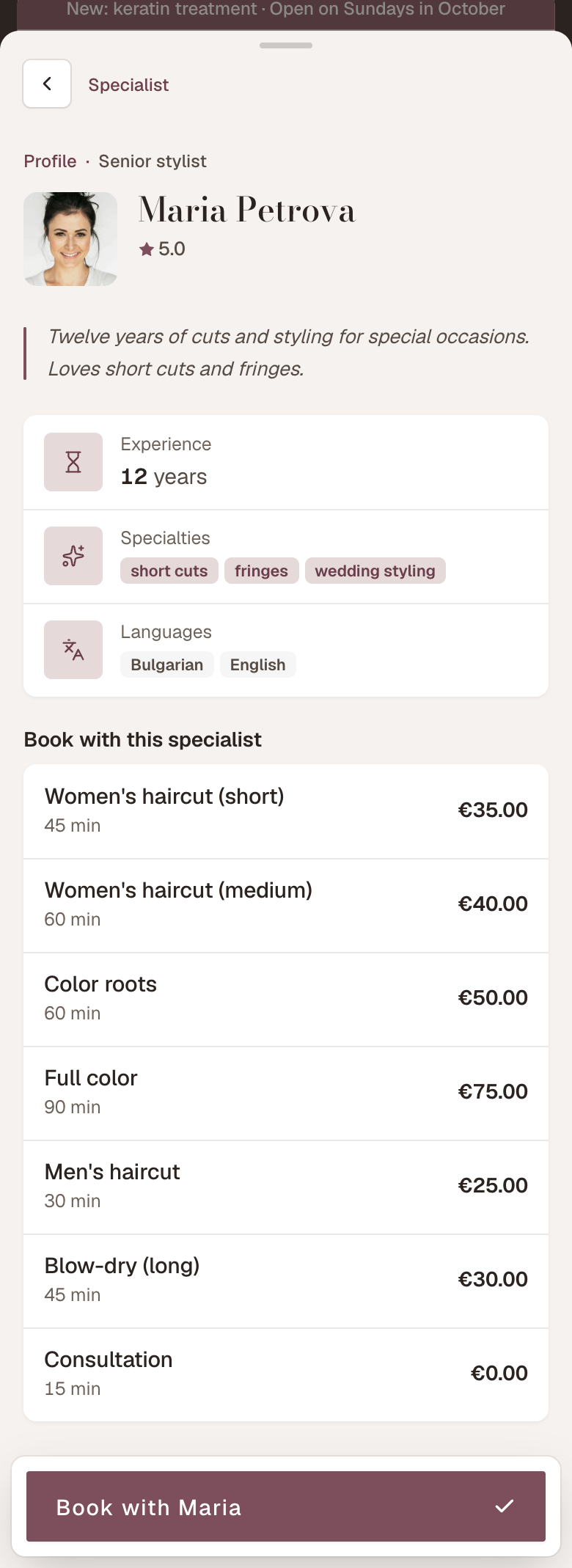
6. What the profile looks like to the customer
Top to bottom:
- A Profile eyebrow with the role next to it.
- The Highlight chip, if there is one.
- A large photo (or initials) and the name.
- A rating with a star, if the person has collected reviews.
- A pull-quote with the Short bio.
- A block with Experience, Specialties and Languages.
- A Certifications block.
- A Social block.
- A Book with this specialist list — the services with duration and price, each one a direct booking button.
- At the bottom, a Book with
button.
How customers get there
- From the card in the specialist picker — the small circle top-right (Details).
- From a service’s page — the rail of specialists who perform it.
- From the “About the business” panel.
The rating
The star and number come from reviews collected for that person. There’s no field to type them in — until reviews exist, the row simply doesn’t render. See Reviews overview and Collect reviews.
The services list
It comes from the person’s Specializations section — only services explicitly ticked there are listed.
Which means a person left on Available for all offerings shows an empty list on their profile, even though they do everything. If you want a full-looking profile, tick the services explicitly. It doesn’t change what they can perform — only what’s displayed.
7. A good-profile checklist
- A short name (first name plus an initial is plenty).
- A role the customer understands — not an internal job title.
- A square face photo, light background, no logo.
- Three sentences in Short bio, written in plain language.
- Years of experience, if above 2.
- Languages, if you serve non-locals.
- 3–6 specialties, using the words a customer would type into Google.
- Certifications with issuer and year — these carry weight in clinics and studios.
- Instagram, if the account is active and professional.
- Services ticked in Specializations, so the list isn’t empty.
- Highlight on one or two people only.
8. Troubleshooting
I can’t see the “Short bio” and “About” sections. The resource’s kind isn’t in the People category.
The photo won’t upload. It must be PNG / JPEG / WEBP and under 5 MB. Straight-from-the-phone shots often exceed that — resize first.
The profile shows initials instead of the photo. The photo wasn’t saved. Open Identity, upload again and press Save changes.
I changed the colour and nothing changed on the public page. The colour is schedule-only.
The services list on the profile is empty. The person is on “Available for all offerings”. Tick the services explicitly under Specializations.
There’s no rating. No reviews have been collected for that person yet.
I saved changes but the profile still shows the old content. The public page has a short cache — wait about a minute and reload.
The profile won’t open at all — “Resource not found”. The person is hidden from customers, inactive or archived. See Hiding & archiving resources.
What’s next
- Which services a resource can perform — what fills the services list on the profile.
- Client picks a resource — how customers reach the specialist picker.
- Add a resource — the whole form, section by section.
- Show reviews on your page — where the star comes from.