Resources: what gets booked
People, chairs, rooms, equipment — what a client takes for the slot. Availability, load and active state.
A resource is the who or what that gets taken up by a booking — a stylist, a chair, a room, a court, a machine. A service takes up nothing by itself: it says “I need one Stylists and one Chairs”, and the system finds free concrete units and holds them for the length of the booking. That’s why resources are the most consequential part of the catalog: until there’s an active resource of the required kind, the service shows no free times to anyone.
This article is a tour of the screens where resources live — what each one tells you, what you can do from there, and what you can’t.
1. Where resources live
Resources are not their own sidebar row. They live inside the Catalog hub, grouped by kind.
- In the left icon rail, pick the board you’re working on.
- In the board spine, click Catalog.
- In the hub’s left column, find the Team & resources group.
The group contains:
- a Resource kinds row with the state “N kinds” — the page where kinds themselves are created and renamed;
- one row per kind on the board (e.g. Stylists, Rooms, Courts, Equipment) with the state “N resources”;
- a quiet New kind row at the bottom — creates a kind without leaving the catalog.
Important: the kind rows are dynamic. If someone renames the “Stylists” kind to “Masters”, the menu row changes with it. That’s why this help says “the kind that holds your people” rather than a fixed name — your board may use entirely different ones.
The dot in front of each row is a signal:
| Dot | Meaning |
|---|---|
| green | the kind has at least one resource |
| neutral | the kind is empty — no resources yet |
| amber | this kind is the reason some service can’t be booked |
The amber dot is the useful one: it tells you where to look before a client calls to say they can’t book.
2. A kind’s page
Click a kind row and its resource list opens. The path: Catalog → <kind name> (for example Catalog → Stylists).
The heading is the kind’s name, with “<board name> · N <kind>” underneath. Top right sits the Add <kind> button.
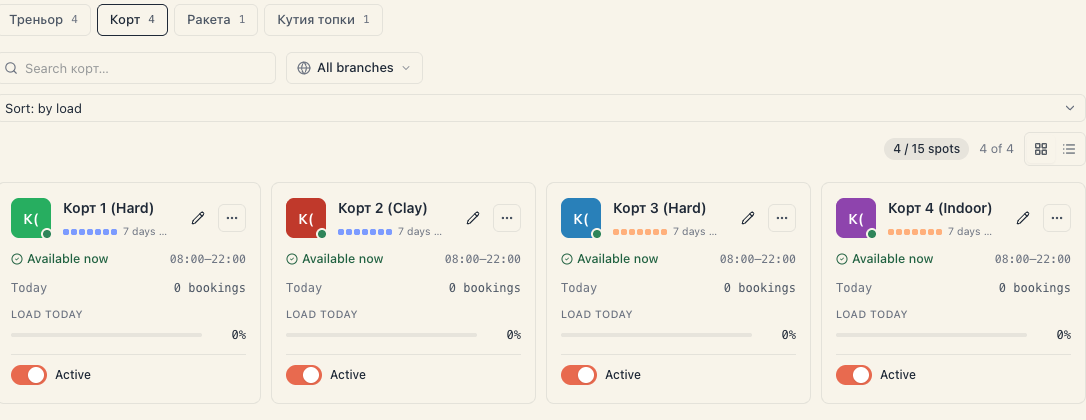
The toolbar under the heading, left to right:
| Control | What it does |
|---|---|
| Search <kind>… | filters by name and role as you type |
| All branches | only with 2+ locations — keeps just the resources working at the chosen branch this week |
| Sort: by load | ordering; the other options are Sort: by name, Sort: bookings today, Sort: by status |
| the N / M spots chip | how many of your plan’s bookable spots are in use — see Your plan’s bookable-spots limit |
| ”N of M” | how many resources the current filter shows out of the total |
| the two icons | switch between cards and a table |
If the board has more than one kind, a row of chips sits above the toolbar with every kind and its count — a quick jump between “Stylists” and “Rooms” without going through the menu.
When there’s nothing to show, the page doesn’t go blank:
- empty kind: No <kind> yet plus “Add the people or places that can be booked. They’ll show up on the schedule as columns.” and an Add button;
- search with no hits: Nothing matches and “Try a different search term.”.
3. What a resource card tells you
Top to bottom:
- Avatar in the resource’s colour, with a status dot in the bottom-right corner.
- Name — a link to the resource’s page.
- The Highlight chip if one is set (e.g. “HIT”, “Top master”). If the highlight has a colour, the whole card gets an outline in it.
- Role (people only) — e.g. “Senior stylist”.
- With 2+ locations — an icon and text saying where the resource works this week.
- The status line plus today’s hours on the right.
- Today — N bookings.
- Load today with a bar and a percentage.
- At the bottom, under a hairline — the Active / Inactive toggle.
The status line has exactly four states:
| Status | When it shows | Colour |
|---|---|---|
| Available now | inside working hours with no booking running | green |
| Busy until HH:MM | a booking is running right now | blue |
| On break until HH:MM | currently inside a scheduled break | amber |
| Off today | not working today — closed day, time off, or a holiday | grey |
Careful: Off today does not say why. A day closed in the weekly schedule, a person’s time off, and a board holiday all look identical. For the cause see A staff member’s schedule and Closures & holidays.
Load today is the share of today’s working minutes taken by bookings. Above 70% it turns amber, above 90% red. It’s information, not a limit: 100% does not stop new bookings if there’s still physically free time.
4. The table view
The second icon on the right of the toolbar switches to a table. The columns:
| Column | Contents |
|---|---|
| <kind name> | avatar, name, role and location |
| Status | the same four states as on the card |
| Today | bookings today |
| Hours | today’s working window, or ”—” on a day off |
| Load | bar and percentage |
| Active | the toggle |
The table is the better view once a kind holds more than a dozen resources — everything fits one screen and load compares down a column.
5. The «Active» toggle
This is the only field you change straight from the list, without entering the editor.
- Turning it off is always allowed. The resource stays where it is, its history stays, but it stops being offered in public booking and is never auto-assigned.
- Turning it on can be refused if your plan is at its bookable-spots cap. The toggle then greys out and on hover says: “You’ve reached your plan’s bookable-spots limit. Deactivate another resource or upgrade your plan to activate this one.” An Upgrade plan link appears next to it.
- If the cap is hit at the moment of saving, you’ll also see “You’ve reached your plan’s N bookable spots — upgrade to add more.” with an Upgrade plan action.
The full mechanics are in Your plan’s bookable-spots limit.
6. A single resource’s page
Click the resource’s name. Its page opens with four figures at the top:
| Figure | What it measures |
|---|---|
| Bookings | total bookings involving this resource |
| Utilization | share of working time covered by bookings |
| No-show rate | percentage of no-shows, with “N of M” underneath |
| Revenue (closed) | sum over completed bookings |
Below: Recent bookings (up to 8 rows with Time, Offering, Client / participants, Status) and a Profile panel with Color, Working hours and Break — captioned “Today · <day>”, because these are today’s hours, not a weekly average.
If the resource is hidden or archived, a Hidden from site or Archived badge sits next to its name.
Top right is Edit profile, which opens the resource editor. Above it, a Back to <kind> link returns to the list.
7. Why resources decide whether a service is bookable
A service appears publicly only when every required kind has at least one resource that is:
- not archived;
- active (Active · available for booking);
- not hidden from customers;
- eligible for that service (see Which services a resource can perform and Client picks a resource);
- has working hours in the window being looked at.
If any of those is false, Mountify notices by itself. An amber band appears at the top of the Catalog hub — “N services can’t be booked”, with a Show them button — and opening the service names the exact cause, for example:
- “no active, client-visible ‘Stylists’ exists”;
- “the chosen ‘Stylists’ for this service no longer work or are hidden”;
- “the service requires a resource type that was deleted”.
Details: Find out why a service shows no free times.
8. What this page does NOT do
This is the list that saves the most support calls:
- No file import. Resources are added one at a time through the form. There is no CSV button on a kind’s page.
- Working hours are not edited here. The list only shows today’s hours. Changes happen in the resource editor or in Setup → Working hours.
- No permanent delete. The Delete action in a row’s menu actually archives the resource — exactly as the confirmation says: “Existing bookings keep the assignment, but the resource will no longer be available for new bookings.” The resource leaves the list, but its bookings stay intact and it can be restored.
- Kinds are not created here. That’s the Resource kinds row, or New kind — see Creating and managing resource kinds.
- No photo gallery. The editor uploads one image (the avatar). A resource gallery is not fillable from the admin at this stage.
Troubleshooting
I can’t find the «Team & resources» group. It’s in the Catalog hub, not Setup. On a narrow screen the left column collapses — use the breadcrumb bar at the top.
I added a person but the schedule shows no column for them. Schedule columns come from one kind — the one flagged Primary. If you added the person to a different kind, switch kinds in the schedule or make their kind primary. See Creating and managing resource kinds.
The resource says «Available now» but the customer can’t see them. The classic asymmetry: Hidden from customers stays fully functional in the admin. Open the editor → Visibility section. See Hiding & archiving resources.
The «Active» toggle won’t switch on. Your plan is at the cap. Deactivate or archive an unused resource, or add a spot to the plan — Your plan’s bookable-spots limit.
Everyone says «Off today» but the salon is open. The board’s or the people’s schedule is closed for today, or the day is marked as a holiday. Check Setup → Working hours and Closures & holidays.
The «N / M spots» number doesn’t match the resources in the list. That’s normal. The chip is a whole-workspace limit — it counts active resources across all boards, and equipment with a stock count above 1 counts its full amount. See Your plan’s bookable-spots limit.
What’s next
- Resource kinds & capacity — how a kind decides behaviour and capacity.
- Add a resource — the form field by field.
- Hiding & archiving resources — the four levers and when to use each.
- Your plan’s bookable-spots limit — what “4 / 15 spots” means.