Change or remove access
Change a colleague's role, deactivate them temporarily, or remove them entirely.
People change — someone takes on more, another goes on leave, a third moves on. Mountify gives you three different actions for this, and they don’t live in the same place: changing rights is a click on the role label, while deactivating and removing sit in the ⋯ menu. This article explains which is which, what survives each one, and which row you must not touch.
If you’re unsure — deactivate. Deactivating is reversible with one click. Removing is not.
1. Open the members list
- Click the business monogram tile at the top of the narrow rail on the left → Members. (Or: Workspace settings → Users & Permissions.)
- Stay on the Members tab.
You get a table with the columns Member · Role · Status · Last active · Joined and a Search by name or email… box above it.
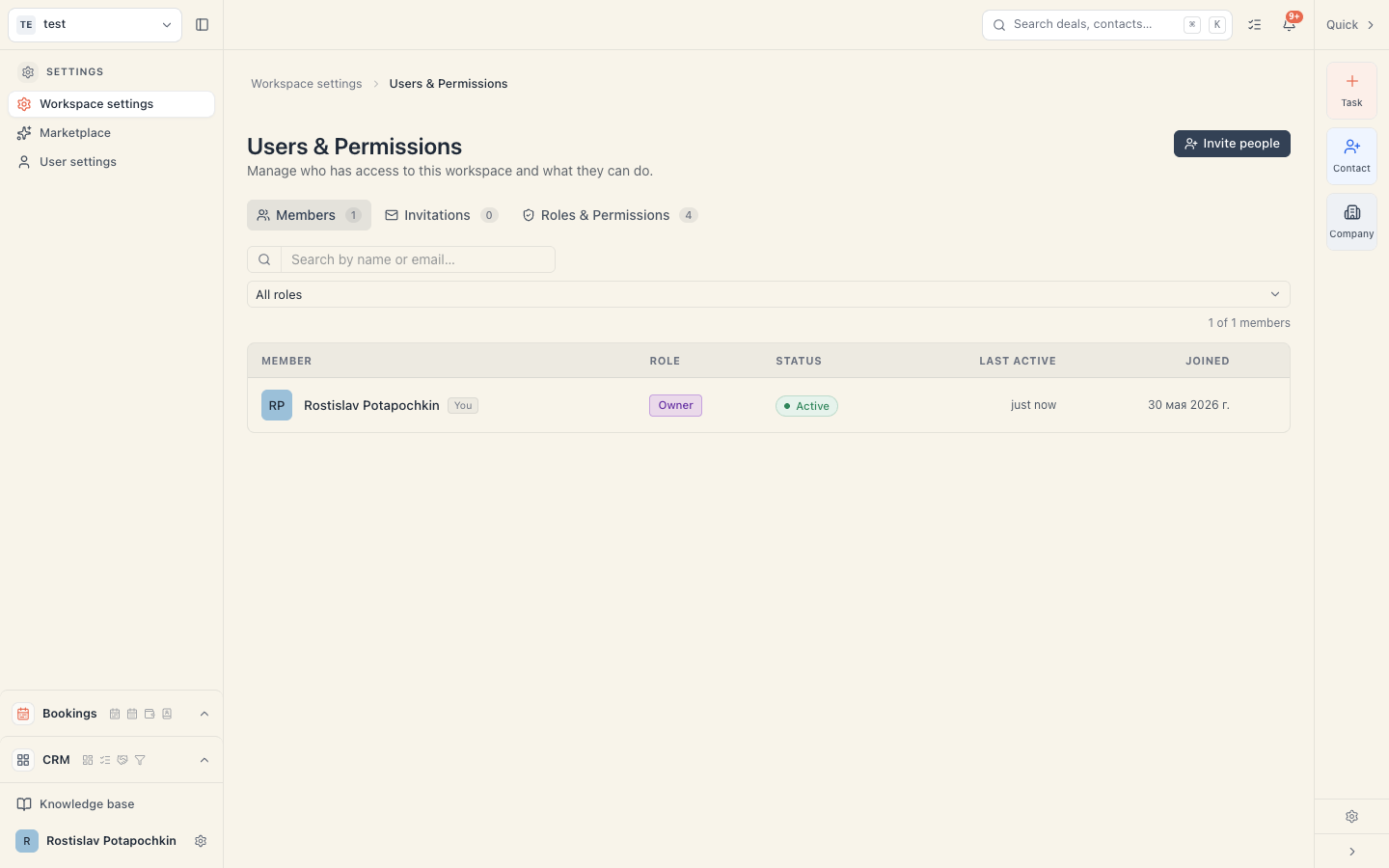
The section requires the Manage members & permissions permission. Without it the tile doesn’t appear in Settings.
2. Which action do you need
| You want… | Action | Reversible? | What survives |
|---|---|---|---|
| The person to be able to do more or less | Change their permissions — click the label in the Role column | yes | everything |
| To stop access temporarily (leave, sick day, doubt) | Deactivate — from the ⋯ menu | yes, with Reactivate | the membership and rights, exactly as they were |
| The person gone for good | Remove from workspace — from the ⋯ menu | no | their bookings, payments and notes stay on the board |
3. Changing rights — click the role label
This is not in the ⋯ menu. Here’s how:
- On the person’s row click the label in the “Role” column — it is a button (Admin, Member, Viewer, one of your roles, or Custom).
- A Permissions · Person’s name dialog opens.
- For a ready set: open the selector at the top left and pick a role. The checkboxes fill in from the template.
- For fine-tuning: tick or untick boxes in the Modules table and the switches in the Special block. The counter on the right shows “N permissions”.
- Click Save.
What to expect:
- The change takes effect immediately, but access is cached for up to about half a minute. If your colleague doesn’t notice, ask them to reload, or to sign out and back in.
- The row’s label almost always turns into Custom after a hand edit. That’s normal.
- The selector also lists Owner, but it only copies the permission set — the person doesn’t become the owner, and their label shows Admin (both roles hold the same set).
- Nothing is deleted: bookings, payments and notes stay.
Two rows have no clickable label: your own — you can’t change your own rights, so ask another person with Manage members & permissions — and the owner’s row (label Owner). Why — see step 6.
4. Deactivate — stop access temporarily
- On the person’s row click ⋯ at the far right.
- Choose Deactivate.
- A confirmation appears: “Deactivate Name?” with the line “They will lose access immediately. You can reactivate later.”
- Click Deactivate.
The result:
- The row dims and the status becomes Deactivated (a grey dot instead of green).
- The person loses access to this business at once. Their next action returns an error; on reload the business disappears from their switcher.
- Their rights are kept exactly as they were — reactivating restores the same set.
- The counter next to the Members tab drops — it counts only active people.
What deactivating does NOT do. It doesn’t cancel bookings. It doesn’t archive the resource that carries their name on the schedule. It doesn’t stop customers from booking them. If the person is also a stylist on the calendar, you have to archive their resource separately — see Hiding & archiving resources.
Reactivating
- Find the dimmed row (search works for deactivated people too).
- ⋯ → Reactivate.
There’s no confirmation — it happens immediately. The status returns to Active with the same rights.
5. Remove — for good
- On the row click ⋯.
- Choose Remove from workspace (in red).
- A confirmation appears: “Remove Name?” with the line “This will remove them from the workspace. This action can’t be undone.”
- Click Remove.
The result:
- The row disappears from the list.
- The person loses access at once. Their Mountify account still exists — they’re simply no longer in this business.
- Their work stays: the bookings they created, the payments they recorded, the notes on clients.
- If they ever need to come back, this isn’t “undone” — you send them a new invitation. On acceptance the access is restored with the rights from that new invitation.
When to remove rather than deactivate: when somebody has left for good and you don’t want their row cluttering the list. For everything else deactivating is safer.
6. The owner is protected
The owner’s row (label Owner) can’t be touched:
- it has no ⋯ menu — it can’t be deactivated or removed;
- its role label doesn’t open — the owner’s permissions can’t be changed;
- the CRM has no ownership-transfer button, and the Owner role can’t be given by invitation either.
The server guards the owner on its own, too. Any attempt to change the owner’s role, permissions or status is refused with “You don’t have permission for this action.” The owner changes only through an ownership transfer. If the owner is leaving — contact support.
7. If the person is leaving Mountify but not the salon
Three separate things people often mix up:
| You want to… | Do this |
|---|---|
| Stop access to the admin panel | Deactivate or Remove under Members |
| Stop customers from booking them | Archive their resource under Catalog → Team & resources |
| Hide them from the public page only, keeping them on the schedule | On the resource switch on Hidden from customers |
Why these are two different things is explained in Staff vs. resource.
Common questions
Will the bookings my colleague created disappear? No. None of their work is deleted — neither on deactivation nor on removal.
Can a deactivated person still sign in to their account? To their account, yes. To this business, no. If they’re a member of another workspace they still see that one normally.
I removed somebody by mistake. How do I get them back? Send a new invitation to the same email. On acceptance, access is restored with whatever rights you set in the new invitation.
How do I stop just one capability without touching the whole access? Click the role label and untick the specific box. For example untick Delete on Bookings so they can’t delete bookings.
Did removing a person free up a “bookable spot”? No. Spots are counted from active resources, not from users. See Does adding a teammate cost extra?.
Can I remove myself? Not from this screen — your own row has no ⋯. Ask another person with Manage members & permissions.
Troubleshooting
| Symptom | Cause | Fix |
|---|---|---|
| The row has no ⋯ | It’s your own row, the owner’s row, or your role lacks Manage members & permissions | For the owner — that’s normal. Otherwise ask another person who holds that permission |
| ”You don’t have permission for this action.” when changing rights, deactivating or removing | The server refused: your role no longer has Manage members & permissions, or the action touches the owner (for example from a page left open for a long time) | Reload the page. The owner can’t be changed from this screen — contact support if needed |
| I removed a permission but the colleague still has it | A cache of up to half a minute | Wait, then have them reload. If that doesn’t help, sign out and back in |
| I deactivated somebody but customers still see them when booking | Access and the resource are two different things | Archive the resource under Catalog → Team & resources |
| I’m looking for a deactivated person and can’t find them | Search matches name and email; the role filter may be hiding them | Clear the search and set the filter to All roles |
| The counter next to Members doesn’t match the number of rows | The counter counts only active people; the table also shows deactivated ones | That’s normal |
What’s next
- Invite & manage members — the whole team screen.
- Roles & permissions — what every checkbox means.
- Staff vs. resource — why stopping access doesn’t stop bookings.
- Hiding & archiving resources — how to take a person off the calendar.