Roles & permissions
The ready roles, the permission matrix and custom roles — who can do what in the workspace.
A role decides what each person who signs in to Mountify can do. This article describes how access actually works — the four ready roles, what a single permission is made of, when the label Custom appears next to a name, and who can refund money to a card. Read it before you give anyone access: two of the ready roles do not mean what their names suggest.
In short: roles live on the workspace, not on a board. Owner and Admin hold exactly the same rights. Member is not “a stylist with their own calendar” — a Member can change services, working hours and the money pages.
1. Where roles are managed
- Click the business monogram tile (top of the narrow rail on the left).
- Choose Members.
The long way there is the same place: Workspace settings → Users & Permissions.
The page is called Users & Permissions and has three tabs: Members, Invitations and Roles & Permissions. The number beside each tab is a count — active members, pending invitations, available roles.
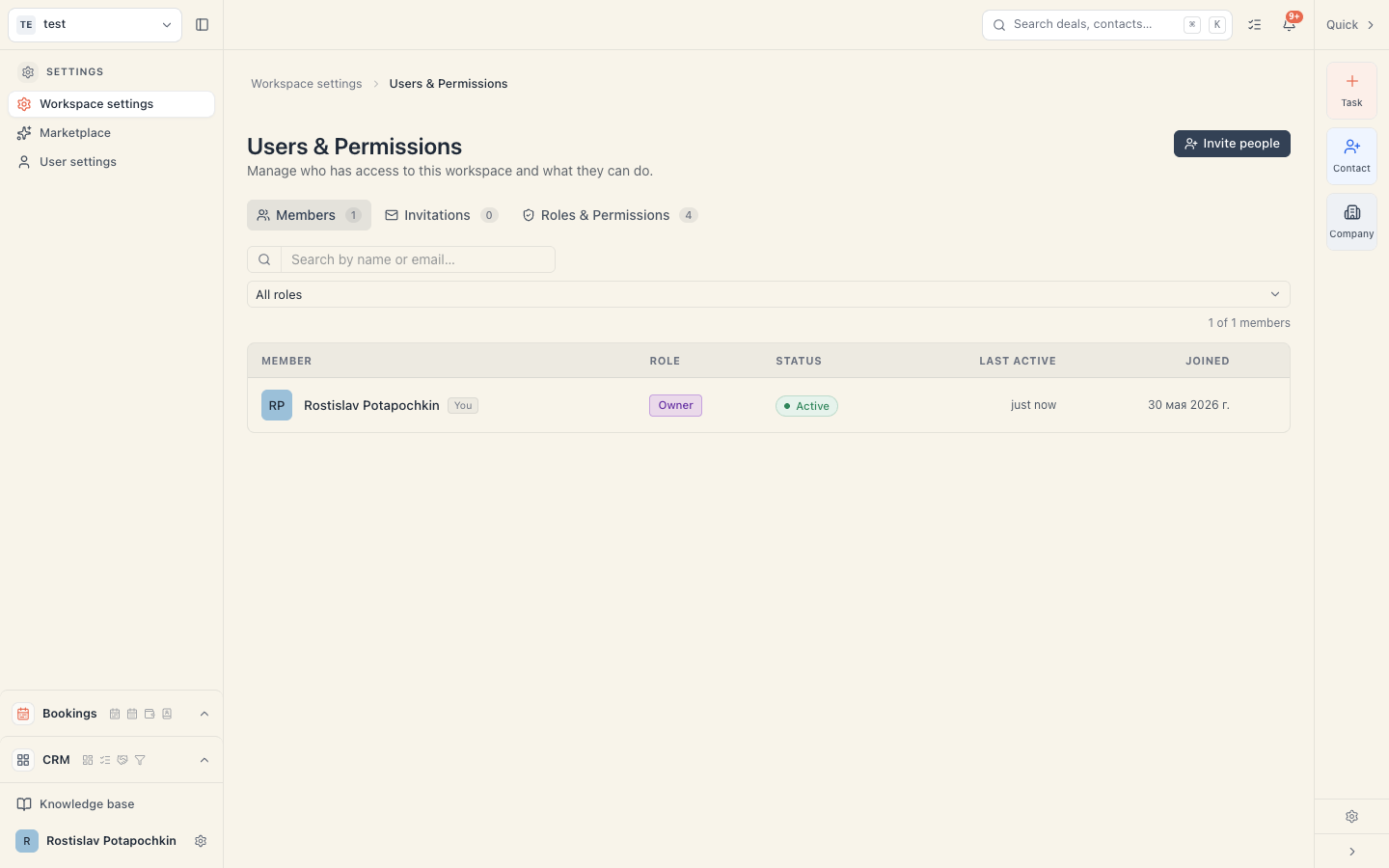
Important: this section is only visible with the Manage members & permissions permission. Without it the “Users & Permissions” tile does not appear in Settings at all — see step 9.
2. The four ready roles
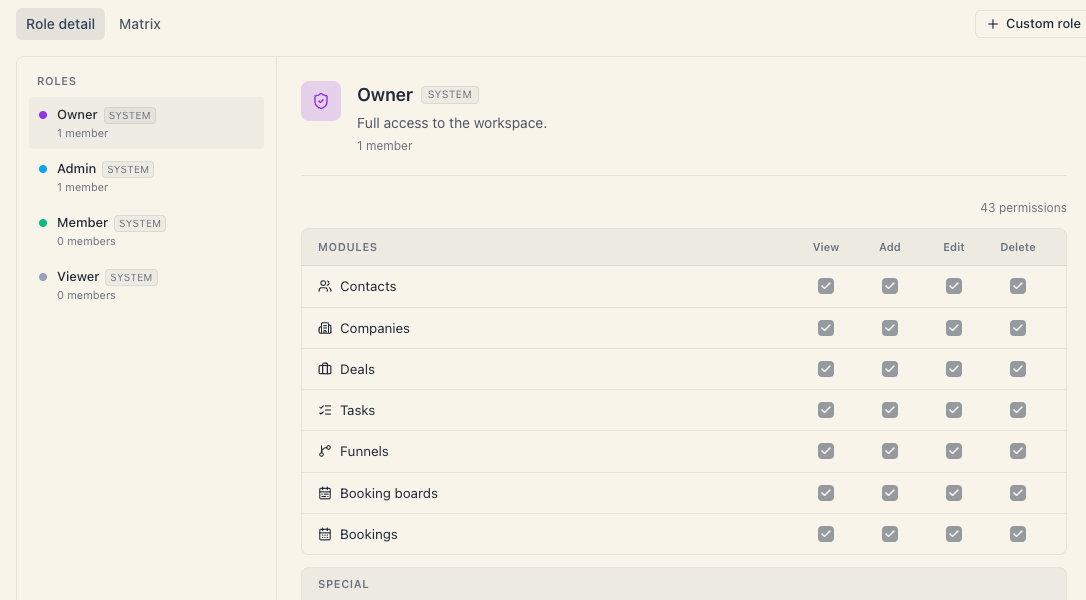
Open the Roles & Permissions tab. In the left column under the Roles heading you’ll see four rows badged system, with a member count under each name.
| Role | How many permissions | What it can actually do |
|---|---|---|
| Owner | all of them | Everything. Subscription, add-ons, integrations, deletion, card refunds, the team. |
| Admin | all of them — identical to Owner | The same as Owner. There is not a single permission Owner holds that Admin does not. |
| Member | 21 | View, add and edit across the seven modules. No deletion, no workspace settings, no clients, no integrations, no loyalty or banners. |
| Viewer | 7 | View only across the seven modules. Changes nothing. |
The plain-language walkthrough of who sees what is in What each role can do.
3. Owner and Admin are the same thing
This is the most important fact in this article, and it contradicts the expectation.
The Admin description in the interface reads “Manage members, settings, and all data”, which sounds like a narrower role. It isn’t. Admin’s permission set is literally identical to Owner’s — including:
- managing the Mountify subscription and its add-ons;
- connecting and disconnecting Stripe;
- refunding a customer’s card;
- deleting bookings, services, resources and clients;
- invitations, role changes and removing people from the team.
The only real difference is in the Owner’s row itself, not in the permissions:
- The Owner cannot be deactivated or removed from the workspace (the server refuses).
- There is no ownership transfer in the interface.
What that means in practice: don’t hand out “Admin” to someone you wouldn’t hand your card to. If you want somebody to run the day-to-day but not the money going to Mountify, build them a custom role — Build a custom role.
4. What a permission is made of
A permission is not a “role”. Every member carries a list of individual permissions. A role is just a template that fills that list in one go.
The list has two parts.
Modules (28 checkboxes)
A table of seven rows and four columns. The rows are modules, the columns are the actions View · Add · Edit · Delete.
| Module on screen | What it governs |
|---|---|
| Contacts | CRM contacts (not the same thing as booking clients) |
| Companies | CRM companies |
| Deals | CRM deals |
| Tasks | Tasks |
| Funnels | CRM pipelines |
| Booking boards | Boards, services, resources, working hours, locations, packages, reviews and the whole Money section |
| Bookings | The bookings themselves: create, move, record a payment, “Arrived” / “No-show” — and cancelling an appointment, which sits in the Delete column |
Cancelling an appointment is “Delete”. If the person has to be able to cancel bookings, you must tick Delete on Bookings. Without it they get “You don’t have permission for this action.” when cancelling.
Careful: the Booking boards row is far broader than it sounds. Edit on it opens services, prices, working hours, locations, the public page and finishing the day. It is the checkbox most often granted by accident.
Special (15 keys)
Below the table sits a Special block — a list of switches, each with a short explanation under its name:
| Special permission | What it opens |
|---|---|
| Manage members & permissions | The whole Users & Permissions section |
| Manage workspace settings | Custom fields, integrations, branding, the subscription |
| Manage visibility groups | CRM visibility groups |
| View file storage · Edit file storage · Manage file storage | CRM files |
| View and Edit counterparty billing | IBANs and tax details in CRM |
| Install integrations | Connecting and disconnecting Stripe |
| Use integrations | Seeing the payment connection status |
| View booking clients | The Clients page |
| Edit booking clients | Editing and archiving a client |
| Ban booking clients | Blocking a client |
| Manage loyalty rules | The Loyalty section |
| Manage landing banners | The Banners section |
5. The “View opens the door” rule
In the modules table:
- If View is off, the other three checkboxes in the row are disabled (greyed out). There is no way to grant Edit without View.
- If you switch on Add, Edit or Delete, View turns itself on.
- If you switch View off, the other three in the row are cleared automatically.
The server applies the same rule, so the outcome is identical no matter where the change comes from.
6. The “Custom” label
In the Role column of the Members tab you can see two kinds of label:
- a role name (Owner, Admin, Member, Viewer, or one of your own roles) — when the person is linked to that role or their list matches its template exactly. Owner appears only on the owner’s row;
- Custom (in a dashed outline) — when it matches no template at all.
The match is on the whole set, permission by permission. Untick one box on a Member and the label instantly becomes Custom. That’s not an error — it just means “this person has a hand-picked set”.
Hover the label and a short Active permissions list opens — per module with its actions, plus the special ones that are on.
7. The matrix — every role on one screen
At the top of Roles & Permissions there’s a Role detail / Matrix toggle.
Matrix shows a single table: rows are permissions (grouped by module, with Special at the end), columns are the roles with a member count under each name. It’s the fastest way to compare two roles.
The checkboxes in system-role columns are locked — a system role can’t be edited. Only your own roles’ columns are tickable.
8. Refunding money to a card
An online Stripe refund has a permission of its own — Refund payments (“Refund a booking’s online payment, in full or in part, through the connected Stripe account.”). It sits in the Special block — both in the matrix and in the permissions dialog.
What that means in practice:
- Owner and Admin have it; Member and Viewer don’t.
- When you apply “Admin” from the selector — in an invitation or in the permissions dialog — the right is copied with the whole set and the person’s label reads Admin, not Custom.
- If someone invited earlier as Admin shows Custom, they are most likely missing exactly this right. Click their label, apply Admin and save.
- A person without this permission still sees the card-refund button, but an attempt returns “Couldn’t issue the refund.”
- If the screen shows a permission spelled only as a technical key, with the note “A platform permission this version of the CRM doesn’t describe yet.”, it is kept too: it isn’t lost when you touch another checkbox and save.
Rule: online card refunds are done by someone with Refund payments. Manual “cash” refunds don’t need this permission — anyone with Edit on Bookings can record those.
9. Who can open this section
The section requires the special permission Manage members & permissions.
- Without it, the “Users & Permissions” tile is not shown in Workspace settings and there is no Invite people button.
- If you reach the address anyway (for example through the monogram menu → Members), the page opens but all three tabs are empty — the member list reads “No members found”. That’s not a data problem, it’s a missing right.
Small but important: the Manage members & permissions permission is effectively full admin. Whoever holds it can grant any other permission to anyone, themselves included. The one exception is the Owner role, which cannot be assigned.
Common questions
Can one person have access to just one of my boards? No. Membership is on the workspace and every member sees every board. The full answer and the workarounds are in Can I limit someone to one salon?.
Can I rename “Member” to “Stylist”? Not from the interface. System roles can’t be renamed on screen. Build a custom role with the name you want — Build a custom role.
If I change a custom role, do the people on it change too? No. A role is a template taken at the moment it is applied. Changing a role does not catch up with members already assigned — you have to open each of them and apply the preset again.
Why do Owner and Admin show the same member count? Because the count is computed by matching the whole set, and their sets are identical. Everyone with full rights is counted on both rows.
Does the role affect what I pay? No. People are free. See Does adding a teammate cost extra?.
Troubleshooting
| Symptom | Cause | What to do |
|---|---|---|
| A colleague sees the Clients row but clicking it returns “Couldn’t load booking clients” | Their role lacks View booking clients. The nav row is not hidden by permission. | Open Members, click their role label and switch the permission on. |
| ”You don’t have permission for this action.” on save | The server refuses that specific action. | Check in Active permissions whether the exact checkbox is on. |
| I changed a permission but the person still doesn’t have it | Propagation goes through a short-lived cache. | Wait up to half a minute and reload. If that doesn’t help, sign out and back in. |
| A role label turned into Custom by itself | The set no longer matches a template exactly — for example someone ticked or unticked a box in the permissions dialog. | That’s normal. If you want an exact match, apply the role’s preset again. |
What’s next
- What each role can do — in plain words, no permission tables.
- Build a custom role — how to make a “reception” role.
- Invite & manage members — the whole path from invitation to removal.
- Who can manage the subscription — which permission opens billing.