What each role can do
Owner, admin, staff — who sees and changes what, in plain words.
This is the honest answer to “if I give Maria role X, how far does she get”. No tables of technical names — just screen by screen what the person will and won’t see. Read it before you invite anyone: two of the four ready roles are much broader than they sound.
The two surprises in short: Admin is not “Owner minus the sensitive parts” — Admin can do everything, including the subscription and card refunds. Member is not “a stylist with their own calendar” — a Member sees the whole board’s money and can change services, prices and working hours, but cannot see the clients.
1. Owner — the business owner
This is the person who created the business in Mountify. They have everything, no exceptions:
- the whole Catalog — services, prices, resources, locations, packages, working hours, holidays;
- the whole Schedule and Bookings — create, move, cancel, delete;
- Clients — view, edit, archive, block;
- the whole Money section — reports, “Who owes me”, “Payments”, “Finish the day”, expenses;
- refunding money to a card through Stripe;
- Setup → Integrations — connecting and disconnecting Stripe;
- Loyalty and Banners;
- Workspace settings — custom fields, visibility groups, the subscription and its add-ons;
- the team — invitations, roles, deactivation, removal.
The Owner role also has two quirks that aren’t permissions:
- The Owner cannot be deactivated or removed. If anyone tries, the server refuses with “You don’t have permission for this action.”
- There is no ownership transfer in the product. If the owner is leaving the business, the interface can’t settle it — contact support.
2. Admin — the same as Owner
The role is called Admin and its description sounds more modest, but the permission set is identical to Owner’s.
Which means an Admin can:
- change the subscription plan, add and remove add-ons;
- disconnect Stripe;
- refund money to a customer’s card;
- delete a service, a resource, a booking or a client;
- remove anyone else from the team (except the Owner).
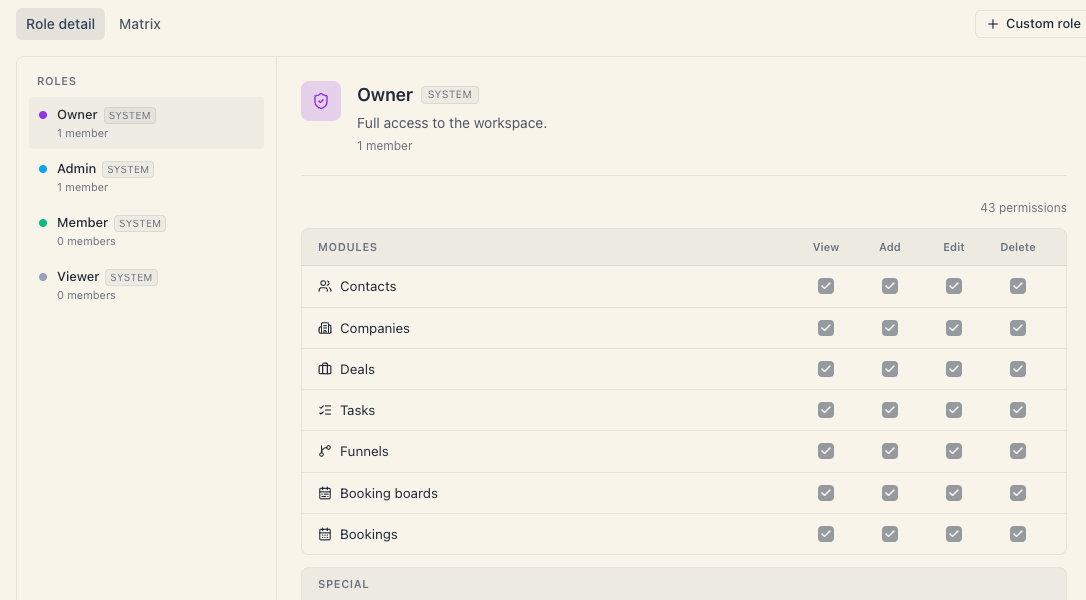
Don’t trust the name. If what you want is “a manager without access to the money going to Mountify”, that isn’t Admin. Build a custom role — Build a custom role.
There’s also a purely practical detail: when you pick “Admin” in an invitation or in the permissions dialog, Mountify copies Admin’s whole set — card refunds (Refund payments) included — and the person is labelled Admin. If someone invited earlier as Admin shows Custom, they are most likely missing exactly that right: click their label, apply Admin and save. The explanation is in Roles & permissions, section 8.
3. Member — the worker
This is where expectation and reality diverge the most. The Member role grants View · Add · Edit across seven modules — and one of them, Booking boards, is very broad.
Can
| Screen | What they can do |
|---|---|
| Schedule | Sees every resource’s full schedule, creates and moves bookings |
| Bookings | All the board’s bookings, filters, marking “Arrived” / “No-show” |
| Catalog → Offerings | Creates and edits services, prices, durations, deposits |
| Catalog → Team & resources | Adds and edits stylists, chairs, rooms |
| Catalog → Locations and Packages | Creates and edits |
| Setup → Working hours | Changes working hours, breaks, holidays |
| Setup → Public site | Edits the public page and can switch off “Online booking” |
| Setup → Reviews | Moderates reviews |
| Money | Sees every report, “Who owes me”, “Payments”, finishes the day |
| The Payment panel on a booking | Records “Paid cash”, “Paid card”, “Partial…”, “On the house”, a manual refund, and undoes a wrong entry |
| CRM (if the plan includes it) | Contacts, companies, deals, tasks, funnels — view, add, edit |
Cannot
| Action | What they see instead |
|---|---|
| Clients | The Clients row is in the rail, but the page returns “Couldn’t load booking clients” — see Troubleshooting |
| Cancelling an appointment | ”You don’t have permission for this action.” Cancelling runs through Delete on Bookings, which Member doesn’t have |
| Deleting anything else (service, resource, contact) | The action returns “You don’t have permission for this action.” |
| Setup → Integrations | Can’t connect or disconnect Stripe |
| Online (card) refund | Refused with “Couldn’t issue the refund.” |
| Loyalty and Banners | The sections don’t open |
| Workspace settings | The team and subscription tiles are missing |
| Files in CRM | No access |
If you picture Member as “the safe role”, don’t. A Member can switch off online booking and see the full turnover. If that doesn’t work for you — build a custom role.
4. Viewer — look only
Grants View across the same seven modules and nothing more. Such a person:
- sees the schedule, the bookings, the services, the resources and the whole Money section;
- cannot create or change anything — not a booking, not a payment;
- cannot see the clients (the same limitation as Member);
- doesn’t see the team, the integrations or the subscription.
Useful for an accountant who has to reconcile the turnover, or a partner who only observes.
5. Who should get what — a practical table
| Person in the salon | Recommendation |
|---|---|
| You, the owner | Owner (granted automatically when you create the business) |
| A co-owner who genuinely decides everything | Admin — knowing they can touch the subscription |
| Salon manager | A custom role on top of Member + View and Edit booking clients |
| Reception | A custom role: Bookings (all four actions — cancelling is “Delete”) + Booking boards on view only + clients |
| A stylist who runs their own calendar | A custom role: Bookings on view/add/edit and Booking boards on view only |
| Accountant | Viewer |
| Marketing | A custom role with Manage landing banners (and optionally Manage loyalty rules) |
The ready recipes with the exact checkboxes are in Build a custom role.
6. How to check what one person holds
- Open Workspace settings → Users & Permissions, tab Members.
- Hover the label in the Role column.
- An Active permissions list opens — per module with its actions, plus the special permissions that are on.
If you want to compare two roles side by side, open the Roles & Permissions tab and switch to Matrix.
Common questions
Will a Member see only their own calendar? No. There is no role that limits a person to their own bookings. Anyone who sees the schedule sees the whole schedule.
What about just one of my boards? No. See Can I limit someone to one salon?.
Can a Member see how much money came in today? Yes. The Money section opens with the board-view right that Member has.
Who can touch the subscription? Anyone with the special permission Manage workspace settings — that is Owner, Admin, and any custom role you switched it on for. Details in Who can manage the subscription.
If I change someone’s role, do they lose data? No. A role only changes what they can do. Their bookings, payments and notes stay.
Troubleshooting
| Symptom | Cause | Fix |
|---|---|---|
| A colleague clicks Clients and sees “Couldn’t load booking clients” / “Something went wrong. Please try again.” | Their role lacks View booking clients. The nav row isn’t hidden by permission, so it looks like a technical fault. | Members → click their role label → switch on View booking clients (and Edit if they need to change them) → Save. |
| A colleague clicks a button and gets “You don’t have permission for this action.” | The server refuses exactly that action. | Open their permissions and switch the matching checkbox on. |
| I granted “Admin” but the label reads Custom | The set doesn’t match Admin exactly: a checkbox was changed by hand, or the person was invited earlier and lacks Refund payments. | Click their label, apply Admin and save. |
| A colleague switched off online booking by accident | Edit on Booking boards allows that. | Turn the Online booking switch back on and narrow their role to View on that module. |
What’s next
- Roles & permissions — how access is wired underneath.
- Build a custom role — ready recipes for reception, stylists and your accountant.
- Staff vs. resource — why a login and a calendar column are two different things.
- Change or remove access — when something changes.