Brand your page: logo, name, photos
Logo, name and description, photos of your place and a link to your Google reviews — what makes the page yours.
Five rows of the editor turn the stock booking page into yours: Name & logo, Photos, Links and Reviews in the Business group, and the Promo bar in the Home page group. They all live in Setup → Public site, in the Page settings panel on the right, and none of it needs a developer. Styles, colours and fonts are a separate topic: Mood & theme.
Remember: there is no Save button here. Text fields commit when you leave the field (click away or press Tab); a file upload saves immediately. The title row briefly shows Saving…, then Saved.
1. «Name & logo» — logo, name, about
Click the Name & logo row. The hint reads: “Logo, name and a short description — what makes the page yours.”
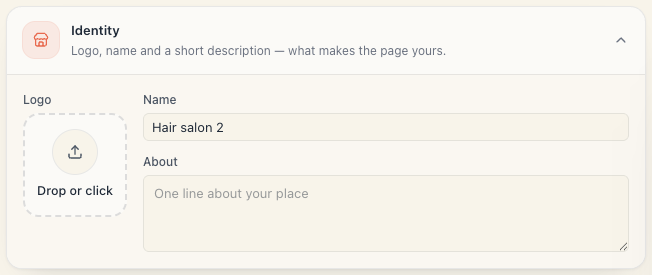
Logo
A square tile labelled Upload. Click it and pick a file, or drop a file on it.
| What | Value |
|---|---|
| Formats | PNG, JPEG, WEBP |
| Maximum size | 5 MB |
| Recommended shape | square — the hint says so too: “A square image works best.” |
| If left empty | the first letters of the board name are shown instead |
Once uploaded, buttons to replace and remove the picture appear on the tile. If the file is too big you get File exceeds the maximum size; if the format isn’t allowed — This file type isn’t allowed. The logo’s shape on the page (circle, rounded or square) is set separately, in Components → Logo shape.
Name
The page headline. The placeholder reads Your salon’s name.
- This is the board’s own name — changing it here changes it in the admin too.
- An empty name is not saved. If you clear the field and leave it, nothing is sent — the page keeps the old name. That’s deliberate: a nameless page is unusable.
About
A box for a sentence or two about your place, placeholder One line about your place. Under it a counter shows how much room is left — 500 characters at most; it turns amber when fewer than 50 remain.
- It may be empty — then there simply is no description.
- Keep it short. On a phone a long paragraph pushes your services down the screen.
«Where clients see it»
The box at the bottom of the section lists exactly where these three things appear, so you can judge the length:
| Place | What shows there |
|---|---|
| Top bar | logo, name and description on every screen |
| Hero | the name is the headline in the Search bar and Storefront heroes |
| About card | opens when clients tap your name |
| Link previews | title and image when the link is shared in messengers |
Tip: a good logo, one sentence and one strong photo build far more trust than three paragraphs of copy. Start there.
2. «Promo bar» — one line at the very top
Click the Promo bar row (in the Home page group). The row shows Off while there’s no text. The section has a single field, Text, and its hint is explicit: “A short notice in a bar at the top. Empty = no bar.”
The placeholder shows the exact genre: e.g. Closed Aug 1–5 · New: hot-towel shave.
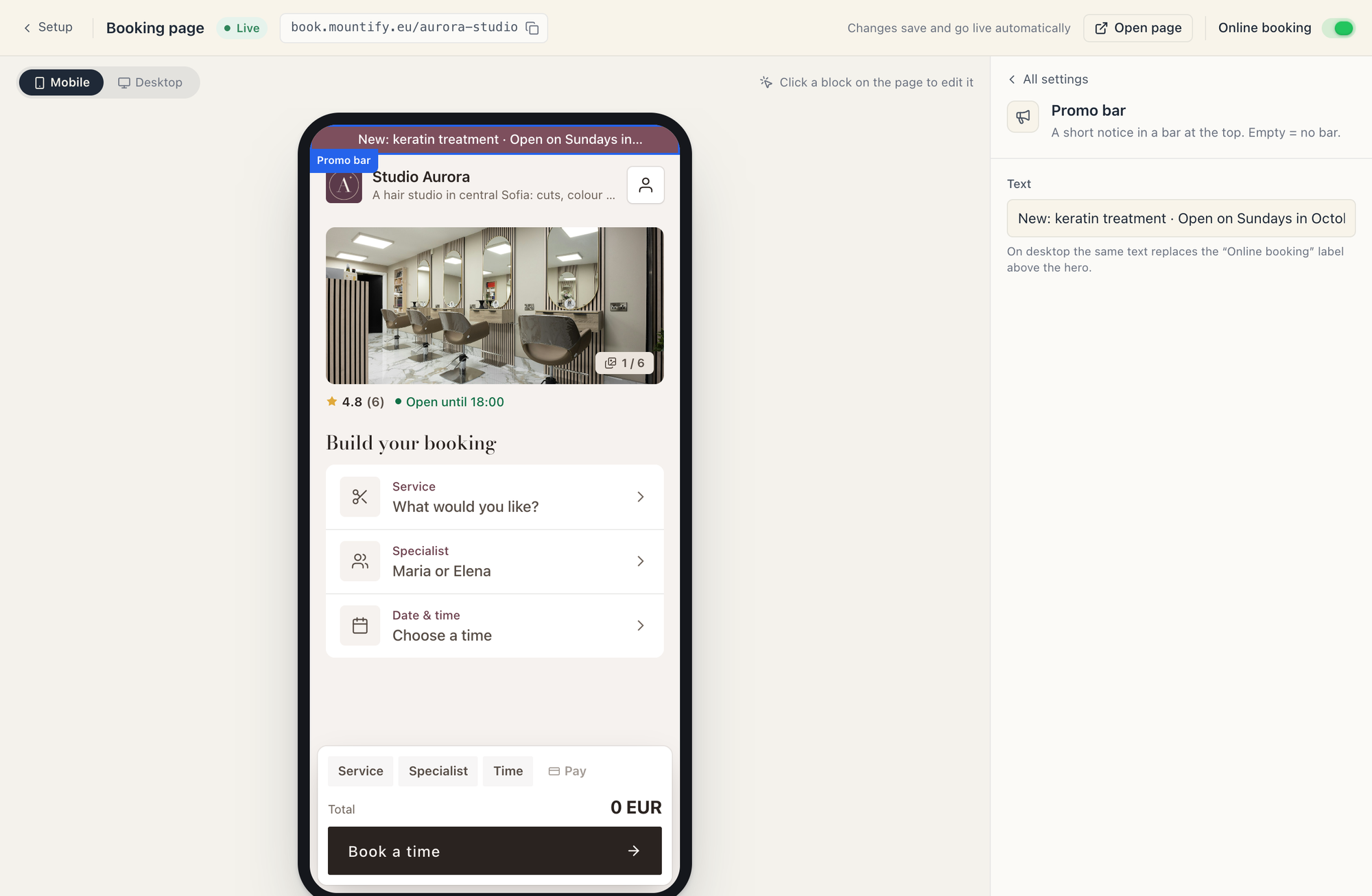
- Click into the Text field.
- Write one short line — news, a schedule change, a seasonal offer. The preview on the left shows it as you type.
- Click outside the field. Now it’s saved and live.
- To remove it, clear the text and leave the field.
Where it shows: on a phone, as a bar at the very top of the page (in both the Classic and the Sheet layout). On a computer with the Classic layout, the same text replaces the small “Online booking” label above the hero — the field’s hint says so too. On a computer with the Sheet layout the bar doesn’t show.
What the bar does NOT do:
- No button, link, image or date range. Text only.
- No targeting — everyone sees it.
- It never switches itself off on a date — you turn it off.
If you need something bigger — an image, a button, a promo code, a start and end date, an audience — that’s not the bar, that’s a banner. See Create a banner.
3. «Photos» — up to 12 shots
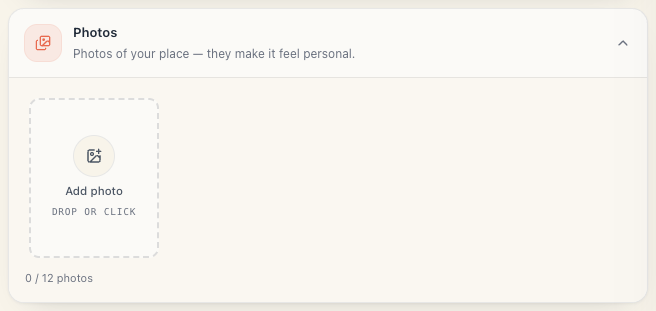
The Photos row shows how many you have. Inside: a grid of square tiles and an Add tile. Click Add (or drop files anywhere on the grid); you can pick several files at once and they upload one after another, in the order you picked them. The first photo carries a Cover badge.
The details — what to shoot, which photo shows where, and how the first photo becomes a cover — are in Page photos & gallery.
4. «Links» — socials and website
The Links row shows None or how many you’ve added. The hint reads: “Social profiles and website. Address & phone are set in Locations.” Six fields, one under another:
| Field | What to enter | Example |
|---|---|---|
| your username or the link to your profile | @your.salon | |
| the link to your page or its username | facebook.com/yoursalon | |
| TikTok | your username or the link to your profile | @your.salon |
| Website | your site’s address | your-salon.com |
| the phone number | +359 88 123 4567 | |
| Viber | the phone number | +359 88 123 4567 |
- Every field is optional. Empty ones simply don’t render.
- You don’t need to type
https://. When you leave a field, what you typed becomes the full link, and the field shows it:@your.salonturns intohttps://instagram.com/your.salon,your-salon.comintohttps://your-salon.com. A link copied from the browser’s address bar works as it is. - WhatsApp and Viber also take a chat link such as
wa.me/359881234567— the number is taken from it. - If a value can’t become a link (a page name with spaces, an address without an ending like
.comor.bg, a number with letters), a red hint appears under that field and the field isn’t saved. The other fields save as usual. - Where clients see them: on a phone, in the About card that opens when they tap your name; on a computer, under About in the top menu, and as icons at the very bottom of the page. With the Sheet layout, Instagram, Facebook and TikTok are also buttons in the Info block, next to WhatsApp. WhatsApp and Viber show as chat buttons, not as rows.
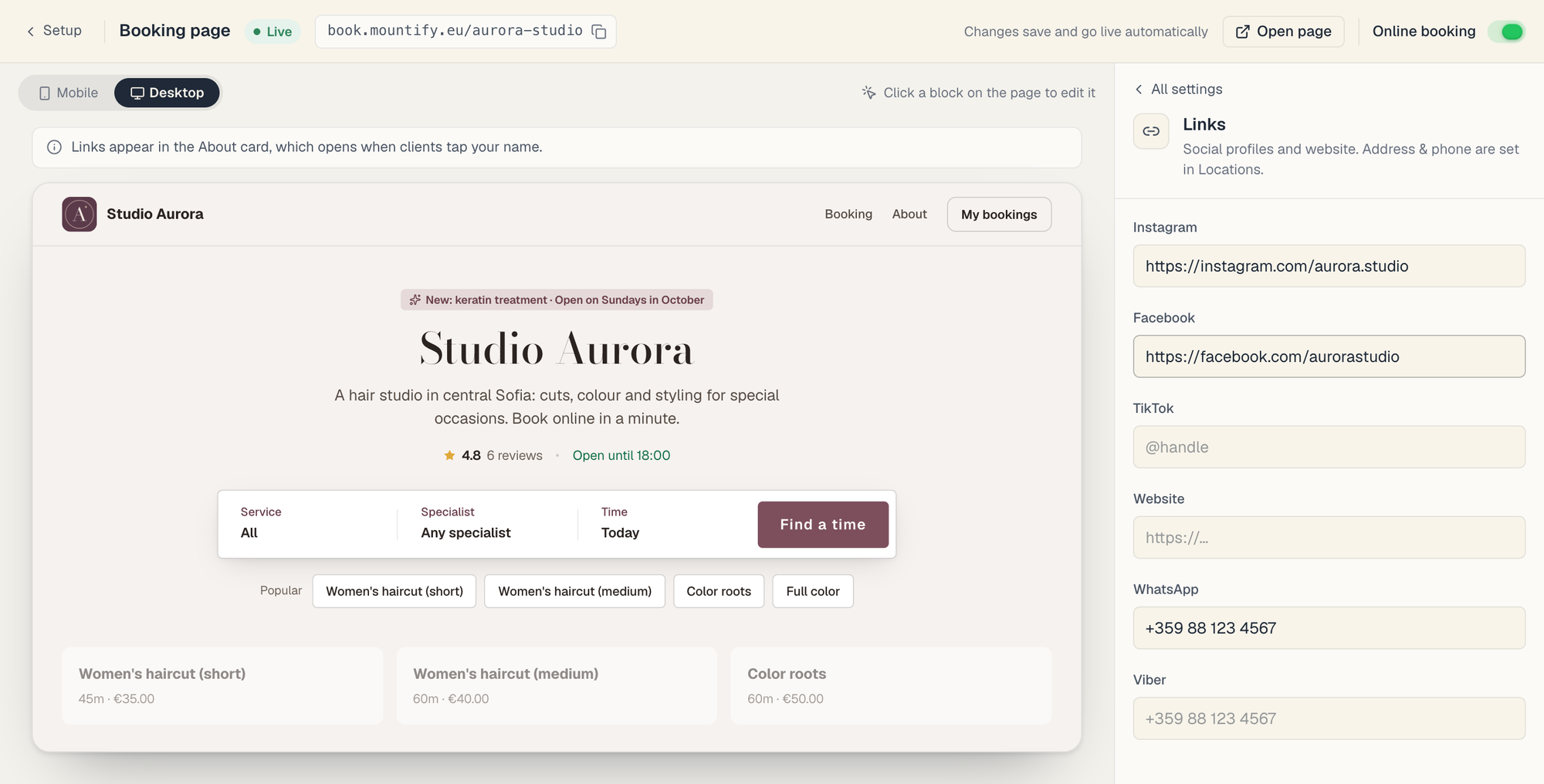
Careful: the phone numbers here are for messenger links, not for calling. The phone people call and the venue’s street address are set in Catalog → Locations — see Location address & map.
5. «Reviews» here is just one link
The Reviews row does NOT hold the reviews themselves. It has one field — Google review link — with the placeholder https://g.page/r/…/review. The row reads Google linked once it’s filled, Off while empty.
What the link does: when one of your clients rates you 4 stars or more, after the review is recorded they are invited to post it on Google too. A lower rating stays with you only. An empty field = no Google button at all.
Under the field there’s a How do I find this link? link that opens Google’s own help page.
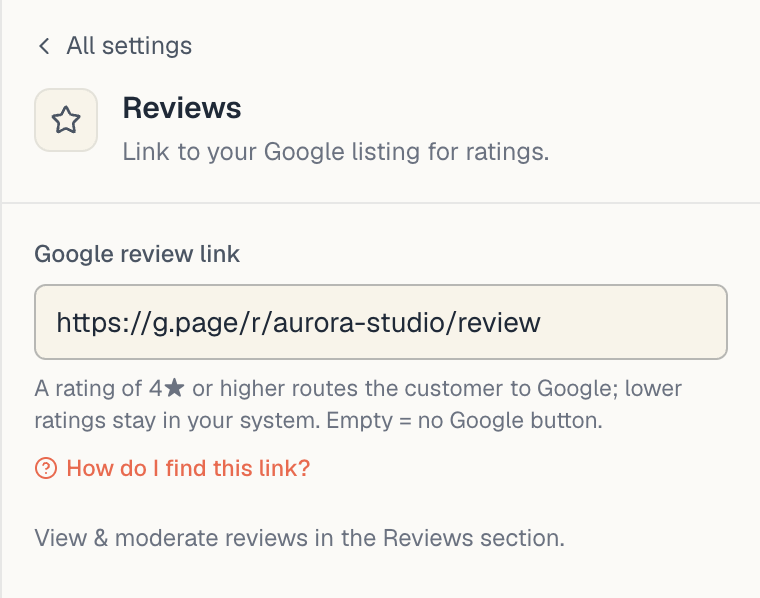
The reviews themselves — reading, hiding, adding by hand — live on a different page: Setup → Reviews. That’s exactly what the hint says: “View & moderate reviews in the Reviews section.” See Customer reviews.
6. Check the result
- Look at the preview in Mobile mode — that’s how most people will see the page.
- Switch to Desktop. A long name and a big logo read differently there.
- Press Open page and inspect the real page in a new tab.
- Open the same link on your own phone, and share it to yourself in a messenger — that’s the link preview your clients will see.
Troubleshooting
| Symptom | Cause | What to do |
|---|---|---|
| The logo won’t upload | The file is over 5 MB or an unsupported type | Shrink the image; use PNG, JPEG or WEBP |
| The logo is cropped oddly | The tile is square | Upload a square image |
| I cleared the name and the page kept the old one | An empty name is not saved | Type a new name and leave the field |
| The About text won’t go longer | The 500-character limit | Cut it down — one or two sentences is best |
| The promo bar won’t go away | The Text field still has content | Clear the text and click outside the field |
| A Links field turned red and isn’t saved | The value can’t become a link: a page name with spaces, an address without an ending like .com, a number with letters | Type @username, paste the link from your browser’s address bar, or type the number with the country code |
| The Instagram link goes to the wrong place | The link was typed with a mistake | Open the public page and click the icon to check |
| I’m looking for where to put the phone number | It isn’t here | Catalog → Locations |
| The change isn’t live yet | The public page’s short cache | Wait half a minute and hard-reload with Ctrl+F5 |
What’s next
- Mood & theme — the page’s style, colour and font.
- Page photos & gallery — what to upload and in what order.
- Show reviews on your page — how reviews reach the client.
- The booking-page editor — every row in one view.