Per-staff pricing
One service can cost differently per specialist — set a price for a specific resource.
The same haircut rarely costs the same: with a senior stylist it’s dearer than with a junior. Mountify knows how to price that — but today there is no field to enter it from the service editor. This article says honestly how far the feature goes, where the field survives, what happens if you already have per-staff prices set, and which three workarounds actually work.
1. The short answer
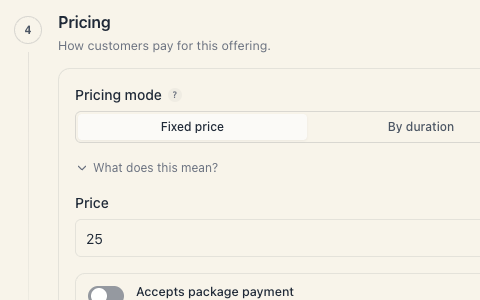
Today a per-specialist price is NOT configurable from the service editor. In Catalog → Offerings → pencil → the Pricing section you get only Pricing mode, Price (or Price per hour), Accepts package payment and the Deposit & prepayment block. There is no “price for a specific specialist” field there.
If you’re hunting for that field and can’t find it — you haven’t missed a setting and it isn’t hidden. It isn’t on that screen.
2. What the system can still do
The mechanism exists and works end to end. If a service does carry per-resource prices, this is what happens:
| Moment | Behaviour |
|---|---|
| The customer scans the service list | sees “from X” — the lowest possible price, when different specialists cost differently |
| The customer has picked a specialist | sees exactly that specialist’s price |
| All per-specialist prices are identical | sees one number, no “from” |
| The booking is priced | the assigned specialist is looked up in the per-resource price map; if absent, the base price applies |
| After that | the day/time surcharge is applied to that price, then seats/slots, then add-ons, then loyalty |
In other words the base of the whole calculation is “this specialist’s price, otherwise the base price”. The full chain is laid out in Pricing & day/time modifiers.
3. Where the field survives
Exactly one screen still shows it: the board setup wizard.
The path is:
- Open a board that is not yet set up (no resource kinds, no resources, no services). Its home screen shows the Continue setup invitation.
- Get to the Offerings step.
- At the bottom, press Need pricing or advanced options? Open the full editor.
- In the dialog, under the price, sits Per-master pricing (optional) with the hint “Override the base price for specific masters. Untouched rows use the base price above.”
- On each specialist’s row press Override, type the amount; × removes it. Once at least one row is overridden, a top row appears: Default (all other masters) with the base price.
If the service has no eligible resources yet, instead of the matrix you get “Add a resource that performs this service first — then you can set their override here.”
Why this isn’t a day-to-day solution. The Continue setup invitation disappears the moment the board has its first resource kind, resource or service. For a working salon that screen is effectively out of reach. Don’t plan around it as a regular tool.
4. If you already have per-staff prices set
Good news: they are not lost.
- The service editor never touches per-resource prices. You can save the service as many times as you like — the overrides stay.
- Customers keep seeing “from X” and the correct price once a specialist is chosen.
- There is nowhere to view or change them from the editor — they simply keep working.
If you need to remove an override and can’t reach the wizard, the cleanest route is to contact support.
5. The three workarounds that work
A. Two separate services (usually the right call)
Create Women’s haircut and Women’s haircut — senior stylist as two services at different prices. Then, in the Resources & add-ons section of each:
- Turn on Client picks which one.
- In the Resources customers can pick box, leave only the right people — juniors on one service, seniors on the other.
The result: the customer sees both prices in the list before clicking anything, and can’t book the cheap service with the expensive stylist. See Client picks the resource.
The cost of this approach is two cards in the list instead of one. For most salons that’s actually a plus — it’s transparent.
B. Groups, so the list doesn’t look crowded
If the list grows, put “standard” and “premium” into two groups. The customer switches with one chip. See Groups & order.
C. Day/time surcharge (when the difference isn’t the person)
If the real difference is “Friday evening costs more” rather than “Maria costs more”, you don’t need per-staff pricing — you need a rule in Price by day & time. See Pricing & day/time modifiers.
6. What is NOT a solution
- You cannot set the price on the resource’s own profile. The resource editor (Catalog → Team & resources → a person) has no price field — it holds name, role, photo, colour, working hours, specializations and visibility.
- You cannot solve it with specializations. Those decide who may perform what, not what it costs. See Which services a resource can perform.
- You cannot solve it with add-ons. An add-on reserves a resource and adds a fixed amount — it doesn’t replace the base price and doesn’t depend on which specialist was chosen. See Add-ons and extra resources.
- You cannot solve it with a package. A package is a payment method, not a rate card.
7. Troubleshooting
I’m looking for the “per-staff price” field and it isn’t there. Correct. See §1 — it isn’t in the service editor today.
The public page says “from 60” but I set 80 in the editor. The service carries at least one override lower than the base — most likely set in the setup wizard. The list shows the lowest possible amount.
A customer paid less than I expected. Check in this order: an override for the chosen specialist → a rule in Price by day & time → a promo code or loyalty reward. The booking’s own history is the fastest way to see which one fired.
I want to remove an override and there’s nowhere to do it. See §4 — contact support.
I made two services, but customers still book the expensive stylist on the cheap one. You didn’t narrow the Resources customers can pick list. Open the cheaper service and unpick the senior stylists.
What’s next
- Pricing & day/time modifiers — the whole calculation chain.
- Client picks the resource — how to restrict who performs a service.
- Which services a resource can perform — the quiet filter people confuse with pricing.
- Create a service — the whole editor.