Create your account & workspace
Sign up, choose your language and country, and create the workspace for your business.
To get started you need two things: an account (the email and password you sign in with) and one workspace — your business’s overall folder, where the boards, the team and the subscription live. This article walks both of them, screen by screen.
In total that’s three registration screens followed by up to eight short questions. It takes about three minutes. Almost everything can be changed later, so don’t freeze over the choices.
Before you start: use an email you can actually open right now — a six-digit code goes there and there’s no way past it. And if a colleague invited you, don’t register here — open the link from the invitation instead and see Invite your team, otherwise you’ll create a second, empty workspace.
1. Open registration
- Press the get-started button on the Mountify site (or open the app address directly).
- If you land on the Sign in screen, press Create account at the bottom.
The sign-in and registration screens are in English in both app languages — they come from the separate sign-in system. Don’t worry: once you’re in, the whole admin follows your chosen language.
2. Enter your email
The Create account screen has one field:
- In Email, type your work email.
- Press Continue.
If the email is already taken you’ll find out on the next step — a Sign in with this email instead link appears there.
3. Confirm with the code from your inbox
The screen changes to Check your email and shows the address the code went to.
- Open your inbox and find the message with the six-digit code.
- Type it into the six boxes. As soon as the last digit lands, verification runs by itself; otherwise press Verify.
- If nothing arrives, wait — a Resend code in Ns countdown runs under the field. When it finishes, Resend code appears.
Don’t close this tab. The verification is tied to the current browser session — open the code in another tab or on another device and you’ll have to start over.
4. Set a password
The Set password screen has two fields and a list of rules.
- In Password, type a password. The requirements are printed under the field: Between 8 and 256 characters, no repeats or sequences (
1234,aaaa,qwerty), and it must not contain your email or your name. - Repeat it in Confirm password. If they differ you’ll see Passwords don’t match.
- Press Create account.
If the password is rejected, the exact reason appears under the field (for example “Too short — use at least 8 characters.”). Change it and try again — the account hasn’t been created yet, nothing is lost.
From here you’re signed in and the app walks you through a short questionnaire.
5. Language (first workspace only)
First question: Which language do you prefer?
This is a personal setting, not a business setting — each teammate picks their own. The switch is instant: press a language and the interface changes before you even continue. To change it later: Settings → User settings.
Press Continue.
This step and the next one appear only when this is your first workspace and your profile is still empty. If you already have a workspace and you’re creating a second one, the questionnaire starts straight at the name.
6. Your name
The Let’s get to know you screen, with two fields:
| Field | Required | What it’s for |
|---|---|---|
| First name | Yes — it won’t let you continue (“First name is required”) | Shown to your colleagues on comments, tasks and “who did what” |
| Last name | Yes (“Last name is required”) | Same |
This is not the name your clients see. Your salon’s public name is set later, on the board.
7. Workspace name
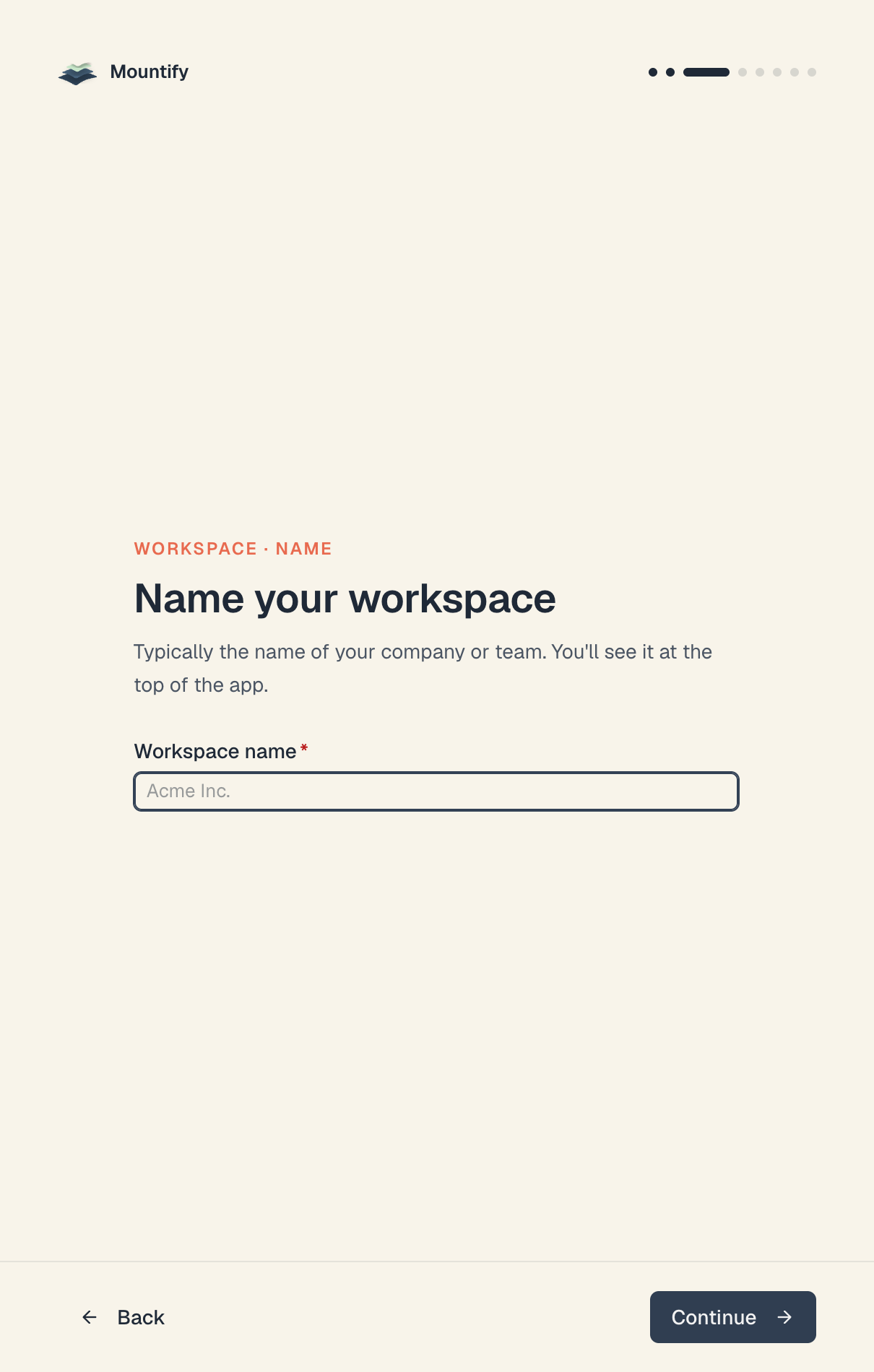
The Name your workspace screen — the one question here that genuinely matters.
- In Workspace name, type your business’s name (for example
Iris Salon). - Press Continue.
Rules and errors:
- Minimum 2 characters, maximum 100. Empty or one character gives “Please enter a name (at least 2 characters)”.
- If you already have a workspace with exactly that name: “You already have a workspace with this name”.
- You’ll see this name at the top left of the app and in the switcher list. Rename it any time from Settings → Workspace settings.
8. What kind of business is it
Eight options: Beauty & hair, Barbershop, Fitness & sport, Wellness & spa, Health & clinic, Rentals & venues, Classes & education, Something else.
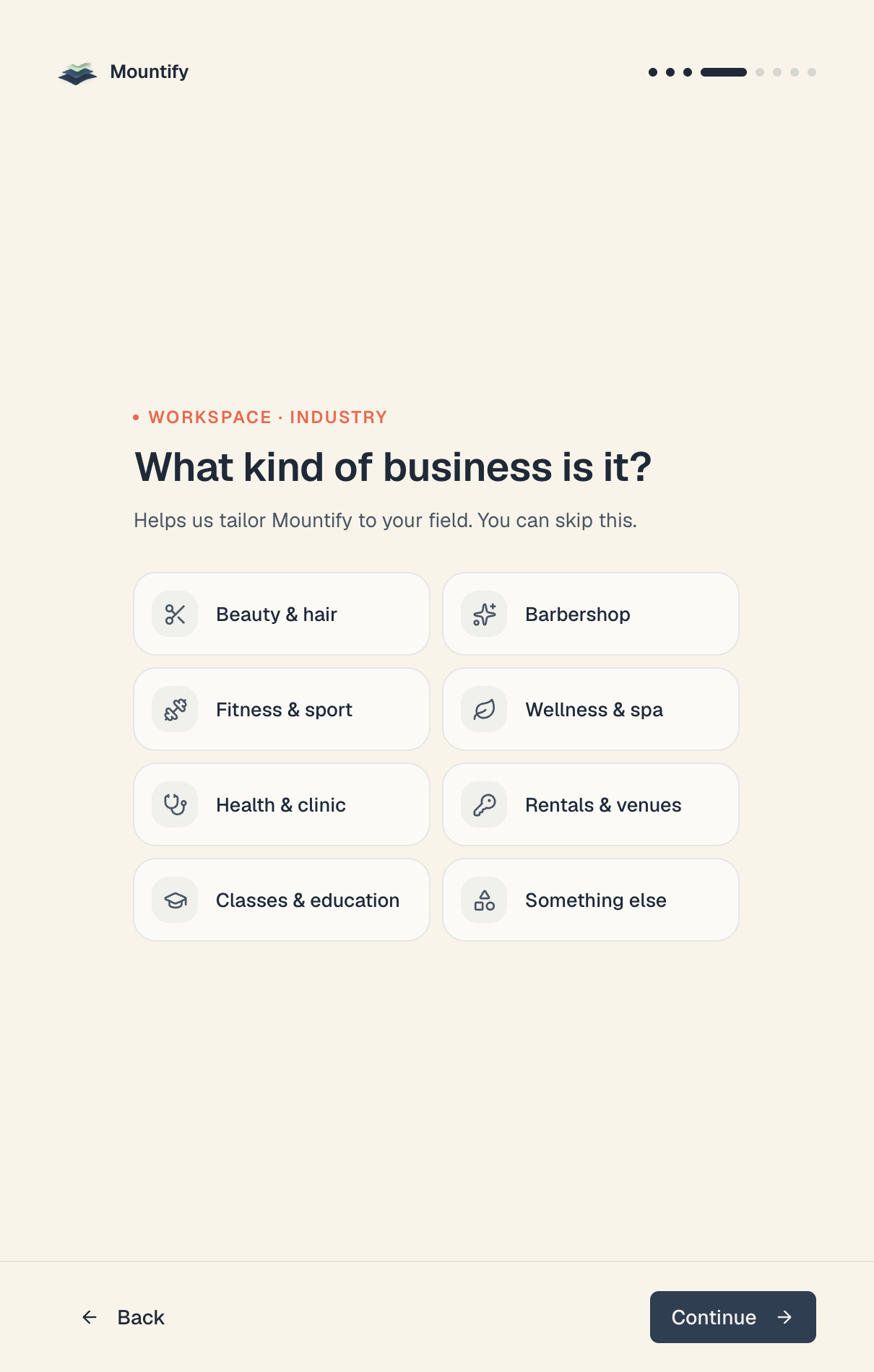
This answer helps Mountify understand what kind of business it’s serving — it does not pick your board preset for you. You’ll choose the ready-made services and resources in a moment, in the new-board wizard. You may continue without choosing.
9. Where the business is based
A country picker.
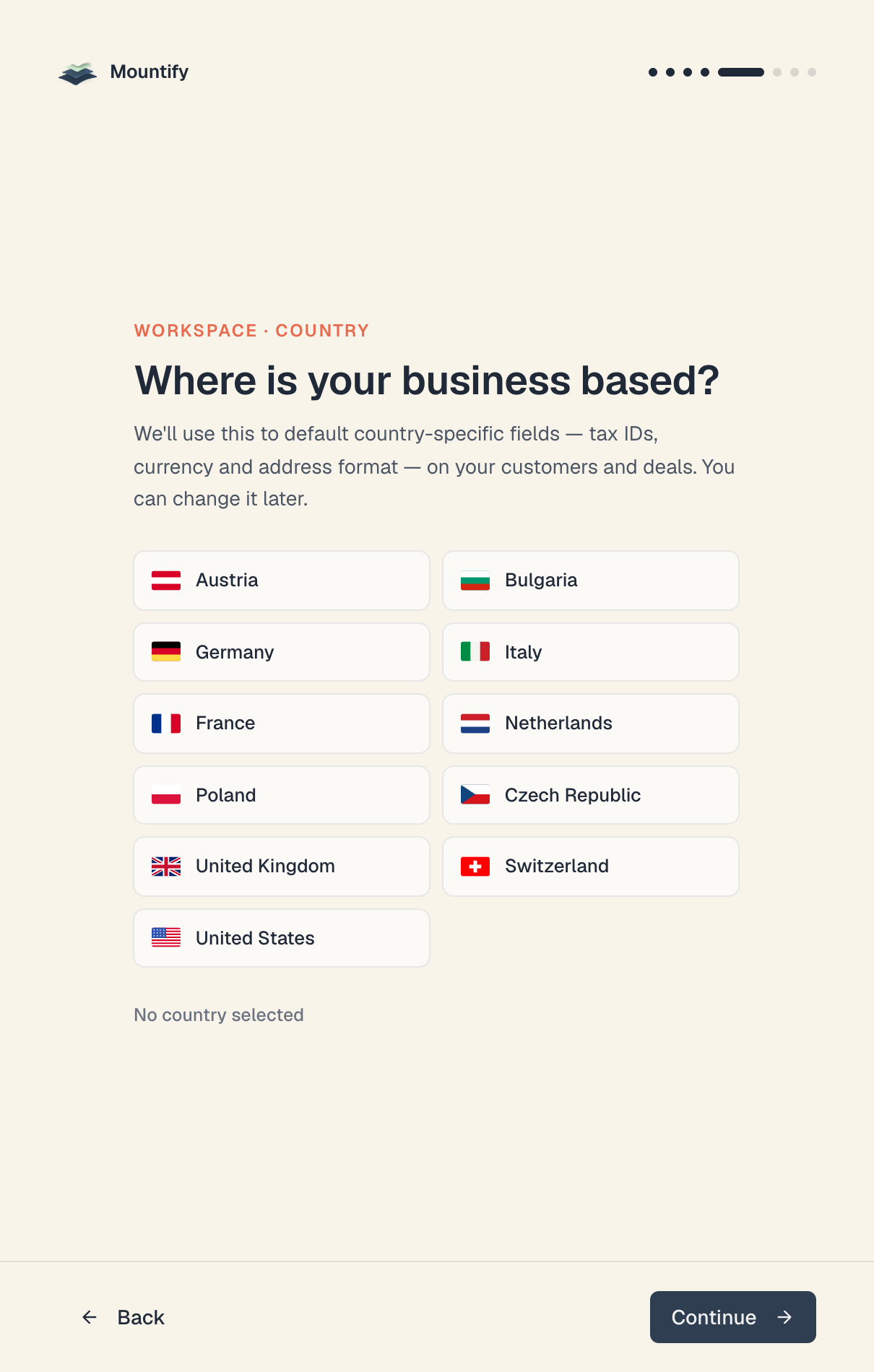
The country is the default for country-specific fields — tax IDs, currency, address format. It also carries over to the boards you create afterwards, where it decides which public holidays get marked on the schedule. There’s an explicit Skip for now button; press it and “No country selected” is recorded.
Tip: pick the country here. Boards you create afterwards inherit the workspace country — the board’s own settings page has no country field.
10. How many people are on your team
Five options: Just me, 2–5 people, 6–10 people, 11–20 people, 20+ people.
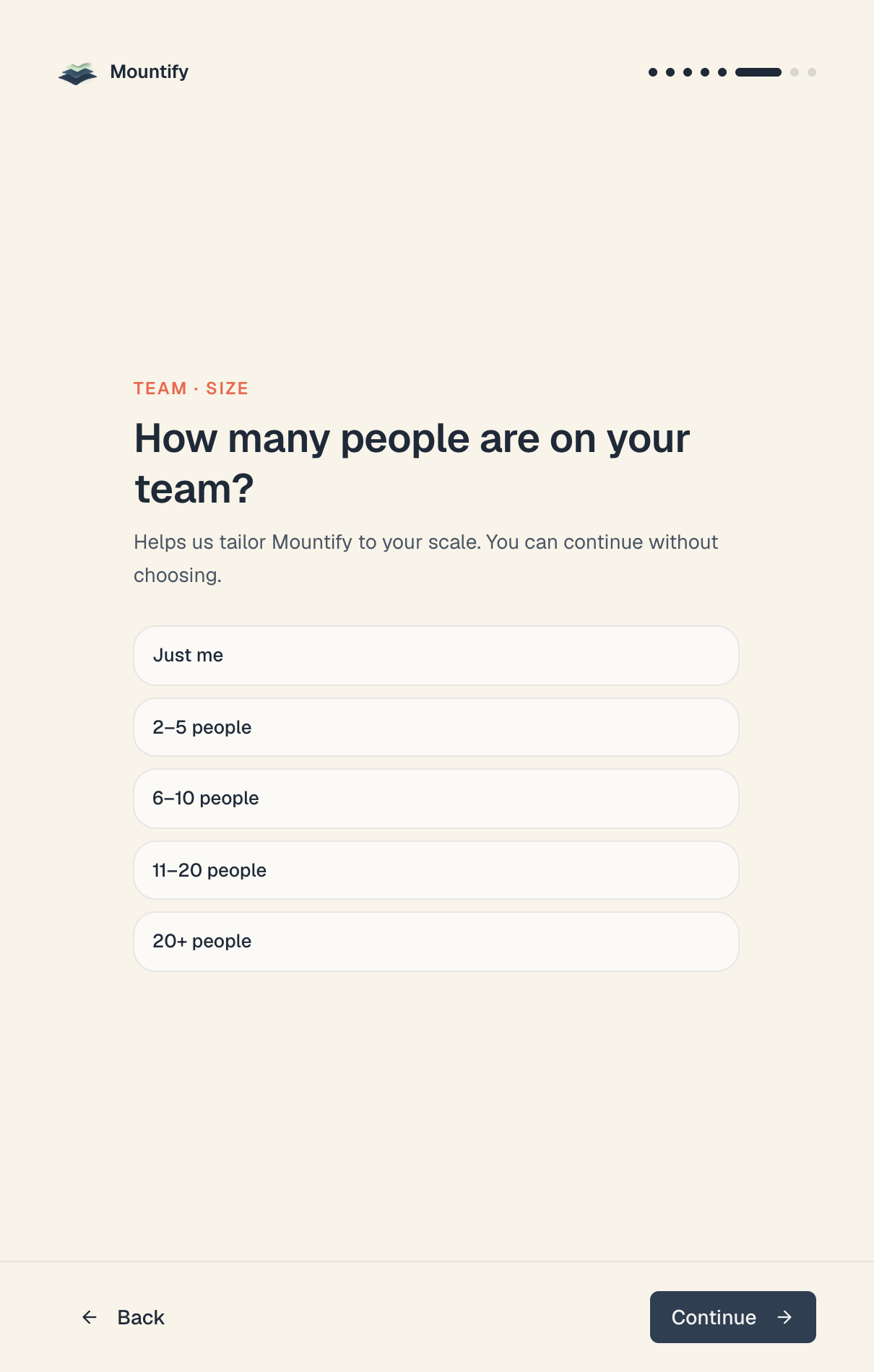
Informational. It doesn’t set limits and doesn’t buy spots — your bookable-spots limit comes from your plan. You may continue without answering.
11. How you take bookings today
Pen & paper, Google Calendar / spreadsheet, Instagram / phone / DMs, Another booking app, I’m just starting out, Something else.
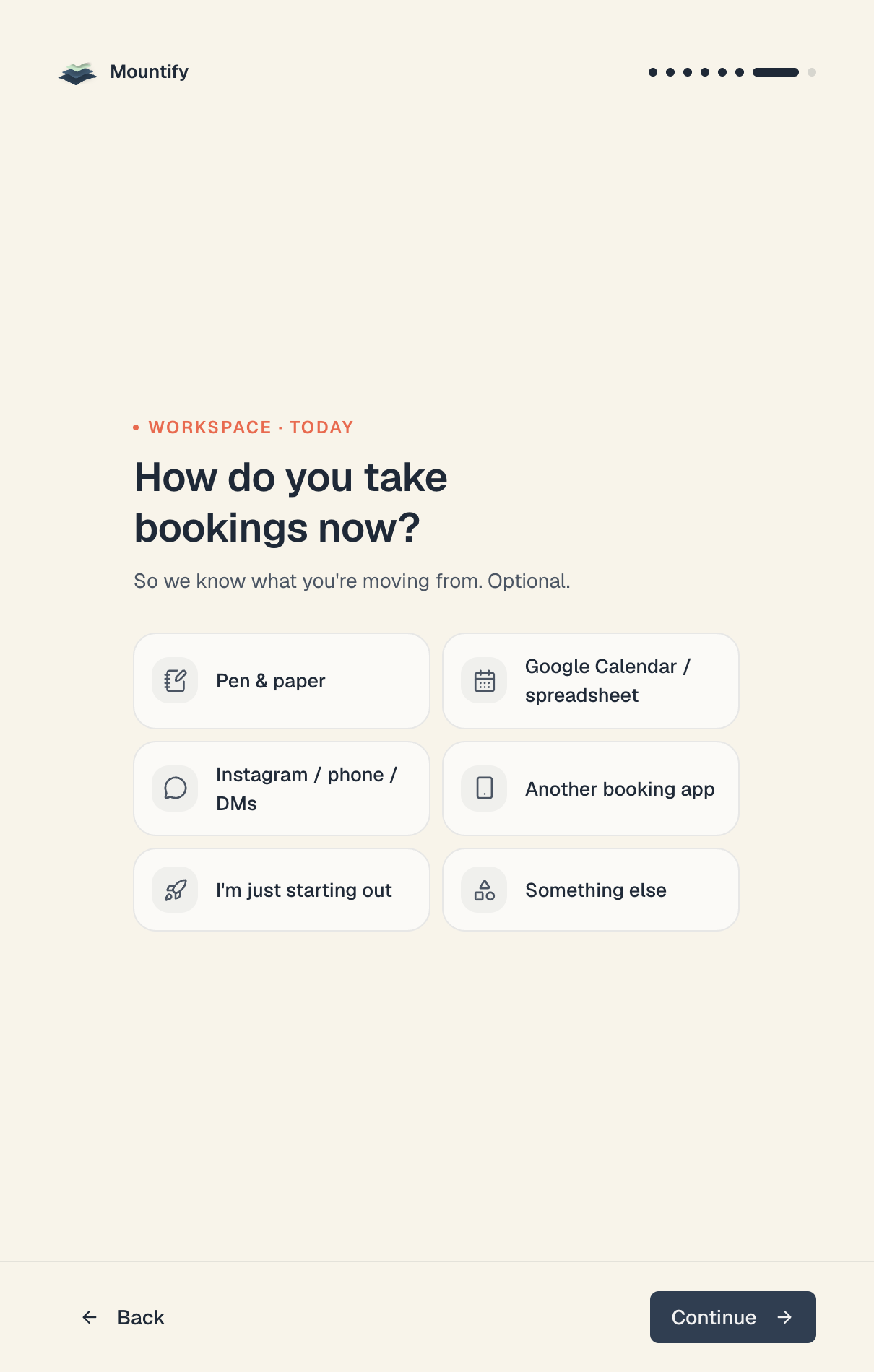
Optional.
12. How you heard about us — and creation
The last question: Google / search, Social media, A friend or colleague, An ad, Blog / article / video, Somewhere else.
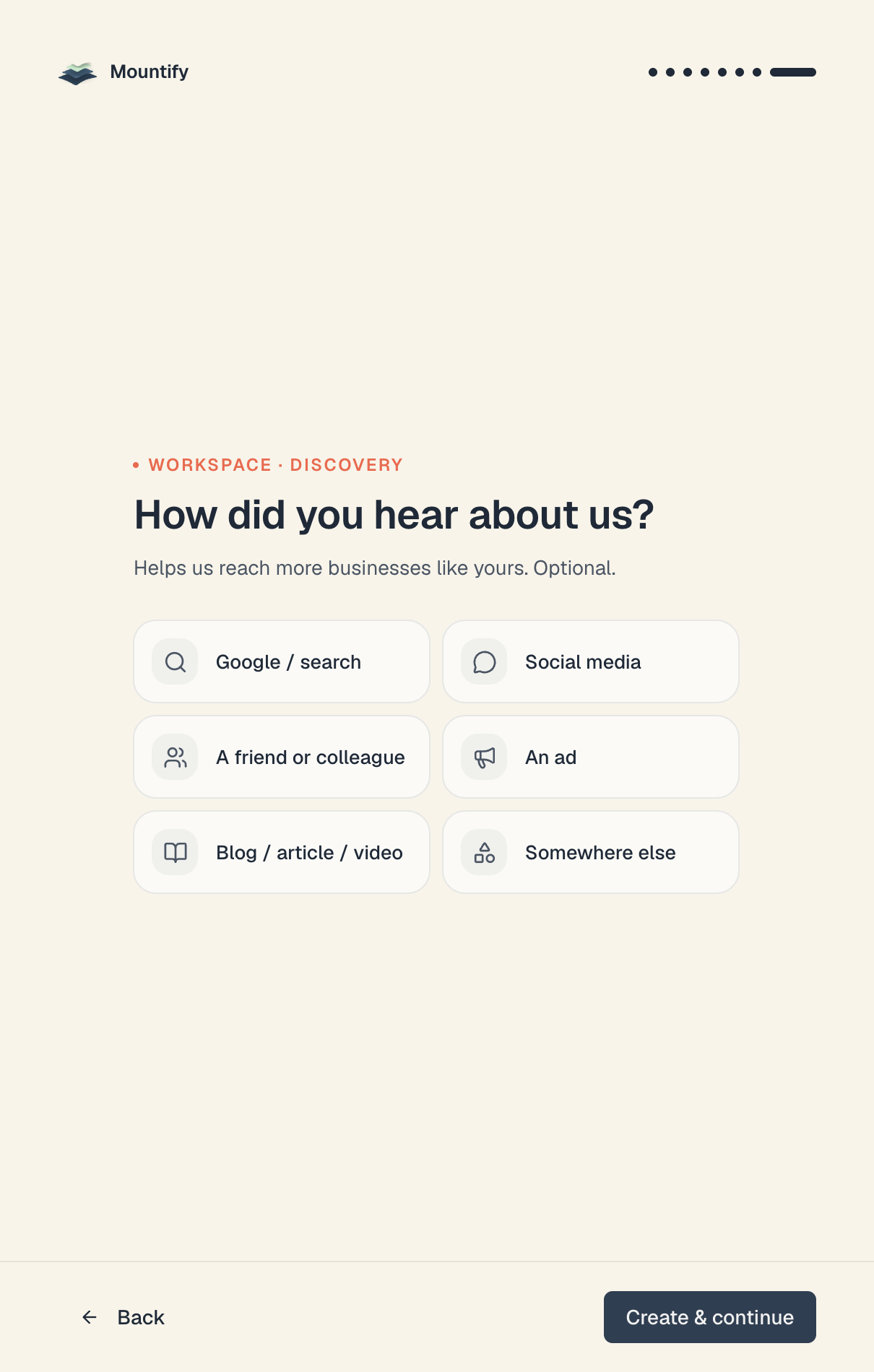
The button is no longer Continue but Create & continue. Here’s what happens when you press it:
- The workspace is genuinely created — with the name from step 7 and the answers from 8–12.
- Your trial starts: 14 days with everything the Pro plan can do, no card.
- You enter the app and the new board wizard opens immediately.
Careful: the workspace is created only on that last button. Close the browser on step 9 and nothing is saved except your language and your name — the questionnaire simply starts over.
If you already have a workspace
When you open the questionnaire with a workspace that already exists (to create a second one, say), the first step shows Exit instead of Back — it returns you to your workspace without creating anything.
A second workspace gets no trial. The free 14 days are granted once per person, on the first workspace. The second one is created straight into Expired and asks for a plan before it opens. See Trial & going live.
What a workspace is (and why it isn’t a board)
- The workspace is the business. The team and permissions, the subscription and the limits hang off it.
- A board is one bookable place inside it: its own schedule, its own services, its own public page, its own currency and time zone.
One workspace with one board is the normal setup for the vast majority of businesses. A second workspace is only needed for a genuinely separate business with separate billing and a separate team — and it’s billed separately. The decision table is in Workspace, board, location.
Troubleshooting
| What you see | What to do |
|---|---|
| The code never arrives | Check spam and promotions. Wait out the Resend code in Ns countdown and press Resend code. Also check you didn’t mistype the address — in that case just start over with the right one. |
| Sign in with this email instead | That email already has an account. Follow the link and sign in with your password; if you’ve forgotten it, use Forgot password? on the sign-in screen. |
| Passwords don’t match | The two fields differ. Retype them — by hand is safer than pasting. |
| ”Too short — use at least 8 characters.” | The password is under 8 characters. |
| ”Please enter a name (at least 2 characters)“ | The workspace-name field is empty or one character. |
| ”You already have a workspace with this name” | Pick a different name — two workspaces can’t share one. |
| I closed the tab during code verification | Start registration again from Create account. The code from the old email no longer works. |
| I registered but my colleague’s invitation didn’t apply | Open the link from the invitation and see Invite your team. If you signed in with a different address you’ll see “This invitation is for a different account” — sign out and sign in with the invited address. |
Common questions
Do I need a card to register? No. The trial asks for no payment details.
Can I change the email I sign in with? Yes, yourself, from your personal profile. No administrator can change it for you. See Change your sign-in email.
Can I skip the questions? Language, first and last name, and workspace name are required. The other four (industry, country, team size, how you heard about us) will let you continue without an answer; the country step has an explicit Skip for now.
Can I rename the workspace later? Yes, any time — Settings → Workspace settings.
I created the workspace but not the board. Did I lose anything? No. The workspace exists; the new-board wizard reopens from Boards → New board.
What’s next
- The setup wizard — the new-board wizard that opens right after this.
- Tour of the admin — so you never have to hunt.
- Go live in one evening — from an empty board to a first booking.
- Trial & going live — what you get for 14 days and what happens after.