Start your trial
What the free trial includes and what happens when it ends.
Every new Mountify workspace starts with a 14-day free trial at Pro level — the biggest plan. No card is asked for, no payment details are entered, and nothing is charged until you pick a plan yourself. The trial is granted once per account.
1. Exactly what you get
| What | How much / how |
|---|---|
| Length | 14 days from the moment the workspace is created |
| Access level | Pro — 15 bookable spots, 3 locations, every feature except white-label and API |
| Card | not requested — not at sign-up, not later |
| Charge | 0 — you are only charged after you pick a plan and go through checkout |
| Bookings | real ones: publish your page and take actual clients |
| Trial on a second workspace | no — see §3 |
So you can build the whole thing: a board, services, specialists, locations, packages, group classes, loyalty, banners, connect online payments and work with real clients.
2. Where you see how much is left
- In the left rail, go down to the Settings icon.
- Choose Workspace settings.
- Click the Subscription & billing tile.
In the side panel, under Current plan, you get:
- a Trial badge;
- “N days left in your trial”;
- a progress bar with “Day X of 14” and “Ends {date}” underneath;
- an After your trial block — what you’ll pay if you continue with the selected plan.

On top of that, a thin strip runs under the top bar:
- for most of the trial — a light strip reading “N free days left” with an Upgrade button;
- for the last 3 days it turns into a warning: “Only N days left in your trial — pick a plan to keep bookings running”.
The whole team sees the strip, but only someone with the Manage workspace settings permission can pick a plan. Everyone else reaches the page and sees “Read-only — you can’t manage the subscription.”
3. One trial per account, not per business
The trial is recorded against the account that creates the workspace. Which means:
| Situation | What the new workspace gets |
|---|---|
| Your first workspace | 14 days of Pro, status Trial |
| A second (and any later) workspace from the same account | no trial — it starts as Expired and you must pick a plan right away |
| A workspace created by another person who hasn’t used their trial | 14 days of Pro |
A second workspace is created from the initials tile at the bottom of the left rail → Switch workspace → Create workspace. The menu itself says “A separate business — its own boards, team & billing.”
Careful: that second workspace opens already locked and the strip will say “Your trial has ended — bookings are paused. Pick a plan to continue.” That’s expected — there never was a trial there. If you only want a second salon rather than a separate business, create a second board in the same workspace — that’s free. See Workspace, board, location.
4. What you can and can’t do during the trial
You can do everything Pro does. There are just two quirks:
- Add-ons are drafts. If you switch an add-on on during the trial (say “Extra bookable spot × 2”), it is saved, shown in the panel and carried into checkout — but it does not raise your real limit until you pay. Your real trial limit is Pro’s: 15 spots, 3 locations.
- No invoices. No payment means no invoice. Your first invoice appears (in the Stripe portal) after your first payment.
5. How to move to a paid plan
- Open Settings → Workspace settings → Subscription & billing.
- At the top, choose the cycle: Monthly or Yearly (badge 2 months free).
- Click the card of the plan you want — Start, Growth or Pro. The chosen card gets outlined and its button reads Selected. The Pro card carries a Your trial plan badge.
- Check the side panel: Your limits and After your trial → Total.
- Press the big Continue with {plan} — {price} button.
- Stripe’s secure page opens. There you enter a card and a billing address; if you’re VAT-registered you can add a VAT number. Promo codes are entered there too.
- After a successful payment you land back in Mountify. For a few seconds the panel says “Updating your subscription…”, then the badge turns Active.
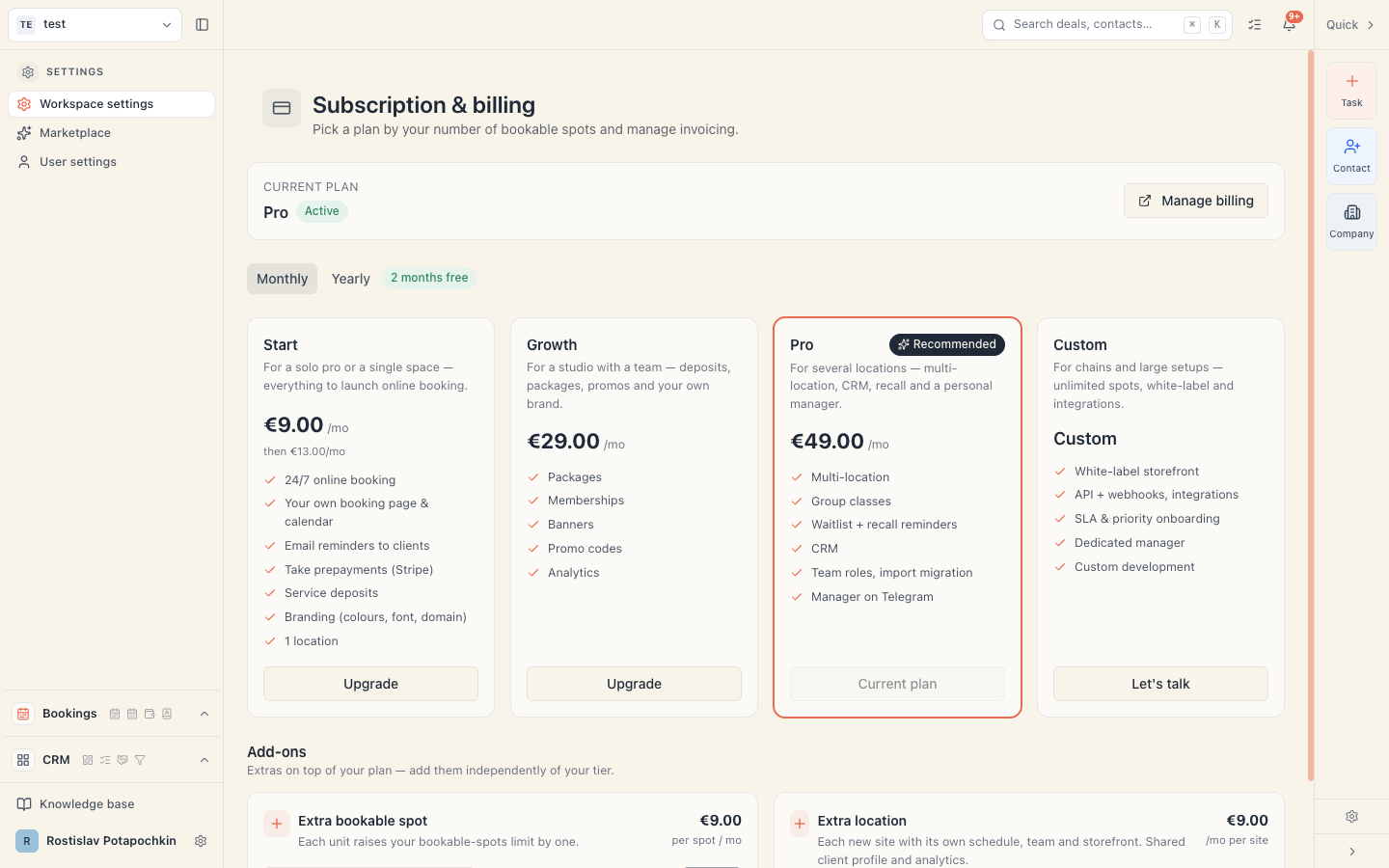
You don’t have to wait for the trial to run out — you can pay on any day. The new paid period starts from the payment.
6. What happens when the trial ends
- Once a day (around midnight) a sweep moves lapsed trials into the Expired state.
- Mountify sends no email about it. The only warning is the in-app strip and the countdown in the panel.
- Your public booking page stops working — the client sees “This page is temporarily unavailable”.
- Every board is replaced by a locked screen reading Your trial has ended with a Choose a plan button.
The full picture (and what keeps working) is in What happens if the subscription stops.
7. None of your work is lost
Boards, services, resources, locations, clients, bookings, payments, reviews, packages — everything stays intact both when the trial expires and when you pay. Picking a plan only opens or locks access; it never deletes data.
The one thing to check if you buy a plan smaller than Pro: bookable spots. If you built 8 specialists during the trial and move to Start (1 spot), the system switches off the newest resources by itself to fit the cap. See Change your plan.
8. Common questions
Is a card required for the trial? No. Nowhere.
Can I extend the trial? Not from the app. Contact support — extensions are applied manually by our team.
Do client card payments work during the trial? Yes, if you connect Stripe for the board. That’s a separate connection from your subscription — see Connect Stripe.
If I pay on day 5, do I lose the other 9 days? The paid period starts from the payment. If you’d rather, wait until the last day — access is identical either way.
Is the trial per workspace or per board? Per workspace. Every board inside it shares the same trial.
Will you charge me automatically after 14 days? No. With no card on file we can’t. A subscription only starts once you go through checkout yourself.
9. Troubleshooting
| What you see | Why | What to do |
|---|---|---|
| A new workspace says “Your trial has ended” on day one | This account already used its trial | Pick a plan, or create a board in your existing workspace instead |
| No countdown strip at all | The subscription is Active — the strip is hidden then | Check the badge in the panel |
| “0 days left” but everything still works | Expiry is processed by a nightly sweep | Within a few hours the state will flip to Expired |
| The panel shows “Updating your subscription…” and never stops | Stripe’s confirmation is delayed | Wait 45 seconds and reload; if nothing changes see Payment & invoices |
| An add-on switched on during the trial didn’t raise the limit | Trial add-ons are drafts | It activates and starts billing once you pick a plan |
What’s next
- Plans & billing — prices, limits and what each plan includes.
- What happens if the subscription stops — the five states and their consequences.
- Change your plan — moving up or down a tier.
- Monthly or annual, and VAT — the numbers before your first payment.