Plans & billing
How plans are priced, add-ons, managing payment and invoices.
Your Mountify subscription lives on one page — Subscription & billing. That is where you pick a plan, add extras, see your limits and go to checkout. The price depends on one thing: how many bookable spots you need. Bookings, clients, services and boards are unlimited on every plan.
Important: this page is about your subscription to Mountify. It has nothing to do with the online payments you take from your clients — those are set up separately, per board, in Online payments (Stripe).
1. Where the page is
- In the left rail, go down to the Settings icon.
- Under the Workspace group, choose Workspace settings.
- On the Settings page, click the Subscription & billing tile.

Shortcut: click the tile with your business initials at the very bottom of the left rail and choose Billing. The same menu prints your current plan under the business name.
The subscription belongs to the workspace — one subscription covers all of your boards. If you run two separate workspaces, each has its own subscription and its own card.
2. What you are actually paying for — “bookable spots”
The plan is not priced by staff count, booking count or number of boards. It is priced in bookable spots: every active unit that takes appointments — a person (specialist), a room, a chair, a court, a piece of equipment.
Three facts that save money and confusion:
- Only active resources count. An archived or switched-off resource takes no spot.
- A resource with a stock count of 4 (say four identical courts kept as one resource) uses 4 spots.
- The limit covers the whole workspace, not one board. Two boards with 3 specialists each = 6 spots.
The full explanation (and exactly what counts) is in Your plan’s bookable-spots limit.
Users are free. However many people you invite to the team, it does not change the price — you pay only for the spots that take bookings. See Does adding a teammate cost extra?.
3. The three plans and Custom
| Plan | Monthly | Yearly | Bookable spots | Locations |
|---|---|---|---|---|
| Start | €13 | €130 (≈ €10.83/mo) | 1 | 1 |
| Growth | €29 | €290 (≈ €24.17/mo) | 5 | 1 |
| Pro (“Recommended”) | €49 | €490 (≈ €40.83/mo) | 15 | 3 |
| Custom | “Custom” | “Custom” | unlimited | unlimited |
All prices are in euros and exclude VAT — VAT is added on top at checkout. Details: Monthly or annual, and VAT.
Custom is not bought from the page. Below the cards a strip carries a Let’s talk button that opens an email to the sales team.
4. What each plan includes
Each plan card lists the headline items. Here is the same thing sorted by feature — and what happens when a feature is not on your plan:
| Feature | Start | Growth | Pro | Custom |
|---|---|---|---|---|
| 24/7 online booking, own page and calendar | ✔ | ✔ | ✔ | ✔ |
| Email confirmations and reminders | ✔ | ✔ | ✔ | ✔ |
| Deposits and prepayment (Stripe) | ✔ | ✔ | ✔ | ✔ |
| Branding of your page | ✔ | ✔ | ✔ | ✔ |
| Packages and client memberships | — | ✔ | ✔ | ✔ |
| Banners on the public page | — | ✔ | ✔ | ✔ |
| Loyalty and promo codes | — | ✔ | ✔ | ✔ |
| Group classes + waitlist | €12/mo add-on | €12/mo add-on | ✔ | ✔ |
| CRM (contacts, deals, campaigns) | €15/mo add-on | €15/mo add-on | ✔ | ✔ |
| Import from a file (migration) | — | — | ✔ | ✔ |
| White-label storefront, API + webhooks | — | — | — | ✔ |
| Locations (branches) | 1 | 1 | 3 | unlimited |
A locked feature does not vanish from the menu — it shows a Locked badge and an Upgrade plan link. What exactly locks, and how it looks: Plan limits and what gets locked.
Two words on the cards worth spelling out. The Start card lists “Branding (colours, font, domain)”: the domain is your page’s own address on book.mountify.eu — every board gets one, and you can change its last part. An external domain (for example
www.mysalon.com) can’t be connected yet (see Share your page). And “Memberships” on Growth means membership passes for your clients (e.g. “unlimited visits for a month”), not your subscription to Mountify.
5. Monthly or yearly
Above the cards is a Monthly / Yearly toggle with a 2 months free badge. The yearly price is 10 monthly instalments for 12 months of use.
If you are already on a paid plan, this toggle only changes the prices shown — it does not change your subscription. The real cycle change goes through the billing portal (steps in Change your plan).
6. Add-ons — when you don’t need a whole bigger plan
Below the plans there is an Add-ons section: “Extras on top of your plan — add them independently of your tier.”
| Add-on | Price | How it’s set | Which plans |
|---|---|---|---|
| Extra bookable spot | €7/mo per spot | stepper (0, 1, 2, …) | “On any plan” |
| Extra location | €9/mo per site | stepper | “On any plan” |
| Group classes | €12/mo | on/off switch | “Add-on on Start & Growth · included from Pro” |
| CRM+ & campaigns | €15/mo | on/off switch | “Add-on on Start & Growth · included from Pro” |
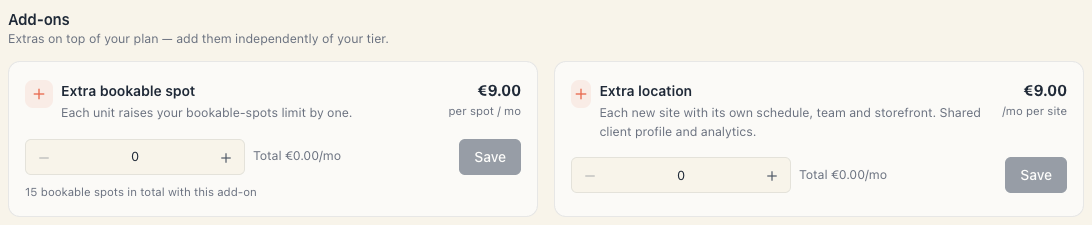
How they are actually bought (and why reducing one does not refund your card) is in Add spots & locations.
7. The side panel — the three numbers to watch
The panel on the right is the truth about your subscription. It has three blocks:
- Current plan — the plan name, a status badge (Trial / Active / Past due / Canceled / Expired) and one line under it:
- on trial: “N days left in your trial” plus a bar reading “Day X of 14” and “Ends {date}”;
- on a paid plan: “Renews on {date}” or “Ends on {date} — access stays until then”.
- Your limits — Bookable spots and Locations. When you have add-ons the figure reads “15 + 2 extra”. ∞ means no limit (Custom).
- What you pay (or After your trial) — the plan plus one line per add-on, with Total at the bottom. Under it: “All prices exclude VAT — Stripe adds it at checkout.”
At the very bottom of the panel is the action button: Continue with {plan} — {price} (while you are not paying yet) or Manage billing (once you are). If a payment fails it becomes Fix payment.
8. The legal documents before you pay
Right under the plan cards is a line: “By starting a paid subscription you accept our: Terms · Privacy Policy · DPA”. All three open in a new tab — read them before you pay.
9. Who can buy and change things
You need the Manage workspace settings permission. Without it the page still opens, but read-only: the buttons are disabled and the panel says “Read-only — you can’t manage the subscription. Contact an Owner or Admin.”
By default only Owner and Admin hold that permission. Details: Who can manage the subscription.
10. What this page does NOT do
- No invoice list. Invoices live in the Stripe portal — see Payment & invoices.
- No “pause”. A subscription is changed or cancelled; there is no pause anywhere in the product.
- It does not change your plan directly once you’re paying. The plan cards then take you to the Stripe portal.
- It takes no cut of your money. Money from bookings goes straight to your own account through your own Stripe connection — Mountify keeps no percentage.
- It is not per board. There is no separate plan for a separate board — one subscription, all boards.
11. Common questions
Can I try before paying? Yes — 14 days at full Pro level, no card. See Start your trial.
Is there a cap on bookings or clients? No. Only bookable spots, locations and file storage (1 GB on Start, 5 GB on Growth, 10 GB on Pro) are capped — see Plan limits and what gets locked.
Do I pay per employee? No. Signing in is free; you pay for active bookable spots.
Do I pay extra for a second board? No. Boards are unlimited inside one workspace. A separate workspace, however, is a separate subscription.
Why does the initials menu say “Pro plan” while I’m on a trial? The trial grants Pro-level capability and is stored as Pro. Your real state is in the side panel — the badge there will read Trial.
What happens if I stop paying? Your public booking page stops working and your boards get locked. It’s all in What happens if the subscription stops.
12. Troubleshooting
| What you see | Why | What to do |
|---|---|---|
| “Billing isn’t available yet. Please try again later.” | Billing isn’t switched on in the environment you’re using | Try later; if it persists, contact support |
| Buttons disabled, “Read-only …” underneath | The Manage workspace settings permission is missing | Ask an Owner or Admin — how it’s granted |
| Clicking a plan card selects nothing | On a paid plan the cards aren’t selectable — changes go through the portal | Change your plan |
| An error when you press Manage billing | There is no real Stripe subscription behind the row (e.g. a complimentary workspace) | The panel says “This workspace is on a complimentary plan — there’s nothing to manage in billing.” |
| After paying, the plan still looks old | Stripe’s confirmation arrives seconds later | The panel shows “Updating your subscription…” for up to 45 seconds; then reload the page |
What’s next
- Start your trial — 14 days of Pro with no card, and what happens after.
- Monthly or annual, and VAT — the numbers before you commit.
- Add spots & locations — add-ons instead of a whole tier.
- Plan limits and what gets locked — the two numbers and the locked features.